Here’s How You Can Remove Apps from Roku TV
In this article, I’ll explain how to remove or delete apps from your Roku TV or Roku streaming player. Roku provides users with an app management feature on their devices, which allows them to remove installed apps from the home screen.
Why Remove Apps from Your Roku Device?
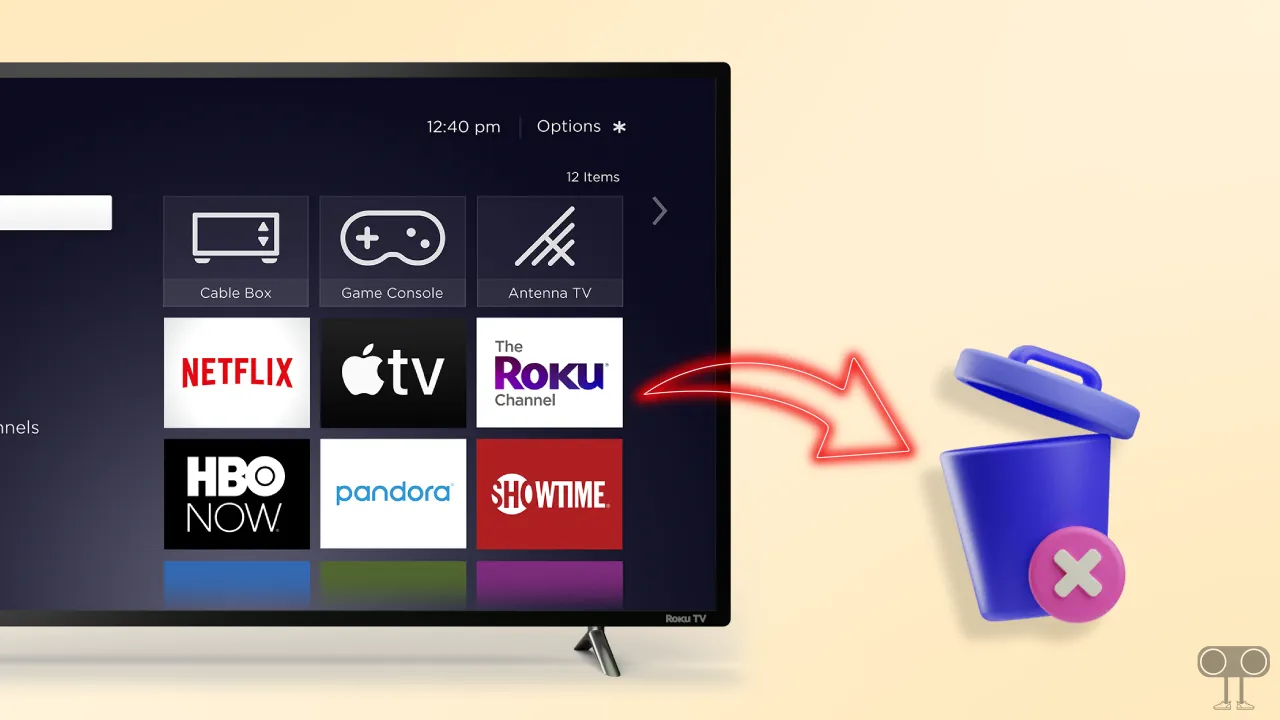
There are several reasons behind removing apps from your Roku device, such as decluttering your home screen, freeing up system resources, or personal preferences. However, if your Roku TV is lagging, removing unwanted apps is a good method.
Here’s How You Can Remove Apps from Roku TV
Before following the steps mentioned below, make sure your Roku TV or Roku player has the latest version update and that you are logged into your account. For the next steps, you will need the remote, so please ensure its batteries are working properly.
To delete an app from the Roku TV home screen:
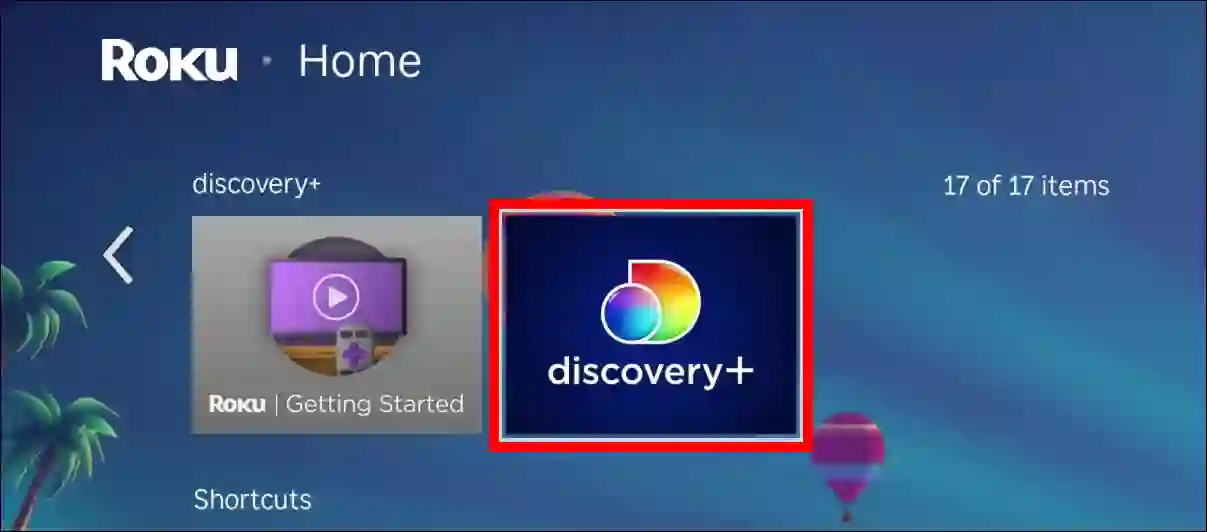
- Navigate to the Your Home Screen.
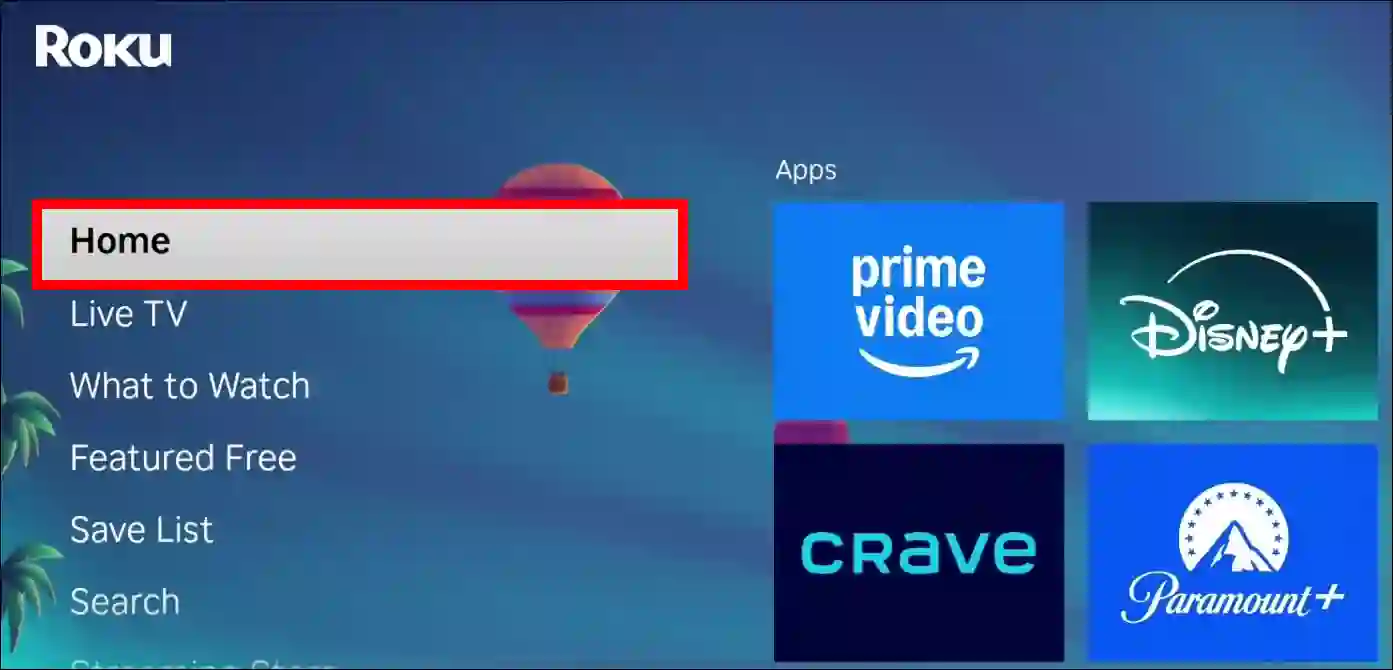
- Highlight an App You Want to Remove.
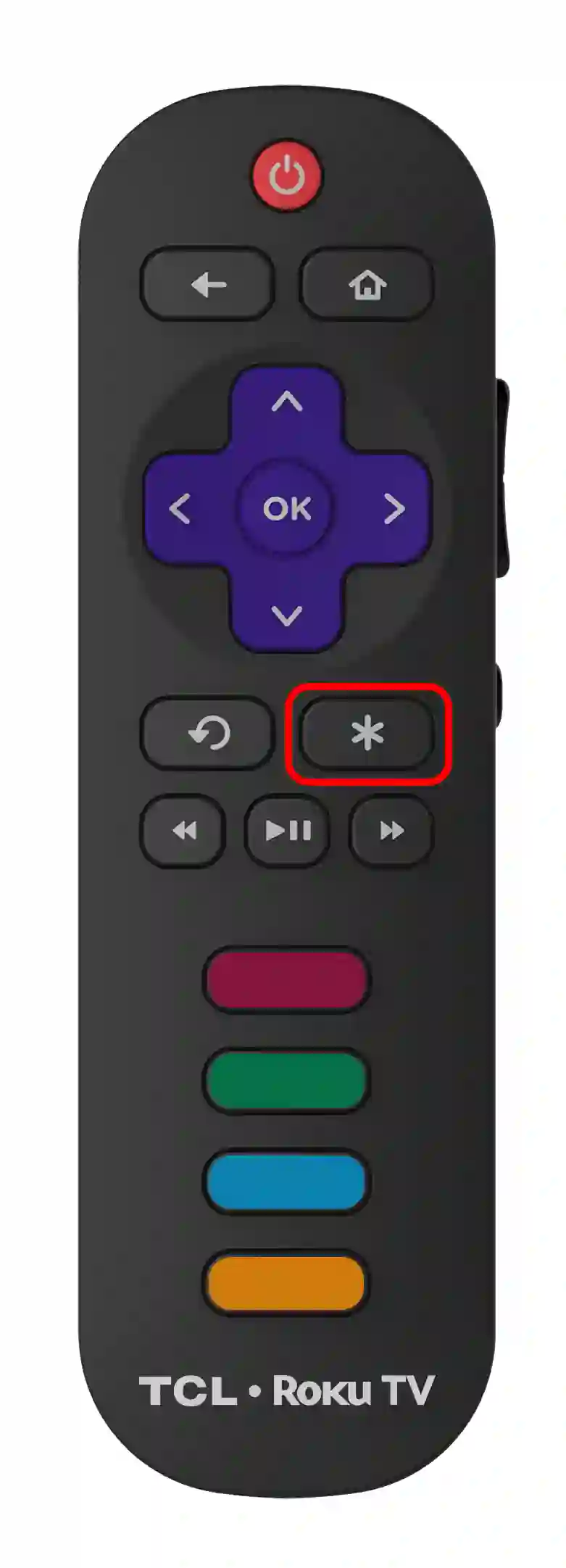
- Press the * Key (Asterisk/Star Key) on Your Remote to Open the Options Menu for the Selected App.
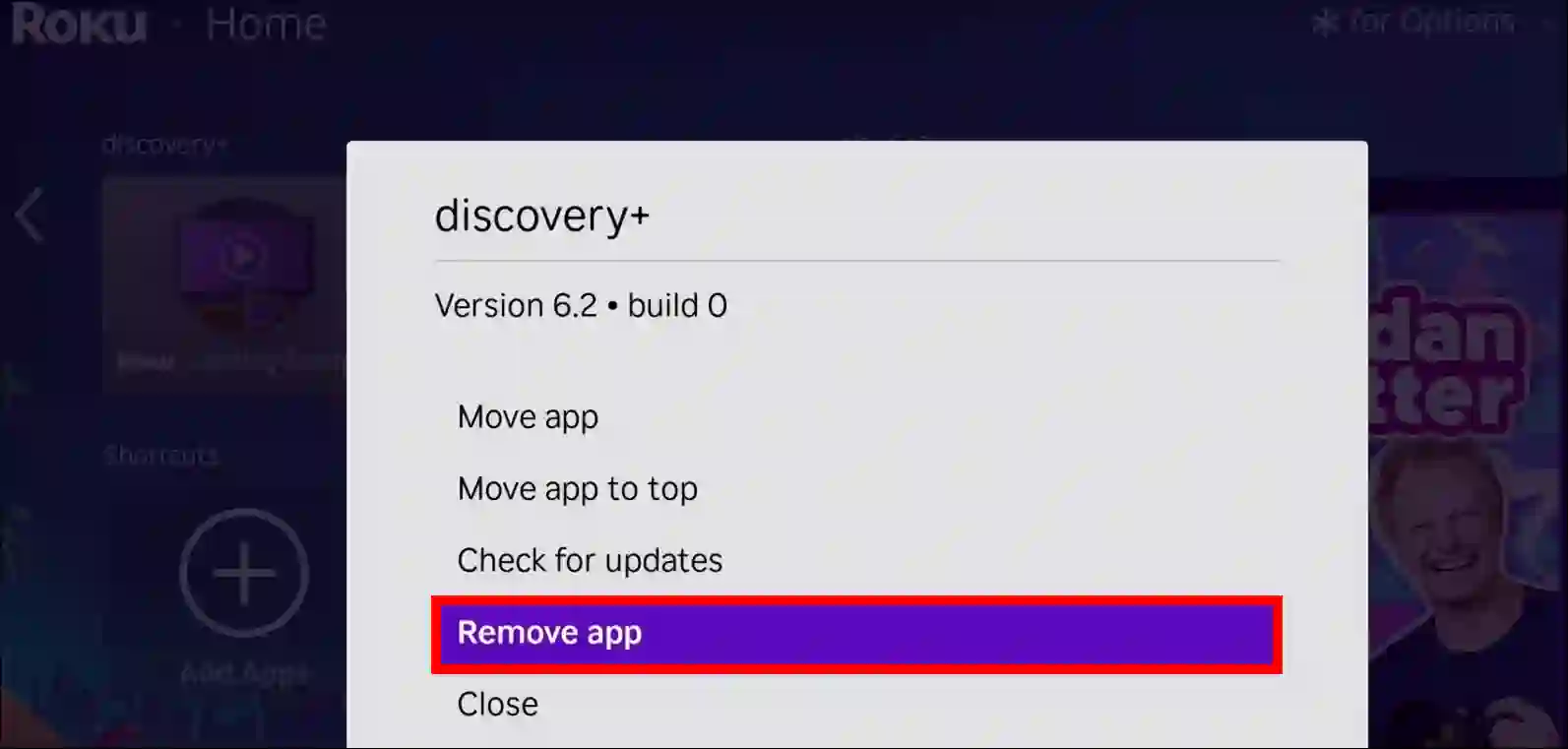
- Select Remove App.
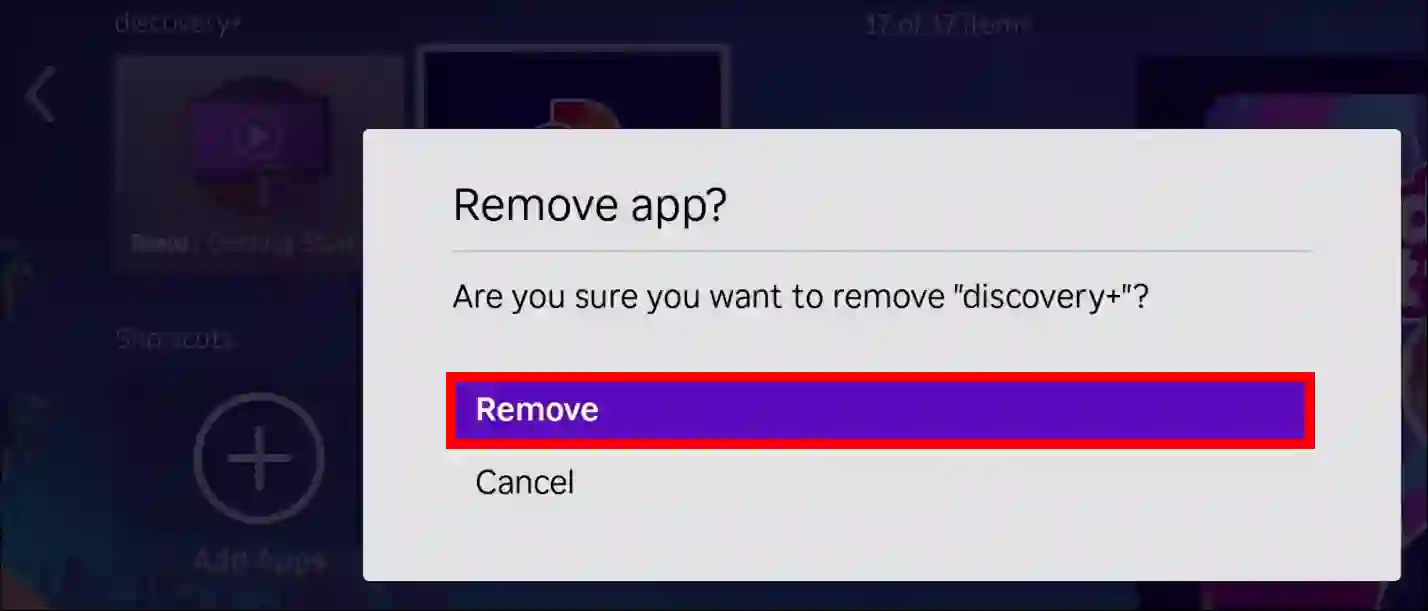
- To Confirm, Select Remove Option Again.
To remove apps using the Roku Channel Store:
- Go to the Roku Channel Store by Pressing on Streaming Channels.
- Now, Find the Channel You Want to Remove.
- Select an App and Press OK.
- Select “Remove Channel” and Press OK.
- Select “Remove” and Press OK to Confirm.
To remove apps using the Roku mobile app:
- Launch the Roku Mobile App on Your Smartphone.
Ensure your device is connected to the same Wi-Fi network as your Roku player or TV. - Select Devices from the Navigation Bar.
- Select the Apps on Roku Tab on the Roku Mobile App to View a List of Apps Installed on Your Roku Device.
- Tap and Hold an App to View More Information.
- Tap Remove and Confirm Your Decision.
That’s all! You’re done…
Also read: Setup and Play IPTV Channels on VLC Media Player Using GitHub’s M3U Playlist
FAQs
Q 1. What do I need to do to remove apps from Roku TV?
Answer – To remove apps from a Roku TV, go to the Home screen, select the app, press the * button on the remote control, and then select the “Remove app” or “Remove channel” option.
Q 2. Can I remove all apps from Roku TV at once?
Answer – No! There’s no way to remove all apps or channels from your Roku TV at once. You’ll need to remove each app individually.
Q 3. Can I reinstall apps from Roku TV after deleting them?
Answer – Yes, you can reinstall apps from your Roku TV after removing them. Simply go to the Channel Store, select the app, and then choose the “Add Channel” option.
I hope you found this article helpful and learned how to delete an app on Roku. If you have any questions related to Roku, please ask in the comments below. Feel free to share this article as well.