Instagram Message “Unsend” Button Not Working/Showing? Try These Fixes
Instagram users are suddenly reporting on Reddit and Twitter that the Unsend button for Instagram messages is not working. This problem is not limited to just a few users; rather, thousands of users are facing it. Don’t worry! In this article, I have shared how you can fix this issue.
Why is the Instagram message unsend option not working?
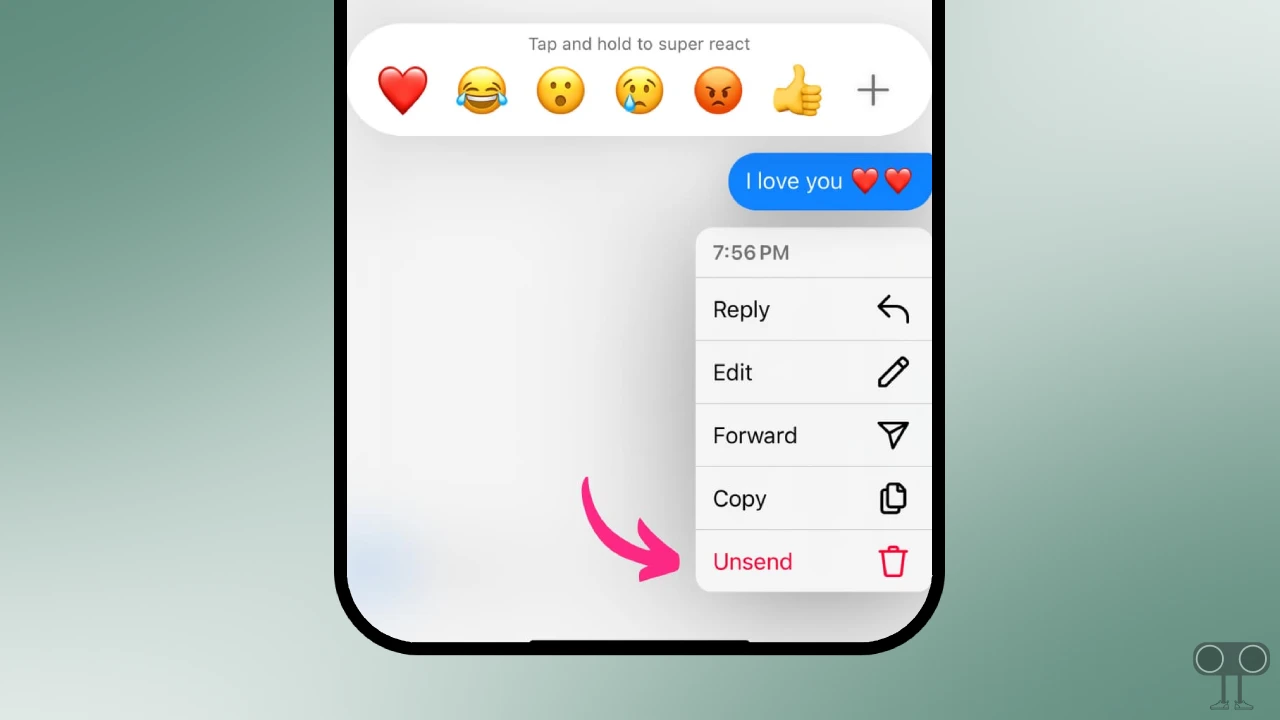
If the Unsend button in IG messages isn’t working or you can’t see the option, a few specific reasons could be causing this. These include a corrupted app cache, an outdated app version, account restrictions, temporary glitches, or bugs.
How to Fix Instagram Message Unsend Button Not Working/Showing Problem
1. Check Internet Connection
A working internet connection is required to send and unsend messages on Instagram. If your internet is slow or not working at all, the Unsend button will not work. Please ensure that your phone’s internet connection is working properly.
2. Clear Instagram App Cache (Android)
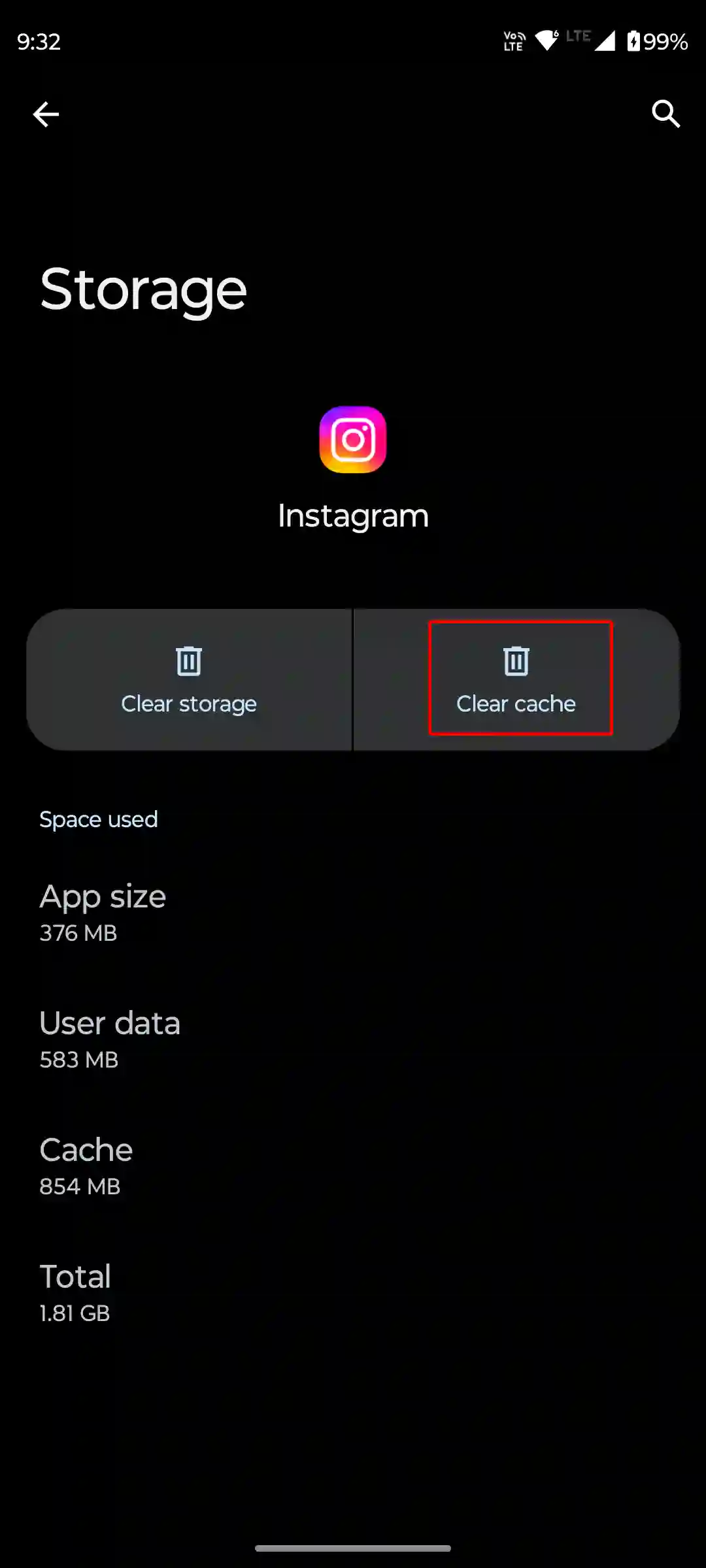
Sometimes a corrupted cache doesn’t allow features on Instagram to function properly, causing users to face a lot of problems. But you can easily resolve this issue by clearing the corrupted cache. All the necessary steps are mentioned below.
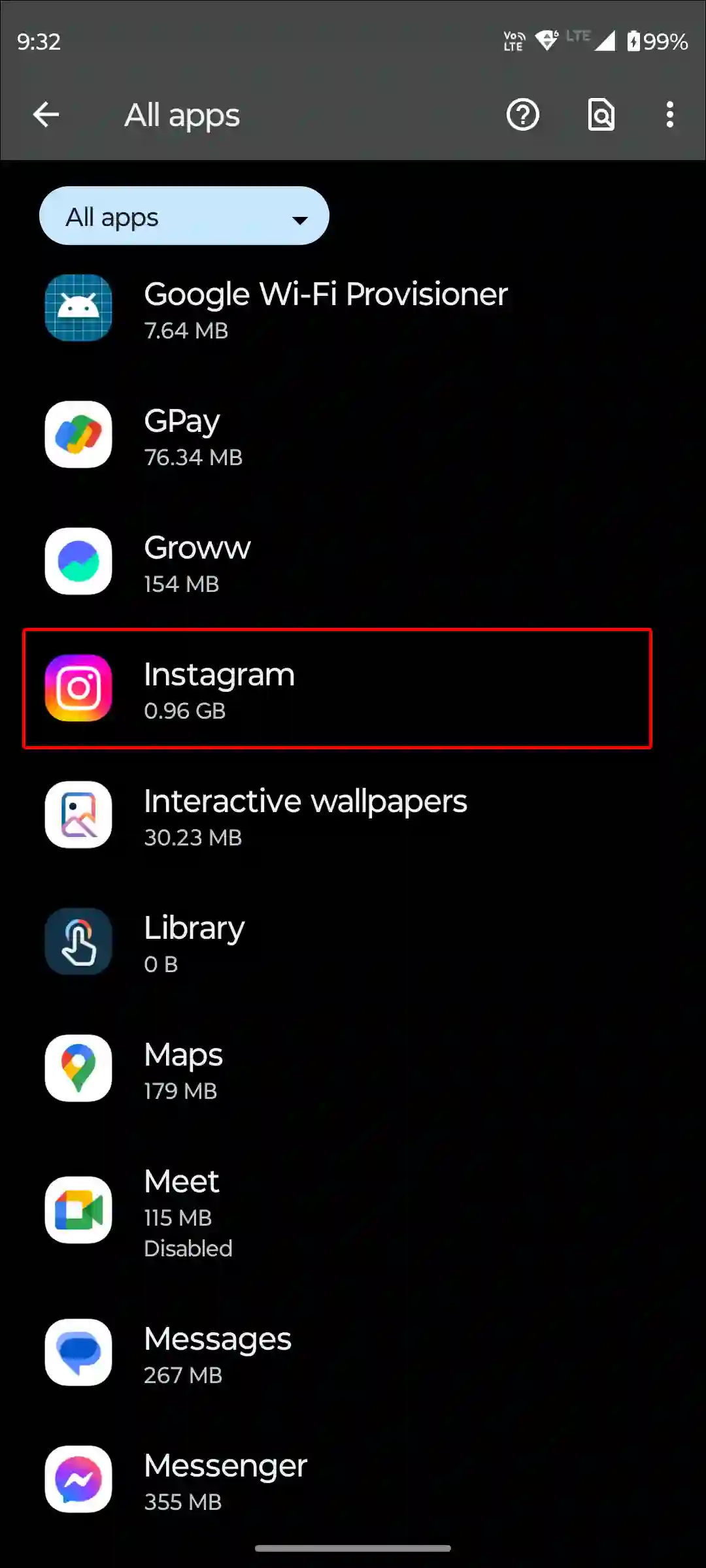
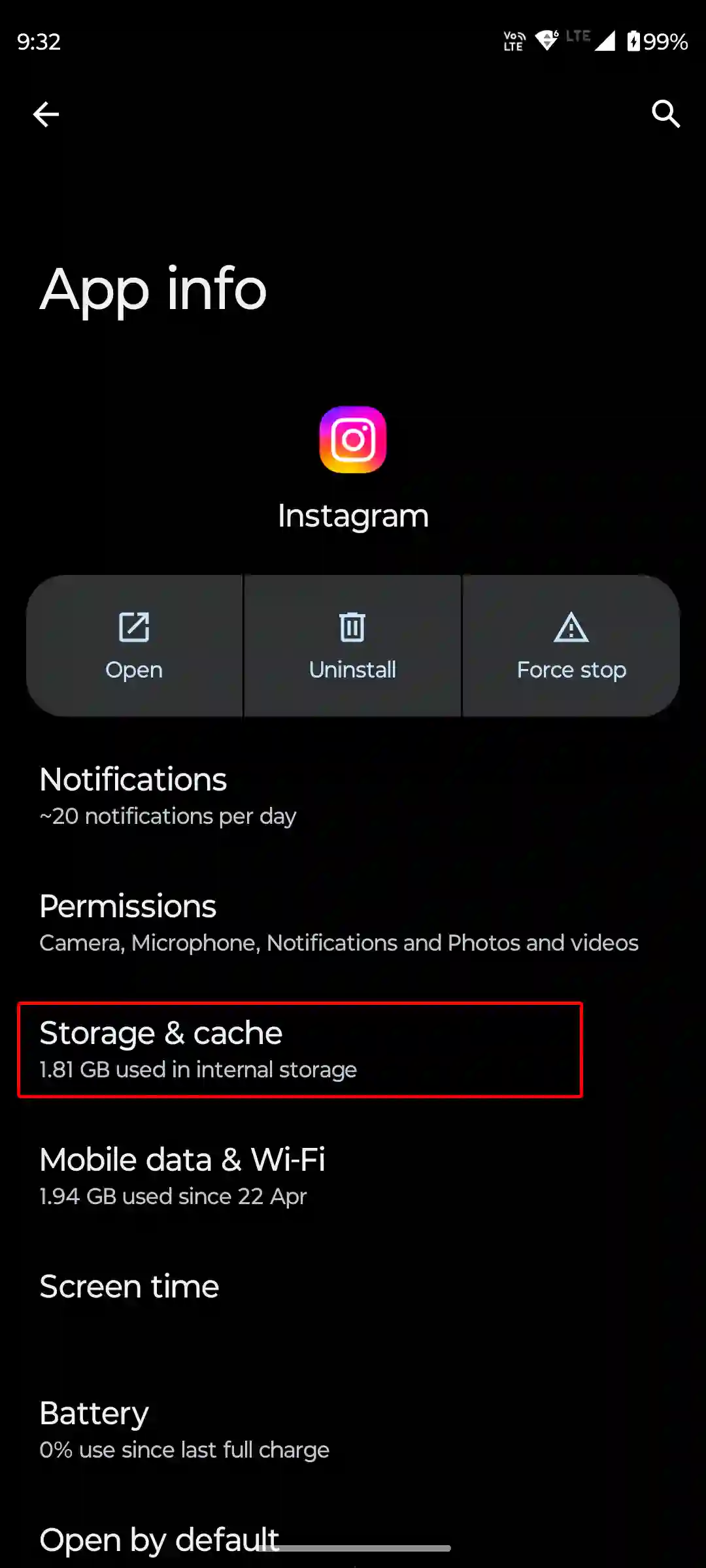
To clear Instagram cache on your Android phone:
- Open Settings on Your Phone.
- Tap on Apps > All Apps or Manage Apps.
- Find Instagram from the App List and Tap on Storage and Cache.
- Tap on Clear Cache.
3. Offload Instagram App (iPhone)
Unlike Android, there is no dedicated cache clear option in iOS or iPadOS. However, Apple offers an offload feature for users, which helps in removing outdated data of any app and installing fresh files.
For this, go to iPhone’s Settings > iPhone Storage > Instagram App > Offload App > Offload App to Confirm > Reinstall App.
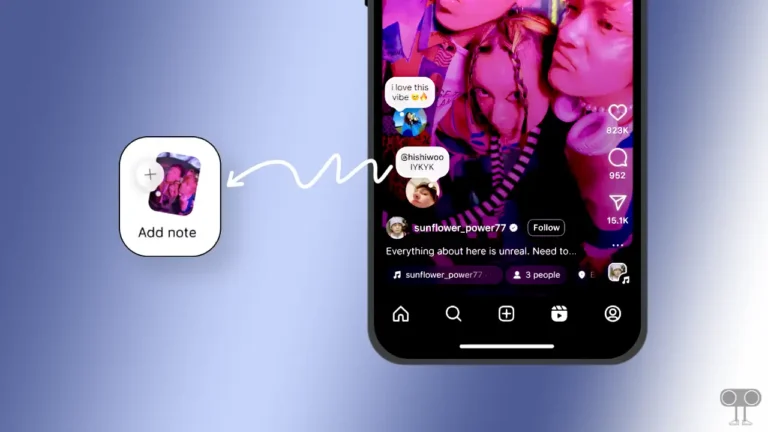
Also read: How to Change Instagram Notes’ Background Color
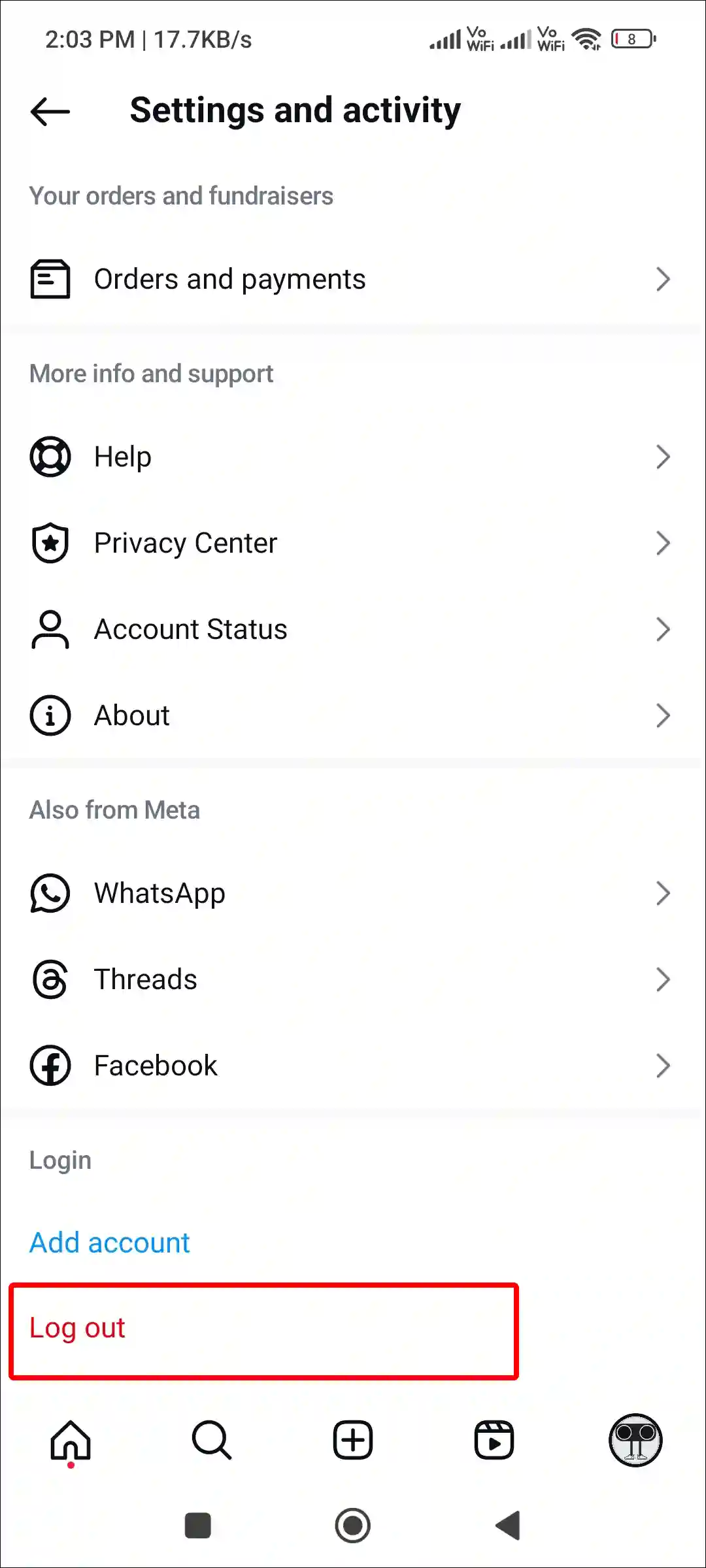
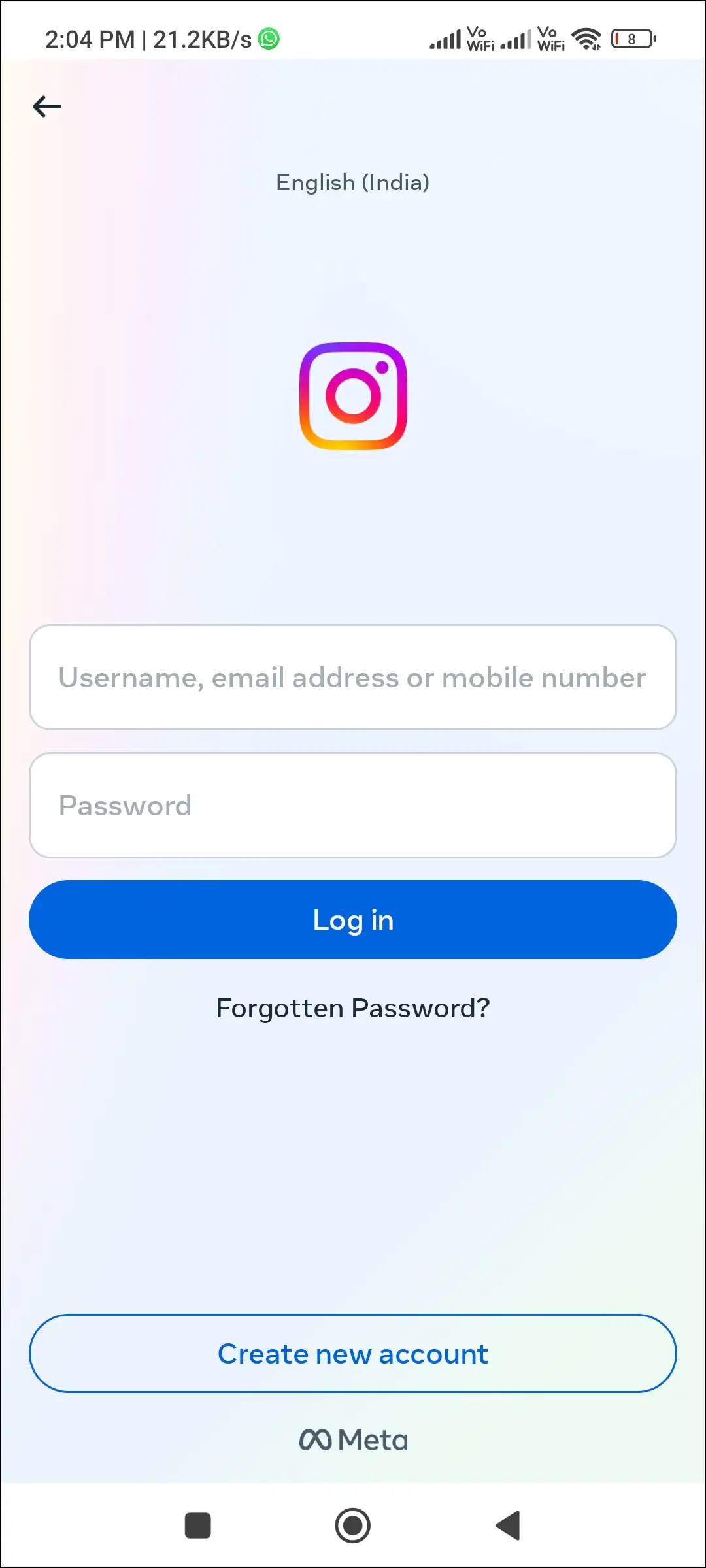
4. Log Out and Log In Back
Sometimes, issues with your Instagram account can cause features to stop working. Logging out and then logging back in can often fix the problem.
5. Update Your Instagram App
An outdated app sometimes does not function properly due to bugs. In such a case, you are always recommended to update the app to the latest version. If you are still using an outdated Instagram application, then quickly update it to the latest version using the links given below.
6. Reinstall Instagram App
If updating doesn’t fix the Instagram message unsend button or if the button is still missing, you now need to reinstall the Instagram app. This process removes old Instagram files from your phone and installs new ones.
To do this, uninstall Instagram from your phone, and then reinstall it from the Play Store or App Store. After that, log in to your account and check if the message unsend option is working.
Also read: How to Post Quietly on Instagram Without Notifying Followers
I hope this article was helpful to you and you learned how to fix the Instagram message unsend option not working. If you have any other questions about Instagram, feel free to ask in the comments below. Don’t forget to share this article.