
Oppo’s AI Editor Says “We are Experiencing High Demand. Please Try Again Later.”
Oppo offers an AI Editor feature in its phones, which serves as a hub for a wide range of AI tools. It offers advanced AI tools such as AI Recompose, AI Eraser, AI Portrait Glow, AI Perfect Shot, Enhance Clarity, Unblur, and Remove Reflections.
While the ColorOS Gallery comes with a built-in AI editor, using it requires an internet connection. Currently, I am using the Oppo Reno 14 Pro, which is based on ColorOS 16 and Android 16. When I started using the AI editor, instead of providing results, it frequently displayed this “We are Experiencing High Demand. Please Try Again Later.” error message.
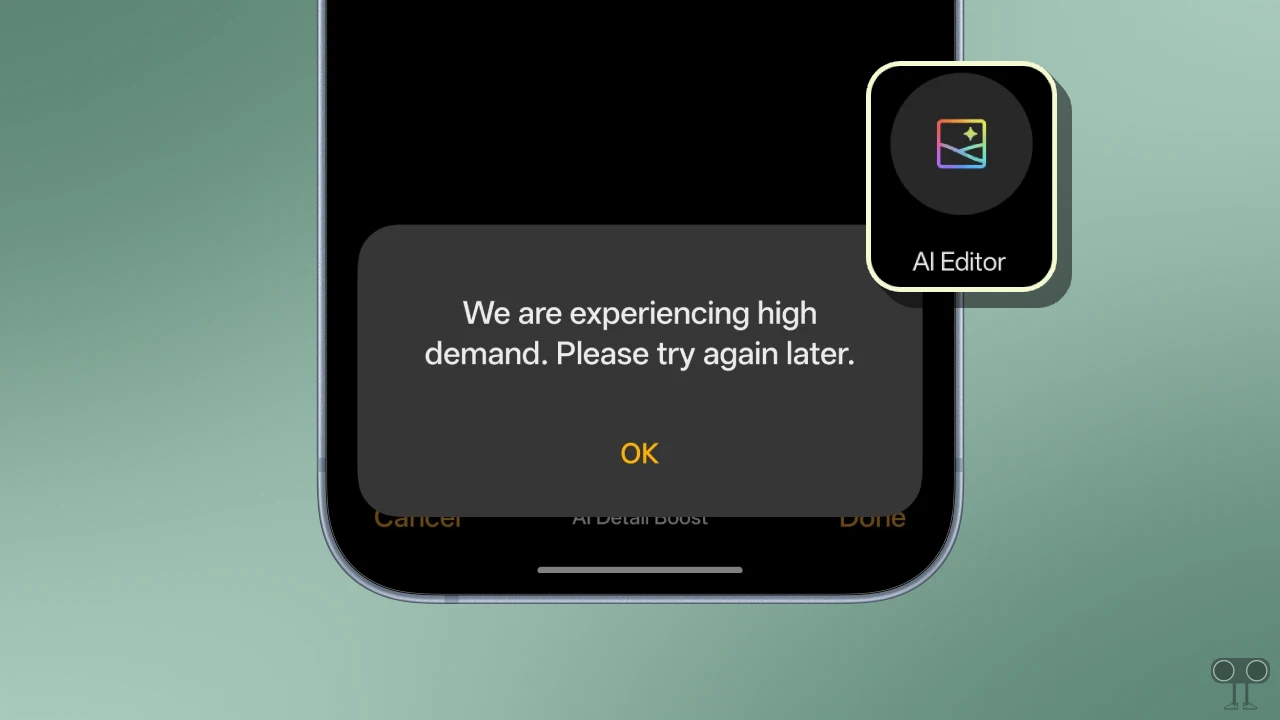
This message clearly indicates that the issue occurred due to the service’s servers being overloaded. However, I investigated thoroughly and found that even though the message points to server overload, the internet connection is also a significant factor.
How to Fix AI Editor’s “We are Experiencing High Demand. Please Try Again Later.” Problem on Oppo Phones
If the OPPO AI Editor not working, be sure to follow the methods provided below. These methods will be very helpful in resolving this issue.
Method 1. Check Your Internet Connection
As I mentioned above, Oppo’s AI image editor requires a strong internet connection to perform its tasks. This means that a slow internet connection on your phone can cause significant issues. To resolve this, ensure that your phone’s network signal is stable; if it is not, try connecting your phone to a Wi-Fi network instead.
Link: Check Internet Speed on Your Phone ↗
Method 2. Restart Your Phone
Sometimes, due to a temporary glitch, Oppo’s AI Image Editor may be unable to perform the tasks assigned to it. In this situation, restarting the device once can be quite helpful. The restart process resolves temporary glitches and forces the feature to function correctly again.
Method 3. Delete Cache and Force Stop AI Service Engine
In Oppo phones, the AI Editor is powered by the AI Service Engine. It functions as an intelligent assistant platform that facilitates features such as AI Eraser, AI Summary, and AI Scene Detection.
Many times, the AI Service Engine is unable to handle tasks due to a corrupted cache, leading to issues. However, you can clear the corrupted cache through the settings.
- Open Settings App on Your Phone.
- Go to Apps > App Management.
- Tap on Three ⁝ Dots at Top Right Corner and Then Show System.
- Tap on AI Service Engine.
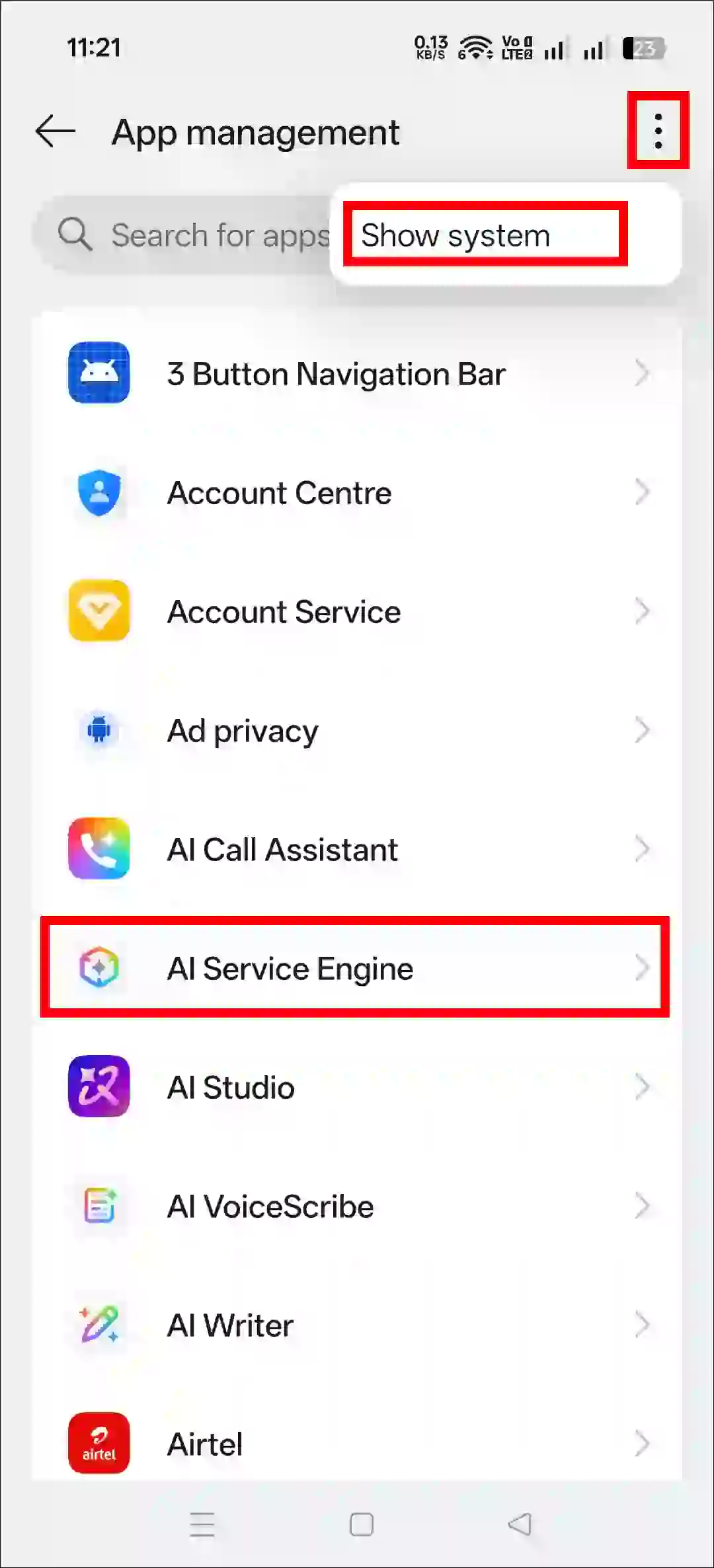
- Tap on Storage Usage.
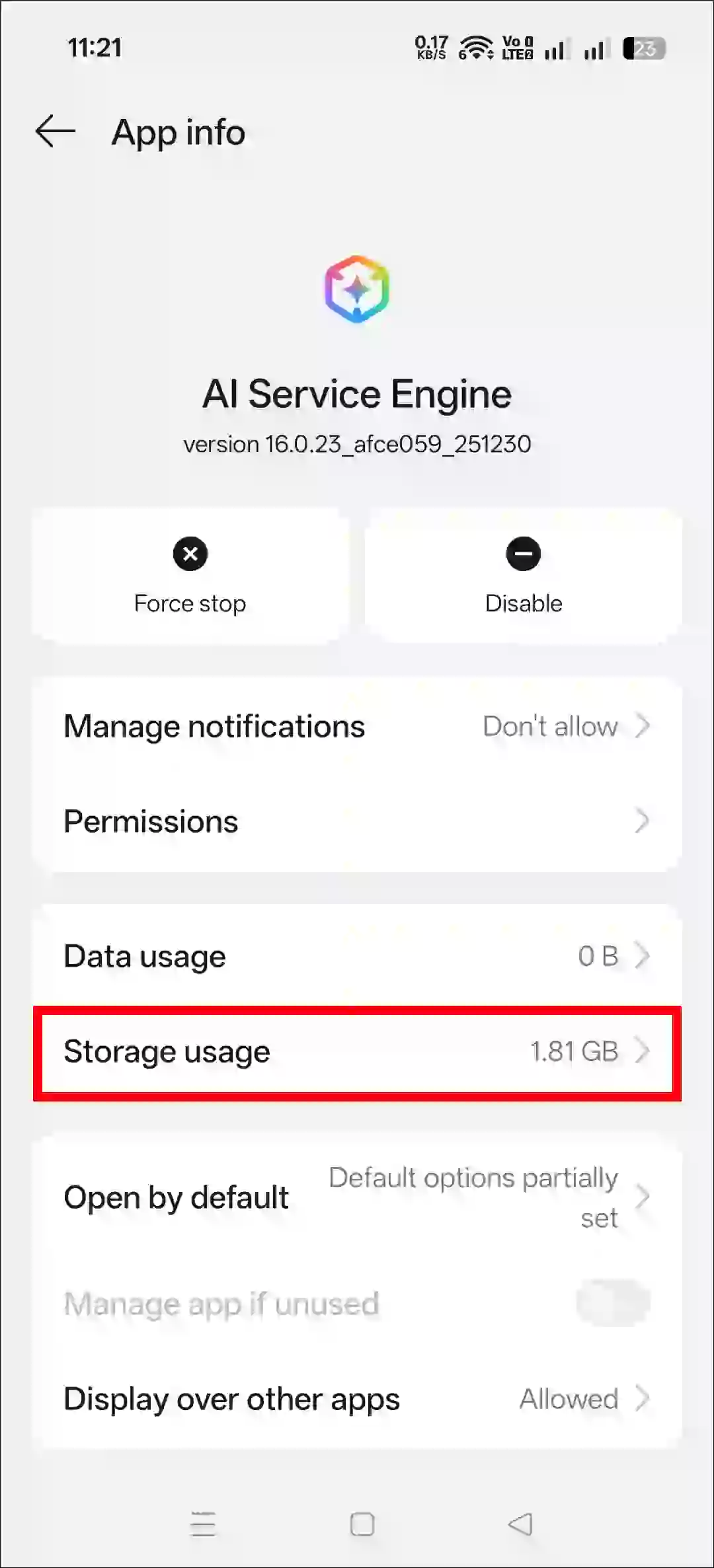
- Tap on Clear Cache.
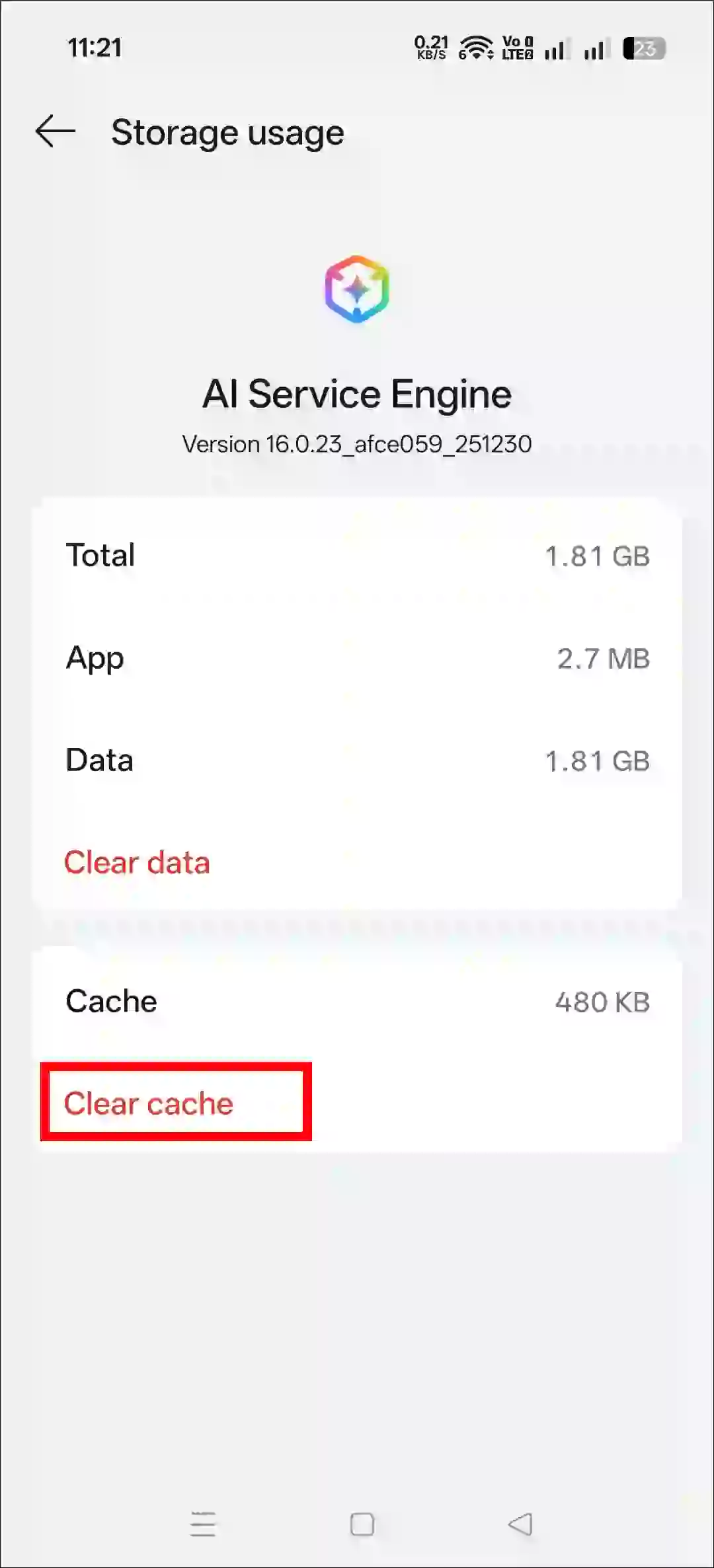
- Go Back and Tap on Force Stop.
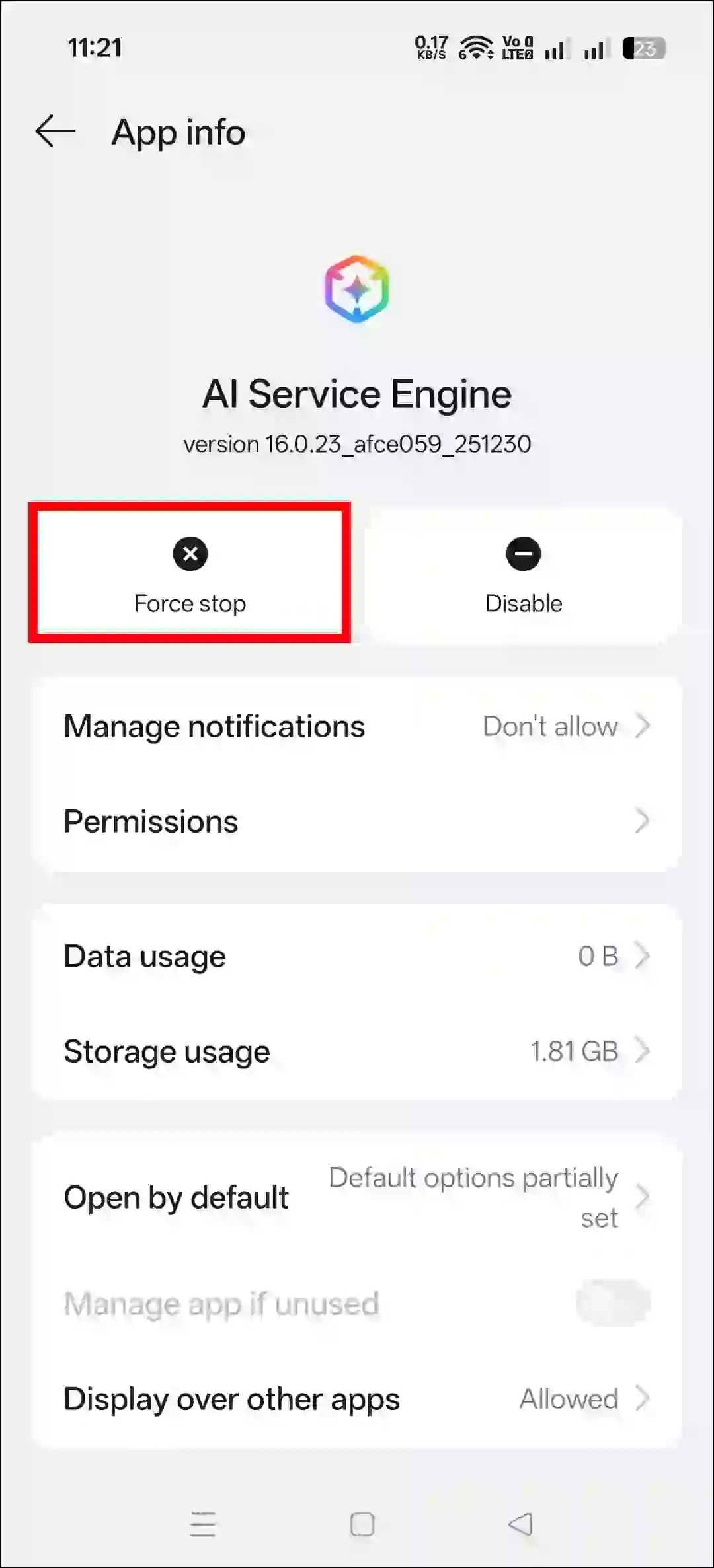
Method 4. Re-enable AI Service Engine
The AI Service Engine sometimes stops working for various reasons. However, disabling and then re-enabling it via the phone’s settings restores the AI Editor services to proper working order. You can re-enable the AI Service Engine by following the steps provided below.
- Open Settings App on Your Phone.
- Go to System & Update > Recommended Services > AI Service Engine.
- Now, Turn Off the Toggle and Then Turn It On Again.
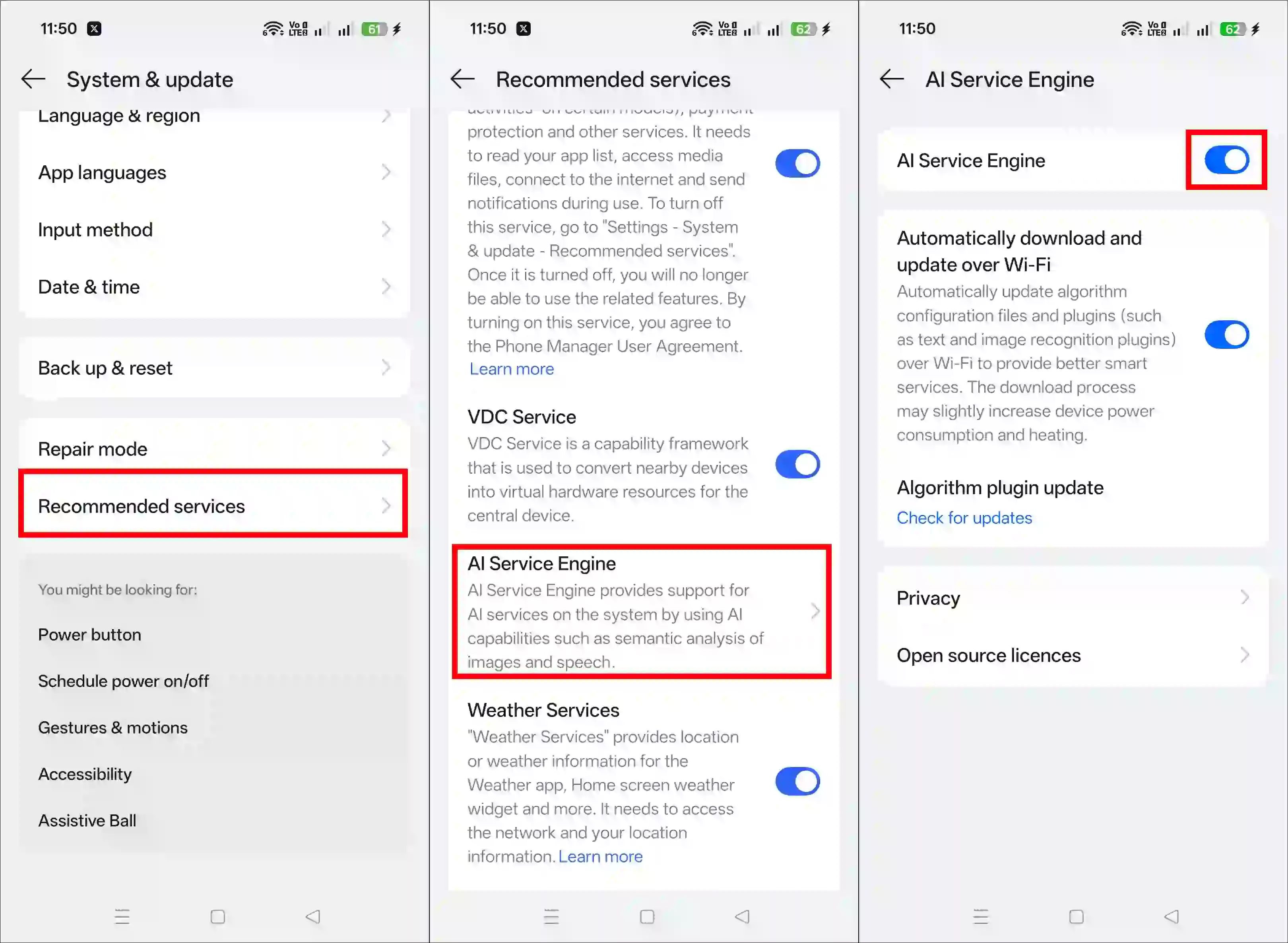
Note: Ensure that the “Automatically download and update over Wi-Fi” toggle is enabled. Additionally, tap on “Algorithm Plugin Update” to clear all pending updates.
Method 5. Change Region to India
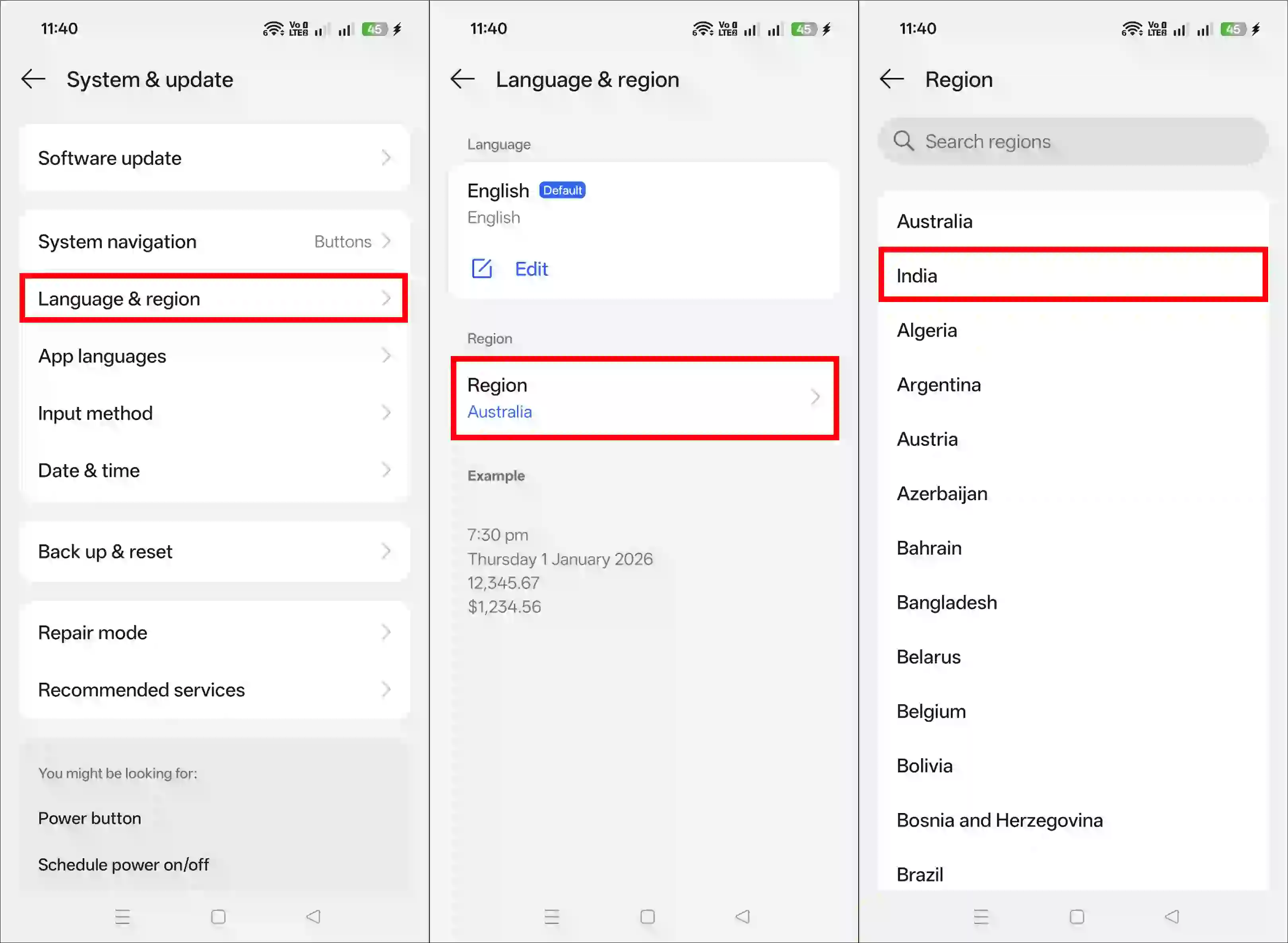
Sometimes, if you have selected a different country on your Oppo phone, it is possible that it may not function correctly. Try selecting “India” as the region in your phone settings and check whether the AI Editor in the Oppo Gallery is working properly. All the steps to do this are mentioned below.
- Open Settings on Your Oppo Phone.
- Tap on System & Update > Language & Region > Region.
- Now, Select India.
Also read:
- Turn On and Use Air Scroll in Oppo Phones
- Turn ON or OFF Smart Rapid Charging in Oppo
- Enable “Shake to Turn on Flashlight” on Android
I hope you found this article helpful and learned how to solve the ‘AI Editor: We Are Experiencing High Demand. Please Try Again Later.’ issue. If you have any questions related to Opoo, please ask in the comments below. Feel free to share this article as well.


Please my Gemeni AI moide on
Daa aromal സുഖം ആണോ