Opera (GX) Picture-in-Picture Player Stopped Working for YouTube and Crunchyroll
I always prefer using the Opera or Opera GX browser on my Windows PC for watching online videos, as both browsers feature a built-in picture-in-picture player mode, also known as the auto video pop out player. The good thing is that you do not need to install any kind of third-party extension for this.
This PIP player is enabled by default, but for some time now, I have noticed that the auto video pop out feature is not working at all for videos on YouTube, Netflix, Amazon Prime, Twitch, and Crunchyroll. However, I have fixed this problem by following a few troubleshooting methods.
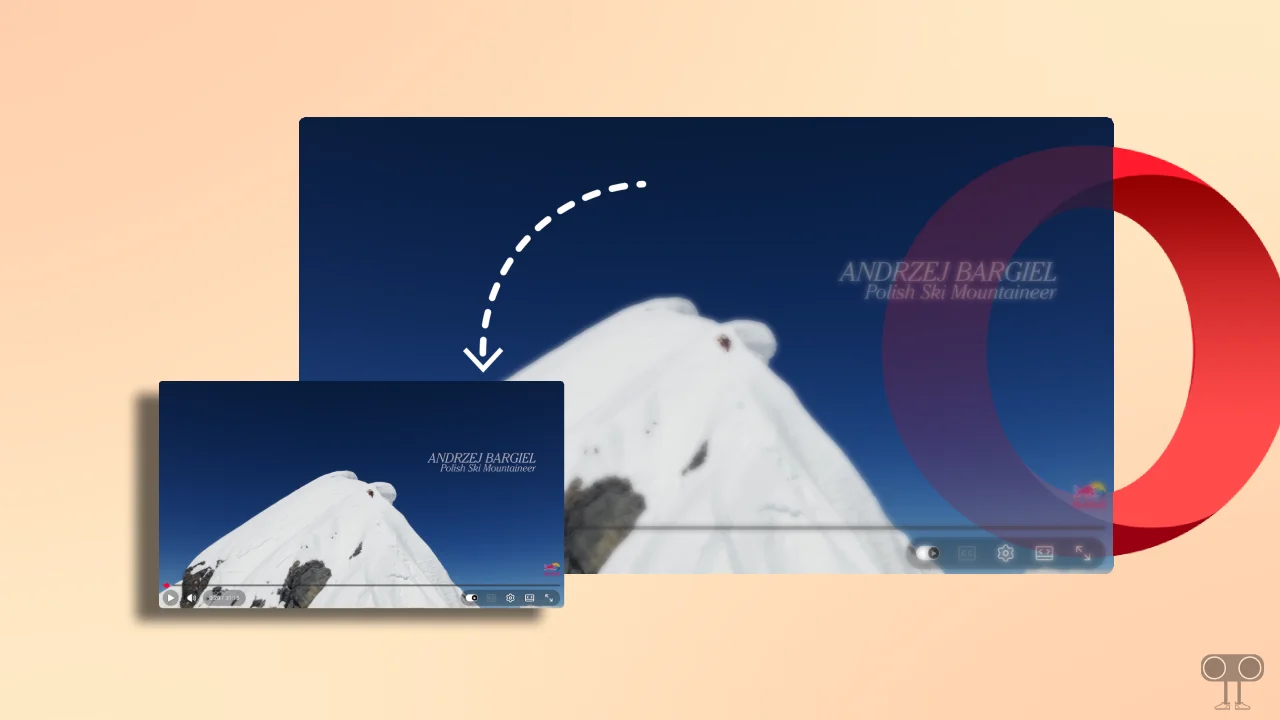
When you play a YouTube or Crunchyroll video in a tab within the Opera or Opera GX browser and switch to another tab or program, the browser’s built-in Video Pop Out mode will automatically display the video in a picture-in-picture player anywhere on the screen.
Fix Opera (GX) Picture-in-Picture Player Not Showing for YouTube, Netflix and Crunchyroll
1. Turn On Video Pop Out in Opera
If the picture-in-picture player suddenly disappears, it is possible that you have accidentally disabled this setting in your browser. By following the steps provided below, you can reactivate the automatic picture-in-picture player in the Opera browser.
To enable picture-in-picture on Opera:
Step 1. Open Opera Browser and Go to opera://settings.
Note: You Can Press ALT + P Shortcut to Quickly Access Opera Settings.
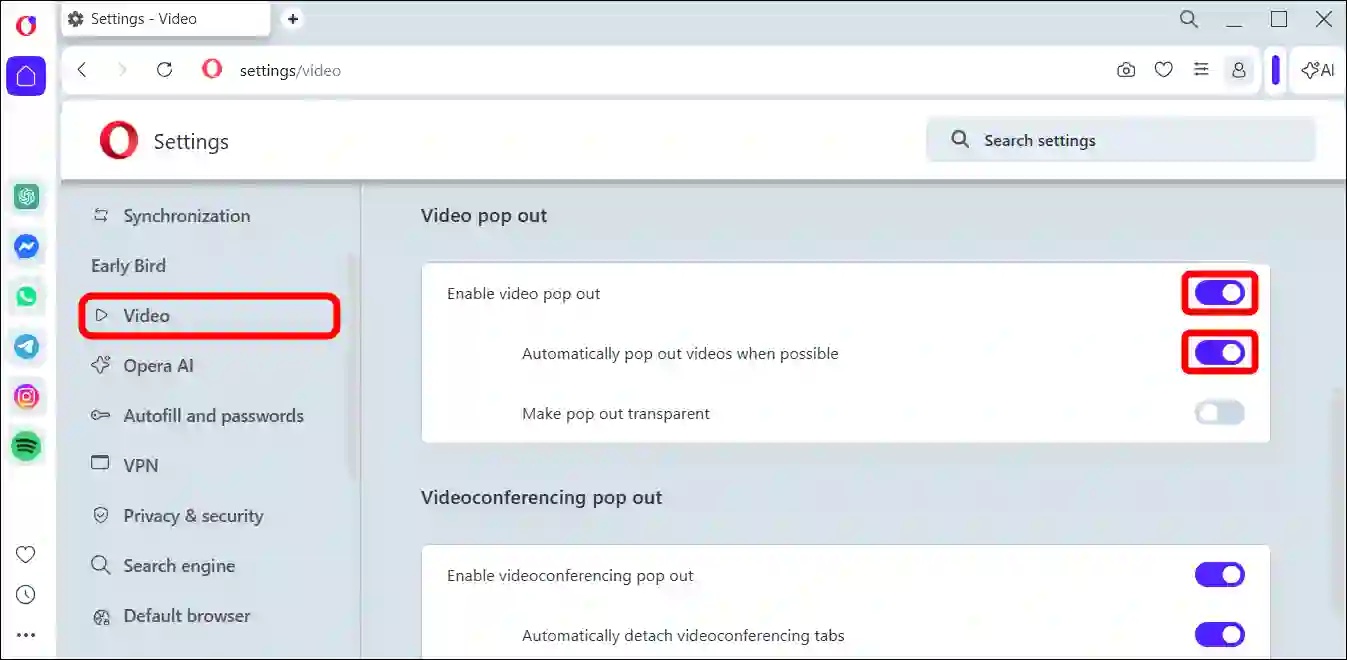
Step 2. Select Video Section at Left Manu Pane and Turn On the “Enable Video Pop Out” Toggle.
Note: Make sure “Automatically pop out videos when possible” toggle is enabled.
Also read: Disable Fullscreen Optimizations on Opera GX
2. Turn On Video Pop Out in Opera GX
Opera GX is an advanced version of the Opera browser, developed specifically for gamers. The Opera GX browser also features a built-in “Auto Video Pop Out” mode, which switches the video player into picture-in-picture mode. Just like in Opera, the method for enabling this in the Opera GX browser is exactly the same.
To enable picture-in-picture on Opera GX:
Step 1. Open Opera GX Browser and Go to opera://settings.
Note: You Can Press ALT + P Shortcut to Quickly Access Opera GX Settings.
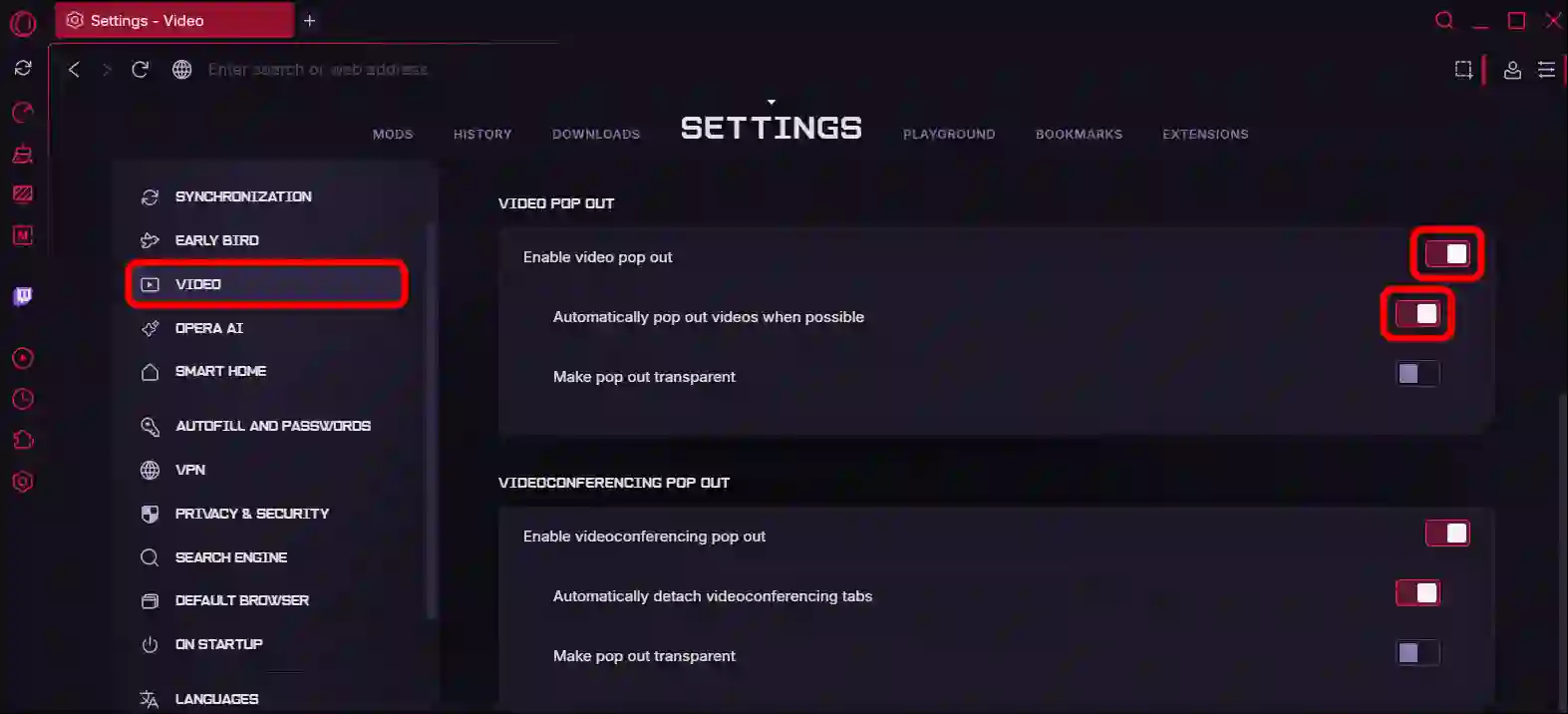
Step 2. Select Video Section at Left Manu Pane and Turn On the “Enable Video Pop Out” Toggle.
Note: Make sure “Automatically pop out videos when possible” toggle is enabled.
Also read: Stop Opera GX from Using So Much Memory
3. Update Your Opera and Opera GX
An outdated Opera browser can prevent certain functions from working correctly due to bugs or glitches. If your browser is not updated to the latest version, it is possible that this is the reason why the picture-in-picture video player is not working.
By following the steps mentioned below, you will be able to instantly update Opera and Opera GX.
- Open Opera or Opera GX Browser and Go to
opera://update. - Click on Check for Update.
- Once It is Updated, Simply Click on Relaunch Now.
That’s all! You’re done…
I hope you found this article helpful and learned how to fix Opera GX picture-in-picture not working. If you have any questions related to Opera GX, please ask in the comments below. Feel free to share this article as well.