How to Put GIFs on Your Instagram Notes
Notes is a feature on Instagram that allows you to leave short messages for your followers and friends. Initially, this feature only allowed users to share text messages. Later, it added new elements like music, background color changes, location, emojis, and more.
Meta has now added GIFs to Instagram’s Notes feature. This means that you will now be able to share not just text, locations, and music in Instagram Notes, but GIFs as well. The IG Notes GIF feature is currently available for both Android and iOS (iPhone) devices.
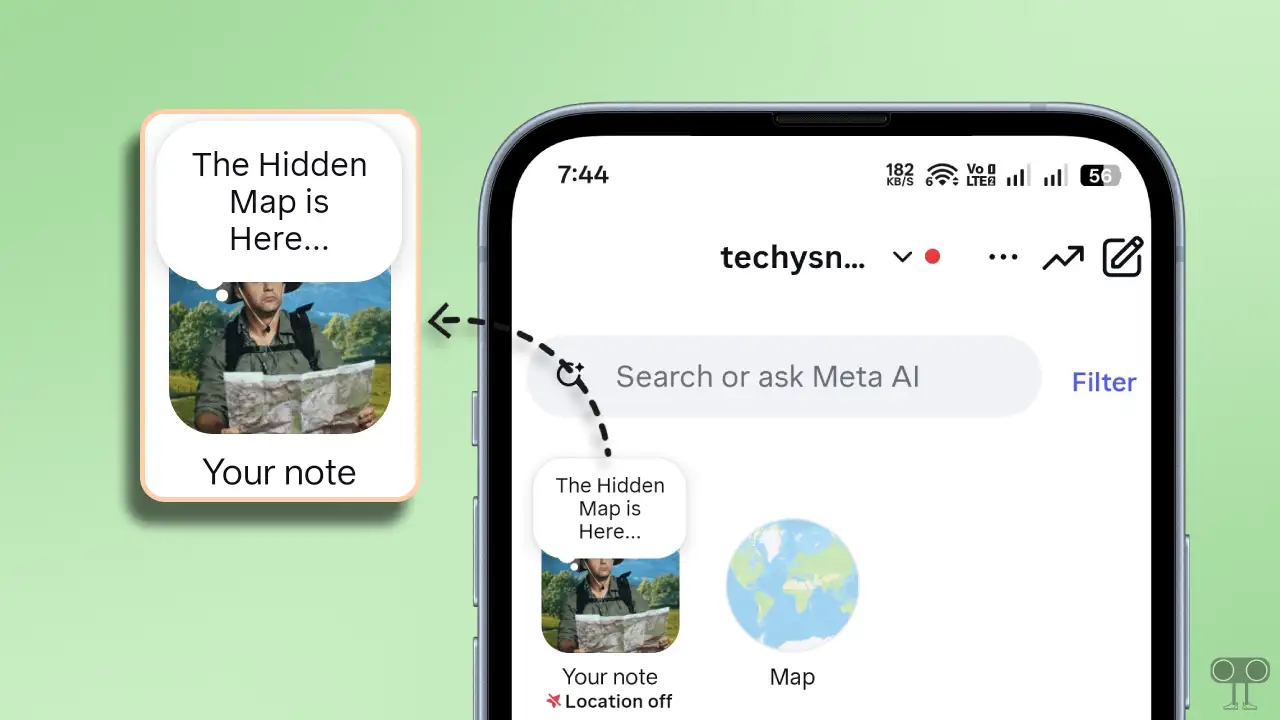
In this article, I have shared a step-by-step guide that will teach you how to share GIFs in Instagram Notes. Additionally, I have included some troubleshooting methods in case the Instagram Notes GIF option is missing.
How to Put GIFs on Instagram Notes
If you want to make your notes more engaging and attractive, you can now use GIFs in them. The good thing is that along with GIFs, you can also add text to your notes and share everything together. Follow the steps below to use this feature.
To add GIFs on Instagram notes on Android and iPhone:
- Open Instagram App on Your Mobile Phone.
- Go to DM Section and Tap on Your Note.
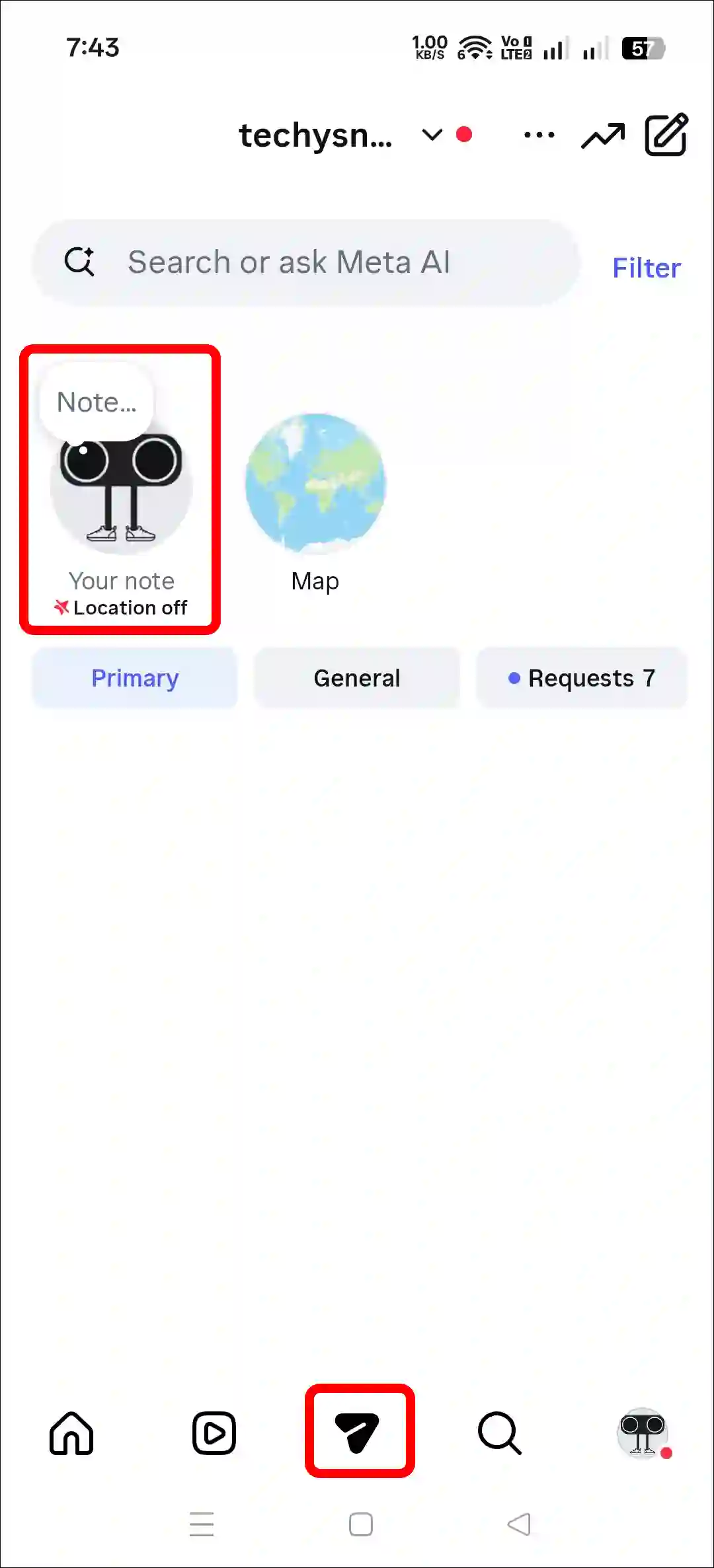
- Tap on GIF Option Under the Notes’ Text Field.
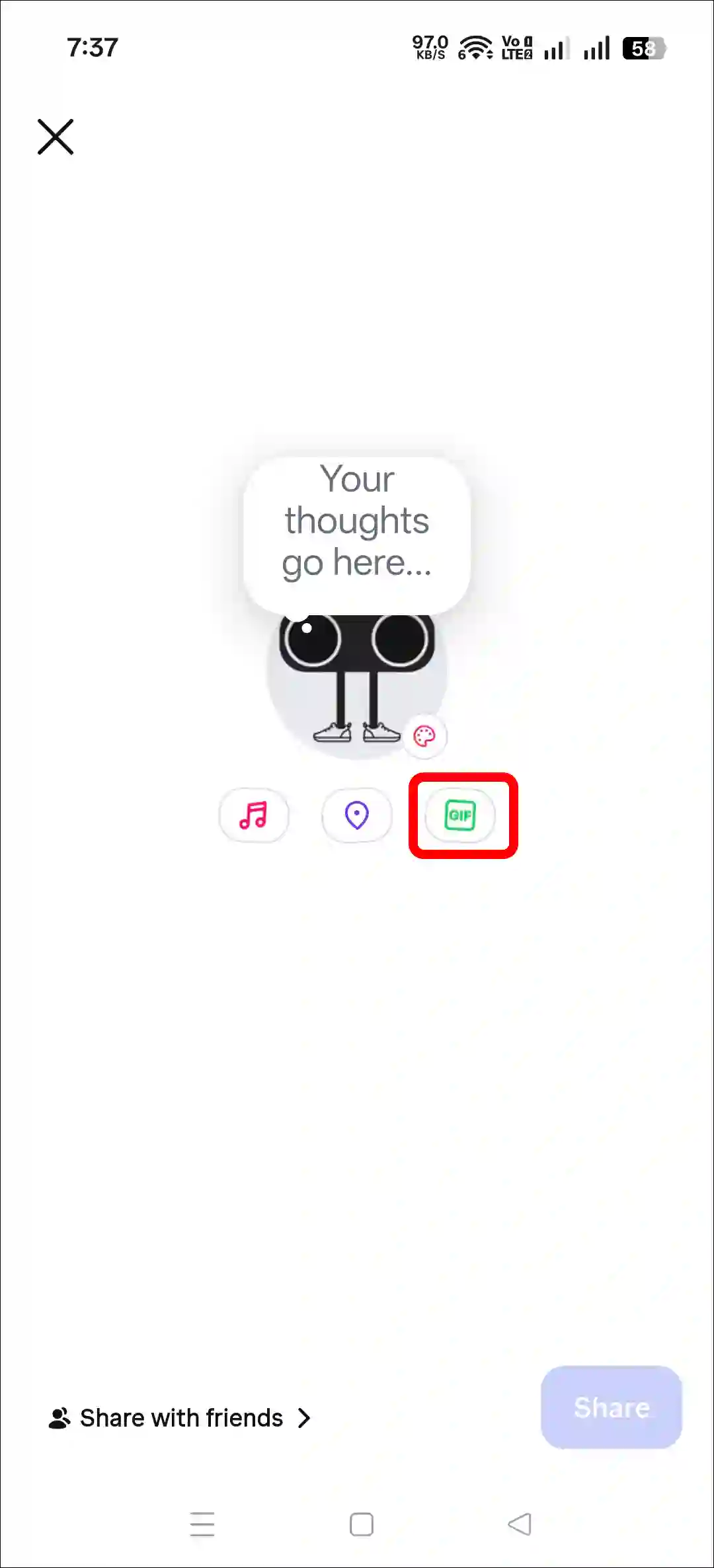
- Select Your Favorite GIF.
You Can Also Search Your Favorite GIFs.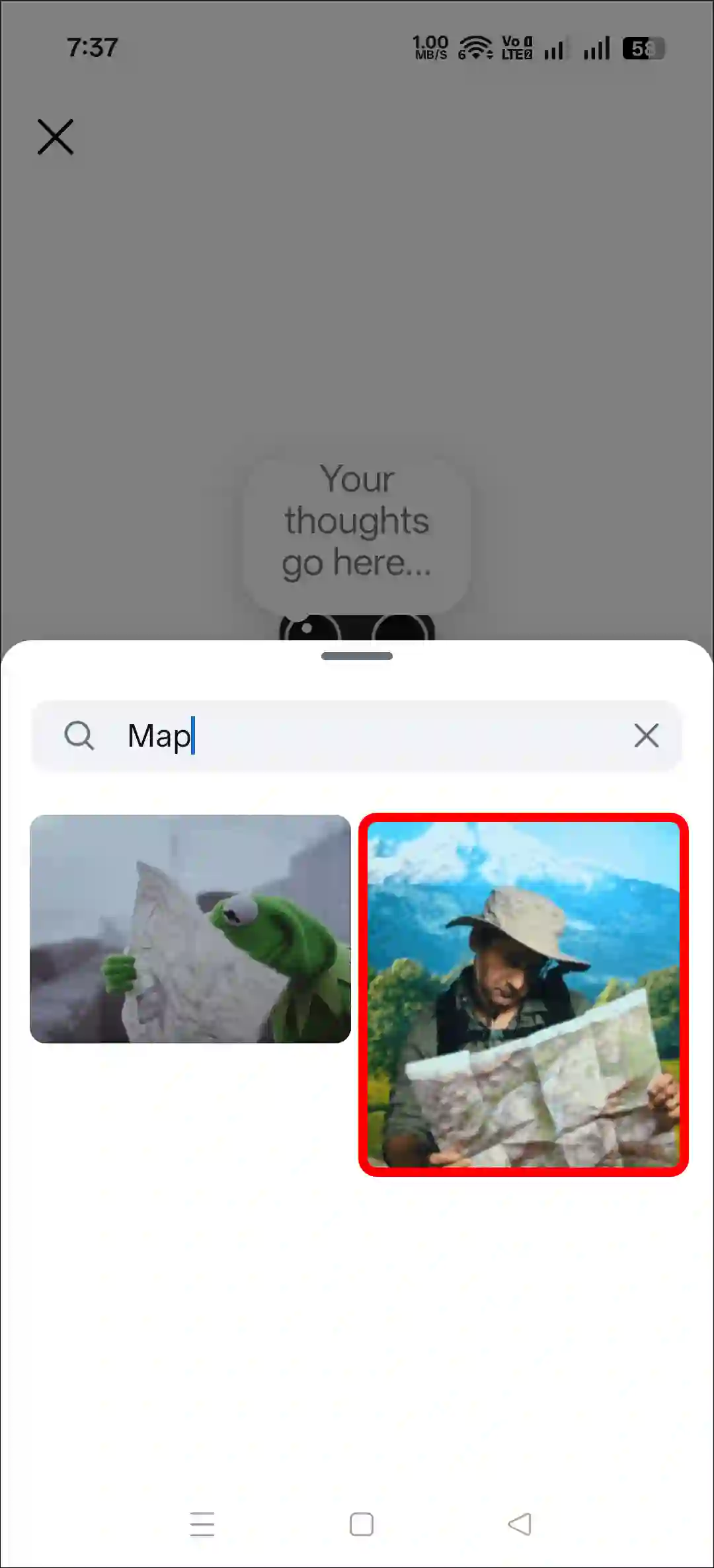
- Next, Add Short Comment into the Notes’ Text Field.
- Now, Tap on Share Button at Bottom Right.
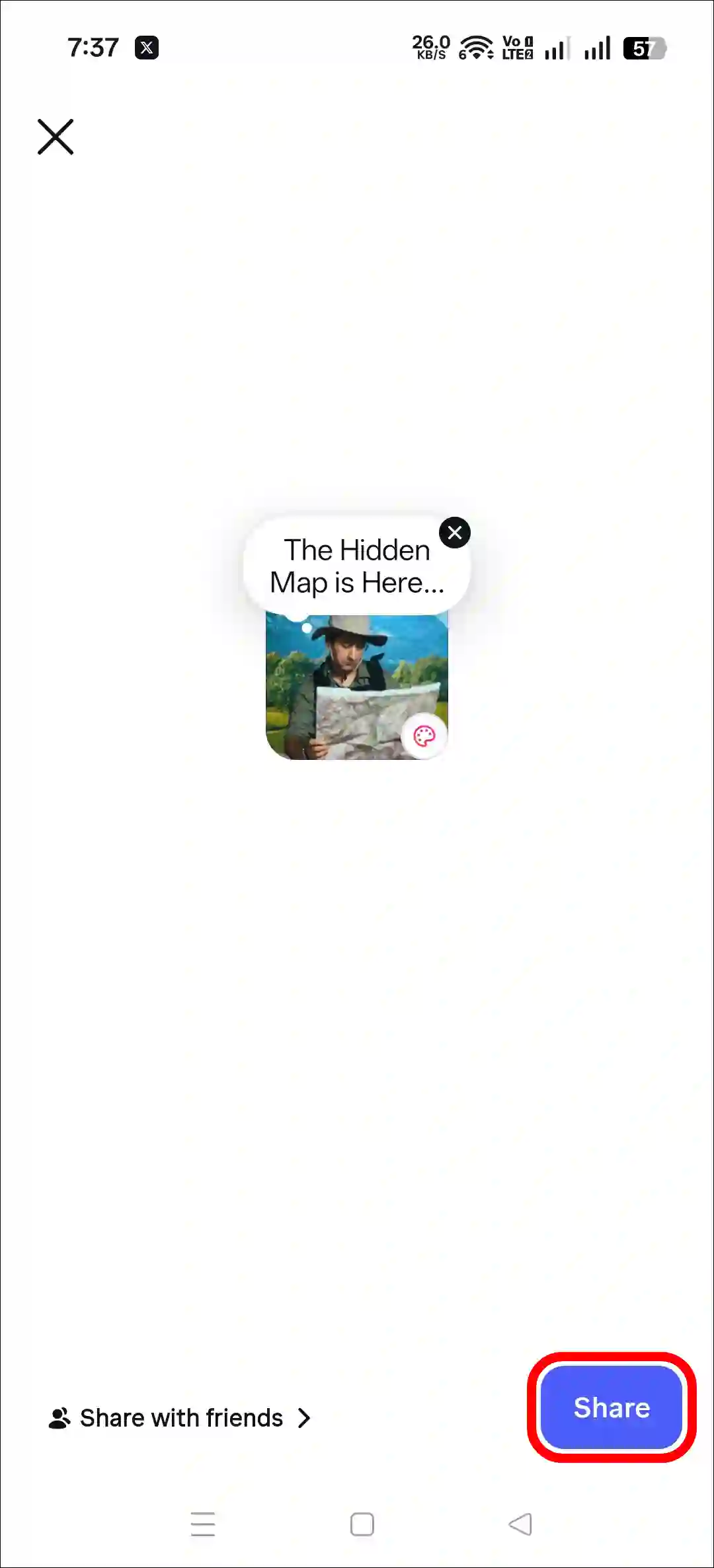
That’s it! You just shared a GIF on your Instagram notes. Now, when someone taps on your note, they’ll see that GIF you shared.
You may also read:
Fix Instagram Notes GIF Not Showing
If you don’t see the GIF option in your Instagram Notes or it isn’t working, or GIFs aren’t loading, you’re not alone. Some common reasons include an outdated Instagram app, corrupted app cache and data, or having multiple accounts logged in at once.
1. Update Your Instagram App
Instagram Notes GIF is a completely new feature. If you are using the outdated Instagram app, you may not see it. Whether you are an Android user or an iPhone user, the IG Notes GIF option will start appearing once you update Instagram.
You can easily update the app from the Google Play Store (for Android) and the Apple App Store (for iOS).
2. Clear Instagram App Cache
If Instagram’s notes’ GIF option is missing, the cause might be a corrupted cache. For this, you need to clear the corrupted cache of Instagram on your phone.
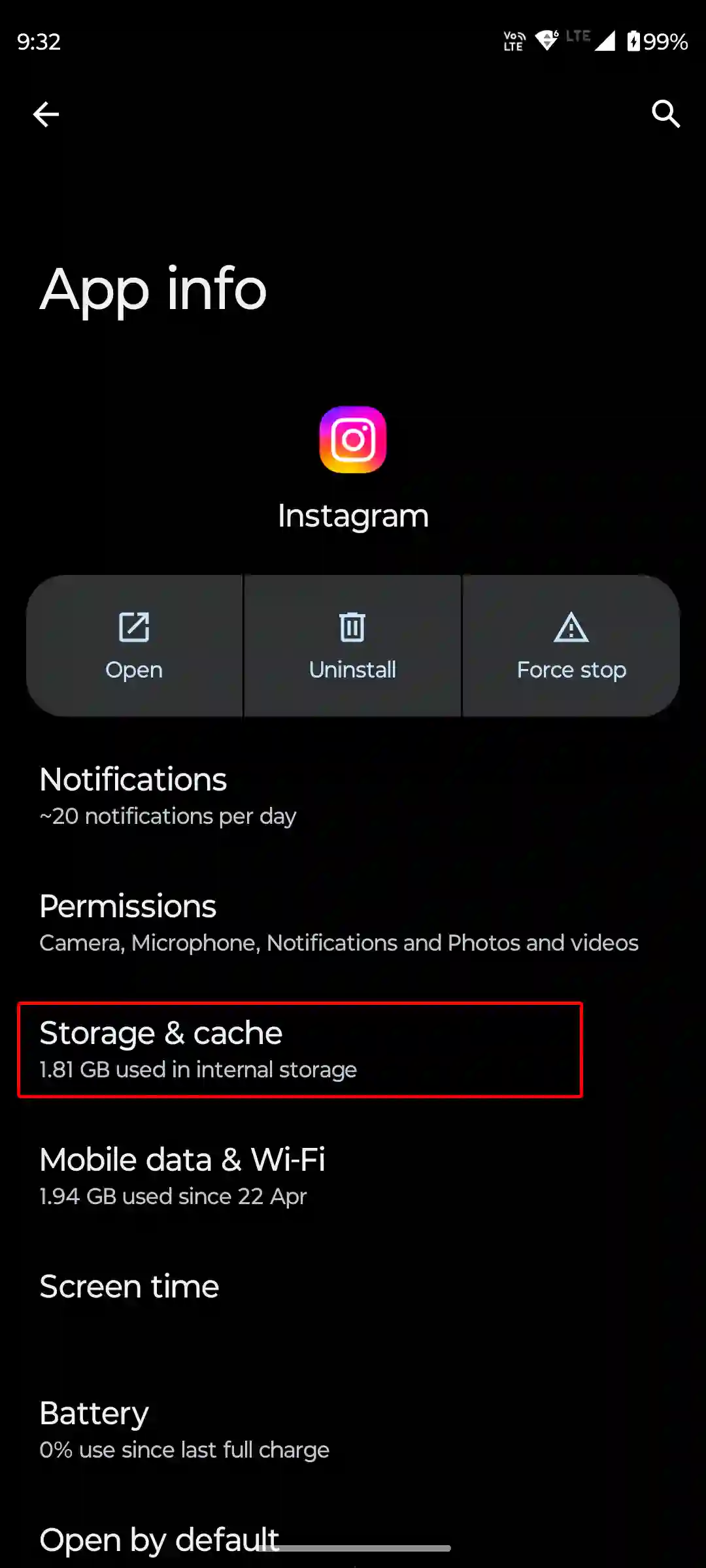
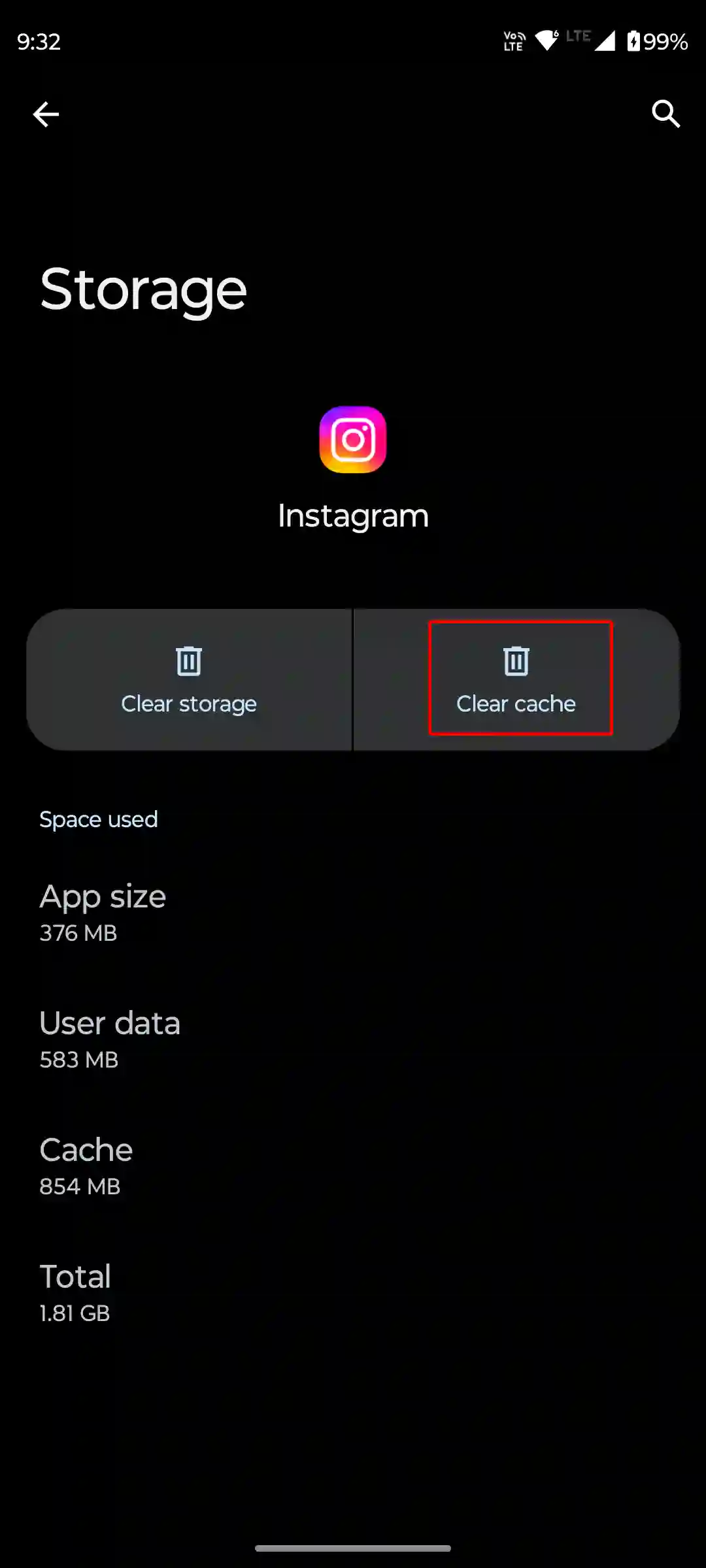
To clear Instagram’s cache on Android, open Settings > Apps > All Apps > Instagram > Storage & Cache > Clear Cache.
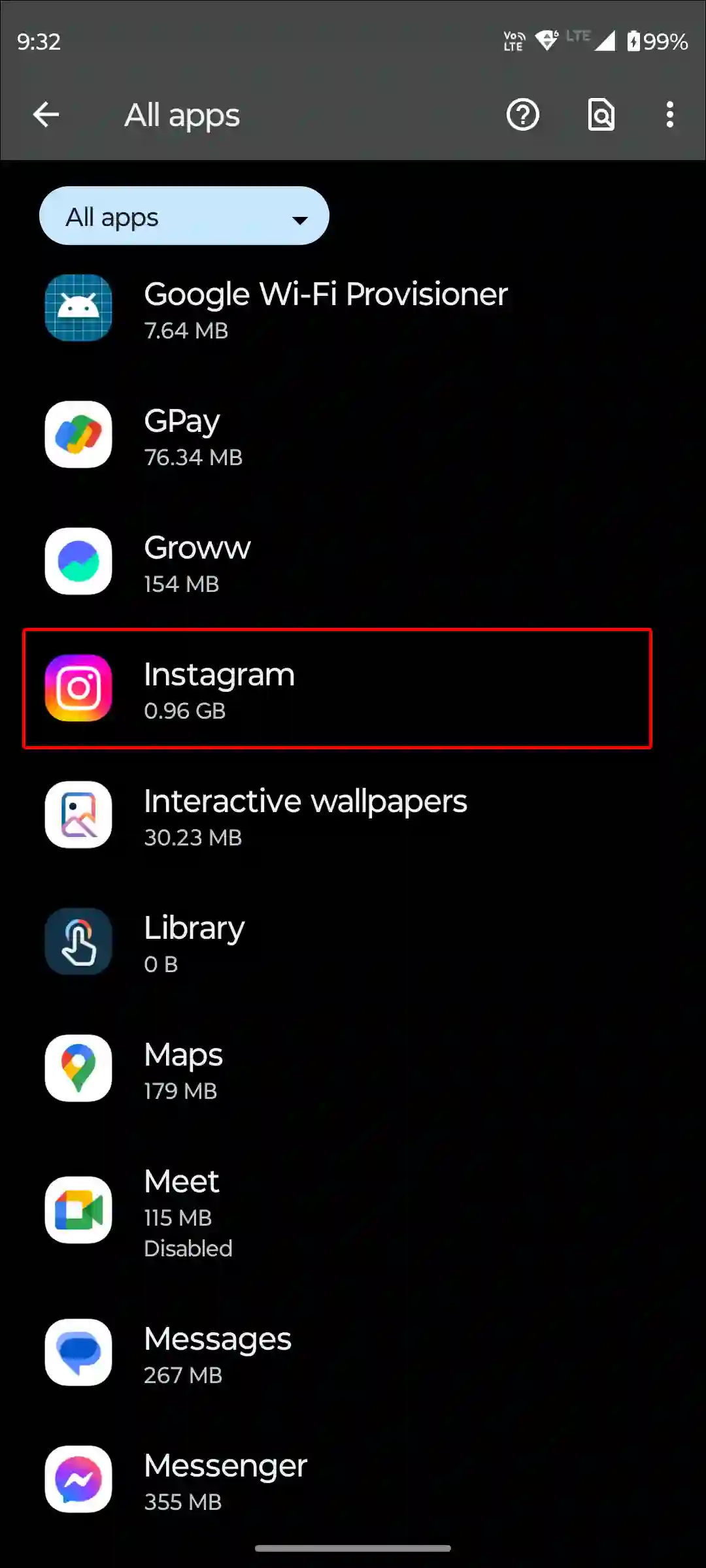
On an iPhone, go to Settings > iPhone Storage > Instagram App > Offload App > Offload App to Confirm > Reinstall App.
3. Log Out Multiple Accounts
If you use multiple accounts on the Instagram app, that’s one of the main reasons you won’t get the Notes GIFs feature. If you use too many accounts, you’ll only get this feature on one account.
Although this feature will gradually appear in all accounts, if you want to get it sooner in a particular account, log in to the main account and immediately log out of all other accounts.
4. Wait for Your Turn
If the Instagram Notes’ GIF option is not appearing even after updating Instagram and clearing the corrupted cache, you will have to wait for some time. This is because it is a new feature, and it is being rolled out gradually to all users.
I hope you found this article helpful and learned how to leave GIFs on Instagram notes. If you have any other questions about Instagram, feel free to ask in the comments below. Don’t forget to share this article.