
How to Change Airtel AirFiber Wi-Fi SSID Name and Password (2 Ways)
Similar to Jio AirFiber, Airtel AirFiber WiFi service is also available in India. If you are also using this wireless WiFi service from Airtel, then this article is for you. In this article, I have shared two step-by-step methods to change the SSID name and password of your Airtel AirFiber router.
When you first install Airtel AirFiber in your home, shop, or office, you receive a default Wi-Fi username and password to connect your phone, computer, and other smart devices. But did you know that Airtel also allows you to change your Wi-Fi name and password to new credentials?
Yes! You can do this from both your mobile phone and your computer. It’s a fairly simple process, although it’s important to be a little careful while following the steps. Whenever you change the Wi-Fi name or password, make sure your device is connected to the same Wi-Fi network.
1. Change Airtel AirFiber Wi-Fi SSID Name and Password Using Airtel Thanks App
If you want to set a new name and password for your Airtel AirFiber using your mobile phone, it’s quite simple. Just download the Airtel Thanks app on your Android or iPhone and log in with the phone number linked to your Airtel AirFiber connection.
To set up a new wifi name and password for Airtel AirFiber:
- Open Airtel Thanks App on Your Phone.
- Tap on Three ≡ Lines at Top Right Corner.

- Tap My Active Services > Wi-Fi Name > View Plan Details.
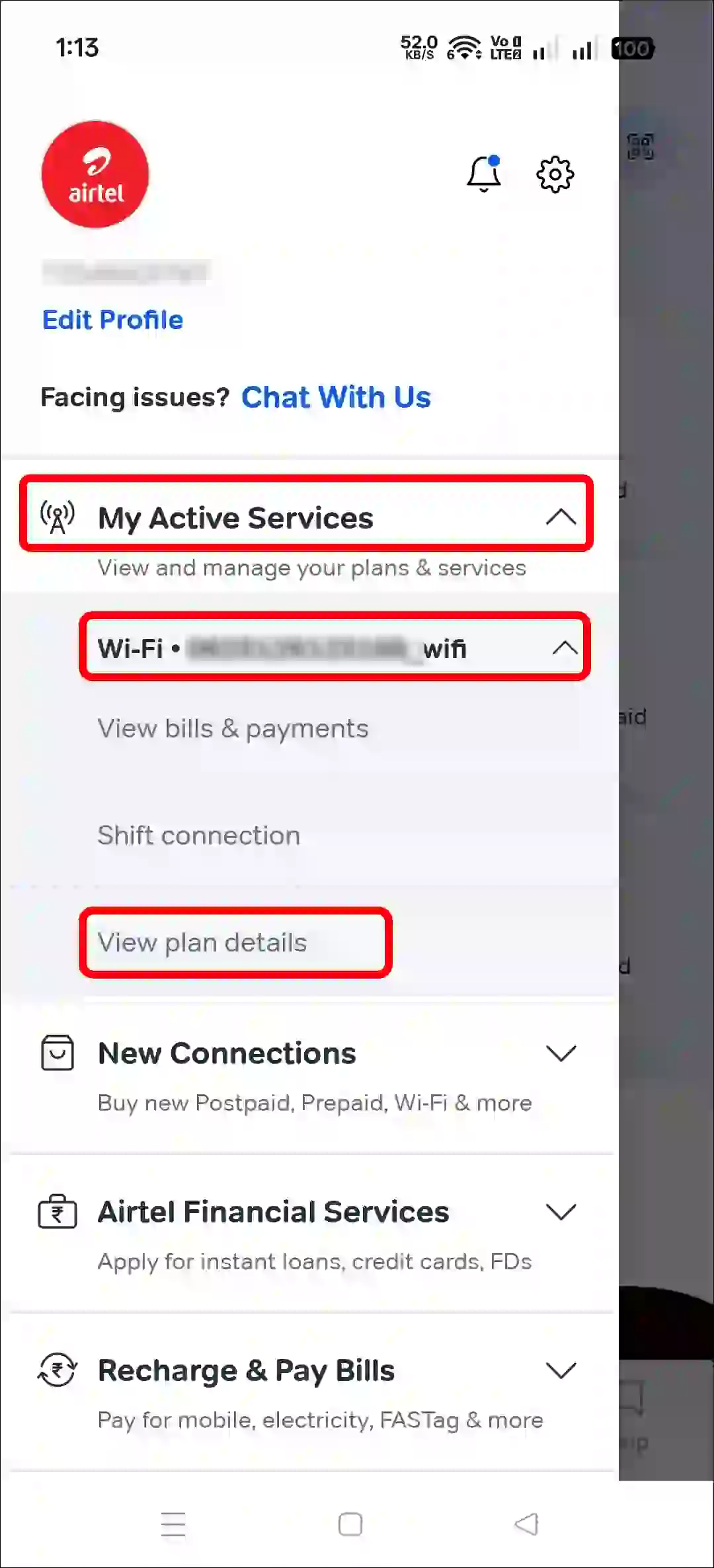
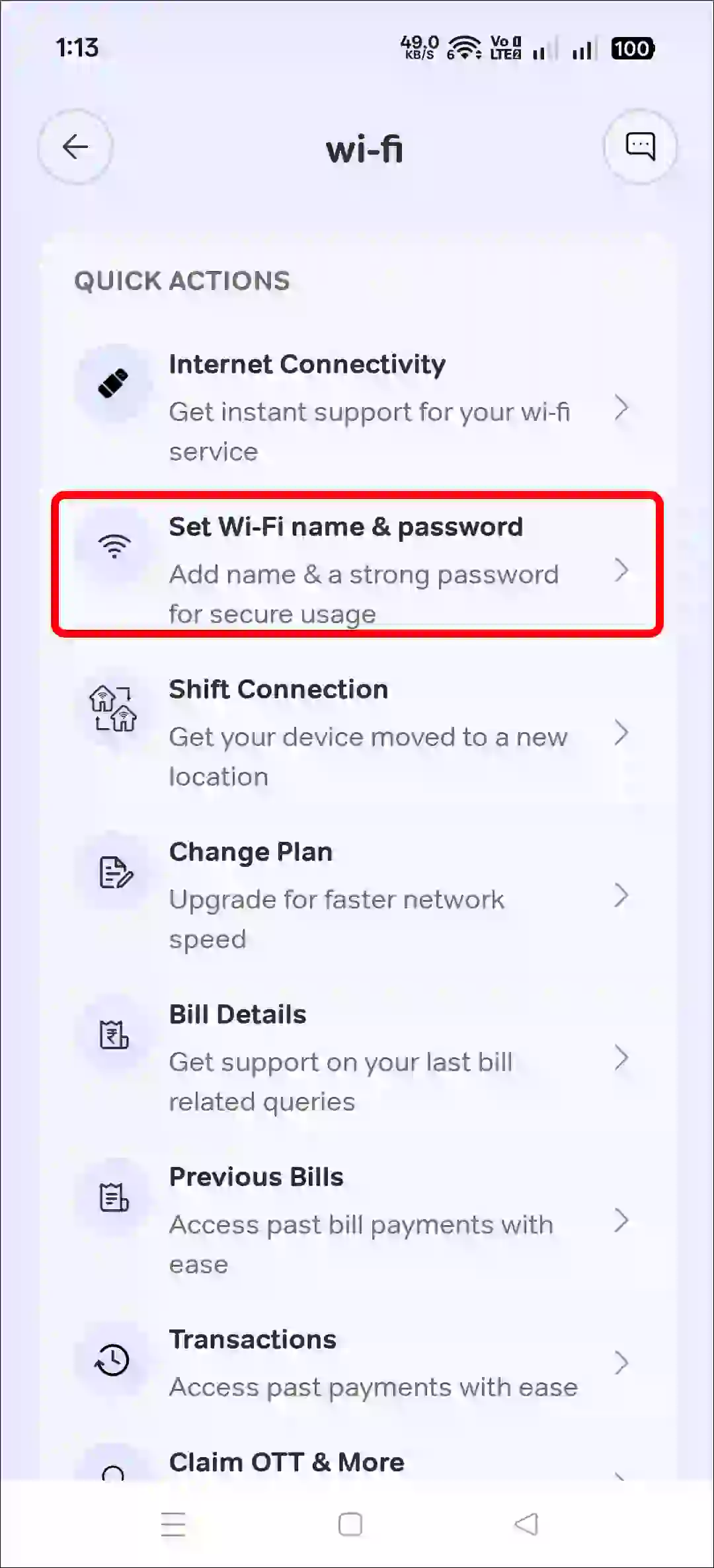
- Scroll Down and Tap on Set Wi-Fi Name & Password.
- Now, Enter Your New Wi-Fi Name and New Password and Then Save Changes.
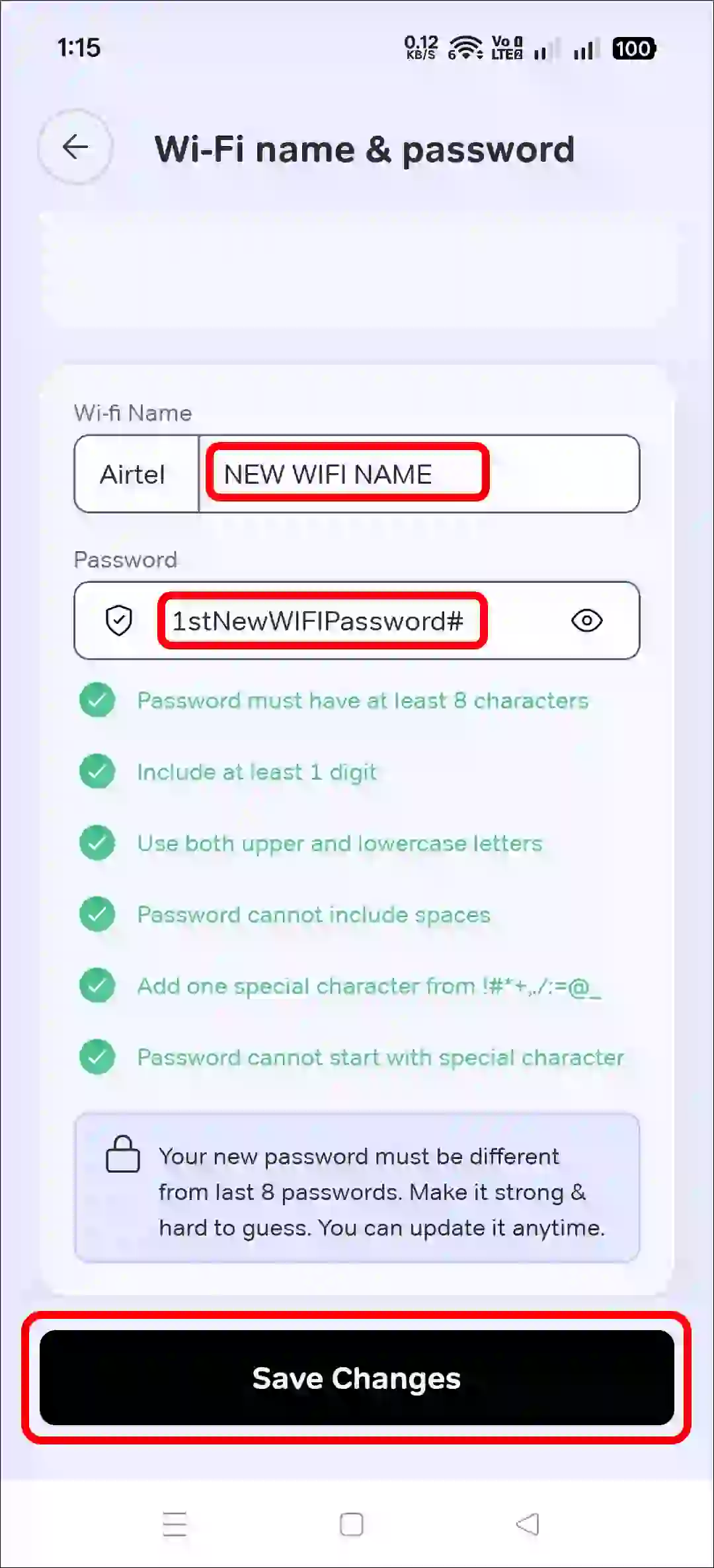
Once you complete the steps above, your device will disconnect from the Wi-Fi network because the old name and password have been changed. Now, search for the new Wi-Fi name on your phone and connect using the new password.
Related: Airtel APN Settings for Fast Internet (4G and 5G)
2. Change Airtel AirFiber Wi-Fi SSID Name and Password on Laptop or PC
Even if your Airtel AirFiber Wi-Fi is connected to your laptop or computer, you can easily rename its SSID and change the password. However, we won’t be using the Airtel Thanks app for this; instead, we’ll use the router’s default gateway, which is linked to an IP address.
ⓘ You may have noticed that the default name in Airtel Airfiber starts with “Airtel.” If you want to remove the Airtel name and display only your preferred name, you can only do this by accessing the default gateway through a PC or laptop.
- Connect Airtel AirFiber Wi-Fi with Your System.
- Next, Open Any Desktop Browser and Go to
192.168.1.1.If 192.168.1.1 is not opening, Simply go to https://192.168.1.1.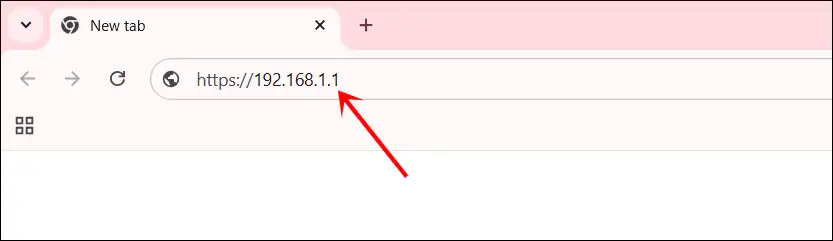
- Click on Advanced and Then Proceed to 192.168.1.1 (unsafe).
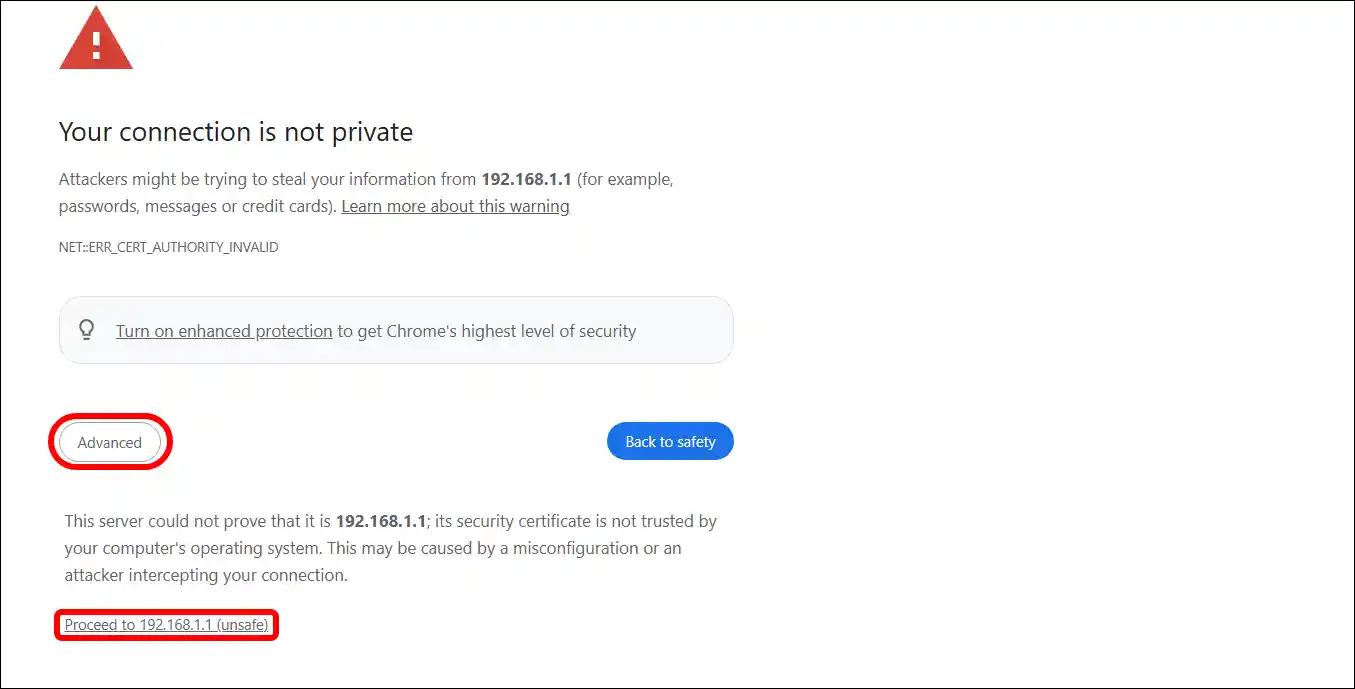
- Now, Enter Your Router’s Username and Password and The Hit Sign In.

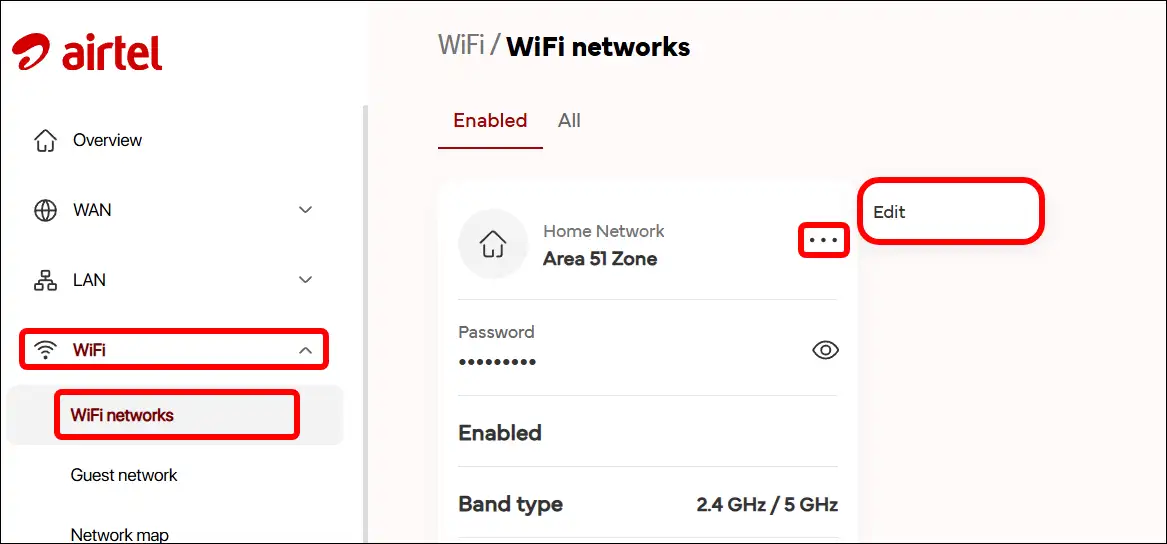
- Expand WiFi Section and Select WiFi Networks.
- Click on Three ••• Dots Next to Wi-Fi Name and Click on Edit.
- Now, Enter New Wi-Fi Name and Password and The Click on Save.
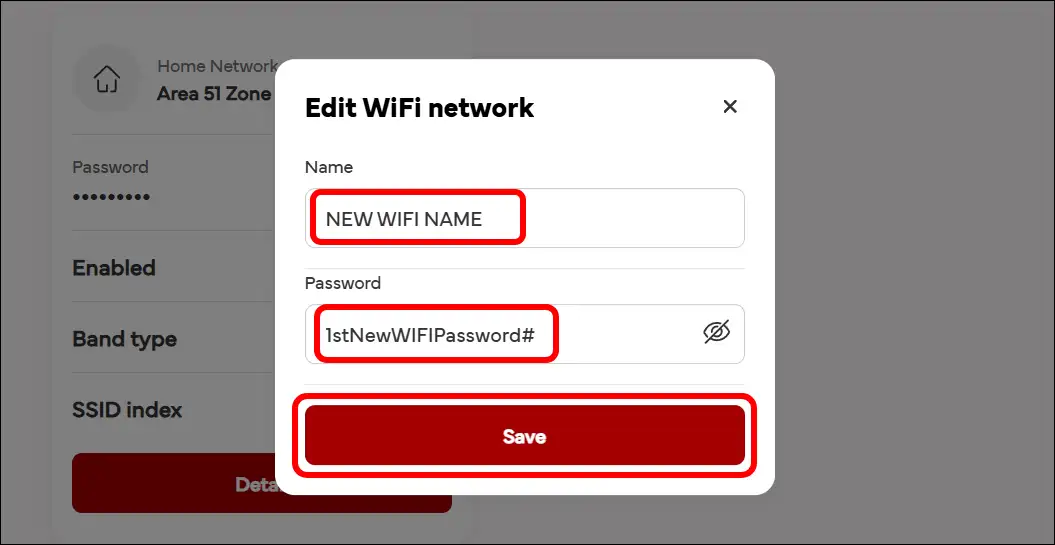
That’s all! Here too, your laptop or computer will disconnect from your Wi-Fi, and you will have to find the new Wi-Fi name and reconnect with the new password.
Note: If you only want to rename the Wi-Fi network, enter only the name and save, leaving the password field blank. You can follow the same process to change only the password.
Also read: Cancel JioHotstar Autopay in PhonePe, Paytm, Google Pay
I hope you found this article helpful and learned how to change the Airtel AirFiber Wi-Fi SSID name and password. If you have any questions related to Wi-Fi, please ask in the comments below. Feel free to share this article as well.






Really helpful. Thank you!!