Check Last System Boot Date and Time of Windows 11 [CMD, PowerShell, Task Manager, Event Viewer]
Do you want to know when your Windows 11 system was last turned on? Yes! It is possible. However, to check this in Windows 11, you will have to follow some hidden steps. When investigating a problem, we typically check the time of the system’s last reboot to determine whether the system was accessed without authorization.
There are several easy ways to find this information in Windows 11. In this post, I have mentioned four different methods—CMD, PowerShell, Task Manager, and Event Viewer—that allow you to easily get details regarding the last boot.
![Check Last System Boot Date and Time of Windows 11 [CMD, PowerShell, Task Manager, Event Viewer]](https://techysnoop.com/wp-content/uploads/2026/03/last-system-boot-date-time-windows-11.webp)
Using these methods, you can get the last boot date and time information directly from your Windows 11 system without any third-party software. The good thing is that these methods work in Windows 11 as well as Windows 10. Let’s understand all these methods in detail, one by one.
4 Quick and Easy Ways to Check Last System Boot Date and Time of Windows 11
Method 1. See Last Boot Time in Windows Using CMD
In the Command Prompt, also known as CMD, you can easily find the last restart time simply by entering a single command line. To do this, you must run CMD as an administrator on your Windows computer. Follow all the steps one by one.
Step 1. Press Windows + S and Search “CMD” and Then Run as Administrator.
Step 2. Click OK as UAC (User Account Control) Prompted.
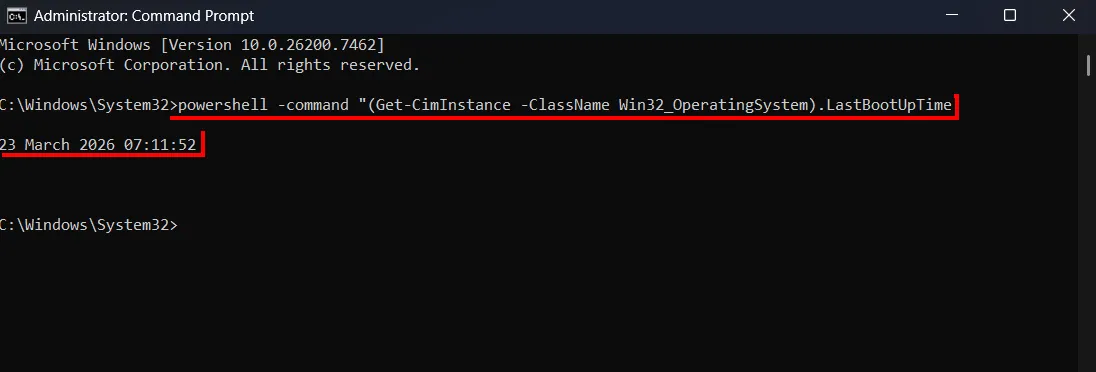
Step 3. Copy and Paste Following Command-Line and Hit Enter.
powershell -command "(Get-CimInstance -ClassName Win32_OperatingSystem).LastBootUpTime
Step 4. Here, You can See Your System Boot Date & Time.
Read: “Fake Windows 11 Update Screen”! Make Your Friends Surprise
Method 2. See Last Boot Time in Windows Using PowerShell
In Windows systems, PowerShell is a cross-platform command-line shell designed to automate and manage administrative tasks. In PowerShell, you can also find out when your system last started by entering a simple command line.
Step 1. Press Windows + S and Search “PowerShell” and Then Run as Administrator.
Step 2. Click OK as UAC (User Account Control) Prompted.
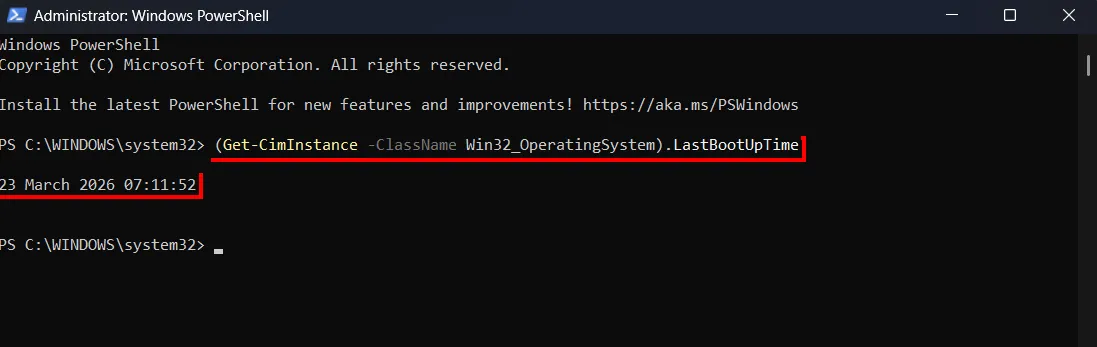
Step 3. Copy and Paste Following Command-Line and Hit Enter.
(Get-CimInstance -ClassName Win32_OperatingSystem).LastBootUpTime
Step 4. Here, You can See Your System Boot Date & Time.
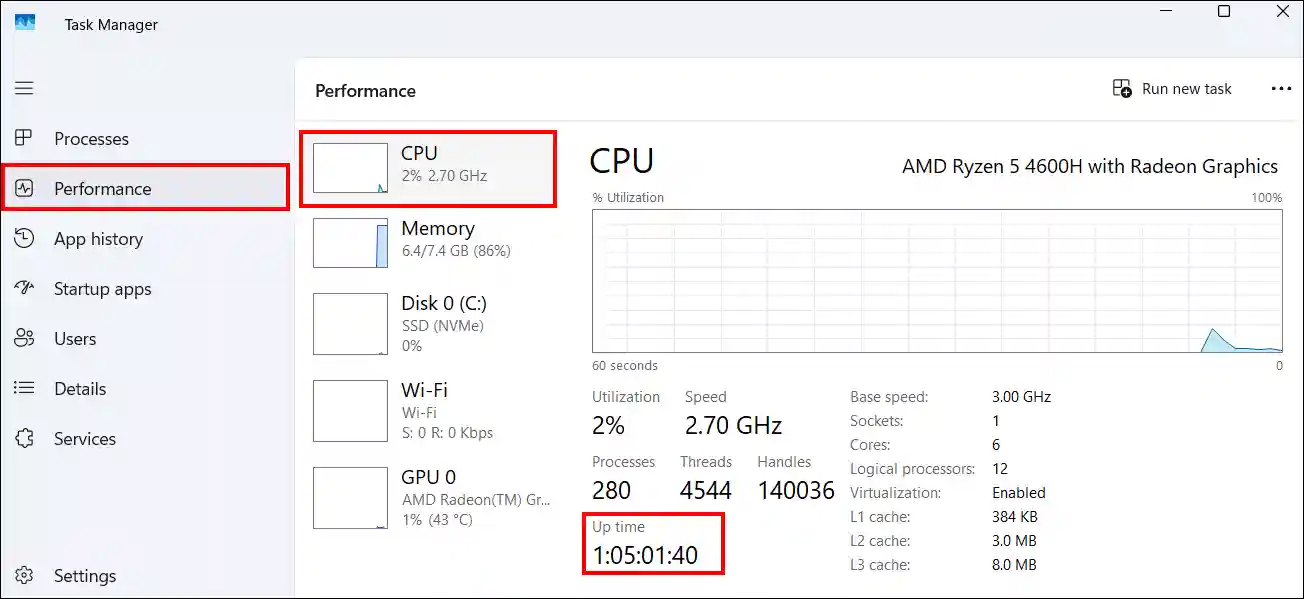
Method 3. See Last Restart Time (Up Time) in Windows Using Task Manager
Task Manager is a built-in Windows utility that provides real-time information regarding running applications, background processes, and system performance metrics (such as CPU, memory, disk, and GPU). You can view the system’s uptime in the CPU section located within the Performance tab of Task Manager.
Step 1. Press CTRL + SHIFT + ESC Simultaneously to Quickly Launch Task Manager.
Step 2. Navigate to Performance > CPU.
Step 3. Here, You can See Your System Up Time.
Also read: Setup and Play IPTV Channels on VLC Media Player
Method 4. Check Last Restart Time in Windows Using Event Viewer
Windows computers and laptops include Event Viewer, a built-in Windows tool that logs detailed information about system events, application crashes, security audits, and hardware errors. You can also easily view the system restart times using this tool.
Step 1. Press Windows + R and Type eventvwr.msc and Then OK.
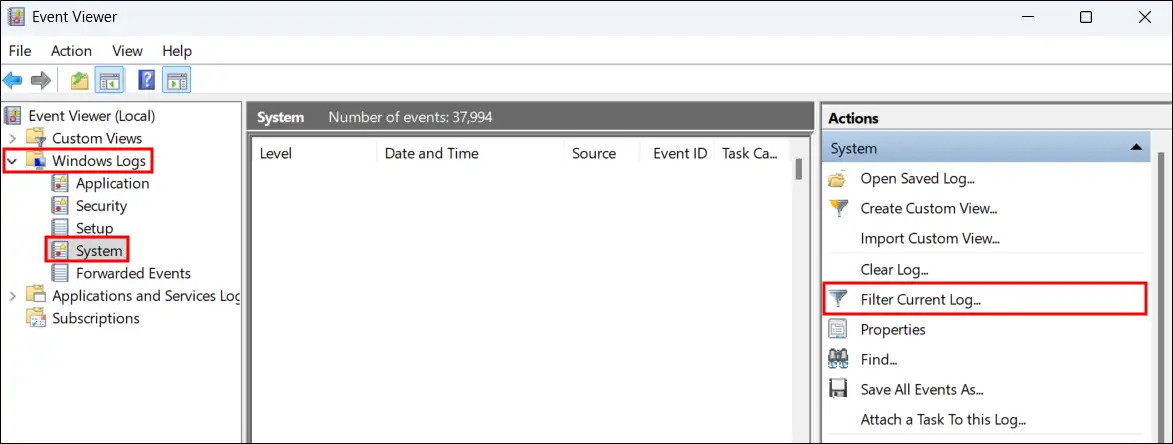
Step 2. Expand Windows Log > System > Filter Current Log…
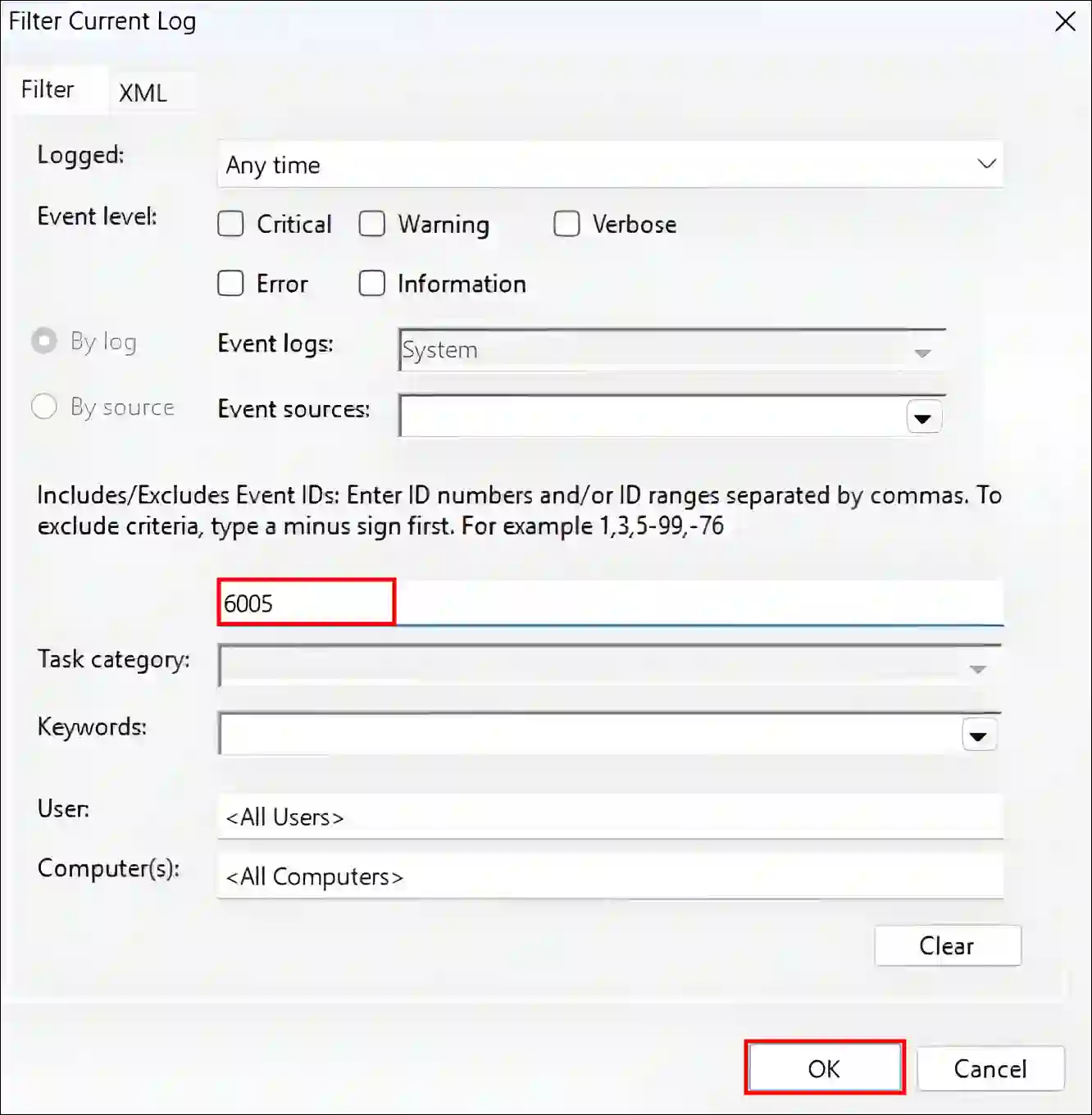
Step 3. Enter 6005 in the All Event ID Box and Click OK.
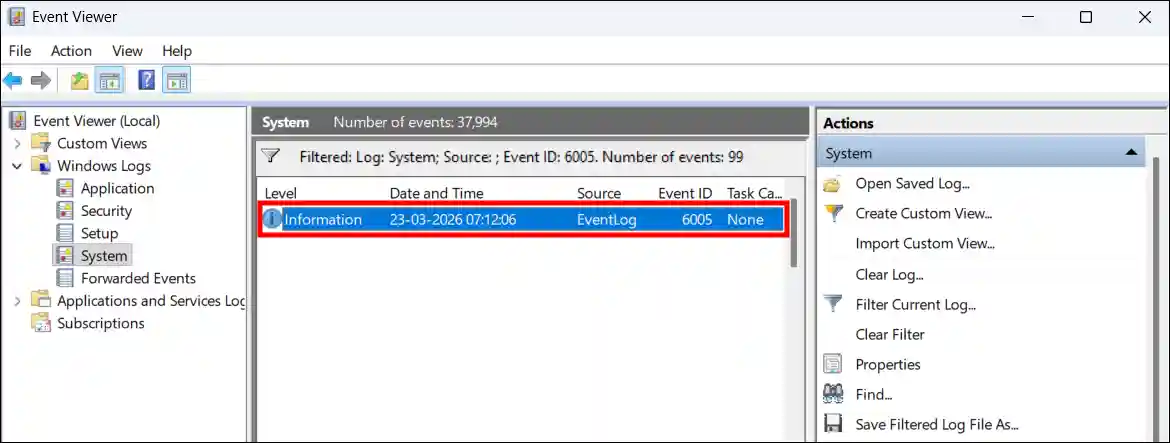
Step 4. Now, In the Filtered Log, You can See Date and Time.
That’s all! You’re done…
Also read: How to Find Default Gateway IP Address on Windows
I hope you found this article helpful and that you’ve learned how to check the last system boot date and time of Windows 11. If you have any problems or questions related to Windows 11, please let us know in the comments below. Don’t forget to share this article with your friends.