How to Create Invisible/Hidden Folder on Desktop in Windows 11
In this post, I have explained step-by-step how you can create a hidden or invisible file on the desktop in Windows 11. You won’t find an easy option that lets you do this, but did you know you can easily do it in Windows by following a secret method?
You might have often noticed that there are many folders and files scattered on our desktop, due to which the desktop starts looking disorganized. Also, sometimes we feel the need to hide some personal or very important files so that they remain away from the eyes of others.

You can keep your desktop clean and tidy by creating hidden folders. Alternatively, you can follow this trick to hide a file on a friend’s computer and surprise them. Remember that hiding folders doesn’t delete them; they simply remain invisibly on your desktop. You can only view them by highlighting.
Make a Folder Icon and Name Invisible/Transparent on Windows 11 Desktop
To hide a folder on the desktop in Windows 11 without a password:
Step 1. Right-Click on Desktop and Then New > Folder.
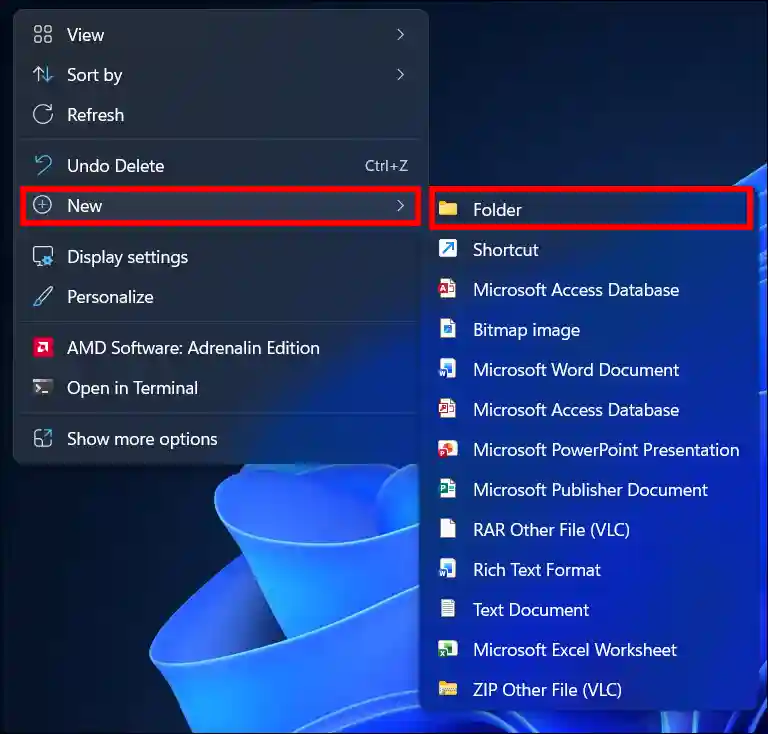
Step 2. Now, Rename the Folder By Holding Alt Key and Typing 255 on the Numeric Keypad.
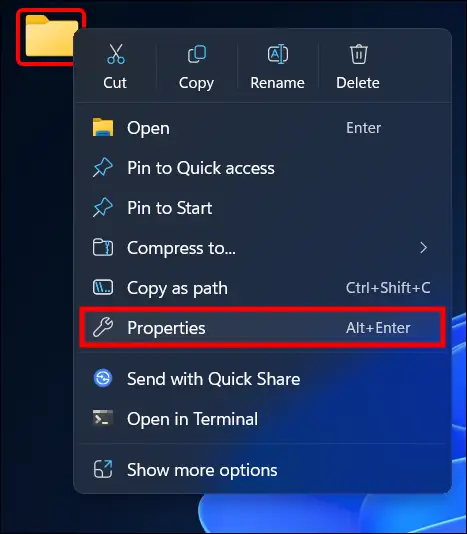
Step 3. Next, Right-Click on Recently Created Folder and Select Properties.
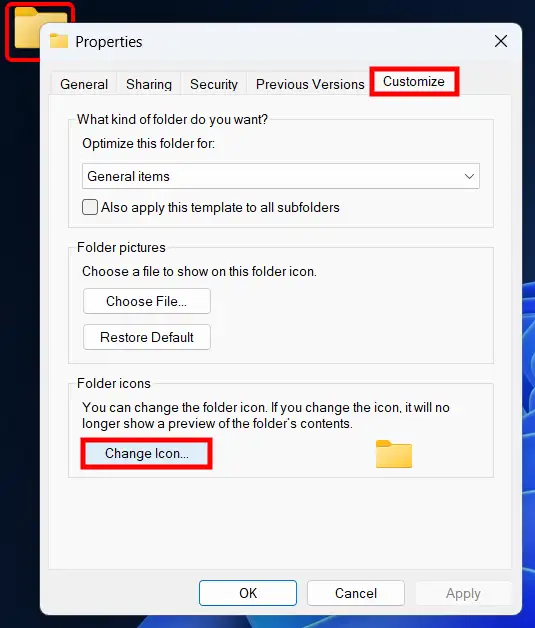
Step 4. Go to Customize Tab and Click on Change Icon.
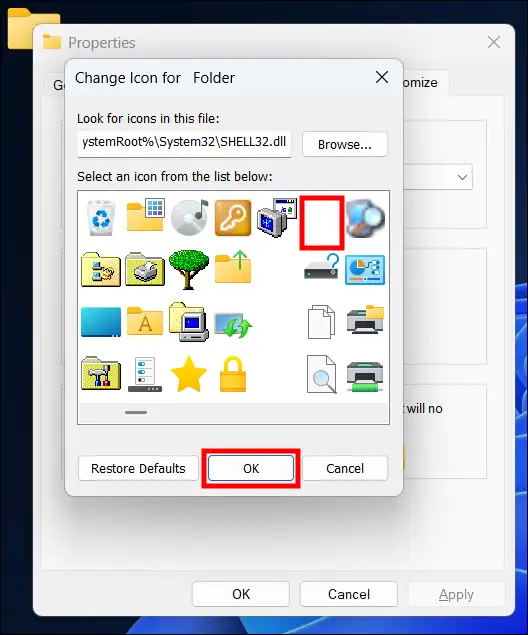
Step 5. Select a Hidden Box Icon (Blank) and Click OK.
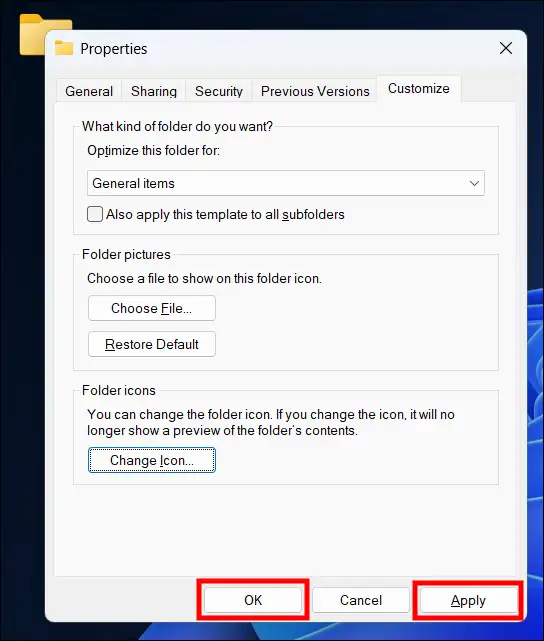
Step 6. Now, Click Apply and Then OK.
That’s it! The folder has now disappeared from your desktop, even though it’s still right there. You can easily see it by highlighting the screen, and double-clicking lets you open the folder and access the files inside.
FAQs
Q 1. Is a password required to create a hidden folder on the Windows 11 desktop?
Answer – No! You don’t need a password to create a hidden folder on the desktop in Windows 11.
Q 2. How do I see a hidden folder on the desktop?
Answer – If you hid a folder on the desktop but cannot see it now, highlight your desktop screen to make it visible. You can press CTRL + A or use your mouse to highlight the screen.
I hope you found this article helpful and that you’ve learned how to create a secret folder on the Windows 11 desktop. If you have any problems or questions related to Windows 11, please let us know in the comments below. Don’t forget to share this article with your friends on social media.