How to Disable (or Enable) Notifications of Amazon Prime Video App in Google TV
In this article, I have explained step-by-step how you can easily turn off or turn on Amazon Prime Video app notifications on Google TV. By default, this feature is enabled on Google TV, and it sends app alerts to users automatically.
Turn Off Notifications of Amazon Prime Video App in Google TV
As your Android OS based Google TV has Amazon Prime Video notifications enabled by default, they may frequently disturb you. However, the good news is that you can easily block or stop these notifications. All the steps for this are given below, one by one.
To disable Amazon Prime Video notifications on a smart TV:
Step 1. Click on Gear Icon (Settings) on Top Right Using Your Remote.
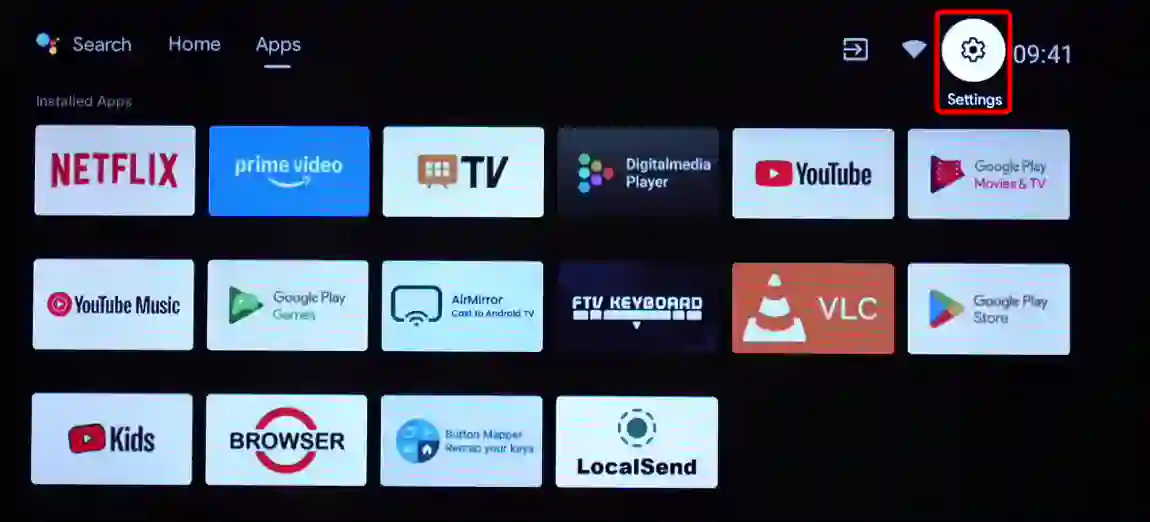
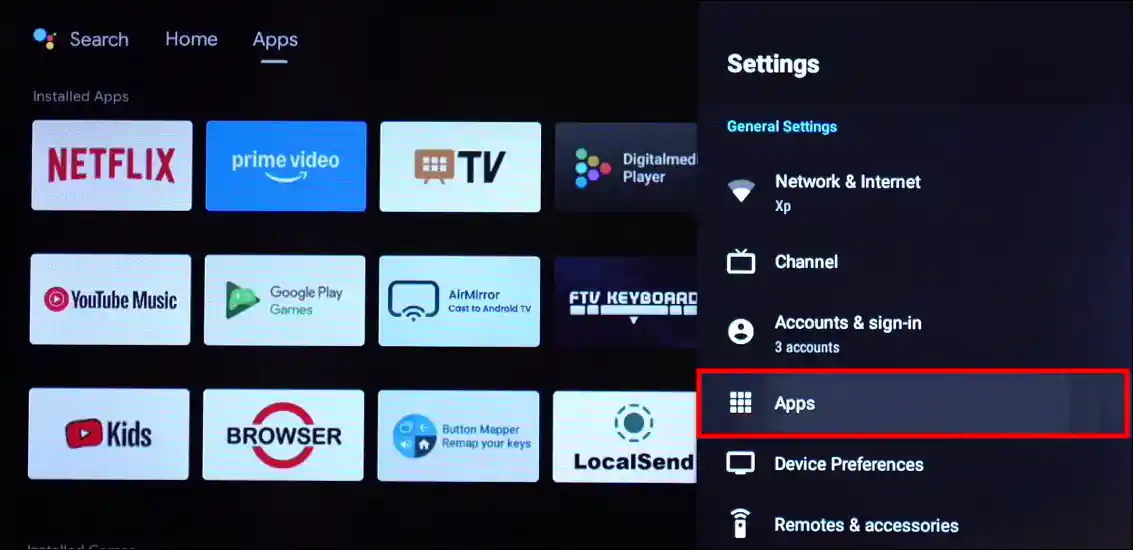
Step 2. Click on Apps > See All Apps.
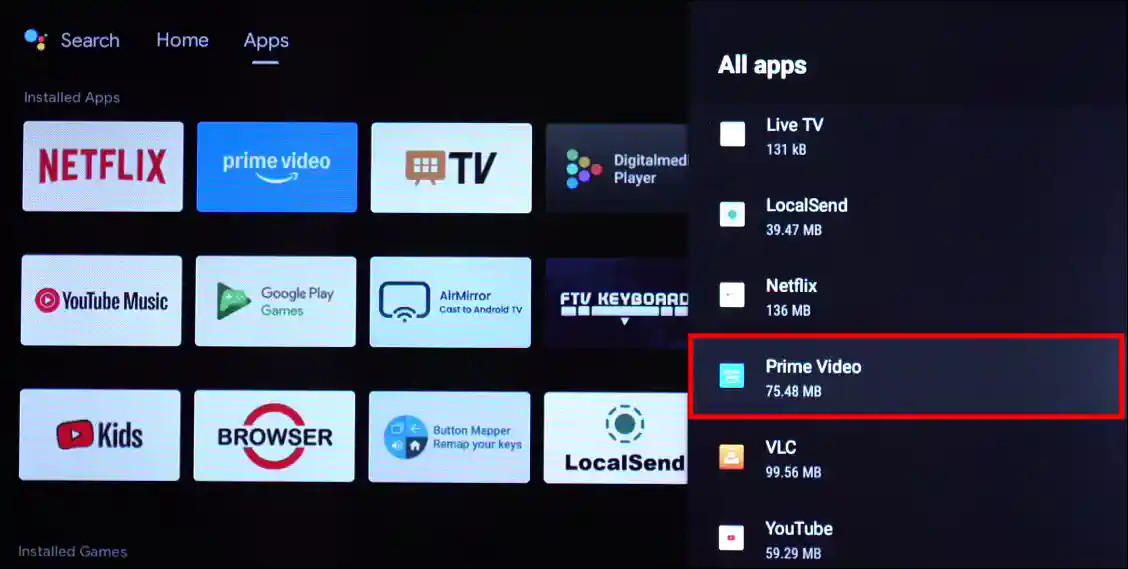
Step 3. Find and Select Prime Video from the List.
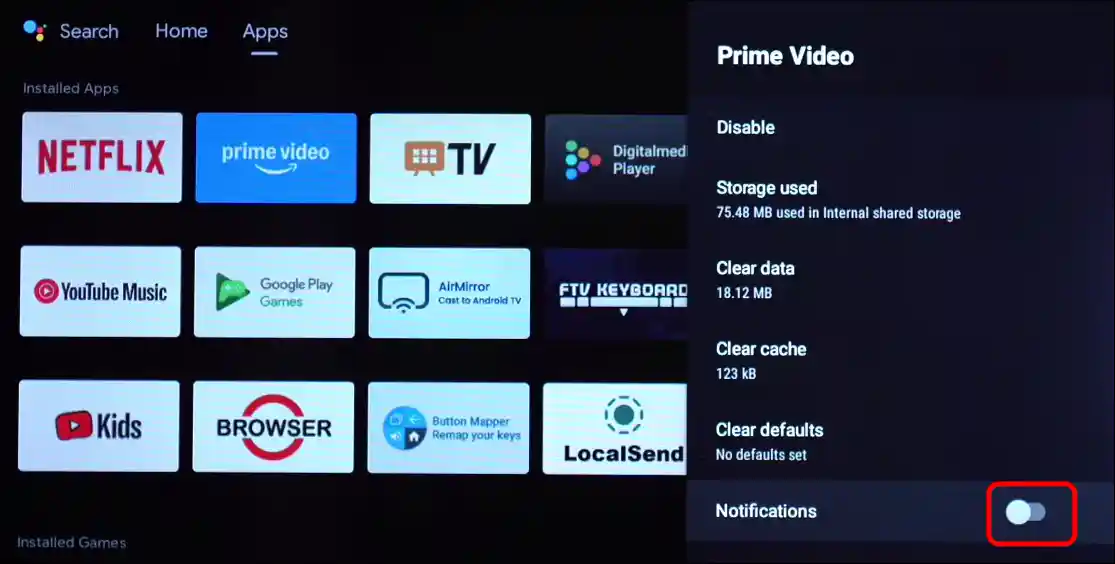
Step 4. Scroll Down to Notifications and Toggle This Off.
Related: 2 Easy Ways to Open Play Store in Google TV
Turn On Notifications of Amazon Prime Video App in Google TV
If you think you’re missing Amazon Prime notifications on your TV, don’t worry. You can re-enable them on your smart TV. However, please note that once enabled, the TV will automatically push app alerts again.
To enable Amazon Prime Video notifications on a smart TV:
Step 1. Click on Gear Icon (Settings) on Top Right Using Your Remote.
Step 2. Click on Apps > See All Apps.
Step 3. Find and Select Prime Video from the List.
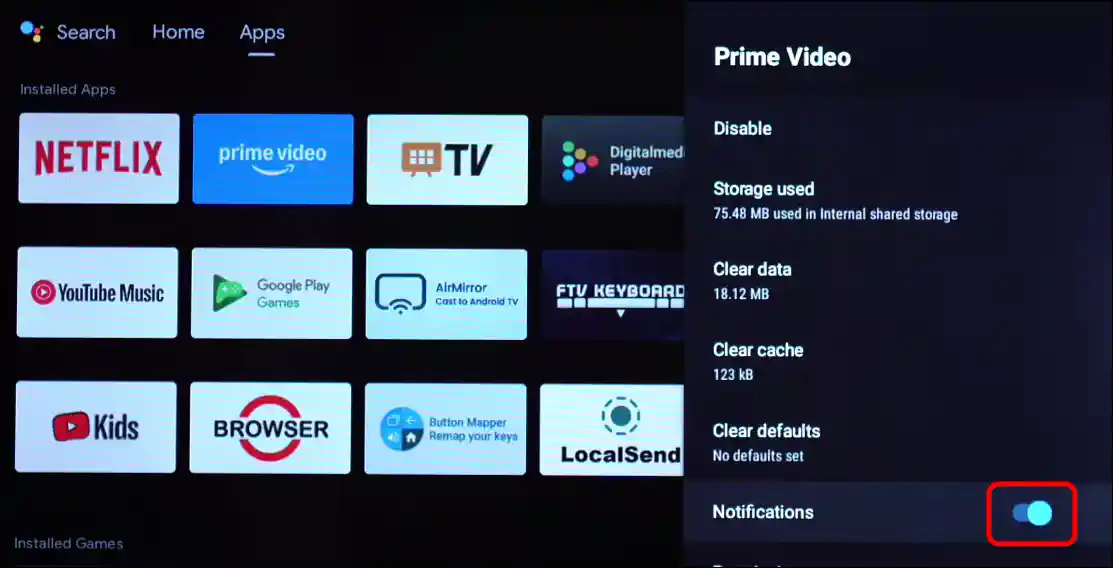
Step 4. Scroll Down to Notifications and Toggle This On.
That’s all! You’re done…
Related: How to Turn Off Netflix Notifications on TV
I hope you found this article helpful and learned how to disable or enable notifications of the Amazon Prime Video app in Google TV. If you have any questions related to Google TV, please ask in the comments below. Feel free to share this article as well.