How to Enable Live Activities on CarPlay to see iPhone’s Live Activities on Car’s Screen
Apple has made significant changes and added new features to both the iPhone and the CarPlay system in the iOS 26 update, such as Live Activities and the Liquid Glass visual redesign. You can now experience your iPhone’s active Live Activities directly on your car’s screen.
As soon as you update your iPhone to iOS 26, the update for CarPlay will also be complete, and the Live Activities mode will be automatically activated. However, you will need to check your iPhone settings to specify which apps or their notifications you want to display in Live Activities.
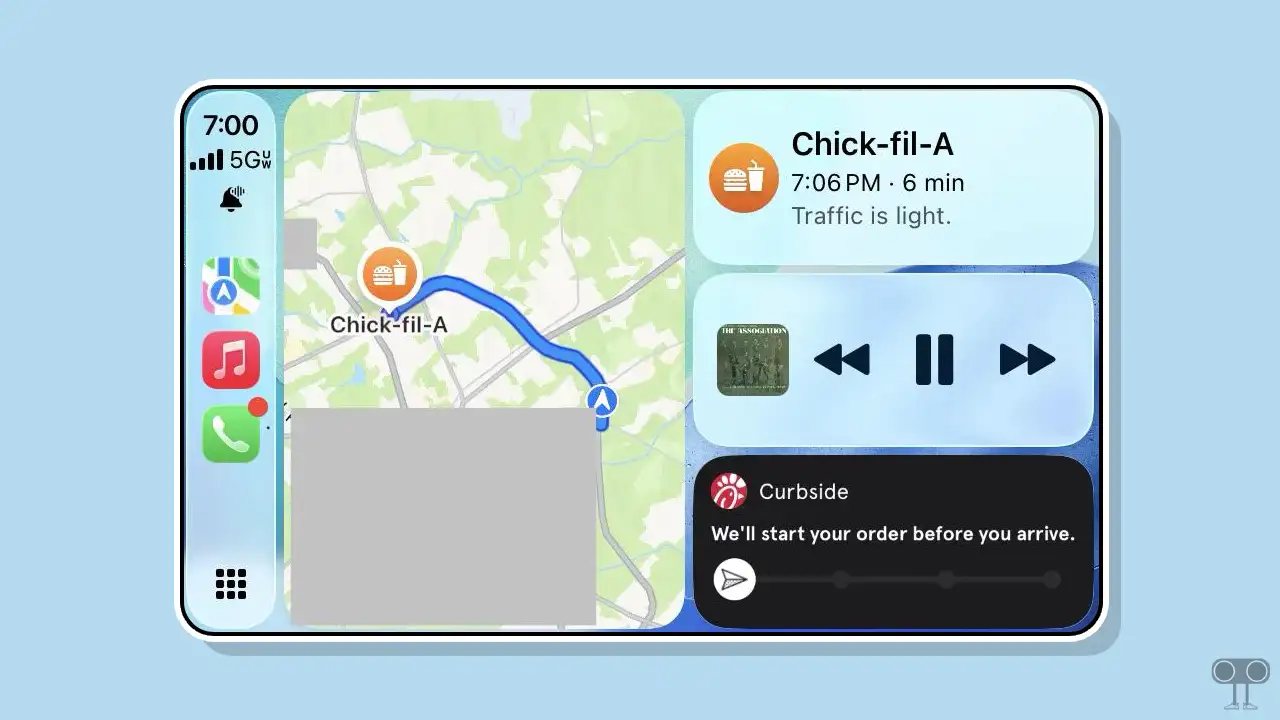
Every car that supports both wireless and wired CarPlay has received this refreshed version of CarPlay from iOS 26. For example, if you are driving to a railway station or an airport and suddenly receive an update related to your journey in the app, previously you had to check it on your iPhone.
But those days are gone! Now, you can access all updates directly on your car’s display.
How to Enable Live Activities on CarPlay System
As I mentioned above, after the iOS 26 update, ‘Live Activities’ is automatically activated in CarPlay. However, if it gets disabled for any reason, you can reactivate it directly from the CarPlay system. It’s a very simple process, and all the steps are outlined below.
To turn on and show live activities on your CarPlay:
Step 1. Go to the App Gallery on Your CarPlay Screen.
Step 2. Tap on Settings.
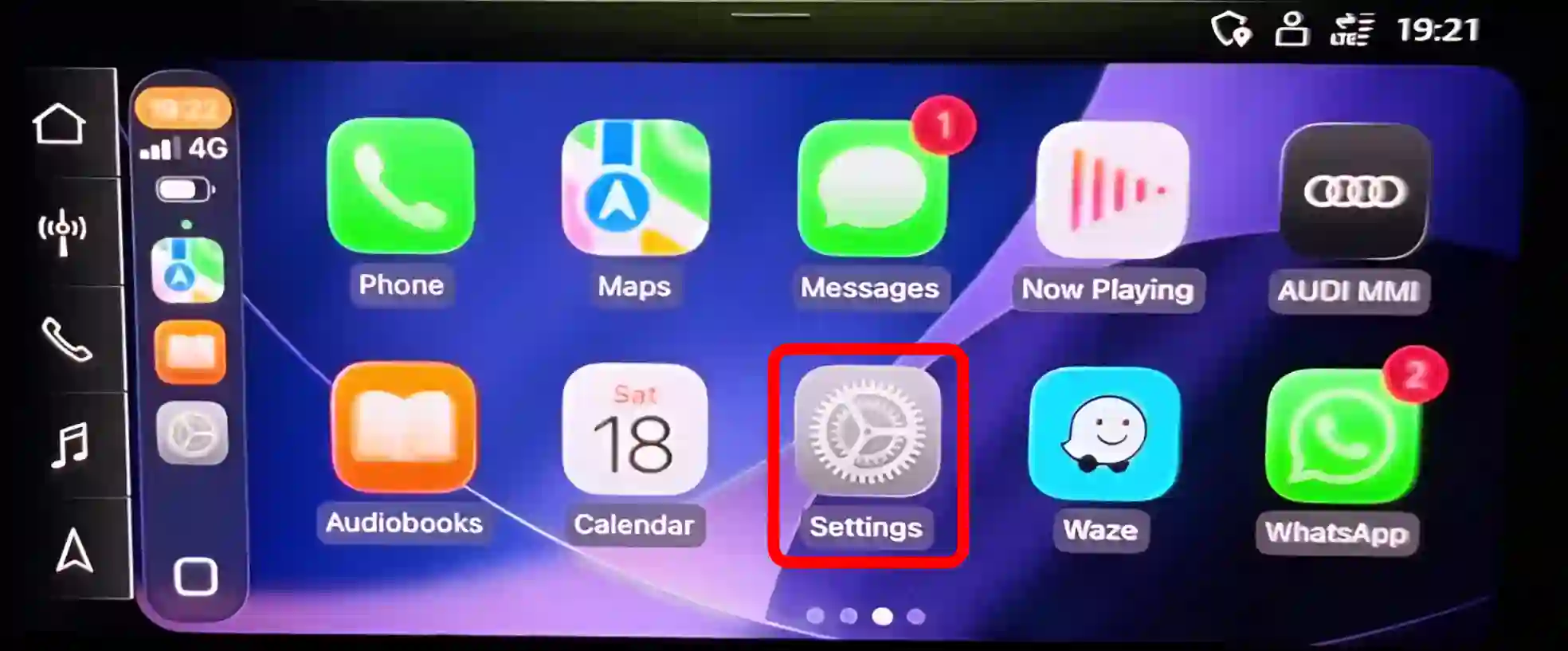
Step 3. Scroll Down and Just Turn On the “Live Activities” Toggle.
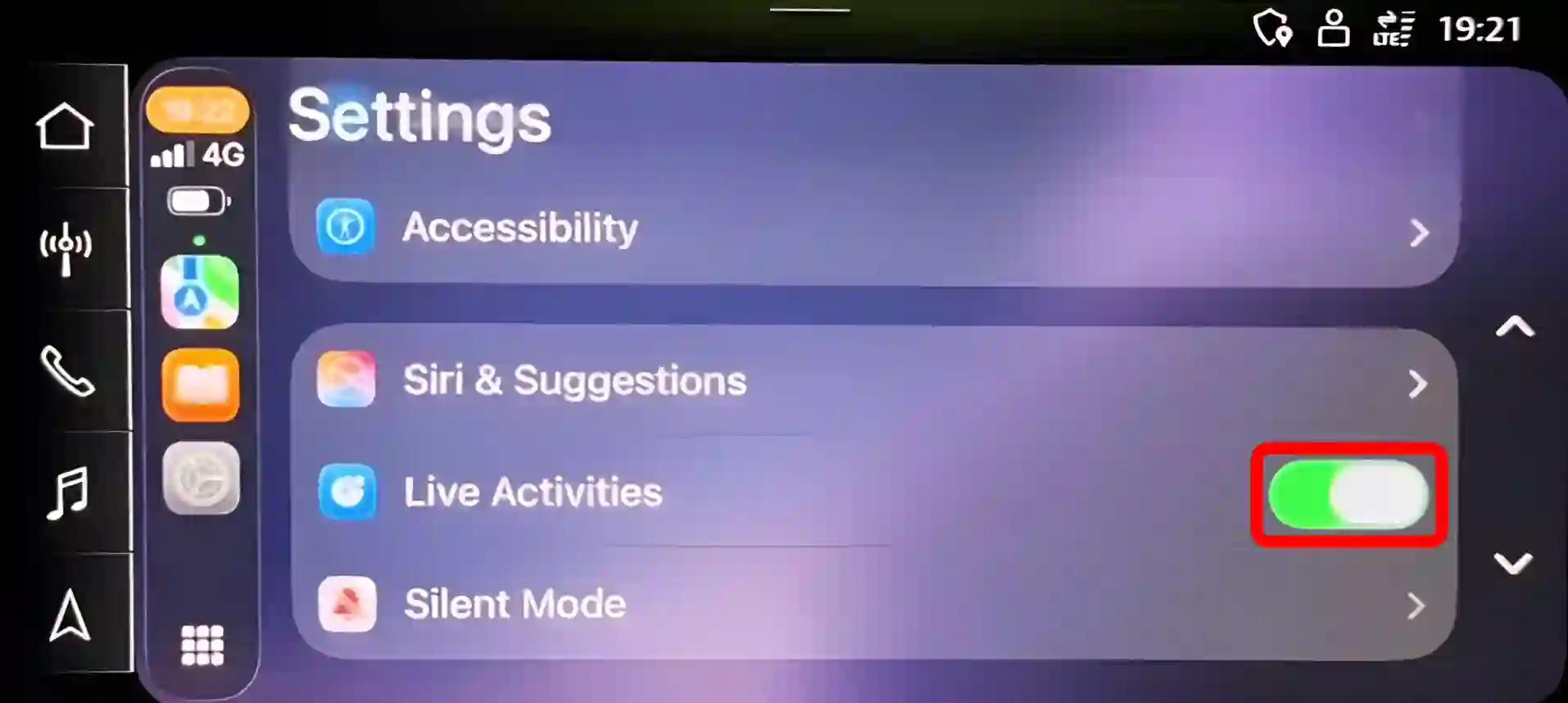
Once you do this, your iPhone’s Live Activities will start appearing on your CarPlay’s main screen.
Related: iOS 26 Now Supports HDR Screenshots! Here’s How to Enable and Use It?
How to Disable Live Activities on CarPlay System
Like many users, you might not like Live Activities on CarPlay and want to remove it from your car’s screen. This is a simple process. While it’s enabled by default after the iOS 26 update or later, you can disable it using the steps below.
To turn off live activities on your CarPlay:
Step 1. Go to the App Gallery on Your CarPlay Screen and Tap on Settings.
Step 2. Scroll Down and Just Turn Off the “Live Activities” Toggle.
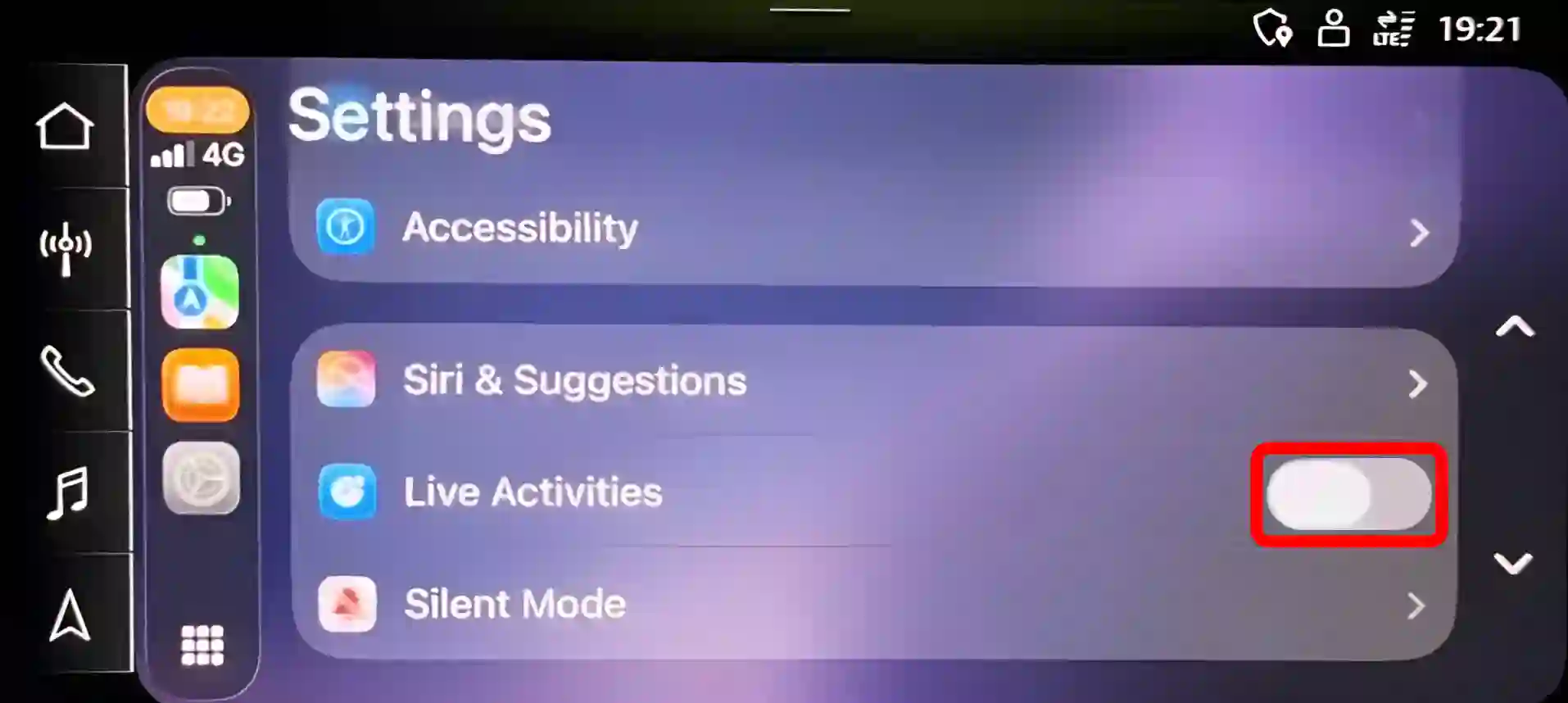
That’s it! Live Activities mode has now been successfully deactivated on your CarPlay. However, you can re-enable it whenever you want for your convenience.
Related: How to Check and Clear History on Safari in iOS 26 or Later
I hope you found this article helpful and learned how to enable live activities on CarPlay. If you have any questions related to CarPlay or iPhone, please ask in the comments below. Feel free to share this article as well.