6 Ways to Find Current Computer Name of Your Windows 11 Device
In this article, I will show you 6 different ways to find the current computer name of your Windows 11 device. You might be wondering why you even need to check your computer name. Let me tell you that this is helpful when you use multiple computers with your Microsoft account.
The computer name is often needed for network identification, file and printer sharing, remote desktop connections, managing multiple devices, and more. Most computers come with default names, but you can change the computer’s name.
6 Quick Ways to Find Current Computer Name of Your Windows 11 Device
1. Find Computer Name in Settings
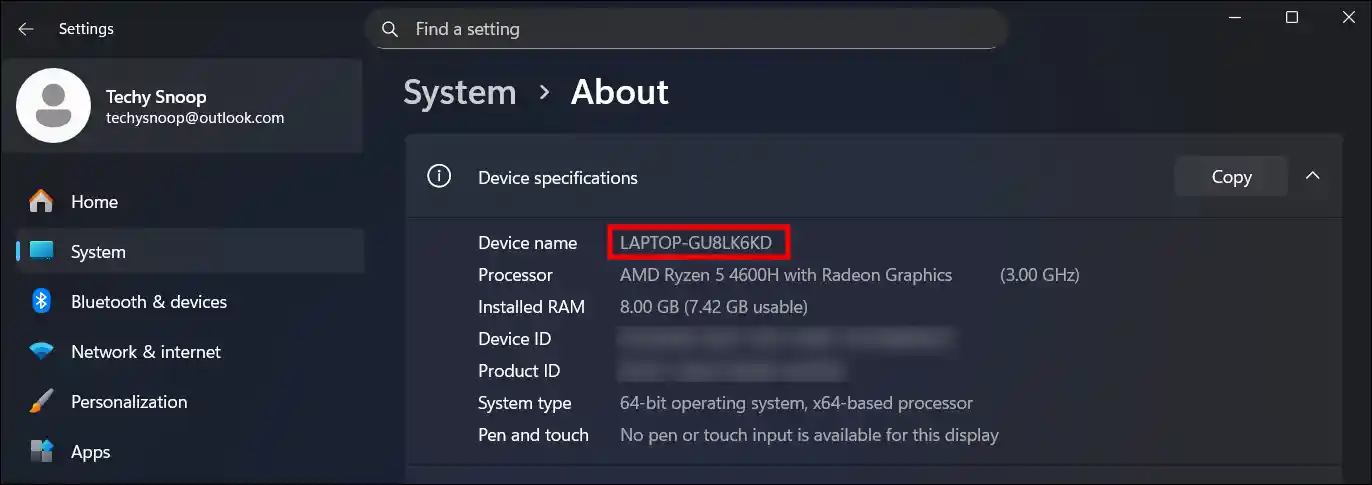
Windows 11‘s System About section displays your computer’s information, and you can easily view your current computer name there.
- Press Windows + I Simultaneously to Quickly Open Settings.
- Click on System > About.
- Under the Device Specifications Section, You Can See Your Device Name.
2. Find Computer Name using Hostname Command
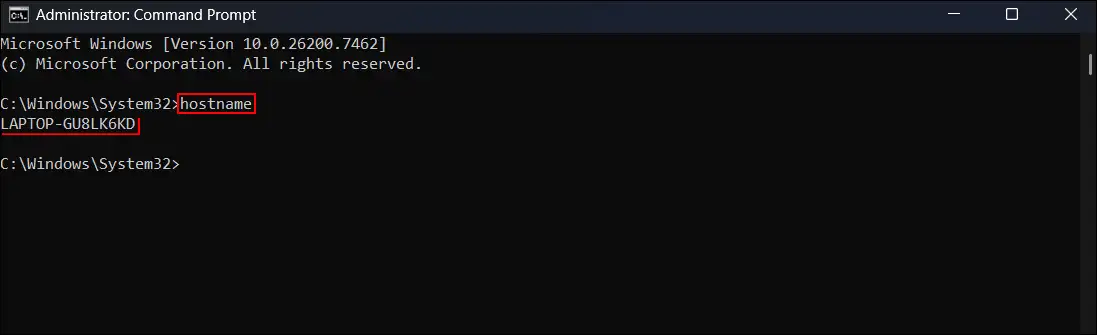
You can also find your Windows 11 device’s computer name by entering the Hostname command in Windows PowerShell or Command Prompt. However, you will need to run PowerShell or CMD as an administrator for this to work.
- Press Windows + S and Search “PowerShell” or “CMD” and Then Run as Administrator.
- Type
hostnameand Hit Enter. - Now, You Can See the Output; That’s Your Computer Name.
3. Find Computer Name using MachineName Command
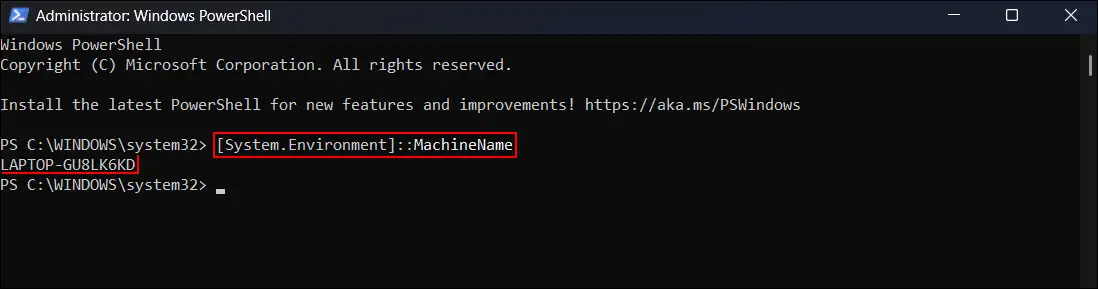
Similar to the hostname command, the Machinename command also helps you view your Windows 11 device’s computer name. However, the Machinename command only runs in PowerShell, and you must run PowerShell as an administrator.
- Press Windows + S and Search “PowerShell” and Then Run as Administrator.
- Type
[System.Environment]::MachineNameand Hit Enter. - Now, You Can See the Output, That’s Your Computer Name.
Read more: How to Check if Your PC is 32-bit or 64-bit
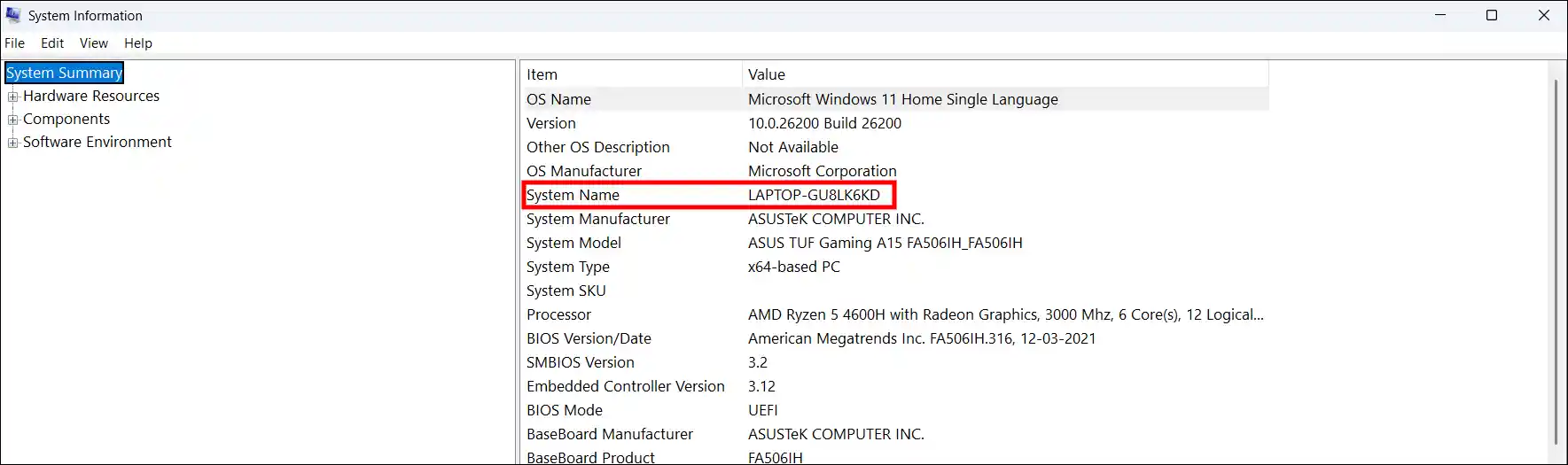
4. Find Computer Name in System Information
Step 1. Press Windows + R to Open the Run Dialog Box.
Step 2. Type msinfo32.exe in the Box and Click OK.
Step 3. In the Right Pane, You’ll System Name as Your Computer Name.
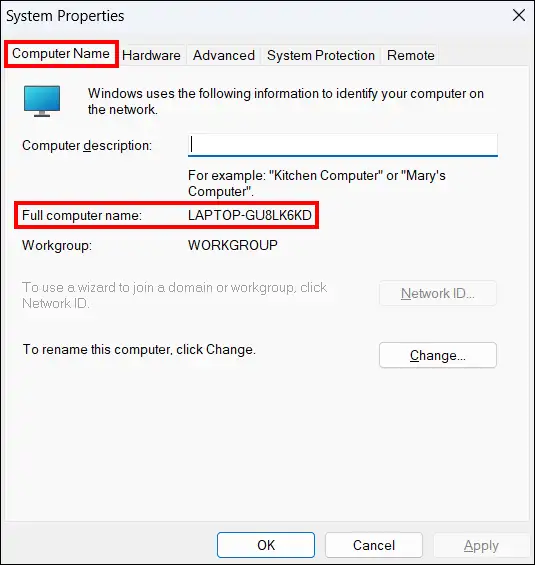
5. Find Computer Name in System Properties
- Press Windows + R to Open the Run Dialog Box.
- Type
sysdm.cplin the Box and Click OK. - Here, You Can See Full Computer Name in the Computer Tab.
6. Find Computer Name in Registry Editor
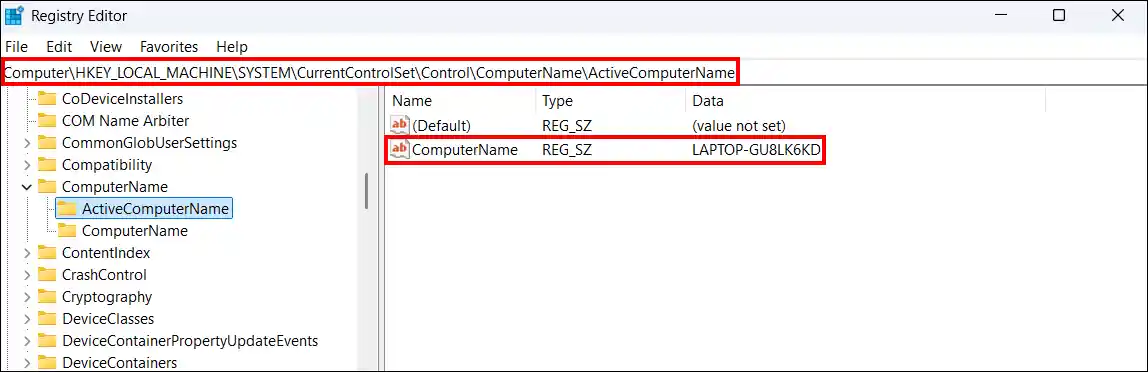
Yes! You can also find your computer name in the Registry Editor. For this, simply enter a specific registry path, and you will get the result instantly. All the steps are listed below.
The Registry Editor, also known as Regedit, is a powerful Windows tool. It allows you to view and edit the Windows Registry.
- Press Windows + S and Search Regedit and Open It.
- Now Copy & Paste the Following Path in the Registry Editor and Hit Enter.
HKEY_LOCAL_MACHINE\SYSTEM\CurrentControlSet\Control\ComputerName\ActiveComputerName - Now, In the ActiveComputerName Key, You Can See ComputerName Data as Your Computer Name.
That’s all! Just follow these 6 different methods to see your computer’s name.
Read more: Enable Group Policy Editor (GPEdit.msc) in Windows 11 Home Edition
I hope you found this article helpful and that you’ve learned how to find the current computer name of your Windows 11 device. If you have any problems or questions related to Windows 11, please let us know in the comments below. Don’t forget to share this article with your friends on social media.