How to Stop or Enable Animation Effects in Windows 11
Windows 11 includes built-in animation effects that provide smooth window transitions when minimizing and maximizing windows. While these are enabled by default, these animated effects can slow down your PC and also impact battery life.
If your Windows 11 computer or laptop has a high-end configuration, you can keep these default animation effects enabled. However, if your system is lagging, you can easily disable them. Microsoft allows you to do this in Windows 11.
How to Disable Animation Effects in Windows 11
Windows 11’s Accessibility Settings include an option to manage visual effects, allowing you to control animations. From here, you can easily stop animation effects.
To turn off animation effects on Windows 11:
Step 1. Press Windows + I to Quickly Access Settings.
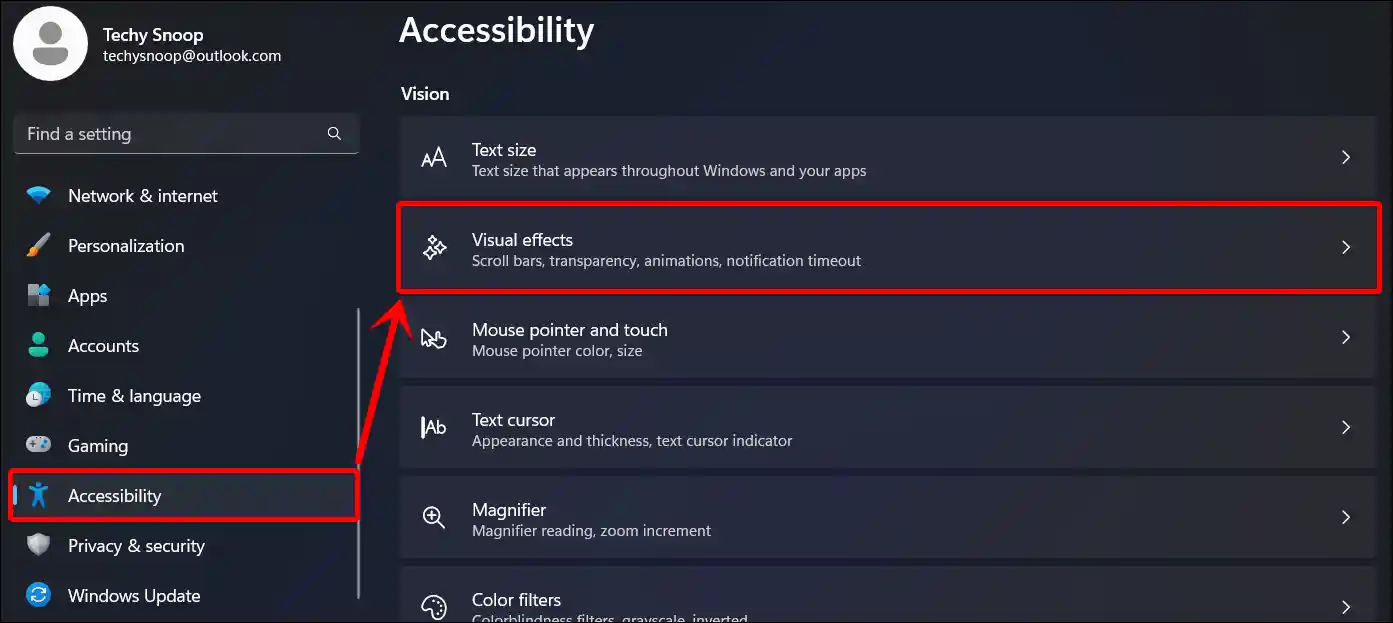
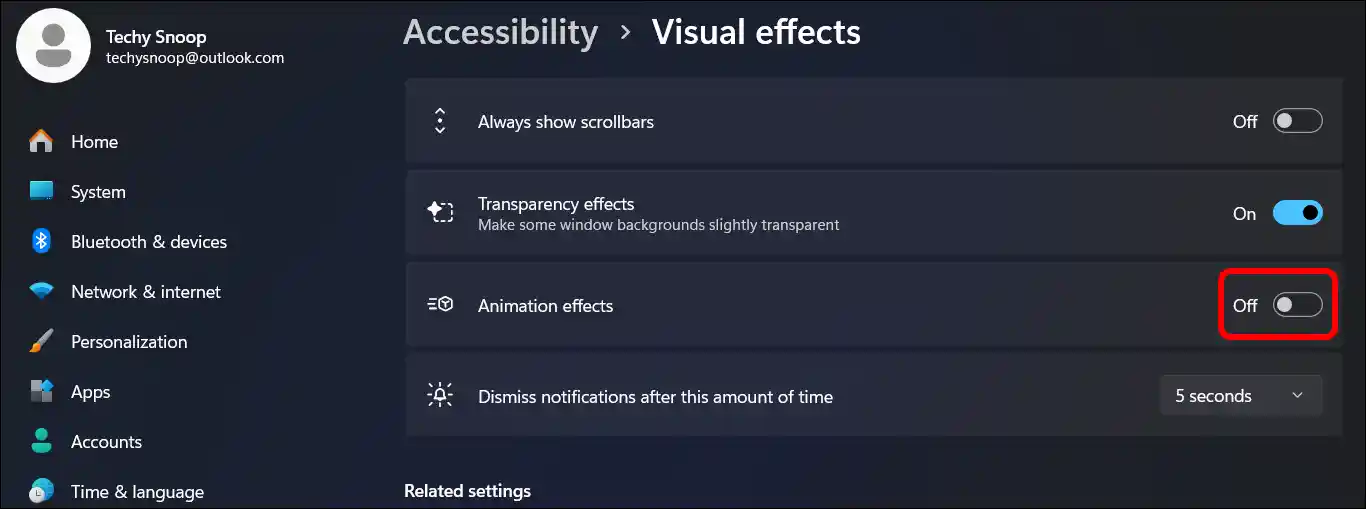
Step 2. Click on Accessibility > Visual Effects.
Step 3. Now, Turn Off the “Animation Effects” Toggle.
Related: 2 Easy Ways to Disable Smart App Control in Windows 11
How to Enable Animation Effects in Windows 11
If you or someone else accidentally turned off the animation effects on your computer, but you now want to turn them back on, you can easily do so. Simply follow the steps mentioned below.
However, keep in mind that re-enabling them might result in a slight decrease in computer performance and battery life.
To turn on animation effects on Windows 11:
Step 1. Press Windows + I to Quickly Access Settings.
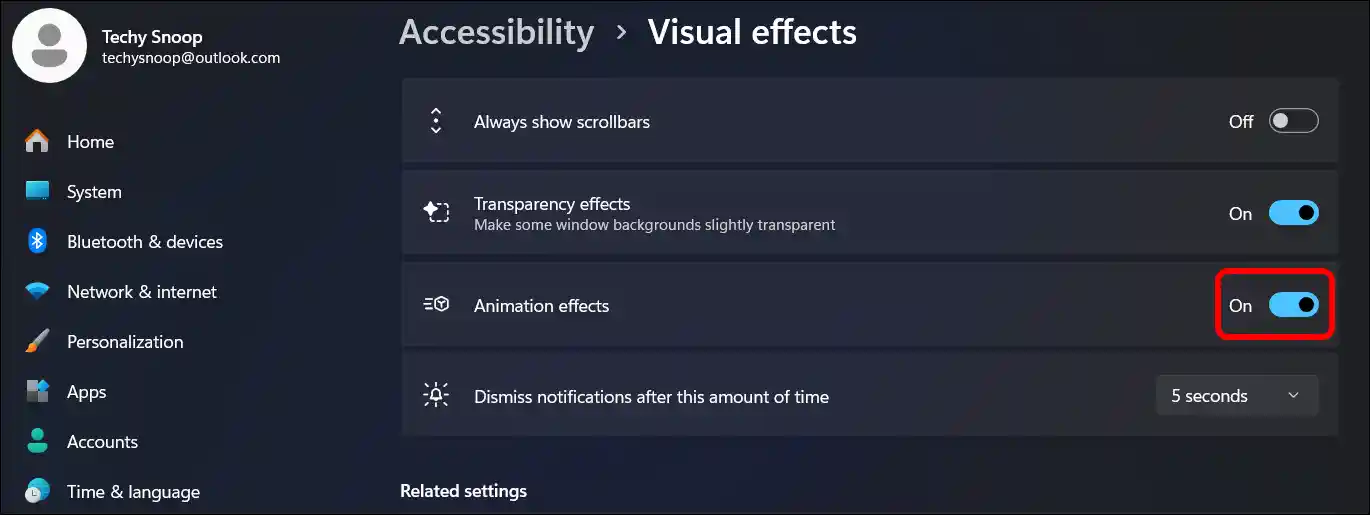
Step 2. Click on Accessibility > Visual Effects.
Step 3. Now, Turn On the “Animation Effects” Toggle.
That’s all! You’re done…
Related: How to Check if BIOS Mode is UEFI (Windows 11/10)
FAQs
Q 1. Does Windows 11 use animation effects?
Answer – Yes! Windows uses 11 animation effects by default for controls and elements. However, you can easily manage these effects. It’s up to you whether you want to enable or disable them on your computer.
I hope you found this article helpful and that you’ve learned how to manage the built-in animation effects in Windows 11. If you have any problems or questions related to Windows 11, please let us know in the comments below. Don’t forget to share this article with your friends on social media.