How to Stop Google TV from Going to Sleep Mode [Quick Guide]
Does your Google TV automatically go into sleep mode after a certain time (15 min, 30 min, 1 hr, or 4 hr) and show a screensaver on the display? If yes, then you are not alone at all. On Android or Google Smart TV, there is a setting that, when enabled, performs a specific action.
If the TV’s sleep mode bothers you, you can get rid of it. In this article, I have shared a step-by-step method below that will teach you how to disable screen timeout on your Google TV.
How to Fix “Google TV Screen Keeps Turning Off” Problem
The Energy Saver setting in the latest version of Google TV lets you manage the sleep timer. If this setting is activated and is affecting your viewing experience, don’t worry. You can disable it by following the steps mentioned below.
Note: The steps below will work on all Google TVs (such as Sony, TCL, Hisense, Panasonic, Acer, Xiaomi, Realme, Lumio, and Akai). However, the settings options may be located differently for each brand.
To turn off screen timeout on Google TV:
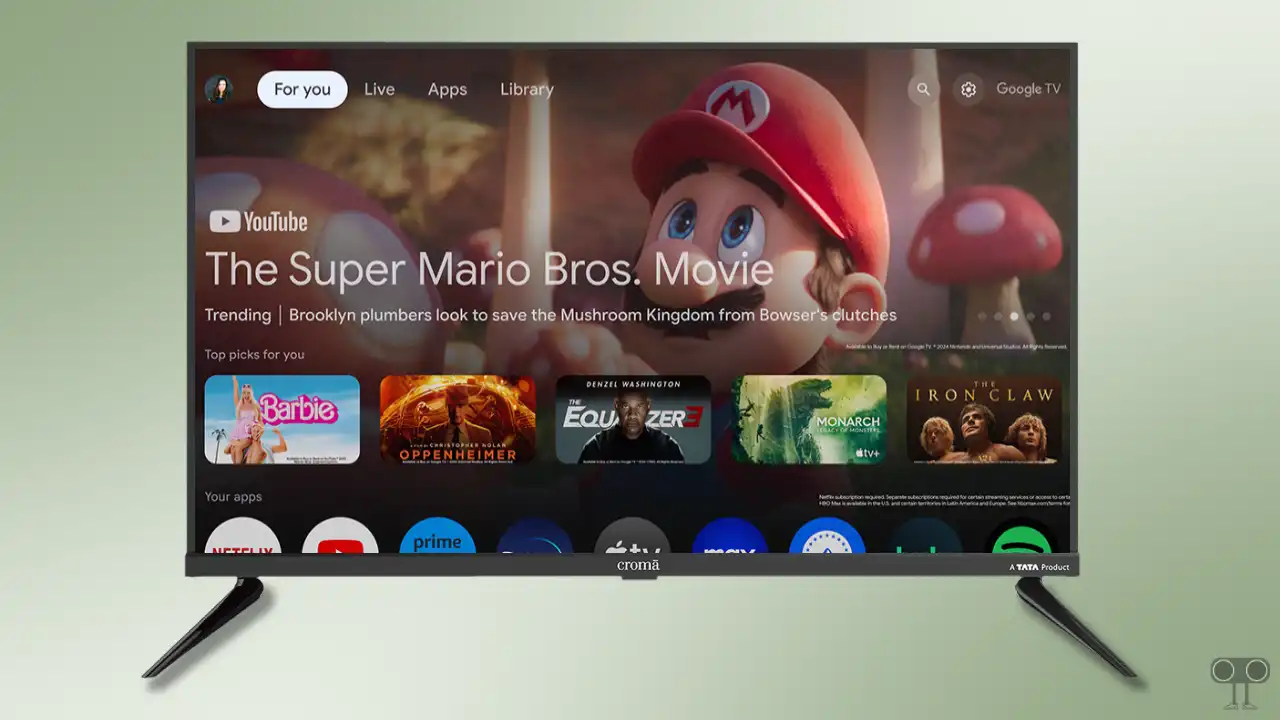
Step 1. Turn On Your Google TV and Click on “Settings” Icon at Top Right Using Remote.
Step 2. Click on “Device Preferences”.
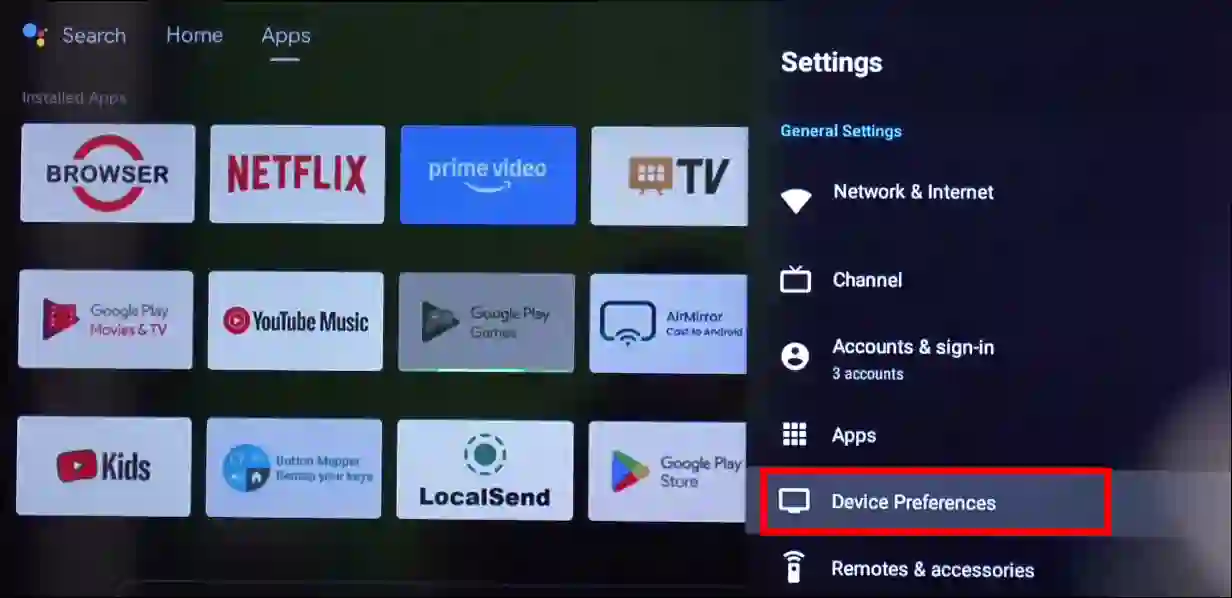
Step 3. Scroll Down and Click on “Energy Saver” or “Power”.
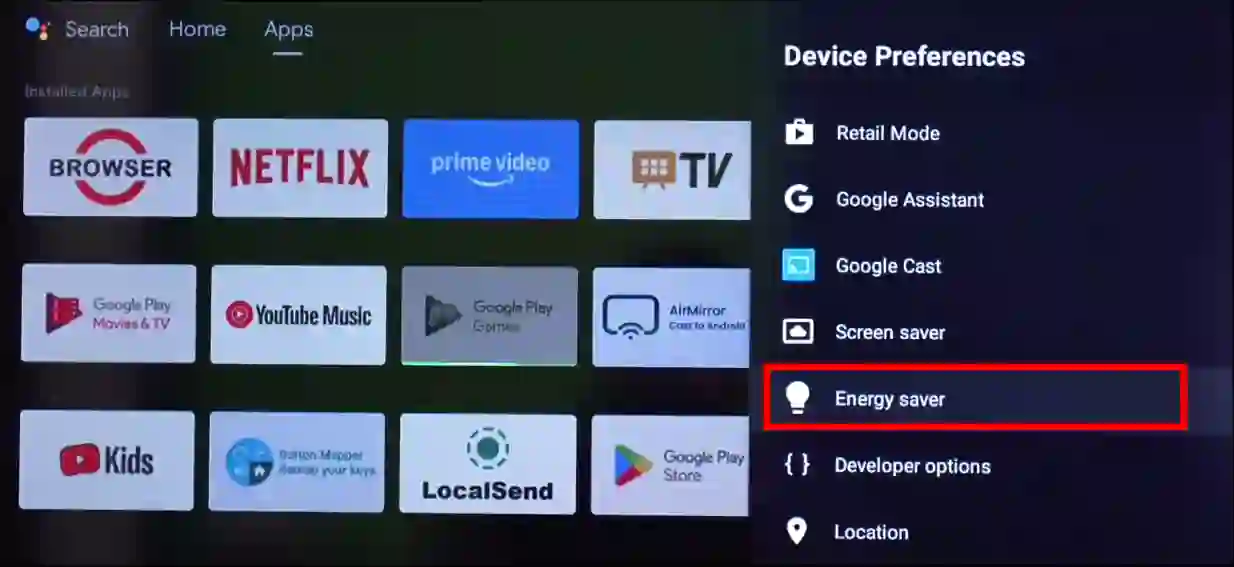
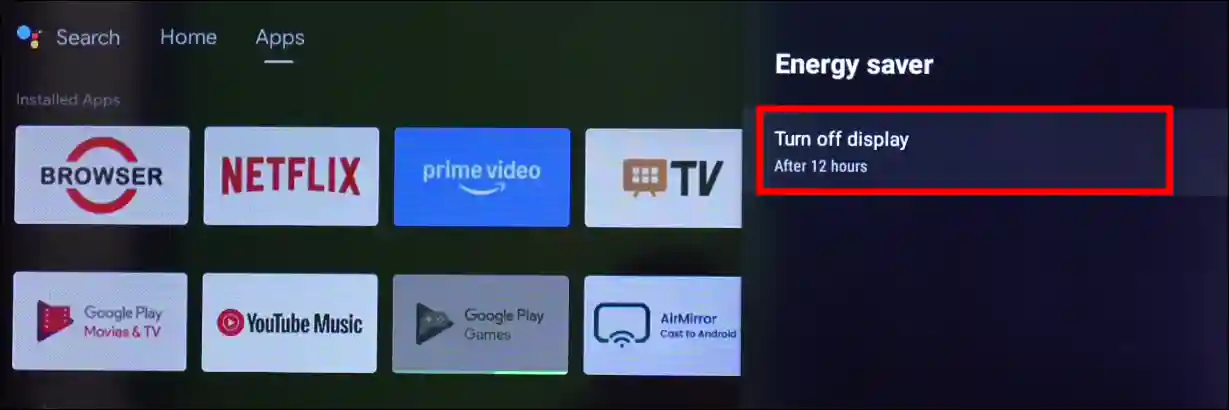
Step 4. Click on “Turn Off Display”.
Step 5. Now, Select “Never” from the List.
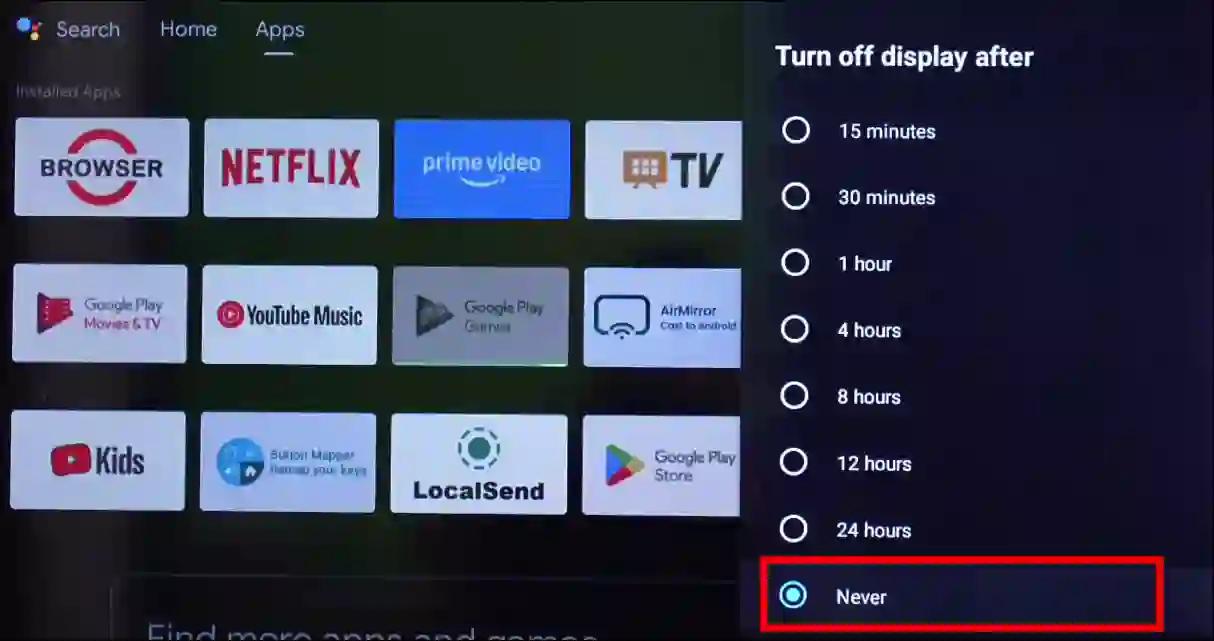
That’s it! Now your Google TV won’t automatically go to sleep unless you manually set the screen timeout.
You may also read:
- How to Open Play Store in Google TV
- Disable Amazon Prime Video’s Notifications in Google TV
- Activate YouTube TV from Android Phone Using Code
I hope you found this article helpful and that you’ve learned how to stop Google TV from going to sleep. If you have any problems or questions related to Google TV, please let us know in the comments below. Don’t forget to share this article with your friends.