How to Use AI Voice Changer on Instagram Voice Messages in DM
Meta recently rolled out the “AI Voice Effects” feature on Instagram, which allows you to apply various voice filters to voice notes in DMs. After this feature arrived, recorded voice conversations became even more fun and expressive. Below, I have mentioned how you can use AI voice changer for voice messages in Instagram DMs.
What are AI voice effects in Instagram DMs?
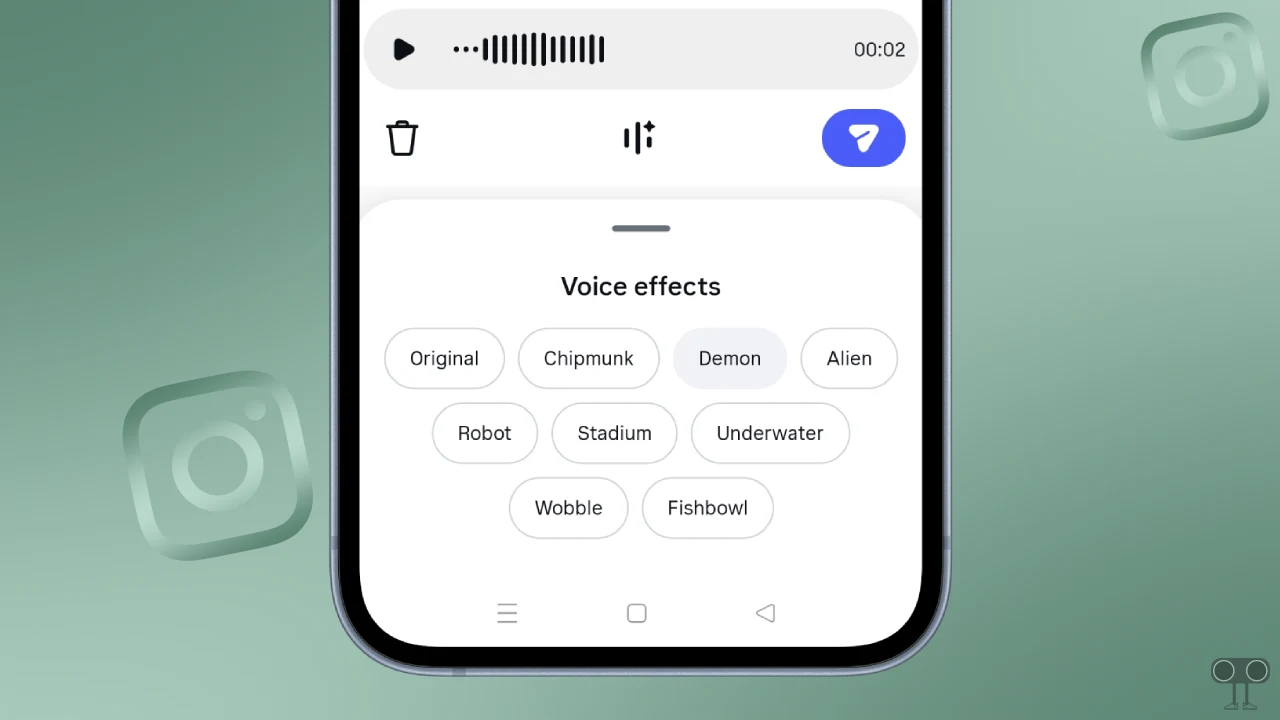
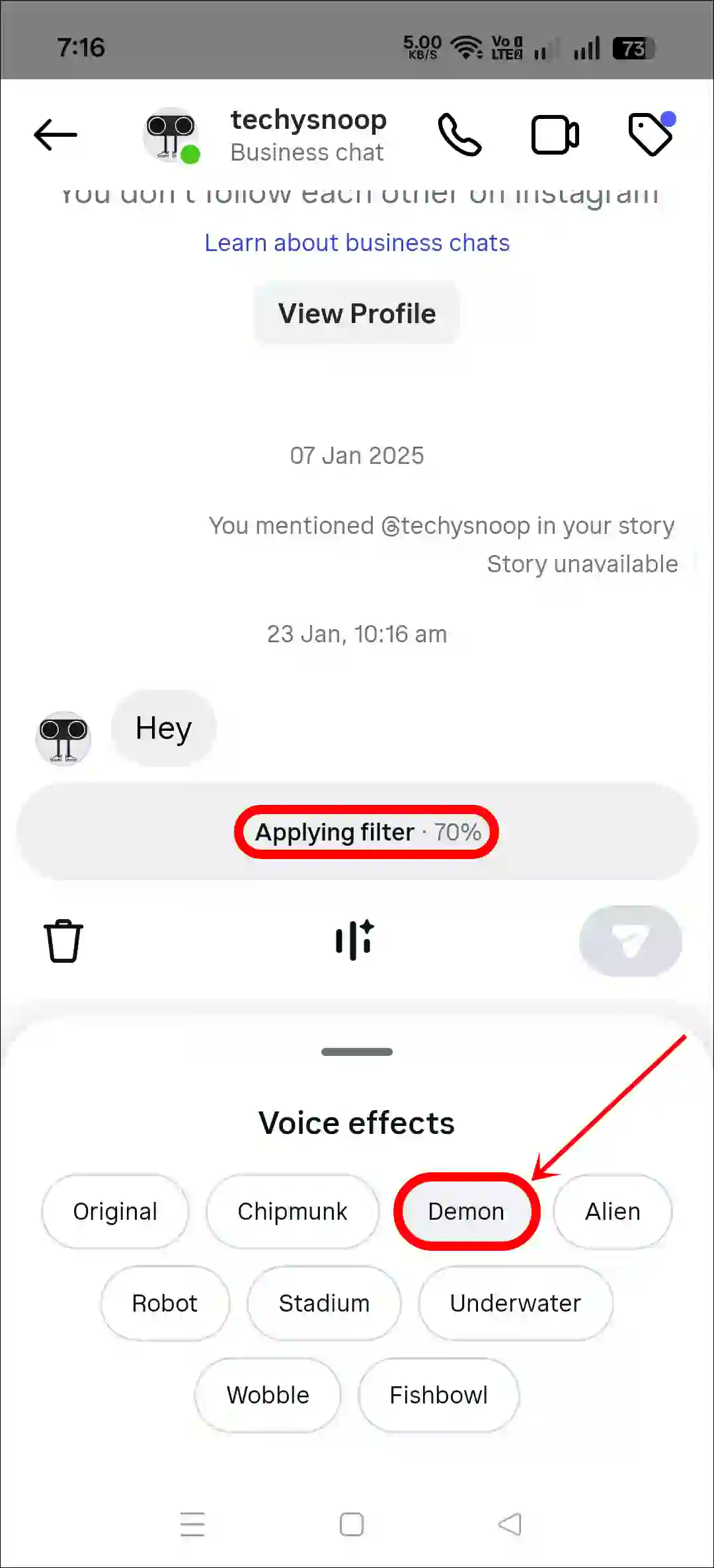
“AI voice effects” is a fun feature within Instagram Direct Messages that makes voice notes even more entertaining. This feature allows you to transform your recorded voice into various sound effects. Currently, there are 9 such voice effects available, which are listed below.
- Original
- Chipmunk
- Demon
- Alien
- Robot
- Stadium
- Underwater
- Wobble
- Fishbowl
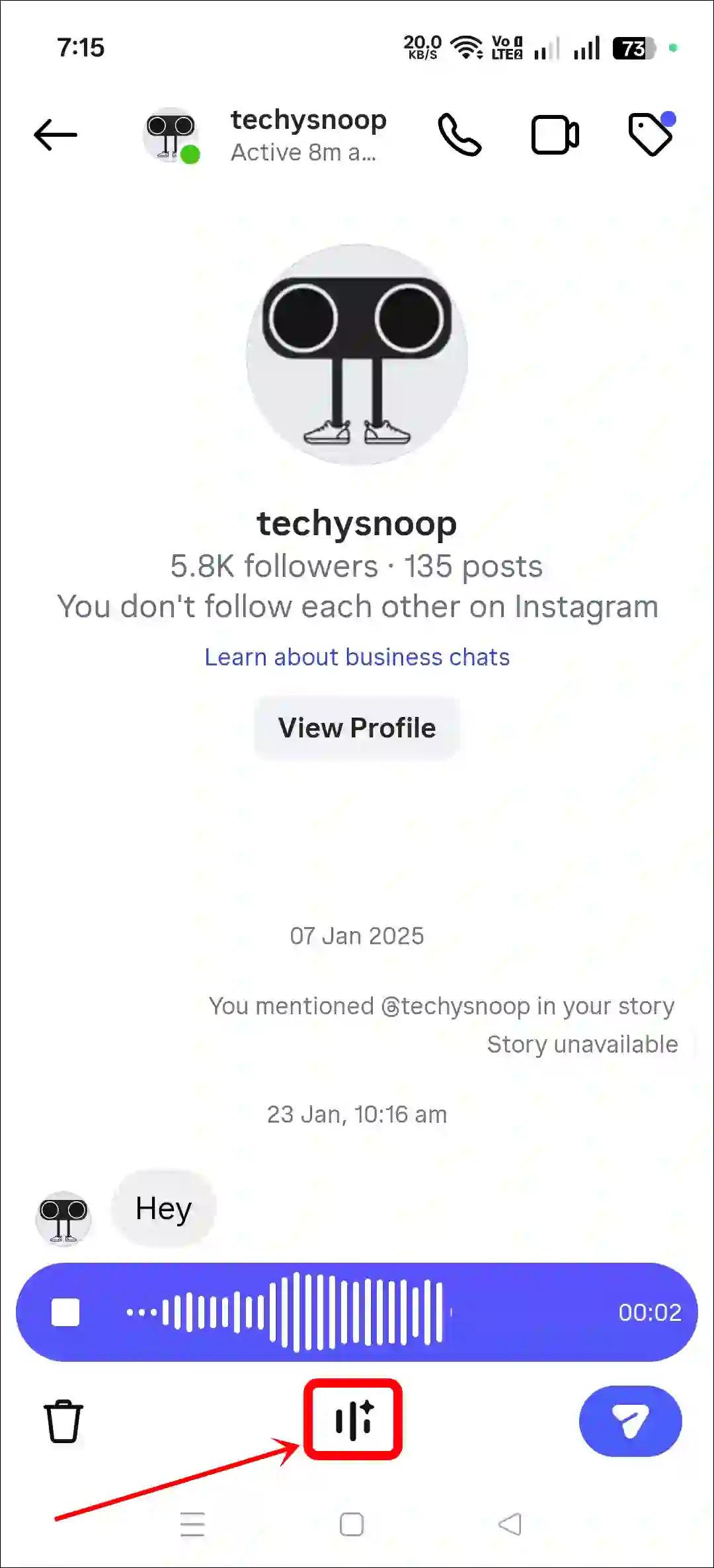
Once you record your voice, you will find an effects icon. Click on it, and you can apply any of these creative sound styles to your voice note and send it to anyone.
How to Use AI Voice Changer on Instagram Voice Messages in DM
Since this is a new feature, if you aren’t sure how to use it, let me tell you that it is extremely simple. I have listed all the steps below, one by one; by following them, you can easily use the AI Voice Changer on voice notes within your DMs.
To use voice effects in Instagram DMs:
- Open Instagram App and Go to DM.
- Open Any Existing Chat or Start a New Chat.
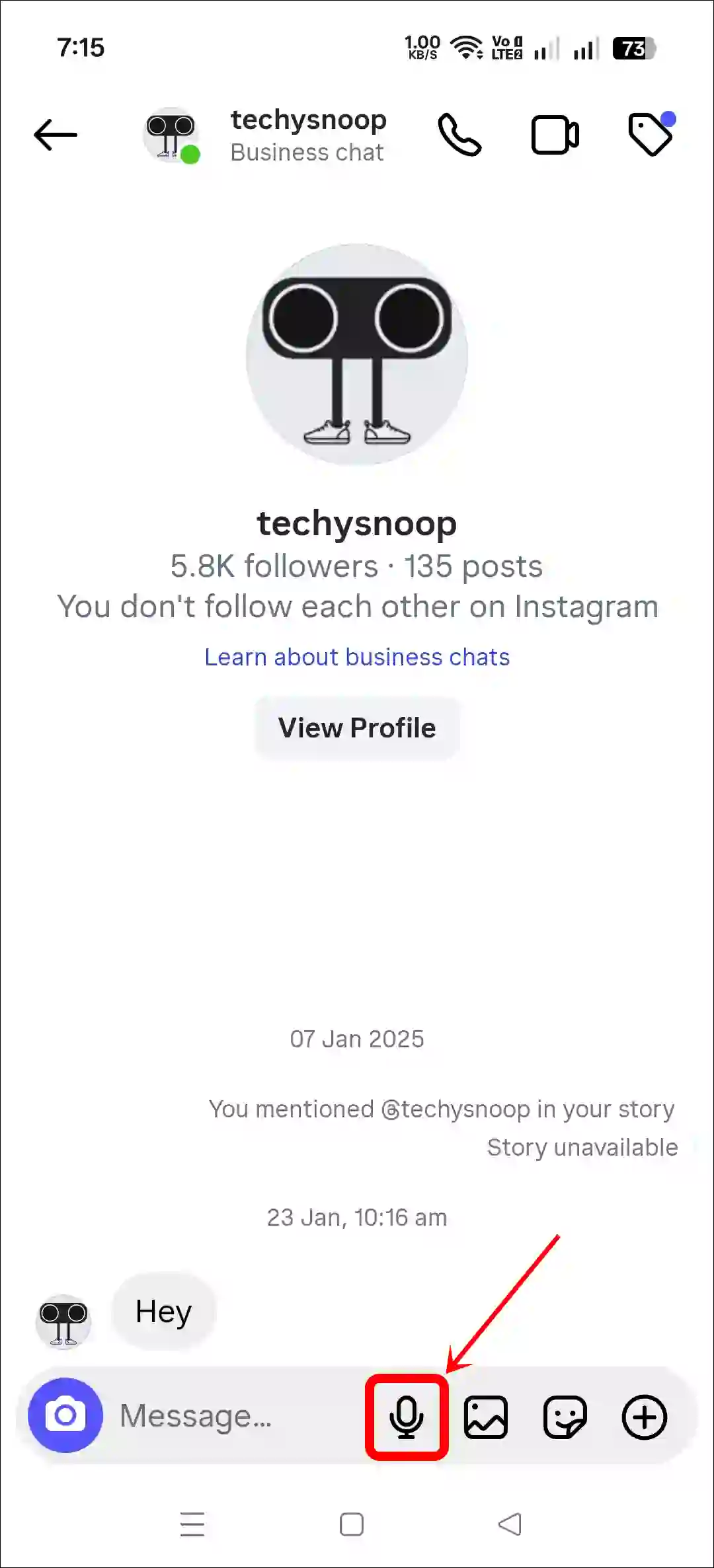
- Tap on the Microphone Icon to Record a Voice Note.
- Now, Tap on AI Voice Effects Icon at the Bottom Middle.
- Select Any Voice Filter, and That Filter will Start Applying.
- After Applying the Filter, Tap the Paper Airplane Icon to Send the Voice Note.
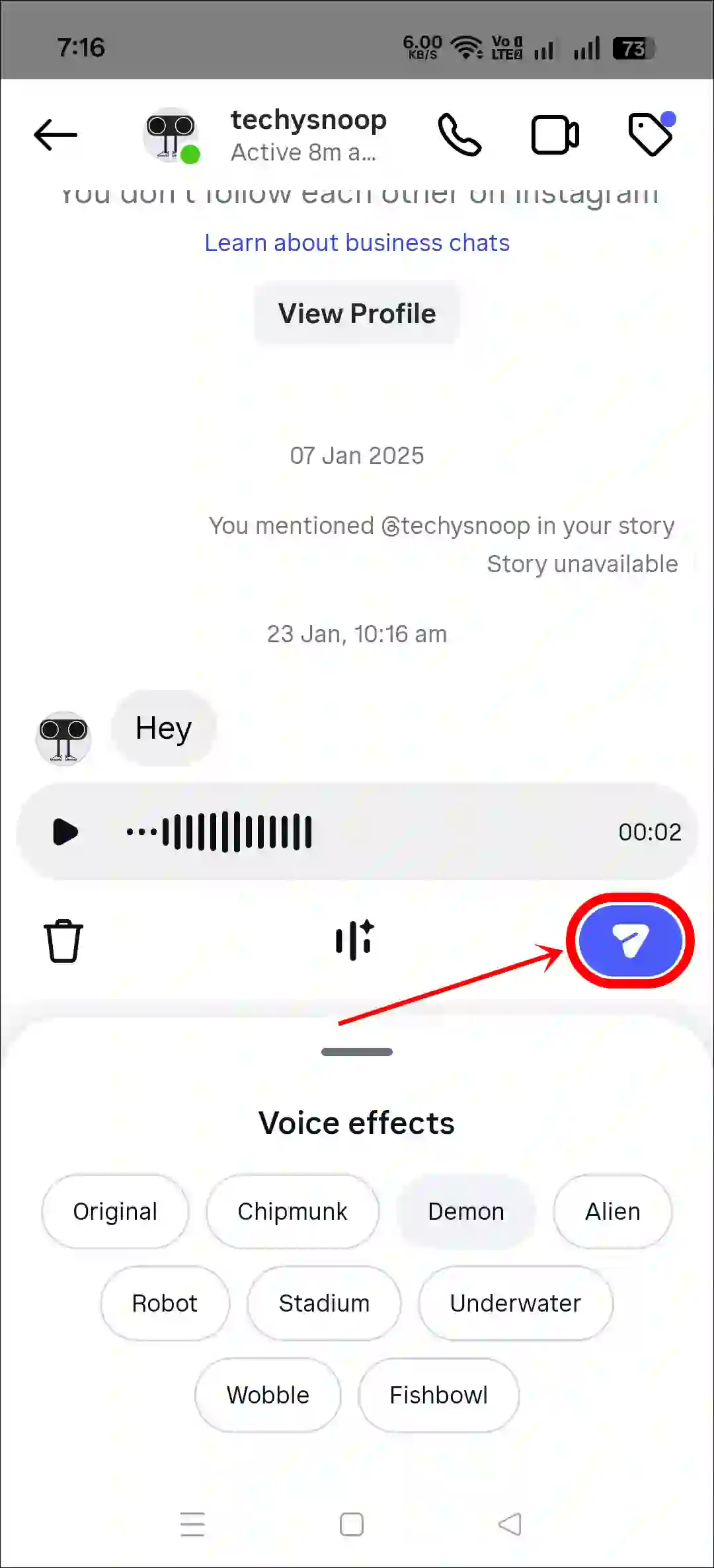
That’s all! Now, your normal recorded voice note will play for the recipient with the voice filter you selected. Since this is a new feature, you can surprise your friends and family by sending them notes with these voice effects. However, the recipient will know which effect you used.
You may also read:
- How to Remove Label from Instagram Chats
- Turn Off Disappearing Messages on Instagram
- Enable or Disable GIF Comments on Instagram Posts and Reels
Fix AI Voice Effects Option Note Showing in Instagram DM
If you do not see the AI voice effects option while recording a voice note in your Instagram messages, a few key reasons could explain this. This is a new feature, so you may not have received it yet. You might also be using an outdated version of WhatsApp, or the WhatsApp cache may be corrupted. You can fix this issue by following the steps mentioned below.
1. Update Your Instagram App
AI Voice Changer is a completely new feature. If you are using the outdated Instagram app, you may not see it. Whether you are an Android user or an iPhone user, the AI Voice Effects option will start appearing in your IG DM once you update Instagram.
You can easily update the app from the Google Play Store (for Android) and the Apple App Store (for iOS).
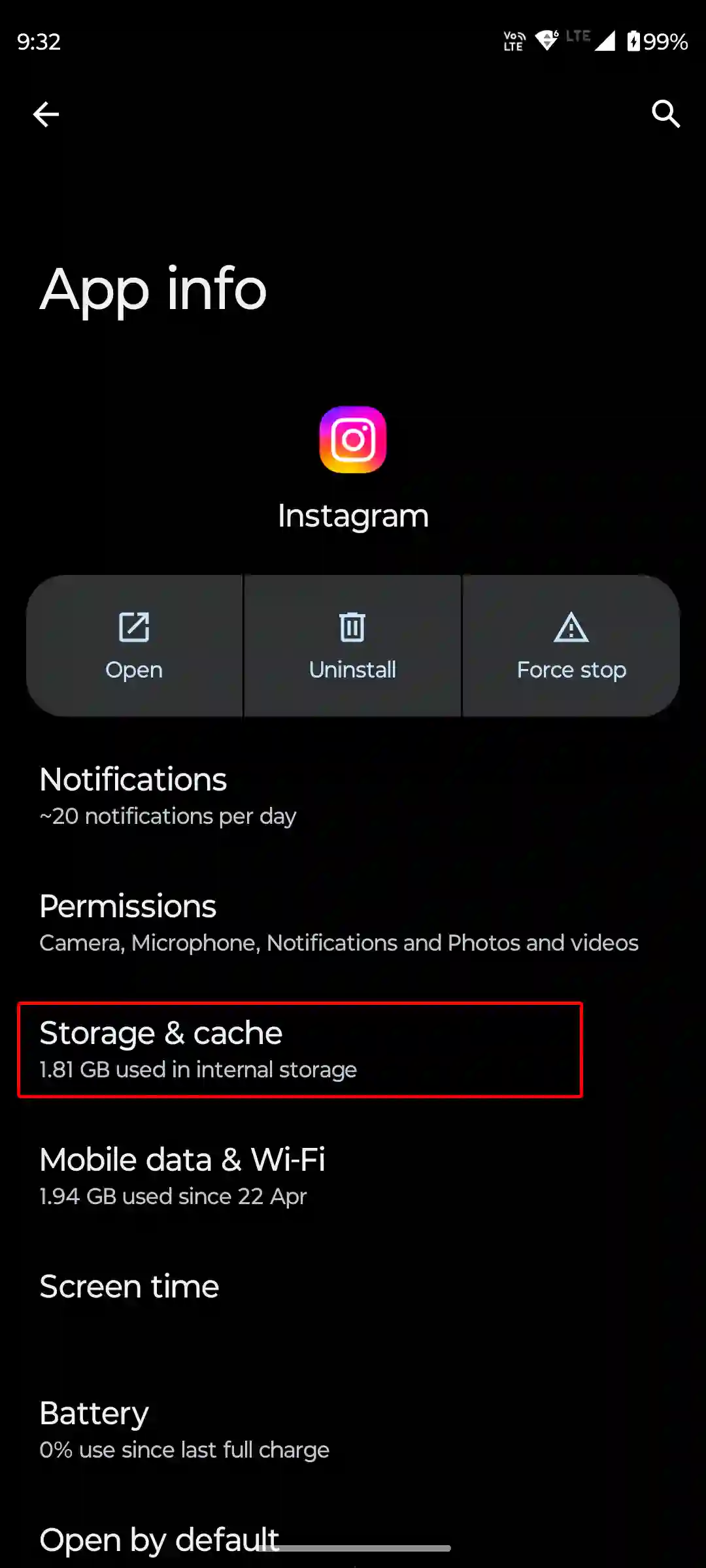
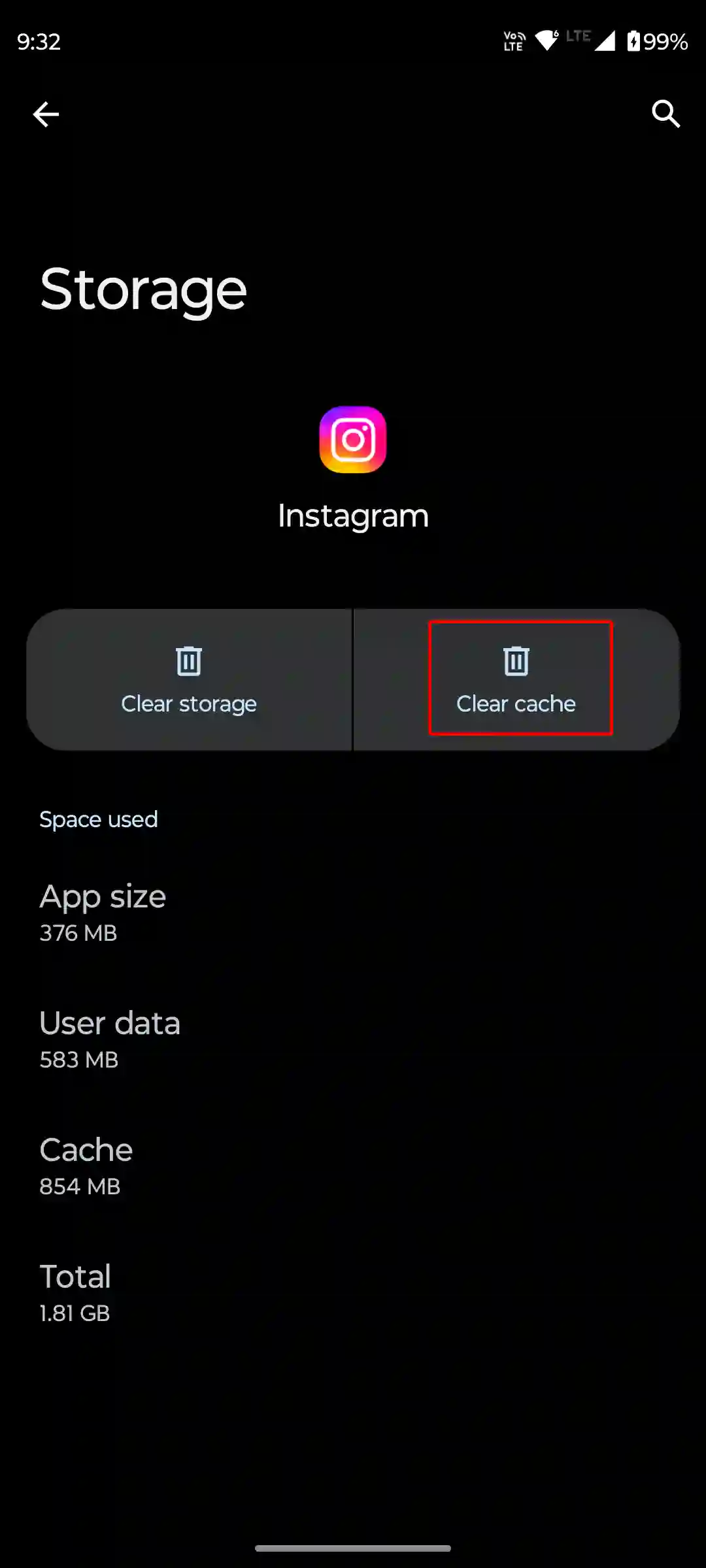
2. Clear Instagram App Cache (Android)
If you have updated Instagram but the AI voice effects option is still missing, then one of the reasons could be a corrupted cache. However, by clearing the corrupted cache, you can fix this problem and bring back the AI voice changer feature.
- Open Settings on Your Phone.
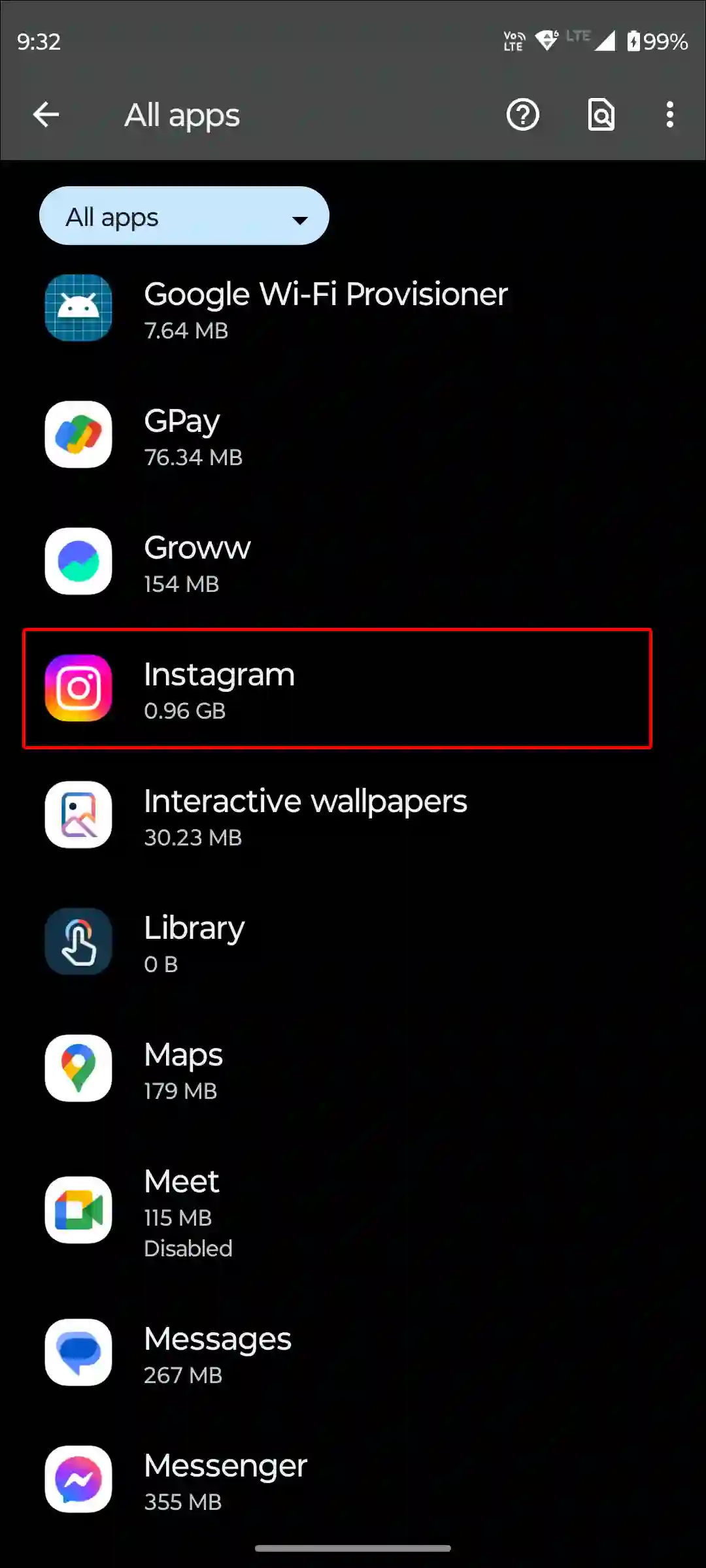
- Tap on Apps > All Apps or Manage Apps.
- Find Instagram from the App List and Tap on Storage and Cache.
- Tap on Clear Cache.
3. Offload IG App (iPhone)
If you’re using an iPhone, unfortunately there is no dedicated option to clear the cache. However, on an iPhone, you can delete the outdated data of the Instagram app by offloading it.
For this, go to iPhone’s Settings > iPhone Storage > Instagram App > Offload App > Offload App to Confirm > Reinstall App.
4. Wait for Your Turn
If the AI voice effects option is not appearing even after updating Instagram and clearing the corrupted cache, you will have to wait for some time. This is because it is a new feature, and it is being rolled out gradually to all users.
Also, regularly check the Play Store or Apple App Store for Instagram updates. If there is an update available, install it immediately.
I hope you found this article helpful and learned how to use voice effects in Instagram DMs. If you have any other questions about Instagram, feel free to ask in the comments below. Don’t forget to share this article.