How to Send PDF File in WhatsApp from Phone and PC
There was a time when we used to send PDF files to someone via email, but everything has changed over time. Now, you can easily share PDF files with anyone through WhatsApp, which is an instant messaging app. If you don’t know how to do this, don’t worry.
In this article, I’ve explained step-by-step how you can send PDF files on WhatsApp from your PC, laptop, and phone. Whether you use WhatsApp on your mobile or computer, WhatsApp has a built-in document sharing feature that allows you to share PDF files with others.
Nowadays, almost everyone uses WhatsApp to share documents because it’s a globally recognized social platform. On WhatsApp, you can send not only PDF files but also videos, audio files, and photos as documents.
Normally, when you send photos and videos directly, their quality is significantly reduced, but when you send the same content in document format, it is received in the exact same resolution and file size without any reduction in quality.
How to Send PDF File in WhatsApp from Mobile Phone
Whether you’re an Android or iPhone user, you can easily send a PDF file to someone on WhatsApp from either device. To do this, make sure the PDF file is already on your mobile phone and, most importantly, that it’s not corrupted or infected with a virus.
To Send a PDF in WhatsApp without losing quality on Android:
Step 1. Open WhatsApp or WhatsApp Business App on Your Phone.
Step 2. Open a Chat, You Want to Send a PDF.
Step 3. Tap on Paperclip Icon at Bottom and Select Document.
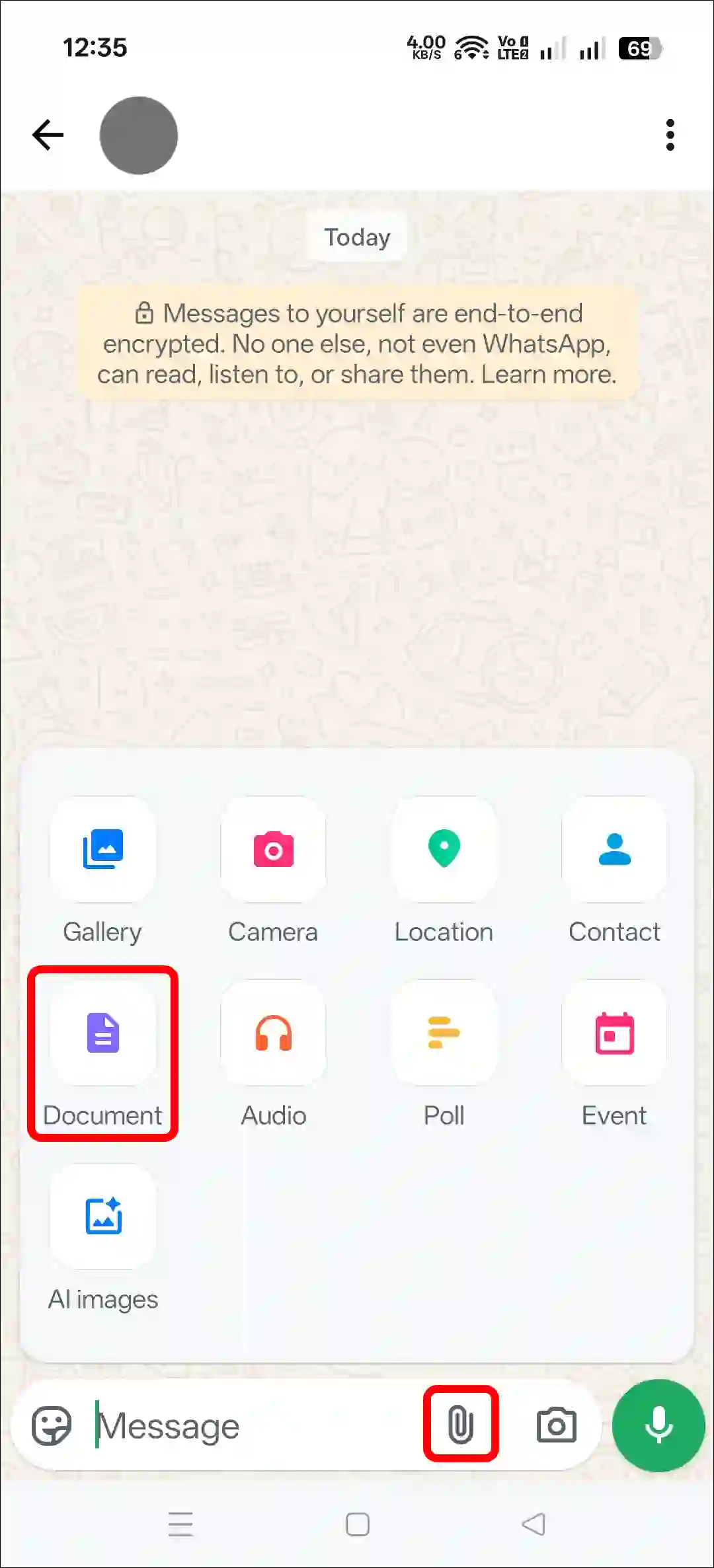
Step 4. Tap on Browse Documents.
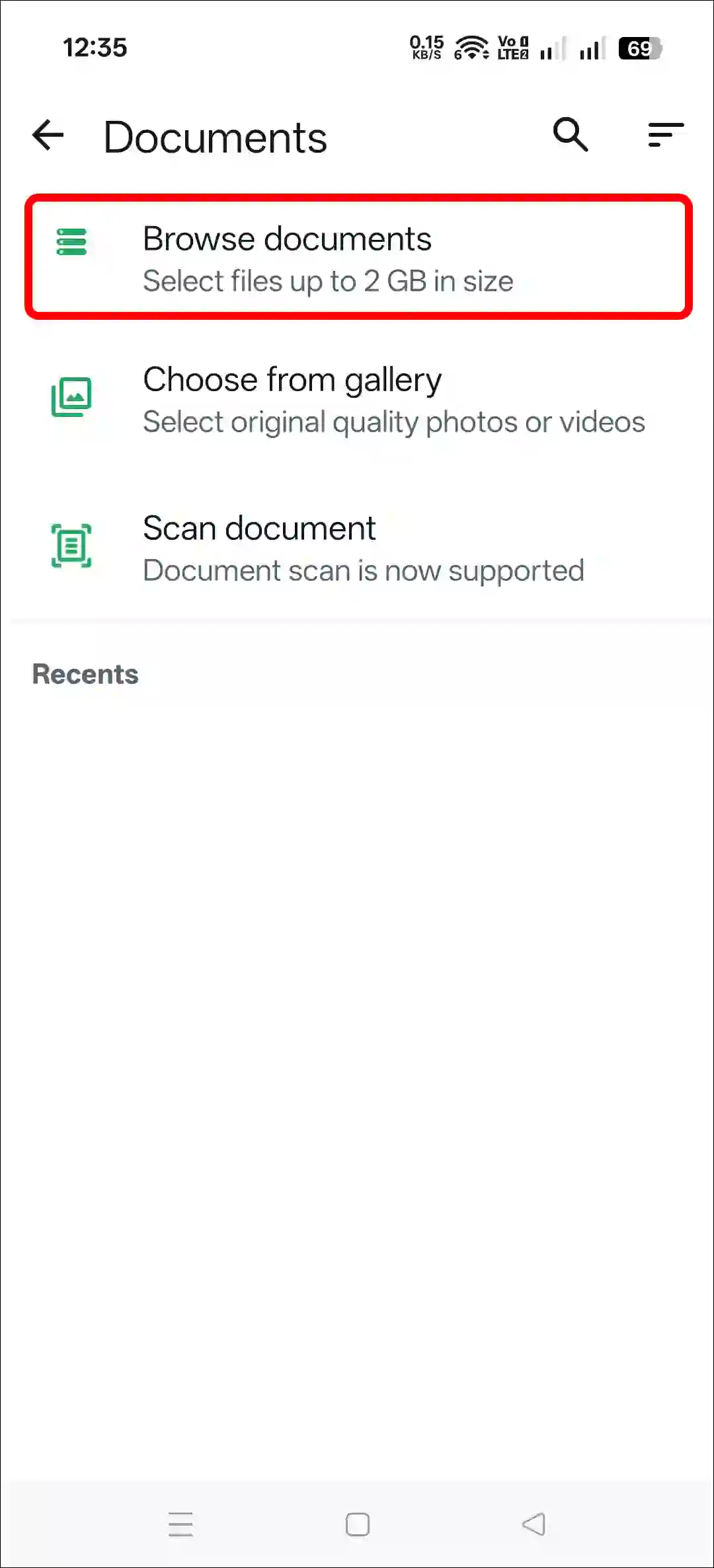
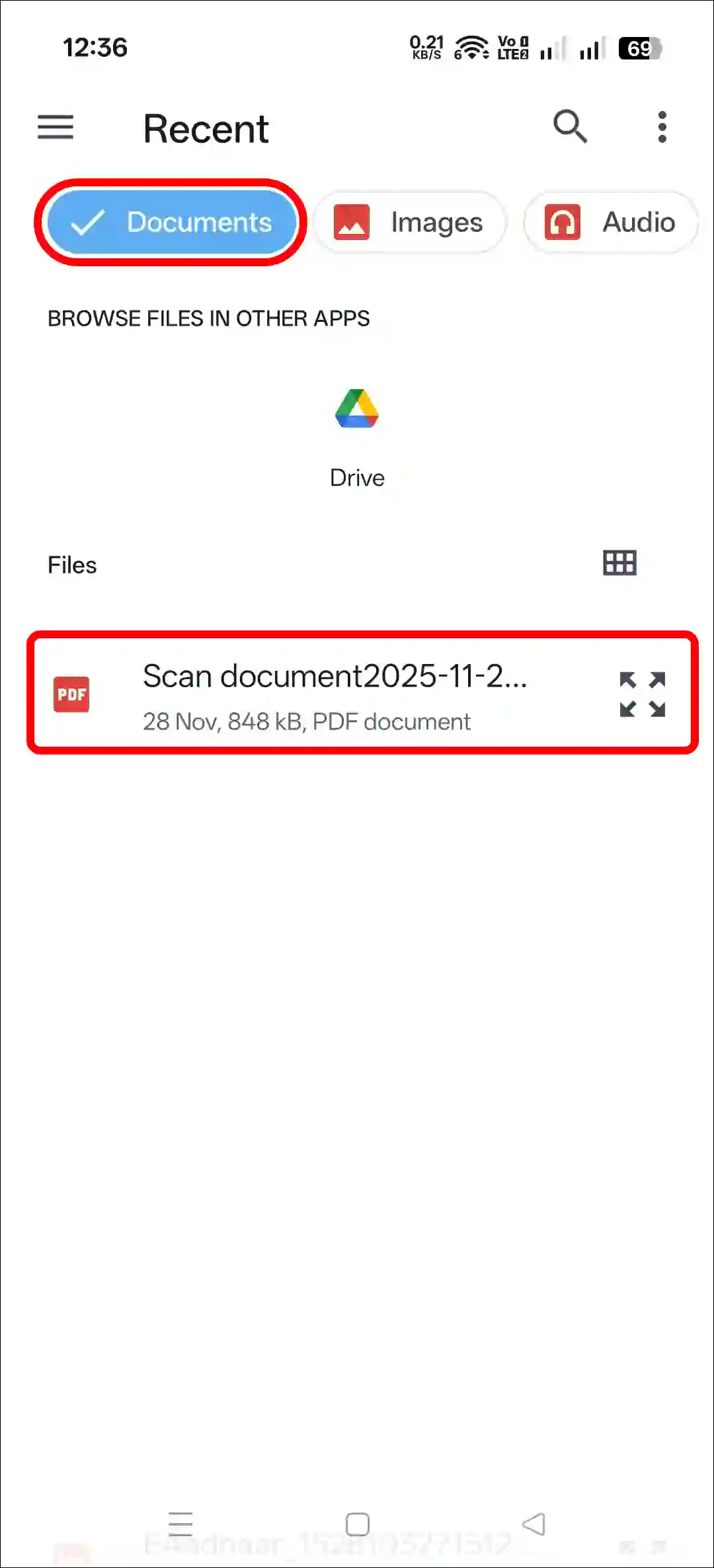
Step 5. Choose Documents and Select Your PDF File.
Step 6. Now, Tap on Green Arrow Icon at Bottom Right Corner.
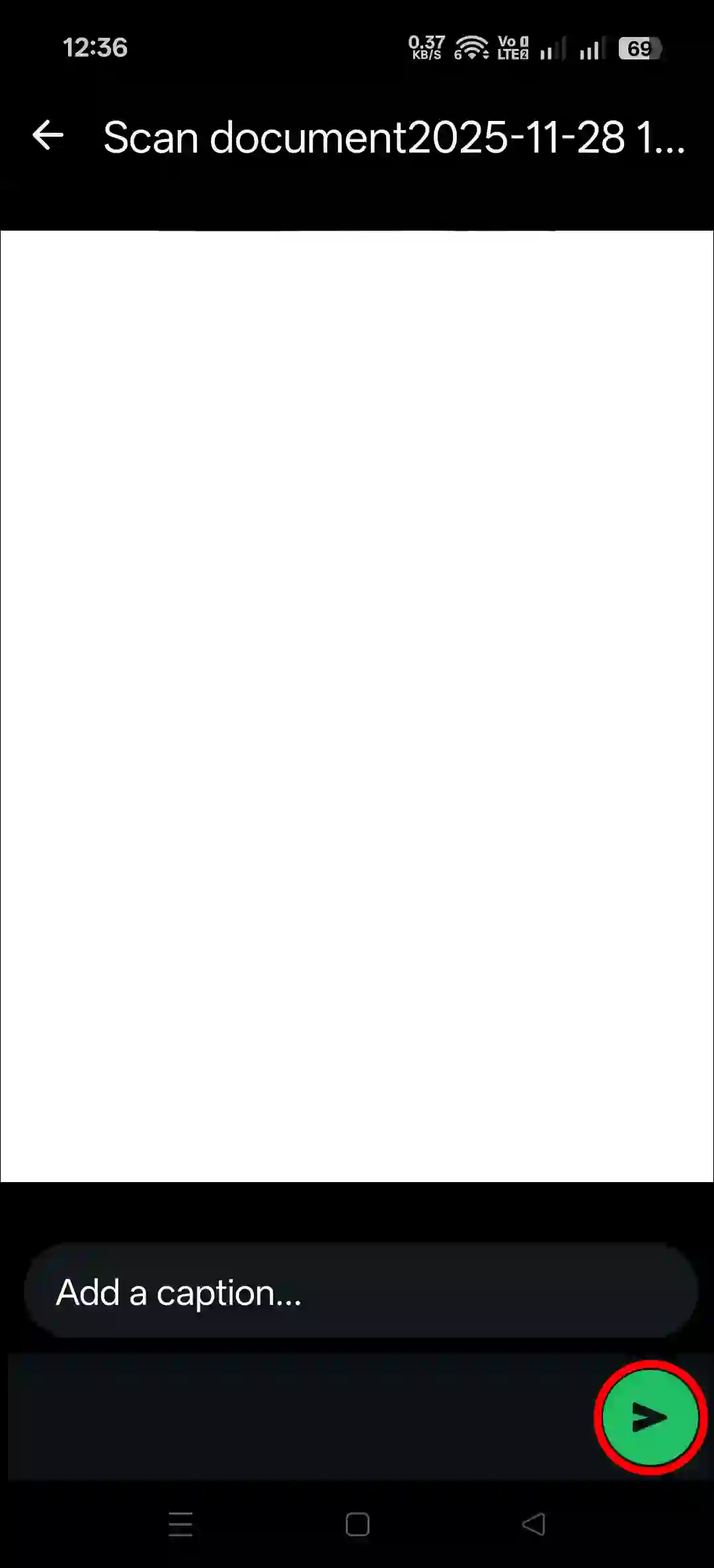
That’s it! The selected PDF file has now been sent to the person.
Also read: How to Fix “Your Contacts aren’t Synced” Problem on WhatsApp
How to Send PDF File in WhatsApp from Laptop or PC
If you use WhatsApp Web on your Mac, PC, or desktop computer, you can also send PDF files from there. Some users use the WhatsApp Web application, while others use the WhatsApp Web website (web.whatsapp.com). The steps for sending PDFs are the same in both cases.
To Send a PDF in WhatsApp from PC:
Step 1. Open WhatsApp Web on Your Computer or Laptop.
Step 2. Open a Chat, You Want to Send PDF.
Step 3. Click on Plus + Icon at Bottom and Select Document Option.
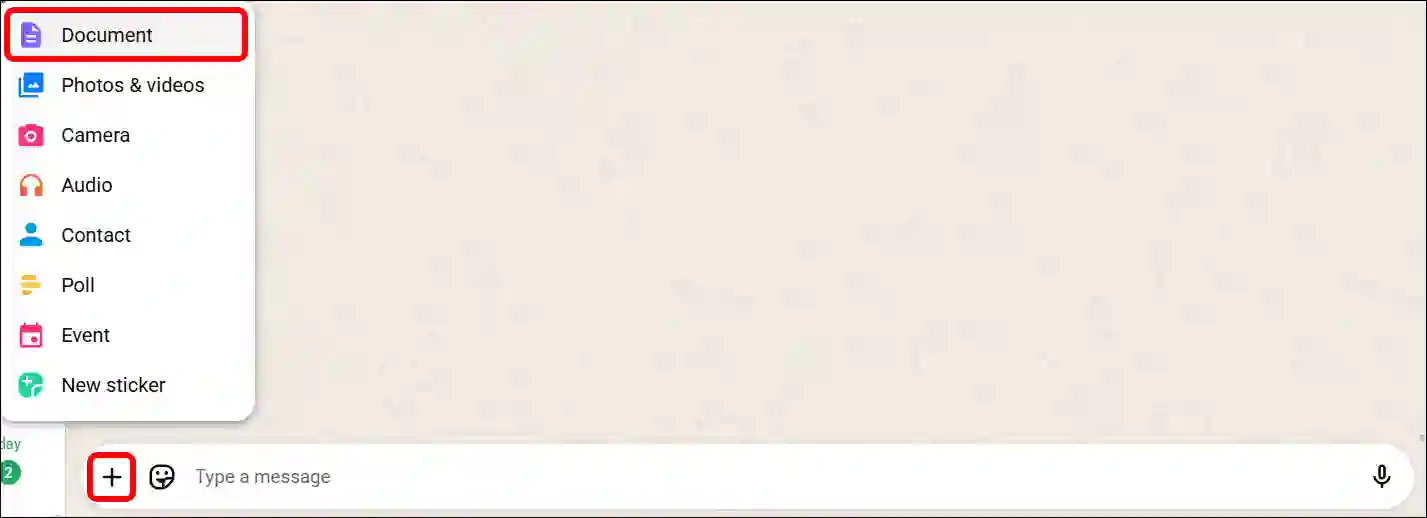
Step 4. Select One or Multiple PDFs from Your File Explorer and Click on Open.
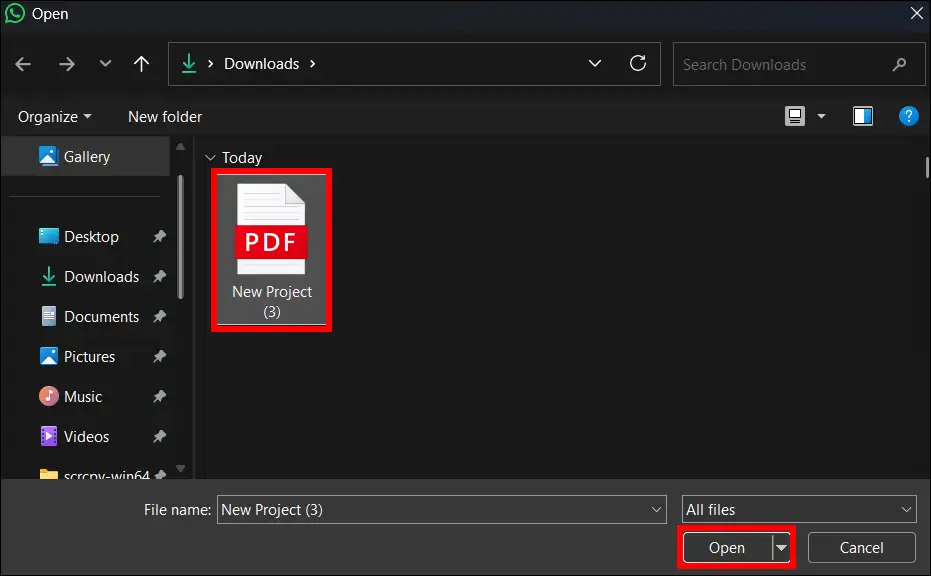
Step 5. Click on Green Arrow at Bottom Right Corner.

That’s all! You’re done…
Also read: How to Turn Off Live (Motion) Photos on WhatsApp
FAQs
Q 1. Does sending a PDF on WhatsApp reduce quality?
Answer – No! Sending a PDF file on WhatsApp will not reduce its quality at all because you send the PDF as a document, not as a normal image like a PNG or JPG. WhatsApp’s document feature bypasses its media compression.
Q 2. Can I send a PDF in WhatsApp from laptop to mobile?
Answer – Yes! You can easily send PDF files from your laptop to your mobile, or from your mobile to your laptop, on WhatsApp without any issues. WhatsApp does not restrict this in any way.
Q 3. Can we send a PDF to WhatsApp channel?
Answer – No! Currently, there is no built-in option to share PDFs directly on WhatsApp channels. However, there is a workaround; You can upload your PDF file to Google Drive or any other cloud storage and then share the public link on the WhatsApp channel. Users will be able to access your PDF by opening the link.
I hope this article was helpful to you, and you learned how to send a PDF file in WhatsApp from a phone and PC. If you have any other questions about WhatsApp, feel free to ask in the comments below. Don’t forget to share this article.