Pinterest Boards Not Showing Up? Here’s How You Can Get Back!
Pinterest is a giant visual discovery platform and visual search engine, and it has millions of users. Recently, users have been experiencing an issue in the Pinterest app where boards and pins are missing, and users have made several posts about this on Reddit and Twitter. In this article, I have shared the methods to fix the Pinterest boards not showing up problem.
Why isn’t Pinterest Showing Me My Boards?
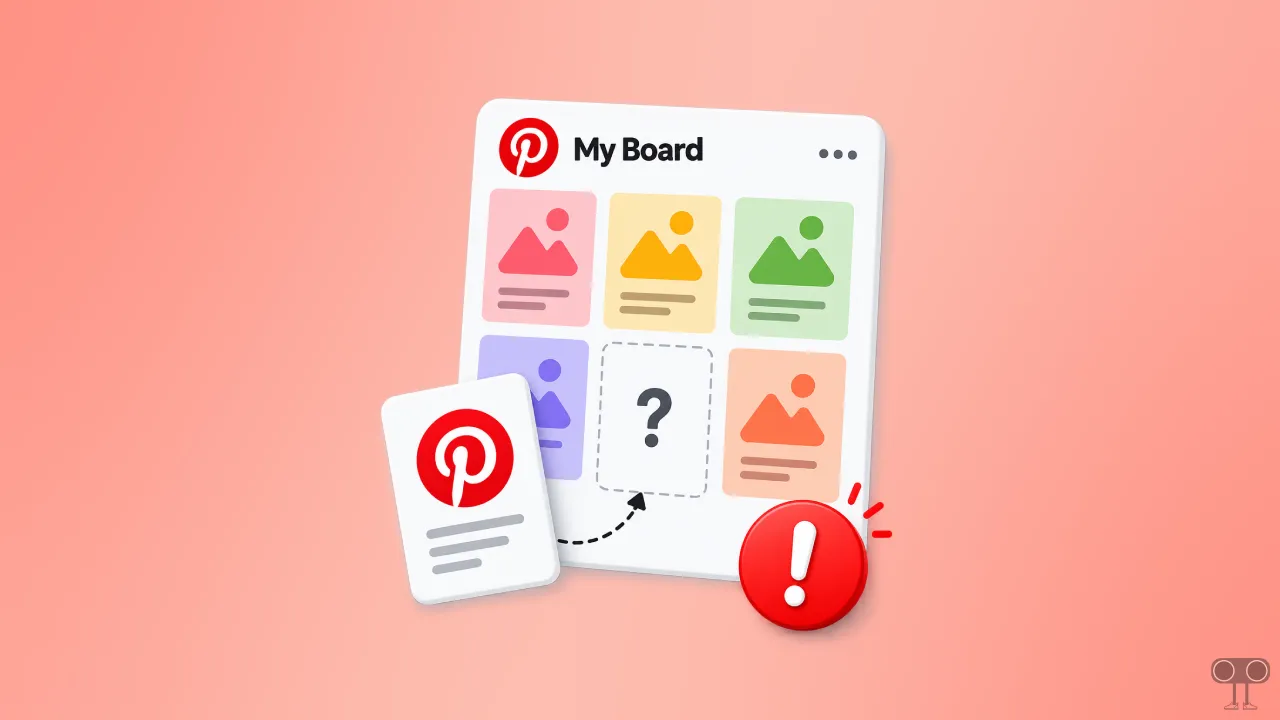
On Pinterest, boards are topic-based collections where users can save and organize their favorite Pins (images, videos, and ideas). The special thing is that users can create different boards according to their interests, such as recipes, home decor, fashion, travel, wedding, etc. The good thing is that these can be made both public and private.
The problem arises when the boards created by users stop appearing in the app. This issue can be extremely frustrating for a user. There can be several major reasons why Pinterest boards disappear from the app, such as:
- Pinterest Is Experiencing a Temporary Glitch.
- Unstable Internet Connection.
- Corrupted Pinterest Cache.
- The Board Has Been Archived.
- Pinterest Account Is Restricted.
- Wrong Account Login.
- Outdated Pinterest App.
Also read: How to Turn Off AI Images on Pinterest
Fix If Pinterest Boards Not Showing Up in the App
Follow the methods below; they will help you restore missing boards on Pinterest.
1. Refresh Your Pinterest App
Sometimes the Pinterest app experiences temporary glitches, due to which many options do not appear in the app. Try refreshing the app by swiping down to see if the boards appear. Additionally, you can force-close the app, reopen it, and check for the boards again.
2. Check Your Internet Connection
Sometimes, due to slow internet or no internet connection at all, the necessary elements in the Pinterest app do not load properly, which can cause Boards to be missing. To resolve this, check your phone’s internet speed, and if it is indeed slow, switch to a different network.
3. Clear Pinterest App Cache
A corrupted cache in the Pinterest app can also often prevent boards and pins from loading properly. You can clear the Pinterest app’s cache in primarily two ways, and both methods are mentioned below.
Clear Cache from Pinterest App Itself:
- Open Pinterest App and Go to Profile.
- Tap on Three ••• Dots at the Top Right and Then Gear ⚙️ Icon (Settings).
- Scroll Down and Select Privacy and Data.
- Now, Tap on App Cache Data.
Clear Pinterest App Cache on Android:
- Tap and Hold the Pinterest App Icon.
- Tap on App Info.
- Tap on Storage Usage.
- Tap on Clear Cache.
4. Verify Your Account is Correct
Verify that the account in which you are looking for boards and pins is the correct account. Sometimes the boards are in a different account, and we search in another account. Therefore, ensure that the account you are checking is indeed the right one.
5. Log Out and Log Back In
Sometimes, this can happen due to a corrupted login session. To resolve this, log out of your account from the Pinterest app and then log back in. This process allows your account to synchronize with Pinterest and may fix the issue.
6. Update Your Pinterest App
If the problem persists despite following all the methods mentioned above, make sure to update the Pinterest app to the latest version on your Android or iPhone. Outdated apps often encounter various issues.
You can update them via the Google Play Store on Android phones and the Apple App Store on iPhones.
Note: Despite all this, wait a few hours and then check, because Pinterest often fixes these minor issues on its own.
I hope you liked this post and have fixed the Pinterest boards not showing up problem. If the problem still persists, then do let us know by commenting below. Do share this post.