How to Stop WhatsApp from Lowering Volume on Windows PC and Android Phone
If you use a Windows computer or laptop, you may have noticed that when you run programs that access audio, such as WhatsApp Desktop, your system’s volume suddenly decreases. Don’t worry! You’re not alone. This problem is common in Windows 7 and later versions, but it can be easily resolved.

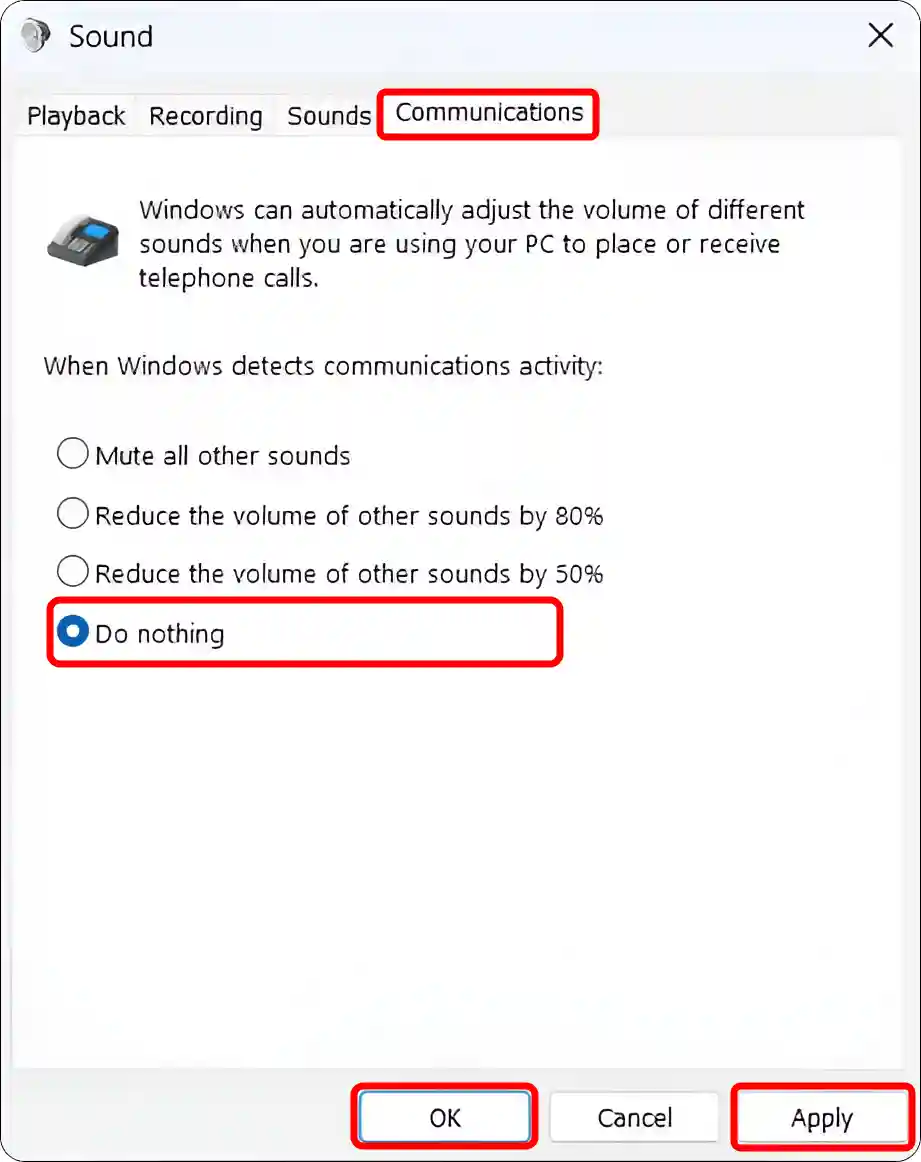
The Windows operating system has a default sound communications mode that can automatically adjust the volume of various sounds when you use your PC to make or receive telephone or WhatsApp calls. This Windows sound communications mode offers four options, listed below:
- Mute all other sounds
- Reduce the volume of other sounds by 80%
- Reduce the volume of other sounds by 50%
- Do nothing
This sound communications mode is typically set to the second or third position by default. It significantly reduces your system sound when you receive or make calls.
Stop WhatsApp from Lowering Volume on Windows PC
If the system volume on your PC automatically lowers during a WhatsApp video or audio call, you can easily fix this issue by making a small change in the Windows sound communications settings. This is a very simple method, and the following steps outline the process.
To fix the WhatsApp call lowering volume issue on Windows 11:
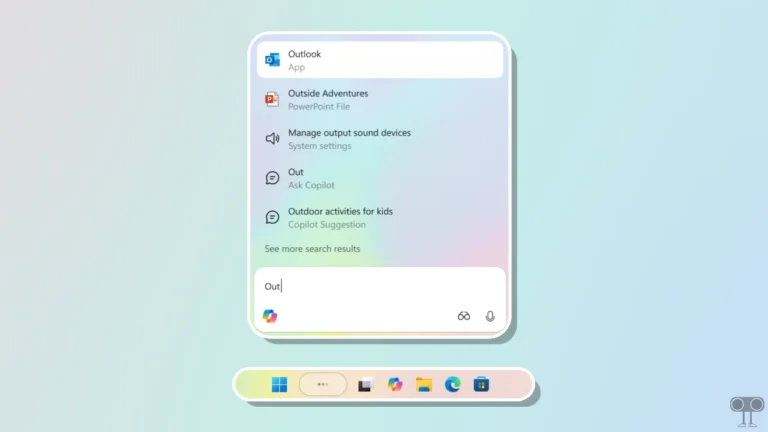
- Press Windows + S and Search “Control Panel” and Open It.
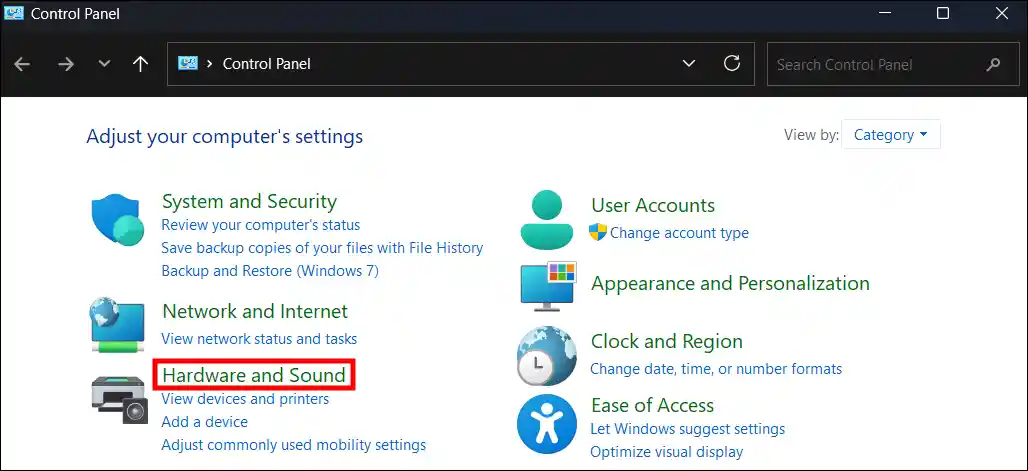
- Click on Hardware and Sound.
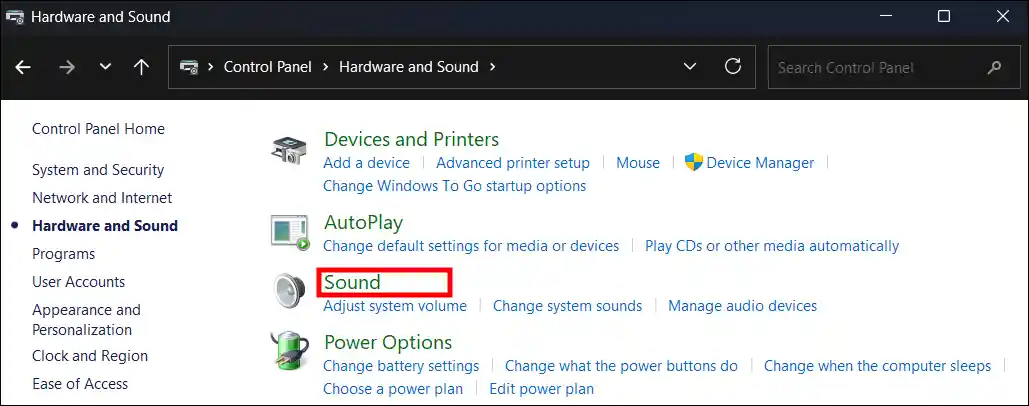
- Click on Sound.
- Go to Communications Section, and Select Do Nothing > Apply > OK.
- Now, Restart Your PC or Laptop.
That’s it! Once you complete all the steps, this will fix the volume lowering problem on your Windows system.
Also read: Stop Wi-Fi from Switching Between 2.4 GHz and 5 GHz in Windows 11
Stop WhatsApp from Lowering Volume on Android Phone
No such system volume issue generally occurs during WhatsApp calls on Android phones. However, technical glitches can occur unexpectedly. If you encounter such a problem, you can fix it by slightly modifying the accessibility settings on your Android device.
To fix the WhatsApp call lowering volume issue on Android:
Step 1. Open Settings App on Your Phone.
Step 2. Scroll Down and Tap on Accessibility & Convenience.
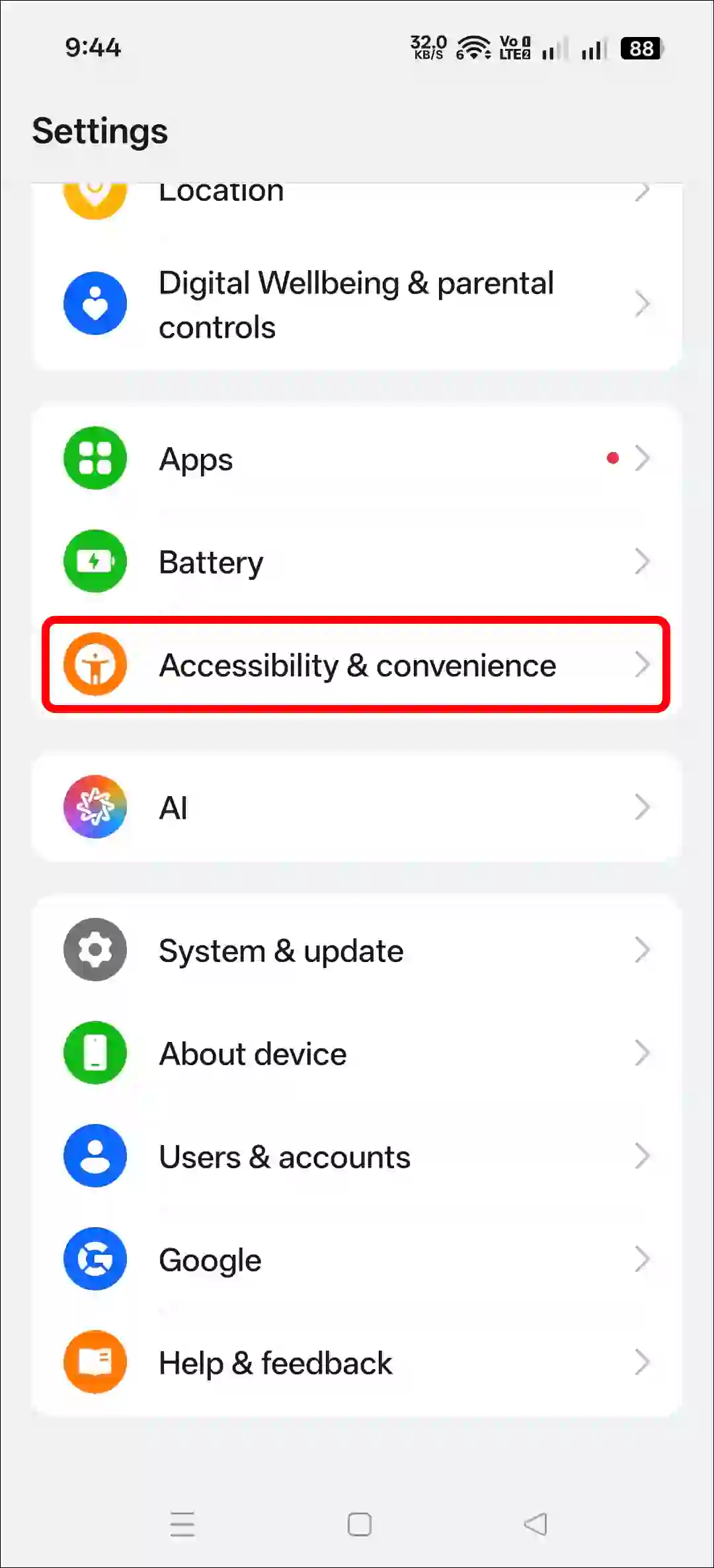
Step 3. Tap on Accessibility.

Step 4. Go to Hearing Section and Make Sure that Channel Volume Balancing Circle is in Middle.
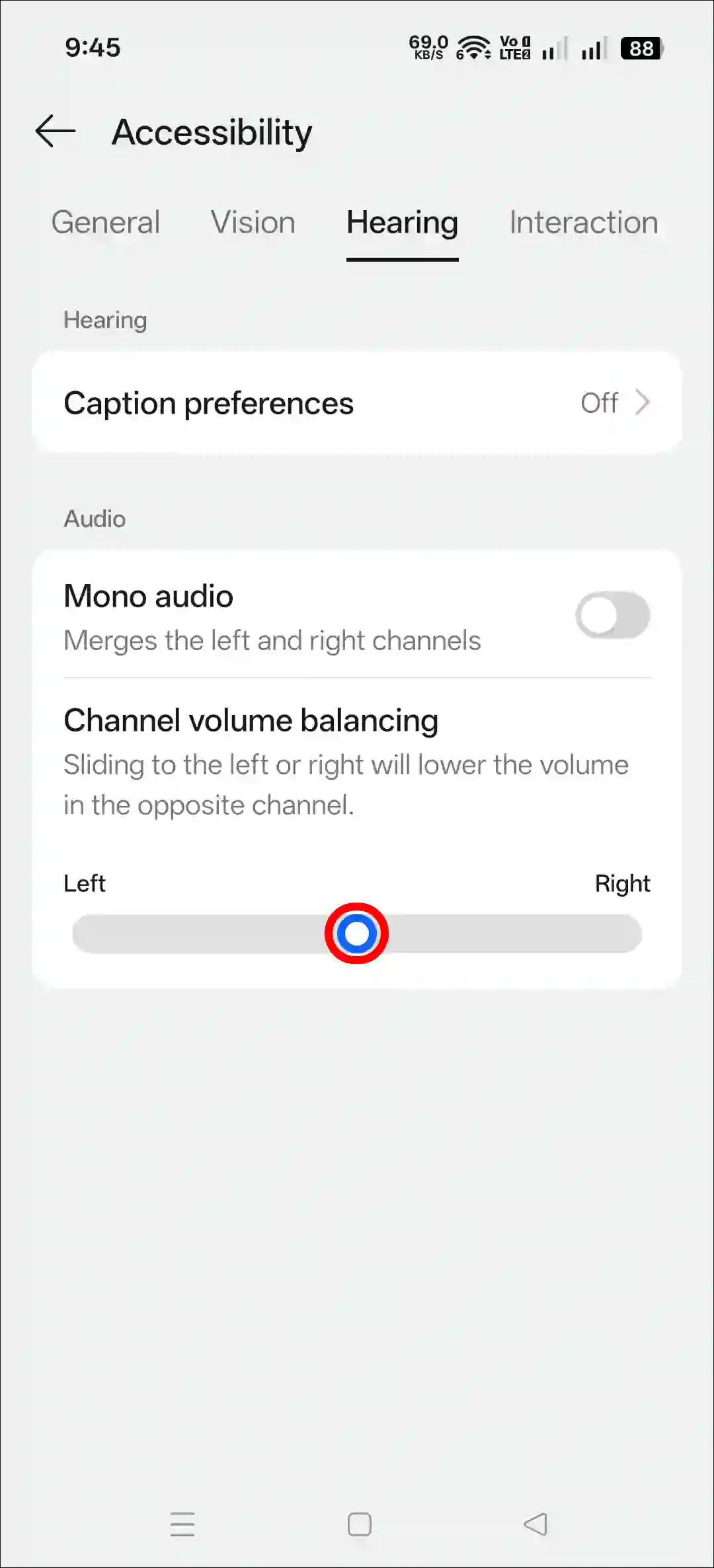
That’s it! You’re done…
Note: For this demonstration, I’m using an Oppo Reno 14 Pro. The layout of your accessibility settings may vary slightly, but the hearing options within them are the same.
Related: Fix “Gboard Recording, Therefore WhatsApp Temporarily Unable to Record” on Android
I hope you found this article helpful and learned how to stop WhatsApp from lowering the PC volume. If you have any questions related to Windows or WhatsApp, please ask in the comments below. Feel free to share this article as well.