How to Turn Off Netflix Notifications on Phone, TV and PC
Netflix is popular worldwide for its content streaming. Netflix can be accessed through both its app and website. If you use the Netflix app on your mobile phone, smart TV, or PC, you’ve probably received Netflix notifications.
Too many notifications can be annoying, not just for you, but for any user. If you want to stop receiving Netflix notifications on your phone, TV, and computer, it’s possible. To do this, you’ll need to completely disable Netflix notifications through your device settings.

Turn Off Netflix Notifications on Android Phone
Android phones offer the freedom to control and customize notifications for any specific app. If you don’t want to receive Netflix notifications on your phone, you can easily turn them off using the steps below.
Note: This method works perfectly on all Android phones, such as Samsung, Redmi, Xiaomi, Oppo, Realme, POCO, Vivo, iQoo, Nothing, Infinix, etc.
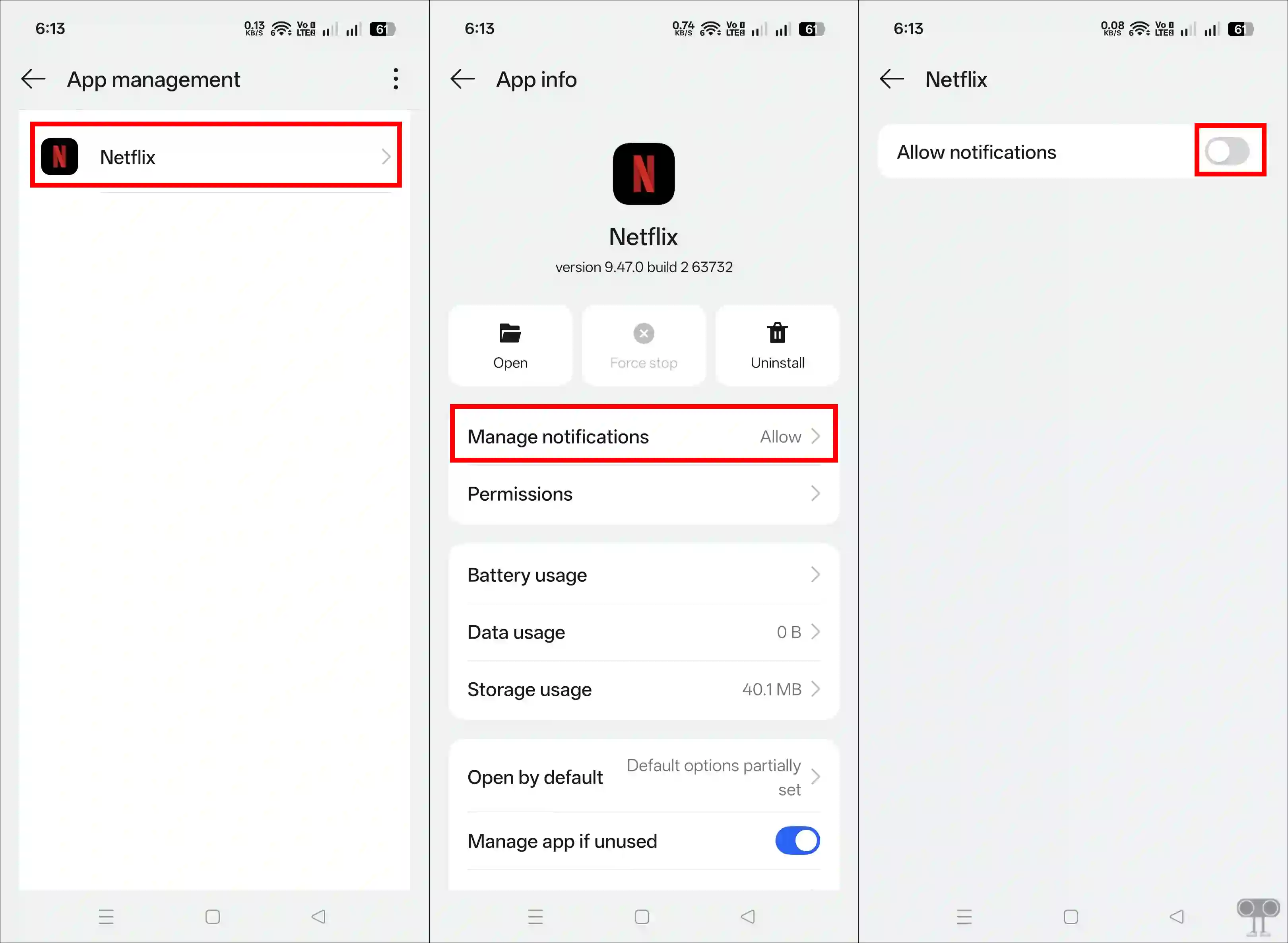
To stop Netflix notifications on your Android phone:
- Open Settings App on Your Phone.
- Go to Apps > All Apps / App Management > Netflix.
- Tap on Manage Notifications.
- Simply, Turn Off the “Allow Notifications” Toggle.
Related: 3 Ways to Stop Chrome from Sending Notifications on Android
Turn Off Netflix Notifications on TV
Just like on your phone, the Netflix app sends notifications on your TV as well. If you want to get rid of these notifications on your TV, it’s quite simple. The option to turn them off might be slightly different on each TV, as some TVs, like Samsung, have their own operating system. However, I’ve shown below how to turn off Netflix notifications on Google TV.
To stop Netflix notifications on your Google TV:
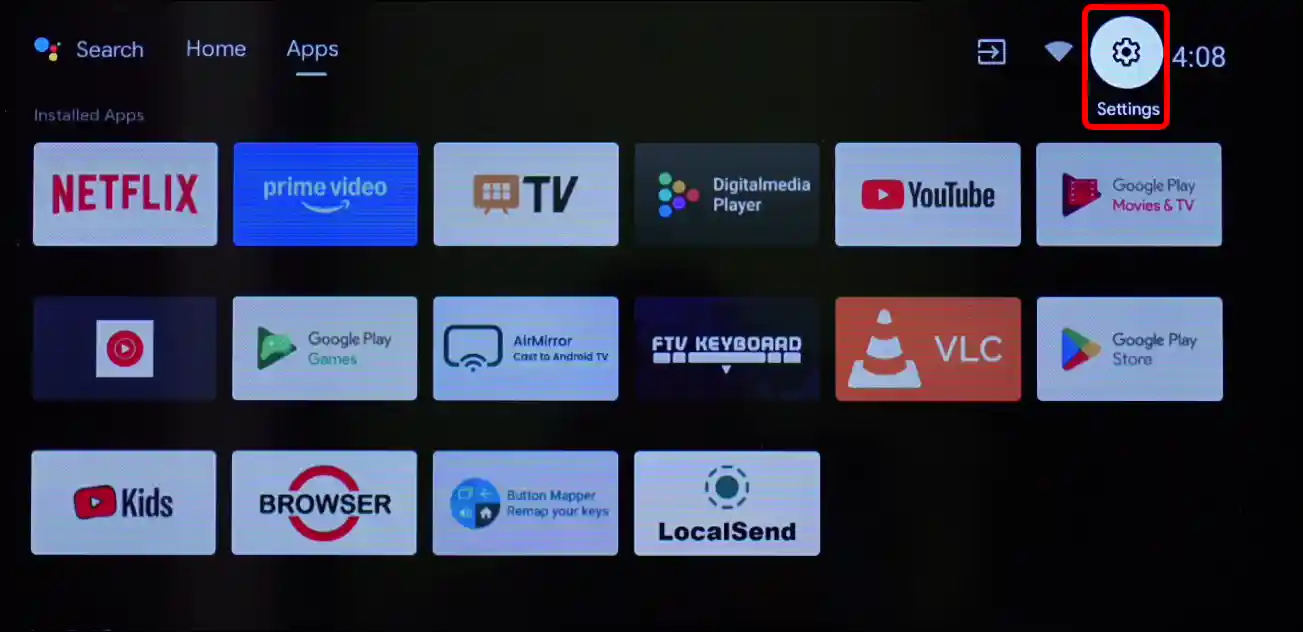
Step 1. Using Your Remote Click on Gear Icon (Settings) at Top Right Side.
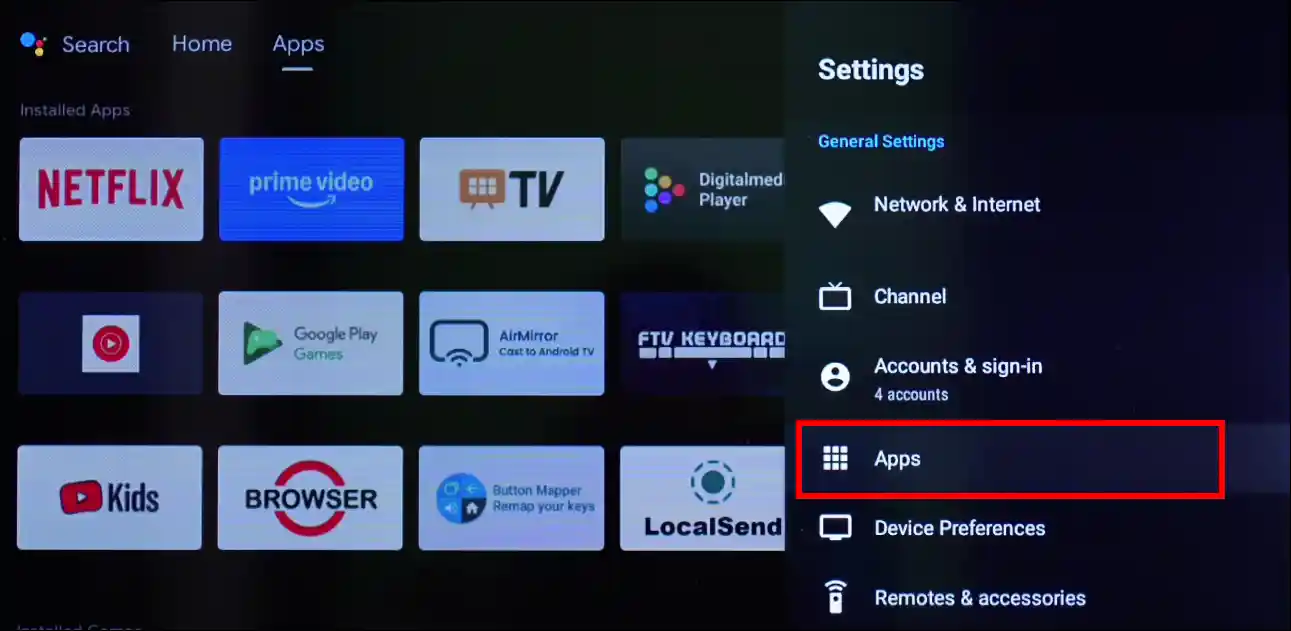
Step 2. Click on Apps > See All Apps.
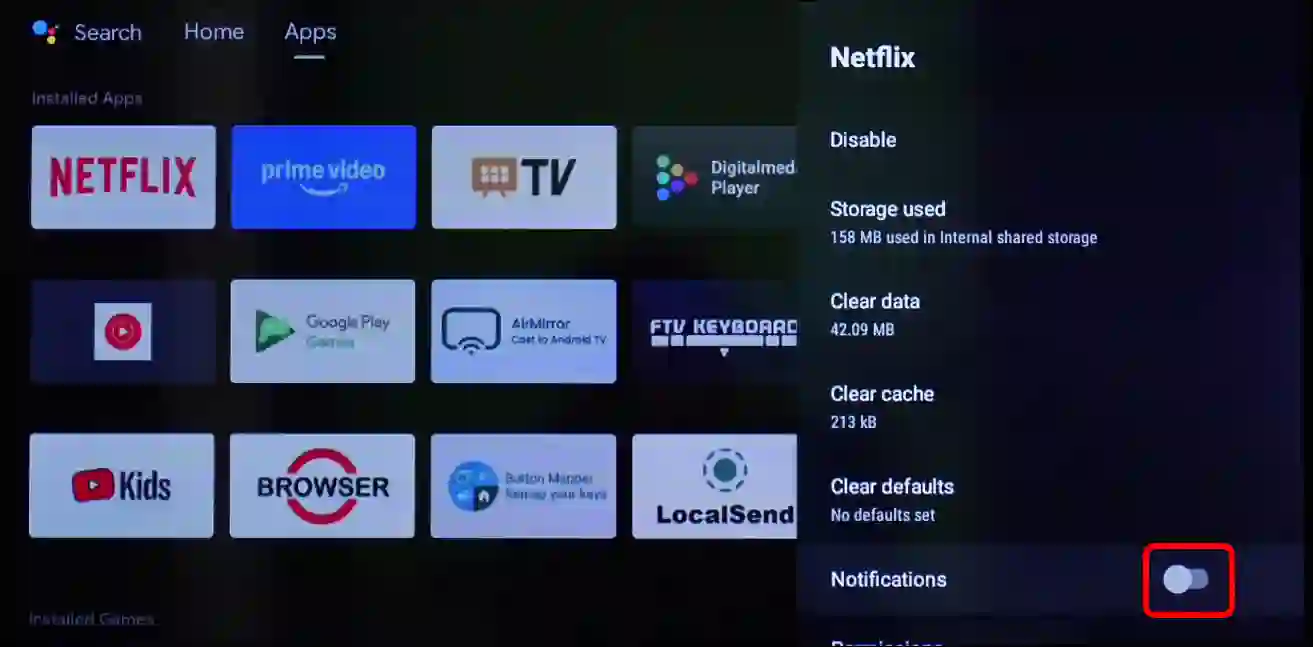
Step 3. Find Netflix App and Click on It.
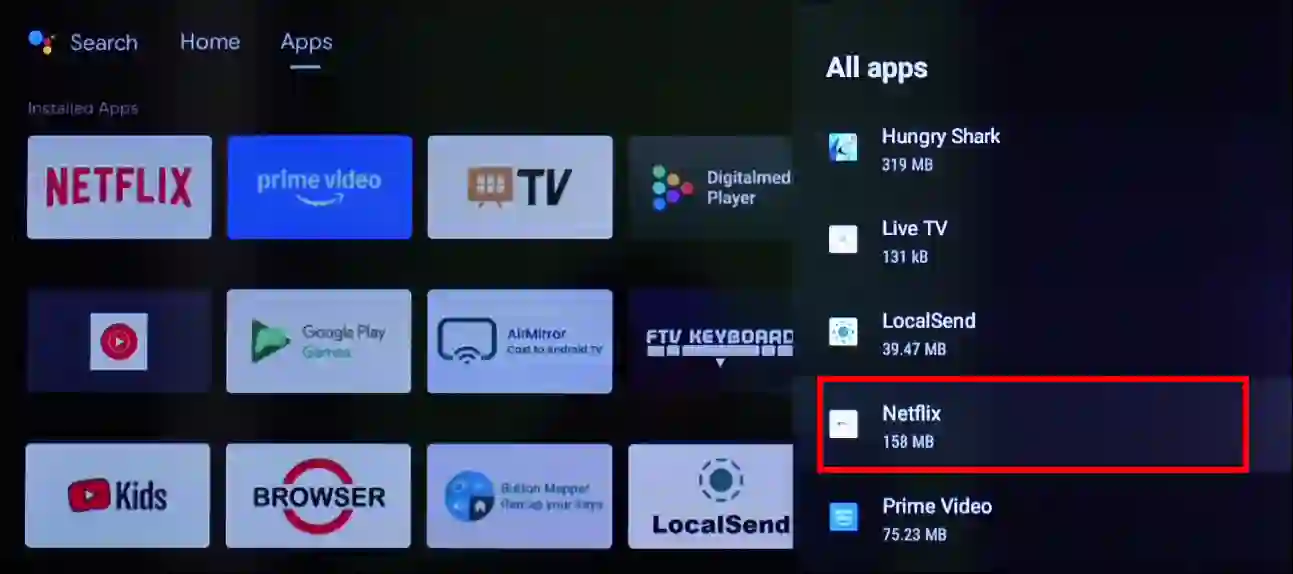
Step 4. Simply, Toggle “Notifications” Off.
Also read: Turn Off Autoplay Next Video on YouTube on Android TV
Turn Off Netflix Notifications on Windows PC
Many users use the Netflix app on their (Windows 10/11) computers or laptops, and they are often bothered by its notifications, especially when they are performing important tasks. But there’s no need to worry anymore, as you can easily remove Netflix notifications without muting your entire PC.
To stop Netflix notifications on your PC:
Step 1. Press Windows + I to Quickly Launch Settings.
Step 2. Navigate to System > Notifications.
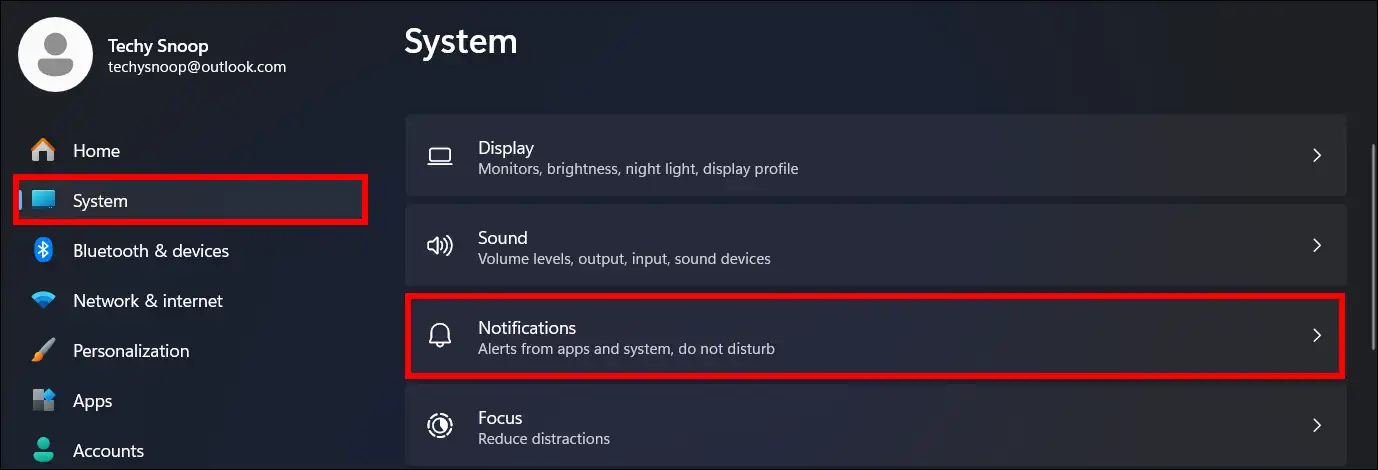
Step 3. Scroll Down and Turn Off the Toggle Next to Netflix.
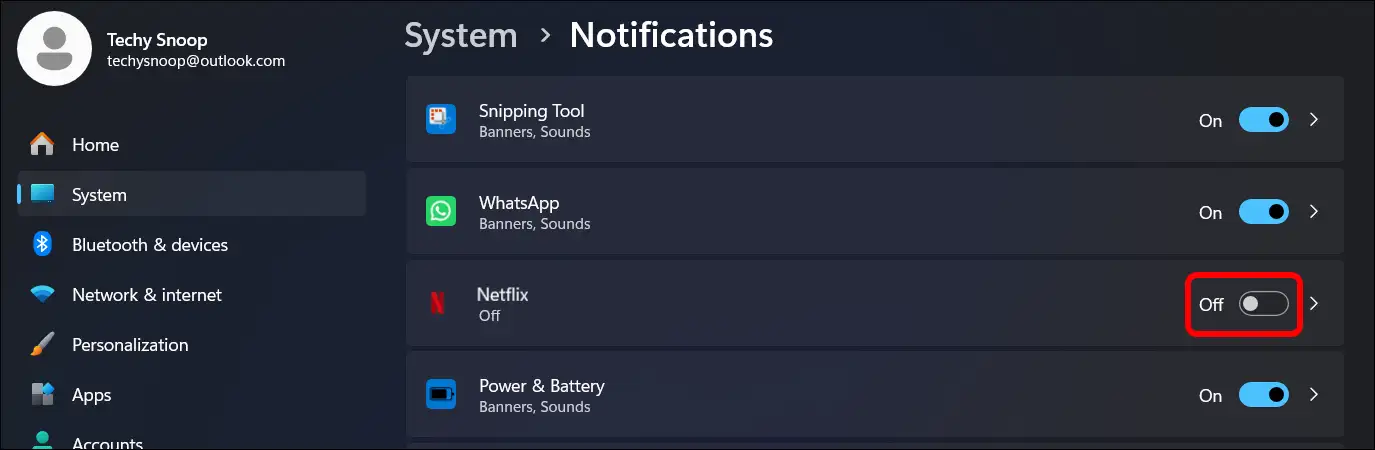
That’s it! Now Netflix will no longer bother you with notifications on your phone, TV, or PC. However, you can re-enable notifications whenever you want, at your convenience.
I hope you found this article helpful and learned how to stop Netflix notifications. If you have any questions related to Netflix, please ask in the comments below. Feel free to share this article as well.