“Fake Windows 11 Update Screen”! Make Your Friends Surprise
Do you know about the “Fake Windows 11 Update Screen”? If you don’t, don’t worry, I’ll explain! It’s a fake OS update screen often used to prank friends. You’ll need to set it to full screen via your browser.
You’ve often noticed that whenever an update installs on your computer or laptop, a message appears on the screen: “Please keep your computer on. Your computer may restart a few times.” and you can’t do anything until the update finishes.
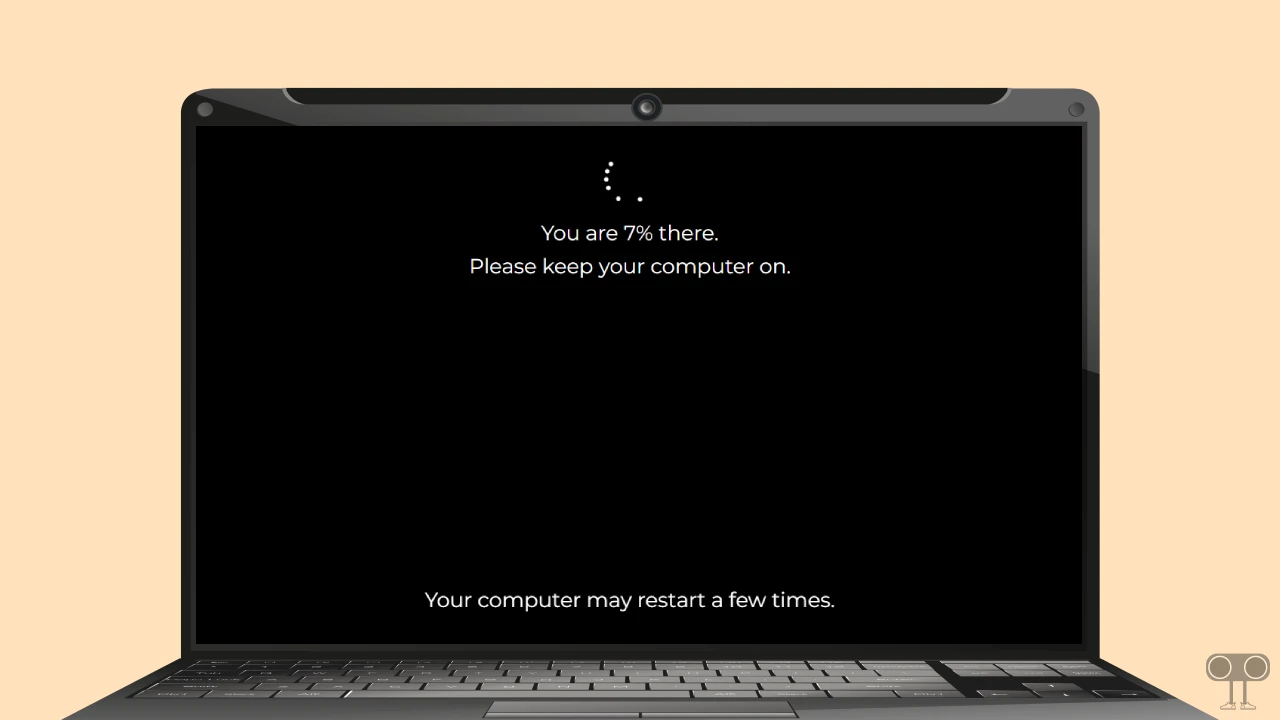
What if we told you that you could create a similar experience without any actual updates, just with a website? Yes! There are simulator websites on the internet that offer a “Fake Windows 11 Update Screen,” and it’s completely free.
Fake Windows 11 Update Screen to Make Your Friends Surprise
In this article, I’ll show you how you can use this fake Windows 11 update screen to amaze your friends and have a good laugh. So, without further delay, let’s learn about this fun trick.
1. Whitescreen.online Fake Windows 11 Update
Whitescreen.online is an online prank website that offers fake Windows 11 upgrade screens. You can set a custom update time and start time for the fake update screen.
In addition, this website offers many other types of fake screens, such as White Screen, Black Screen, Red Screen, Green Screen, Blue Screen, Death Screen, Hacker Screen, Radar Screen, Broken Screen, No Signal Screen, Matrix Screen, and more.
To set a fake Windows 11 update screen on your PC:
Step 1. Open Chrome Browser and Go to “Whitescreen.online Fake Windows 11 Update“ Page.
Step 2. Now Click on Full Screen Icon or Press F Key on Your Keyboard.
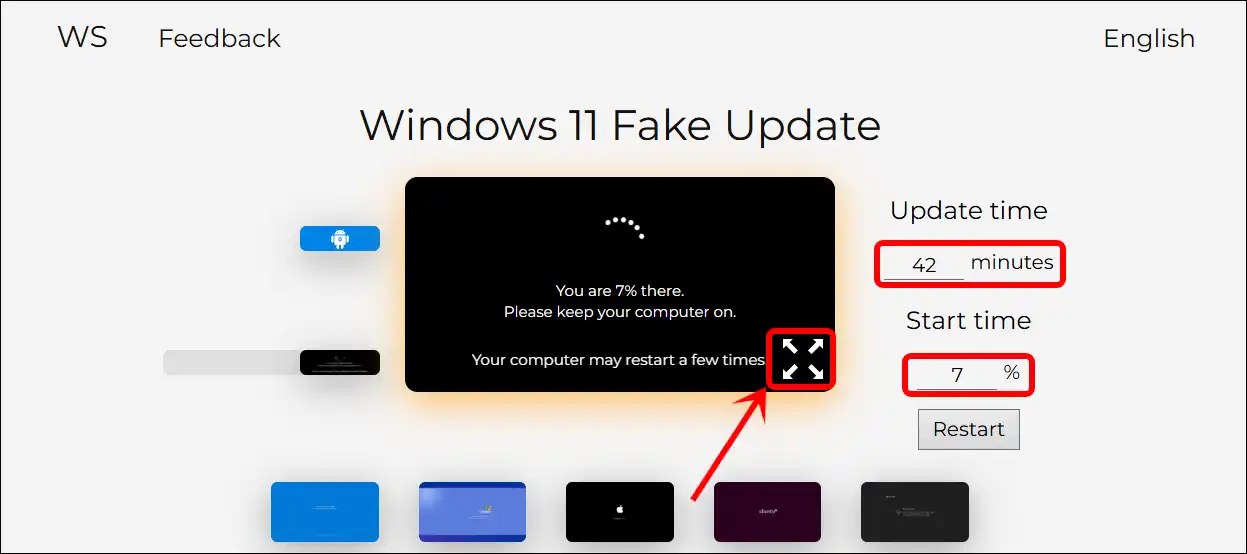
Step 3. Now, The Fake Windows 11 Update Screen is Set to Your PC or Laptop.
2. Allcolorscreen.com Windows Update
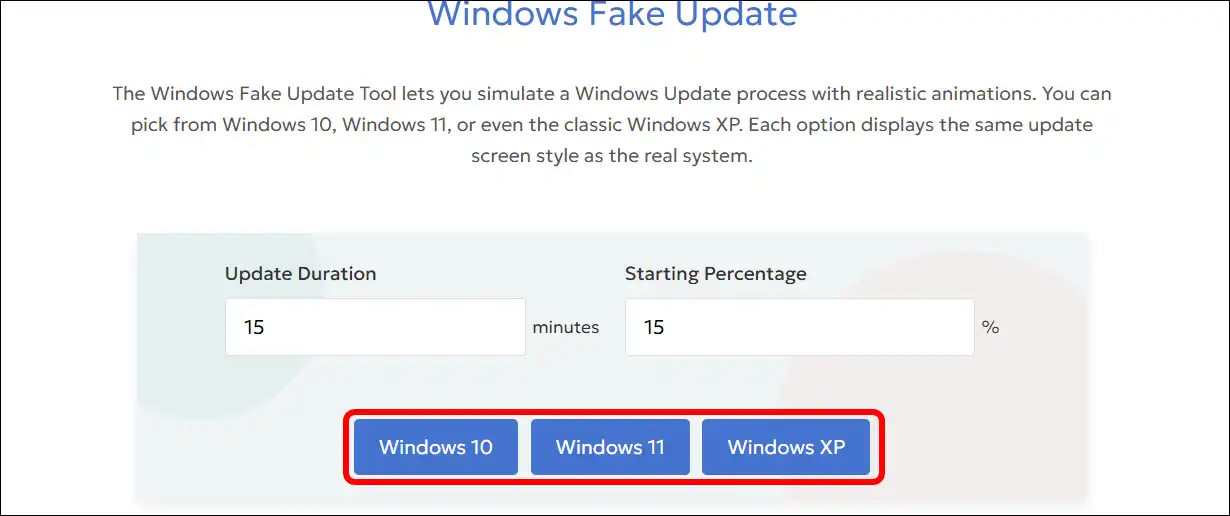
Allcolorscreen.com also offers fake Windows update screens that you can easily set up from any desktop browser. This website provides fake update screens not just for Windows 11 but also for Windows 10 and Windows XP.
To set a fake Windows 11 update screen on your PC:
Step 1. Open Chrome Browser and Go to “Allcolorscreen.com Windows Update“ Page.
Step 2. Next, Set “Update Duration” and “Starting Percentage”.
Step 3. Now, Select Windows 10, Windows 11 or Windows XP Screen as Your Preference.
3. Update Faker
Updatefaker.com is another popular site that offers a variety of fake operating system (e.g., Windows 10, Windows 11, Mac OS X, Windows XP, Windows 98) update screens. You can surprise your friends or office colleagues by setting them on their desktop screen with just one click.
To set a fake Windows 11 update screen on your PC:
Step 1. Open Chrome Browser and Go to “Updatefaker.com“ Page.
Step 2. Click on Windows 11 Update Option.
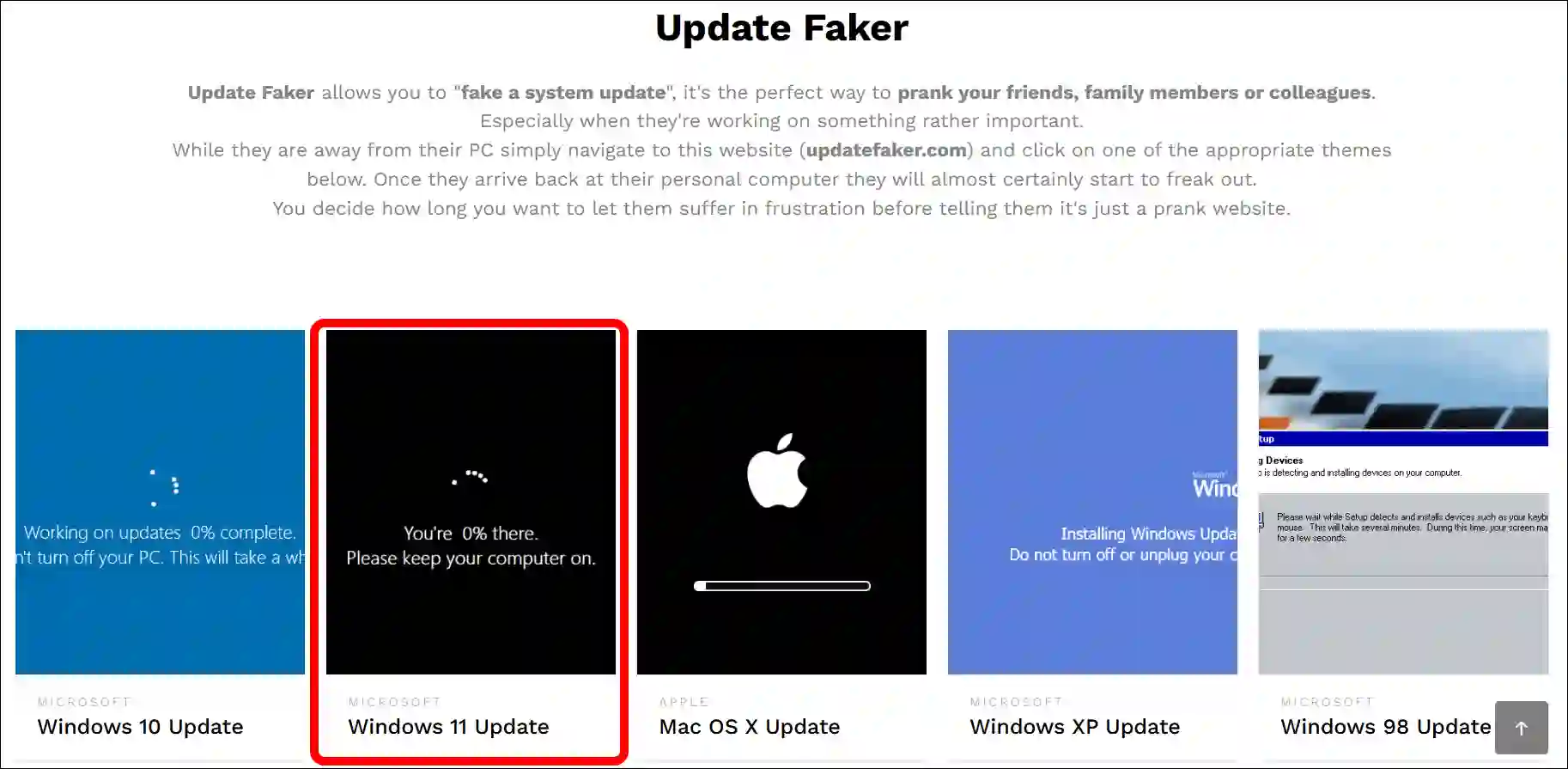
Step 3. Now, Press F11 on Your Keyboard to Open It in Full-screen.
4. McStumble Fake OS Update Screens
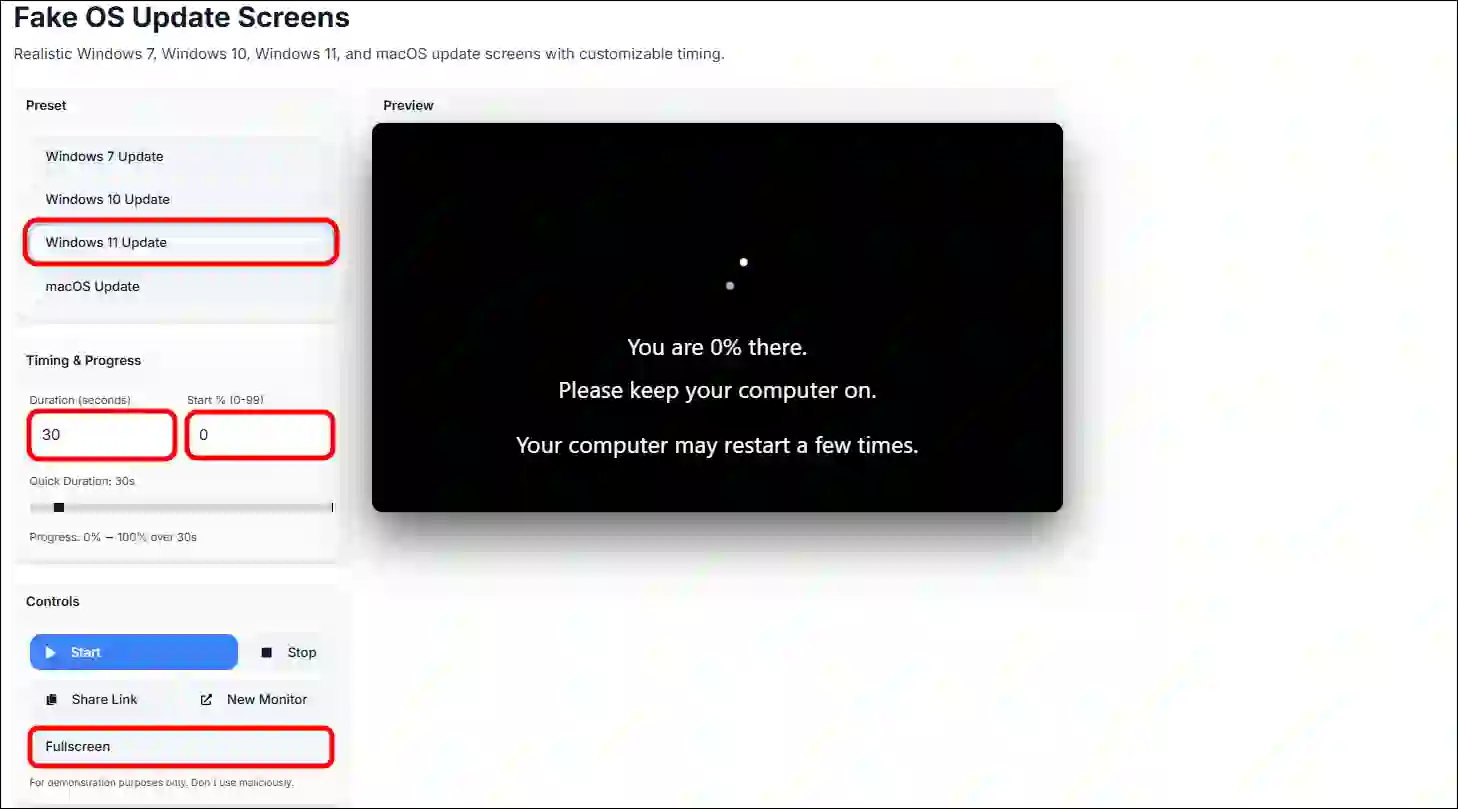
The McStumble website also offers four types of fake OS update screens: three Windows screens and one Mac screen. You can also set custom timing and progress. The steps are listed below.
To set a fake Windows 11 update screen on your PC:
Step 1. Open Chrome Browser and Go to “McStumble.com Fake OS Update Screens“ Page.
Step 2. Select OS Preset and Set Custom Timing & Progress.
Step 3. Now, Click on Fullscreen.
That’s It! You’re done…
You may also like:
- How to Check USB Speed on Windows 11
- Check if BIOS Mode is UEFI (Windows 11/10)
- Check DirectX Version in Windows 11
I hope you found this article helpful and learned about the fake Windows 11 update screen. If you have any questions related to Windows, please ask in the comments below. Feel free to share this article as well.