Grok is Experiencing Issues. We are Working on Restoring Service as Quickly as Possible.
Suddenly, Grok app users are seeing a “Grok is experiencing issues. We are working on restoring service as quickly as possible.” error message on their screens, preventing them from using Grok. This problem is troubling not only Android users but also iPhone and desktop users.
What Does This Error Message from Grok Mean?
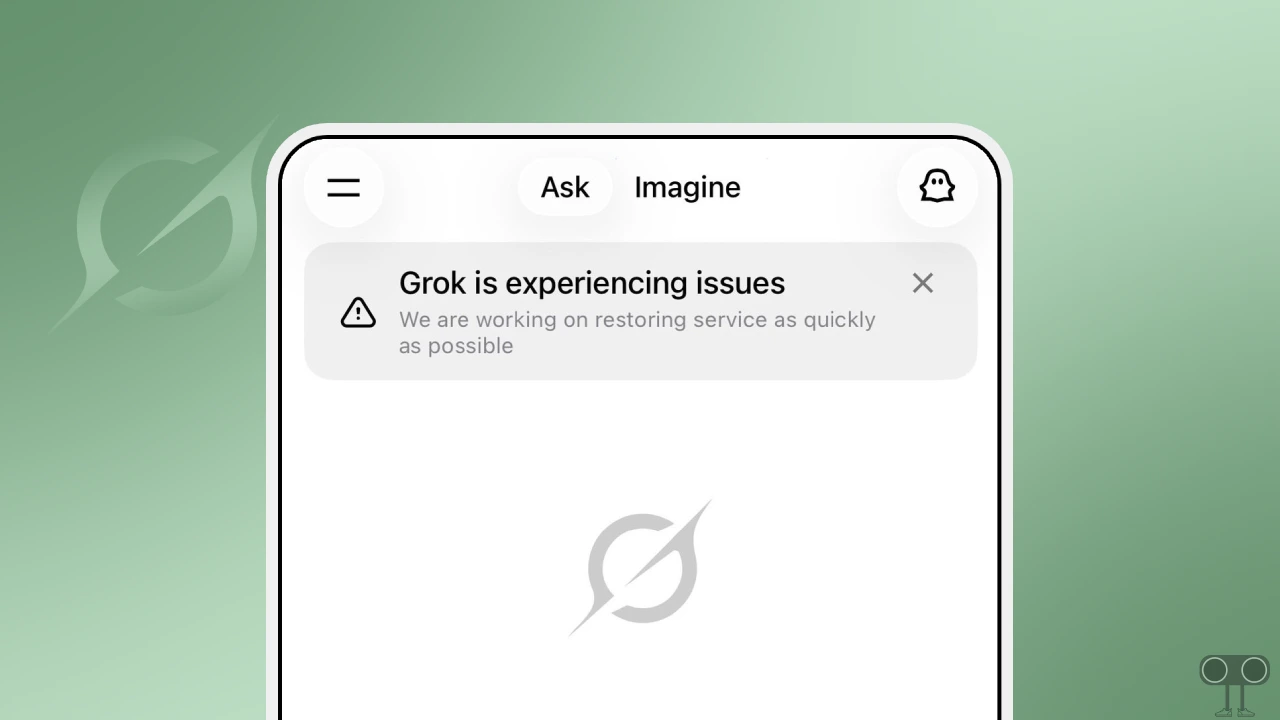
This message from Grok clearly indicates a server-related issue. This error message typically appears in the app only when the Grok server is experiencing some outage. Additionally, this can also occur due to an outdated app version, corrupted cache, or bugs/glitches.
This message appears not only on the app but also on Grok’s website. According to user reports on Reddit and Twitter, as soon as the app or website is opened, this error message immediately appears in a pop-up box at the top of the screen.
As mentioned in the message from Grok, “Grok is experiencing issues,” and they have also stated that they are working to restore the service as soon as possible. Since this is a server-related issue, there is nothing you can do except wait.
Although the server is live and only you are facing this issue, you can try some of the technical methods mentioned below. Perhaps these methods will help you resolve the problem.
Fix “Grok is Experiencing Issues. We are Working on Restoring Service as Quickly as Possible.” Problem
1. Check Grok’s Server Status
First, check to see if Grok is experiencing any issues today. To do this, you can visit xAI’s service status page or Downdetector. This will allow you to view the real-time status of the Grok servers.

2. Check Your Internet
Using the Grok service requires an active internet connection. If your internet is slow or not working, you may encounter this issue. You will need to switch your internet connection once. For example, if you are using Wi-Fi, turn on your mobile data for a while, and then check again.
Read: xAI’s Grok Saying “Message Limit Reached”
3. Clear Grok App Cache
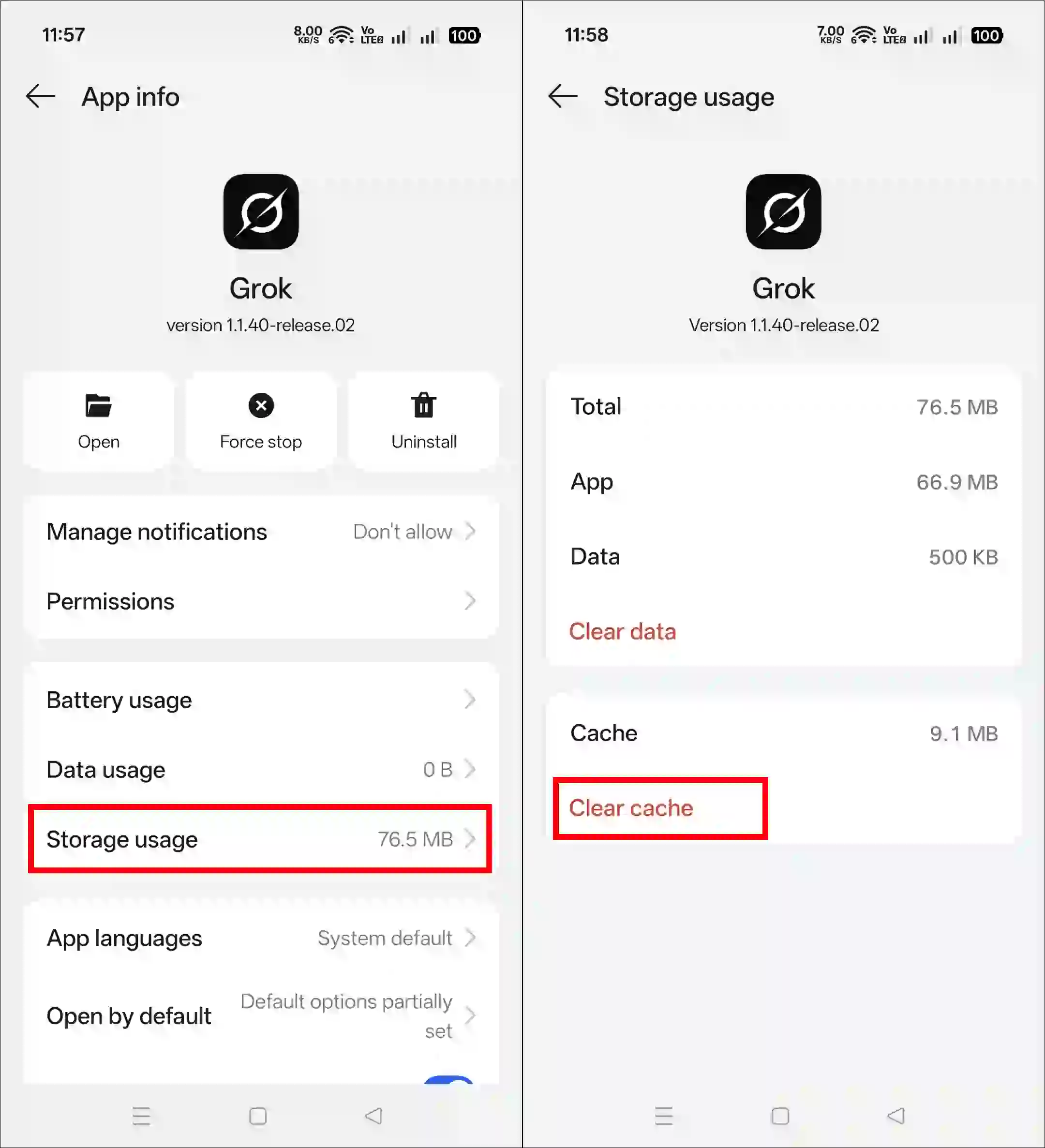
Often, even when the server is operational, this message repeatedly appears on the screen due to a corrupted cache. However, on an Android phone, you can resolve this issue by simply clearing the Grok app’s cache.
To clear the Grok app cache on an Android phone:
- Open Settings App on Your Phone.
- Navigate to Apps > All Apps > Grok.
- Tap on Storage Usage.
- Tap on Clear Cache.
4. Hard Refresh Page (Desktop)
If you are accessing Grok on a desktop and this issue is bothering you, you need to perform a hard refresh of the page instead of a soft refresh. To perform a hard refresh, press CTRL + F5 or CTRL + Shift + R (for Windows) and Cmd + Shift + R (for Mac) on your keyboard. This method bypasses the browser cache to load the page afresh.
5. Sign Out and Sign in
Did you know that logging out of the account and then logging in again is a process that can easily resolve account authentication-related issues? For this, log out of your Grok account in your browser or app, then log back in.

Read: Fix ‘Grok was Unable to Finish Replying. Please Try Again Later or Use a Different Model.’
6. Update Grok App
An outdated mobile app may contain various types of bugs or glitches, which can lead to a wide range of problems. Ensure that your Grok app is updated to the latest version. If it is not, update it immediately from the Google Play Store or the Apple App Store.
7. Report Problem to Grok
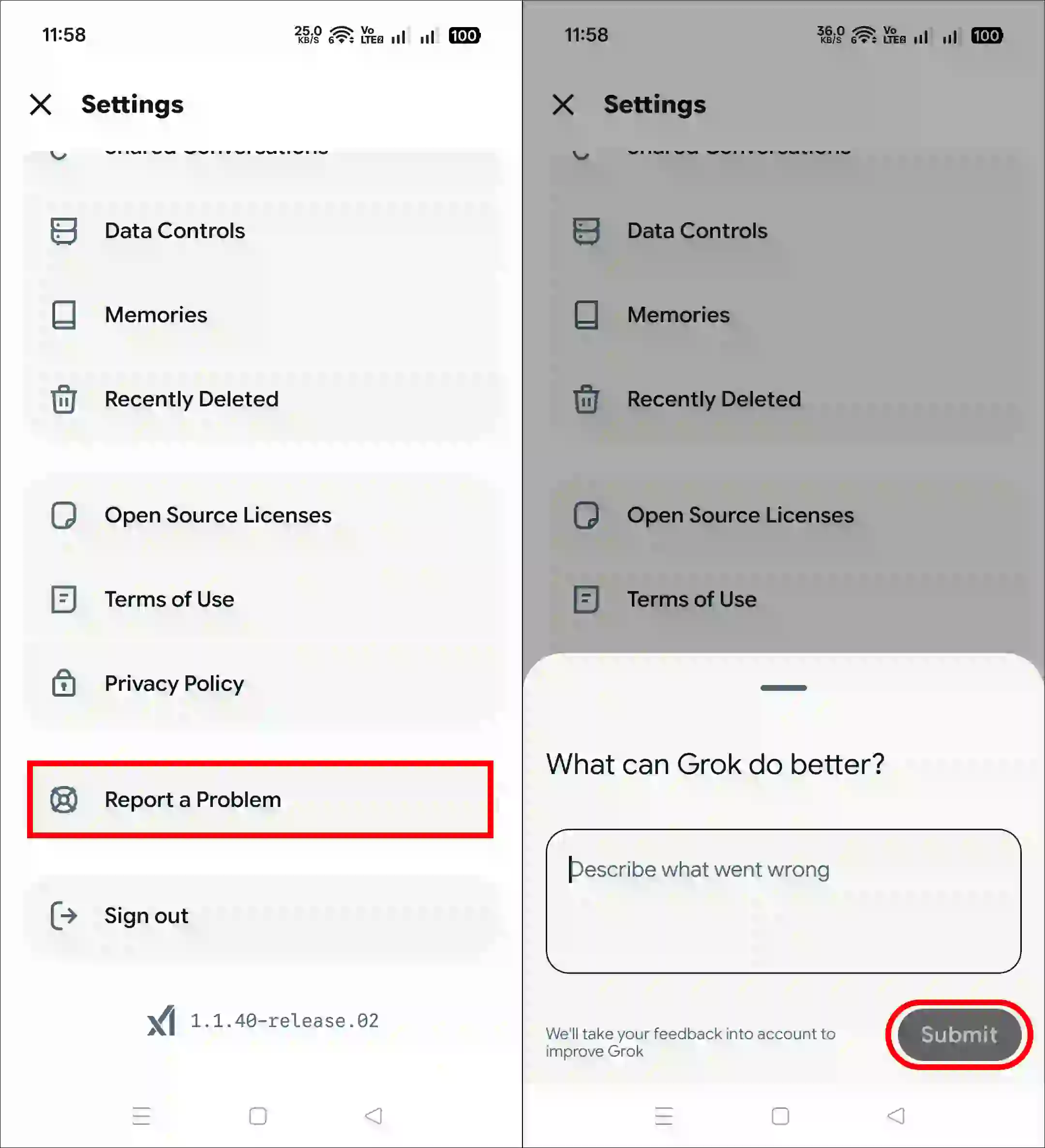
If all the methods listed above fail to fix this issue, you must now report the problem to Grok. The Grok app and website feature a built-in reporting option that allows users to report any issues. Follow the steps below to learn how to submit a report.
- Open Grok App on Your Phone.
- Tap on Two = Lines at Top Left Corner.
- Tap on Gear ⚙ Icon at Bottom Right Corner.
- Tap on Report a Problem.
- Now, Type Your Problem into the Box and Tap on Submit Button.
I hope this article helped you fix the ‘Grok is experiencing issues. We are working on restoring service as quickly as possible.’ problem. If you have any questions or issues with X, feel free to leave a comment below. Don’t forget to share this article.