How to Find & Restore Recently Deleted Conversations (Chats) on Grok
In this era of AI, we often chat with AI chatbots, and quite frequently, we delete these conversations to keep the chat feed clear. However, there are times when we accidentally delete even important conversations. There is absolutely no need to worry.
The Grok app and website provide you with a built-in option that allows you to easily find recently deleted conversations. Not only that, but Grok also enables you to restore these recently deleted chats.

But wait! Grok has a few conditions as well. If you delete a conversation, it will remain stored in the “Recently Deleted” section for only 30 days; after that, it will disappear automatically. This means you can restore a conversation within 30 days, but not after that period.
How to Find & Restore Recently Deleted Conversations on Grok App
If you use the Grok app on an Android phone or iPhone and want to check and restore recently deleted chats, please follow the steps mentioned below. However, before proceeding, ensure that you are using the latest version of the Grok application.
To see and restore deleted chats on the Grok app:
- Open Grok App on Your Android or iPhone.
- Tap on Two = Lines at Top Left Corner.
- Tap on Gear ⚙️ Icon at Bottom Left Side.
- Under the Data & Information Section, Tap on Recently Deleted.
- Here’ You’ll See Your All Recently Deleted Conversations.
- If You Want to Restore Anyone, Simply Tap on That and Then Restore Conversation.
Also read: Enable (or Disable) NSFW Preferences in Grok App
How to Find & Restore Recently Deleted Conversations on Grok Web
Many users access the Grok website via desktop browsers such as Chrome, Firefox, Edge, Opera, Brave, Safari, etc. But did you know that, even on the Grok web version, you can easily see all deleted chat history? All the steps to do so are provided below.
To see and restore deleted chats in Grok on PC:
Step 1. Go to Grok.com and Log into Your Account.
Step 2. Click on Profile Icon at the Bottom Left and Then Settings.
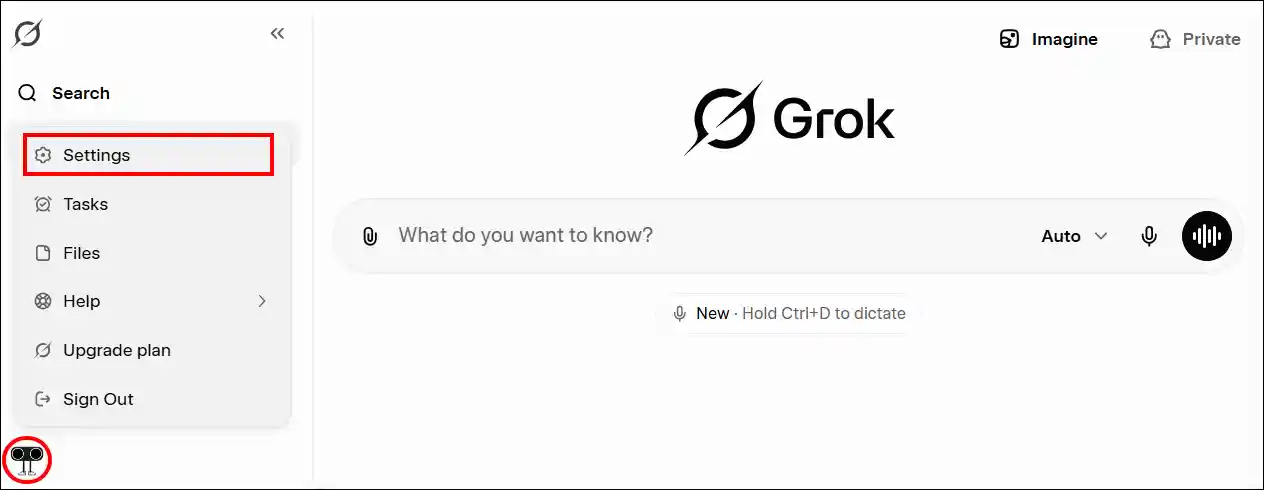
Step 3. Select Data Controls Section and Click on Manage Next to See Deleted Conversations.
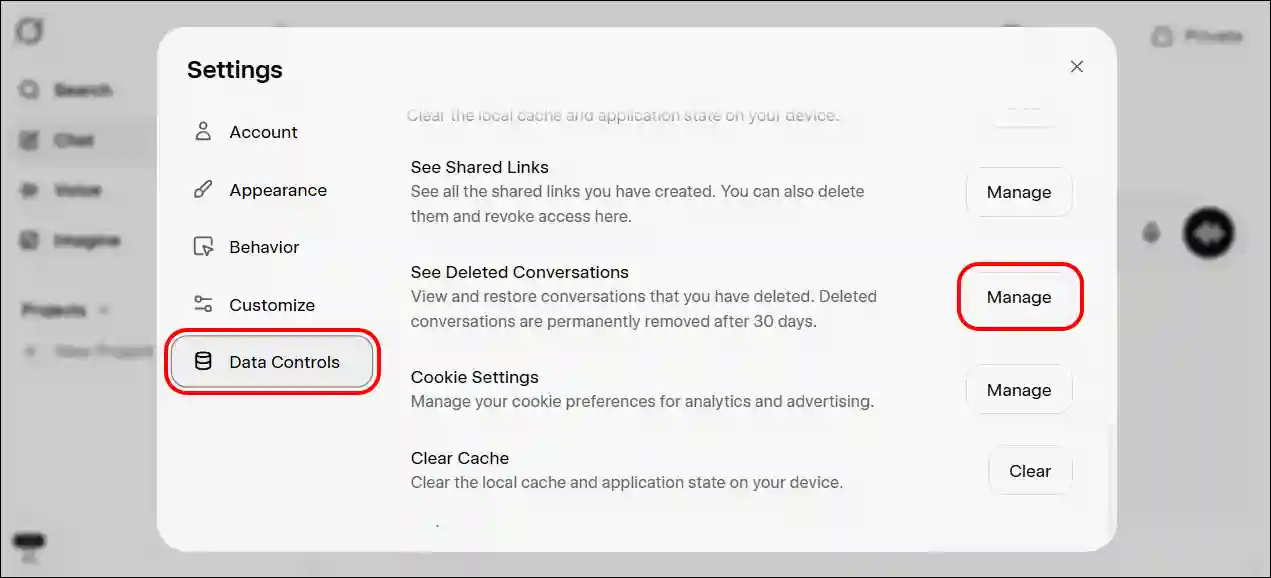
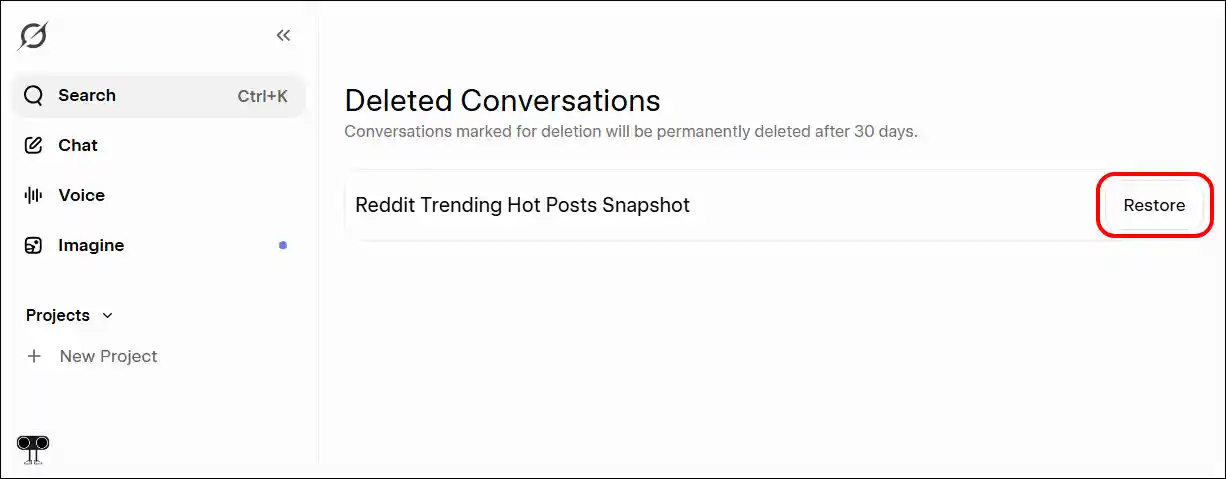
Step 4. Here’ You’ll See Your All Recently Deleted Conversations.
Step 5. If You Want to Restore Anyone, Simply Click on Restore Button.
That’s all! You’re done…
Also read: How to Turn Off Grok Auto Translate in X
I hope you have found this article very helpful. And you learned how to find deleted chats on Grok. If you have any problems related to Grok, please let us know by commenting. Please share this article with your friends.