Disable Firefox’s “Awaiting Location Permission” Popup in Windows 11/10
The “Awaiting Location Permission” popup in Mozilla Firefox versions v150+ is causing significant annoyance to users. Not only that, but even with location settings completely disabled, this pop-up repeatedly appears on the Firefox screen in a loop. If you are also facing this problem, don’t worry! We have found two solutions that allow you to fix it.
A Reddit user posted that whenever they open the Firefox browser, an “Awaiting Location Permission, Grant Firefox location permission in system settings.” pop-up appears, and the browser directly opens the location permissions option within Windows Settings. This repetitive behavior has completely ruined the user’s browsing experience.
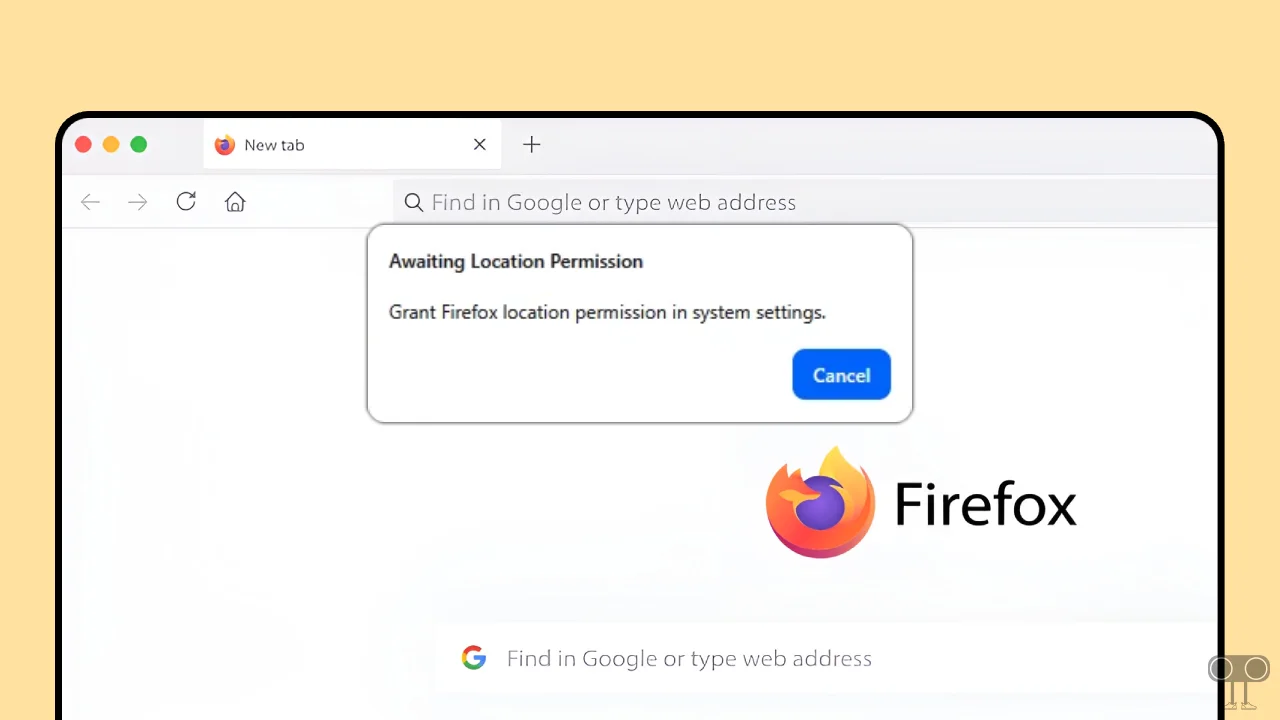
In the Firefox browser, this popup appears something like this:
Awaiting Location Permission
Grant Firefox location permission in system settings.
Cancel
How to Fix Firefox’s “Awaiting Location Permission” Popup in Windows 11/10
Even though Firefox uses the Windows location feature after the latest update, you can still disable it using some secret flags. This method works for both Windows 11 and Windows 10 users. Just follow the steps mentioned below one by one.
To stop ‘awaiting location permission’ popup in Firefox:
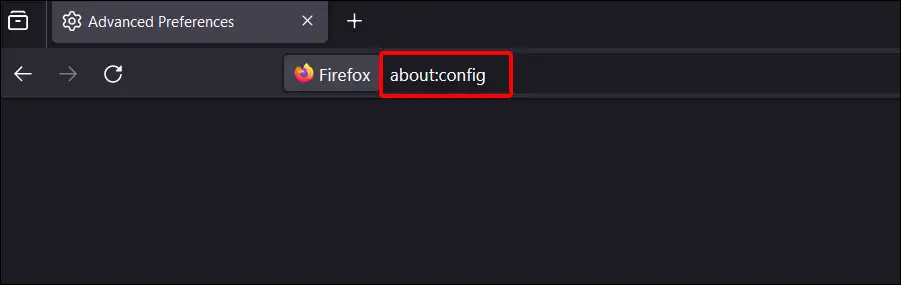
Step 1. Open Firefox Browser and Go to about:config.
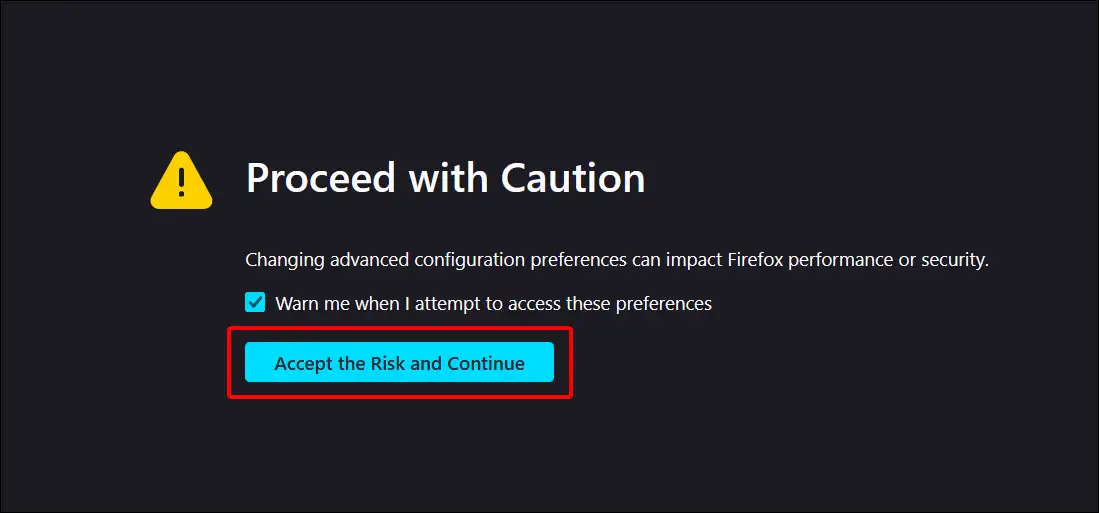
Step 2. Click on “Accept the Risk and Continue” to Bypass the Caution.
Step 3. Search geo.prompt.open_system_prefs and Set It’s Value to False.
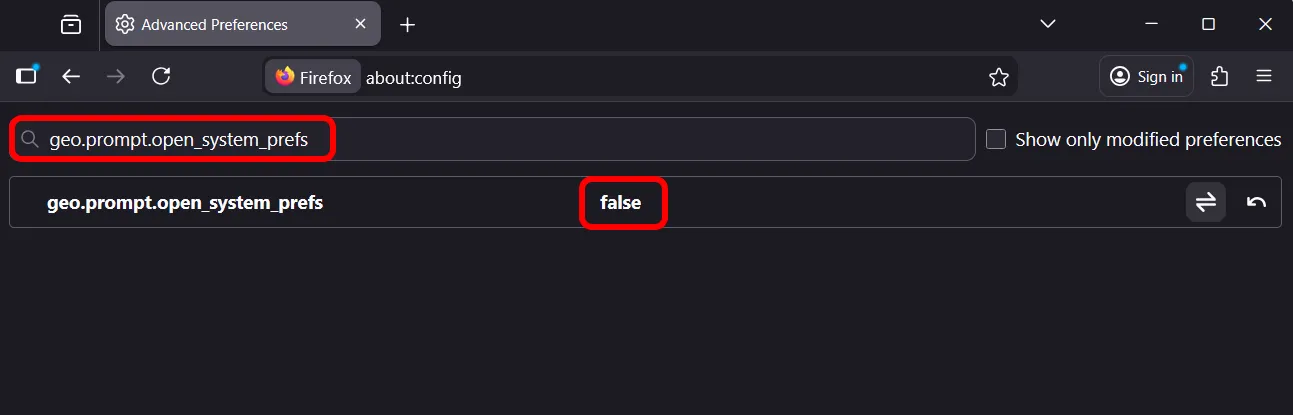
Step 4. Search geo.provider.ms-windows-location and Set It’s Value to False.
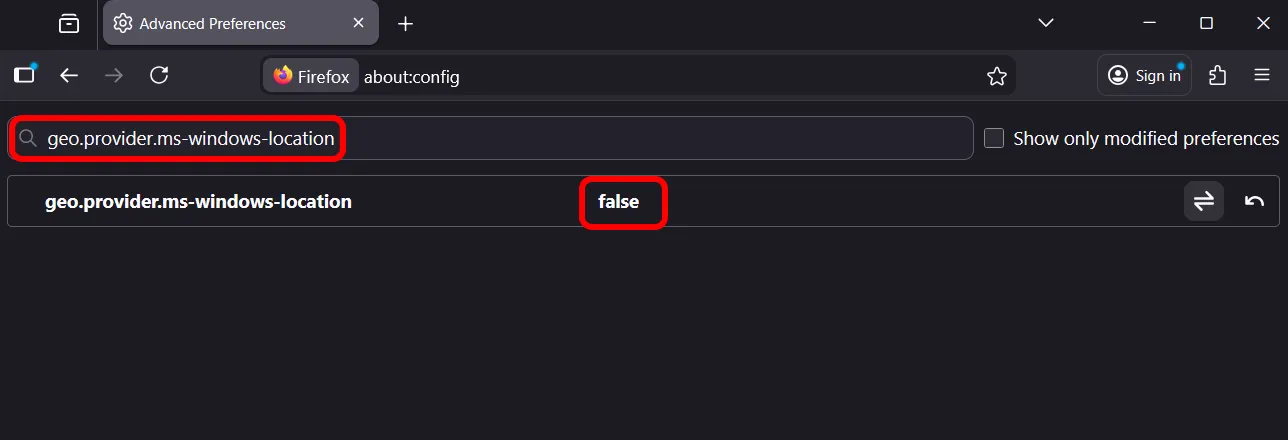
Step 5. Now, Restart Your Browser.
That’s it! Now, when you open the Firefox browser, you will no longer see this “Awaiting Location Permission” popup on your screen.
Wait! There is another way to disable this, but it works with uBlock Origin. If you use the uBlock Origin add-on in the Firefox browser, simply add “google.com##+js(aopr, navigator.geolocation)“ to its filters, and you’re all set.
Also read: Remove Bing from Firefox on Windows 11/10 using These 4 Ways
I hope you have found this article very helpful. And you learned how to turn off Firefox’s awaiting location permission popup. If you have any problems related to Firefox, please let us know by commenting. Please share this article with your friends.