GPay QR Scanner Camera Not Working? Follow Methods on Your Phone!
GPay, or Google Pay, is a UPI and payments app that allows users to transfer money via QR code, UPI ID, or mobile number and to make various types of bill payments. To make a payment via a QR code, you need to scan it, and for this, the phone’s camera will be used. However, on some users’ phones, the QR scanner camera in the Google Pay app is not working.
This problem can prevent you from making payments when you need to. After looking at posts related to this on Reddit and Twitter, it was found that users’ GPay QR Scanner camera is not opening, is lagging, keeps closing repeatedly, and is freezing.
This problem can be both technical and device-related. Often, this issue can occur due to the GPay app’s camera permission being disabled, an outdated app version, a corrupted cache, or a fault in the phone’s rear camera.
I have outlined the technical aspects below and mentioned the relevant methods. Please follow the steps one by one to check whether the GPay QR scanner camera is working or not.
Fix GPay QR Scanner Camera Not Working on Phone
1. Enable Camera Permission
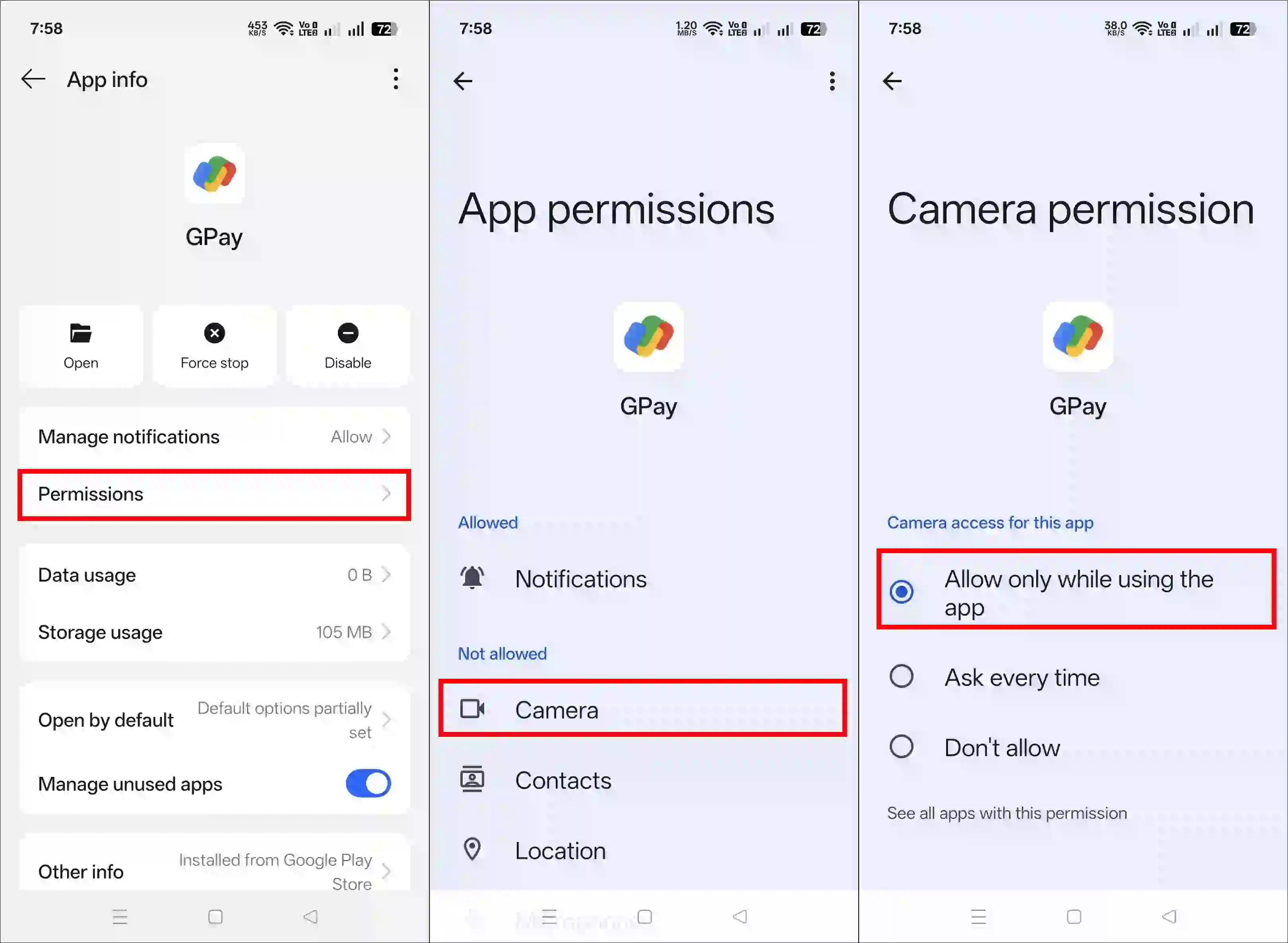
If you see a “Camera Access is Turned Off” message when opening the scanner in the GPay app, it means that camera permission for the Google Pay app is disabled. You can enable camera permission on your Android phone or iPhone by following a few simple steps.
Enable Camera Access on iPhone:
- Press and Hold GPay App icon.
- Tap on App Info.
- Tap on Permissions.
- Tap on Camera.
- Select “Allow Only While Using the App” Option.
Enable Camera Access on iPhone:
- Open Settings on iPhone.
- Scroll Down and Tap on Privacy & Security.
- Tap on Camera.
- Find Google Pay or GPay and Turn On the Toggle Next to It.
2. Clear App Cache
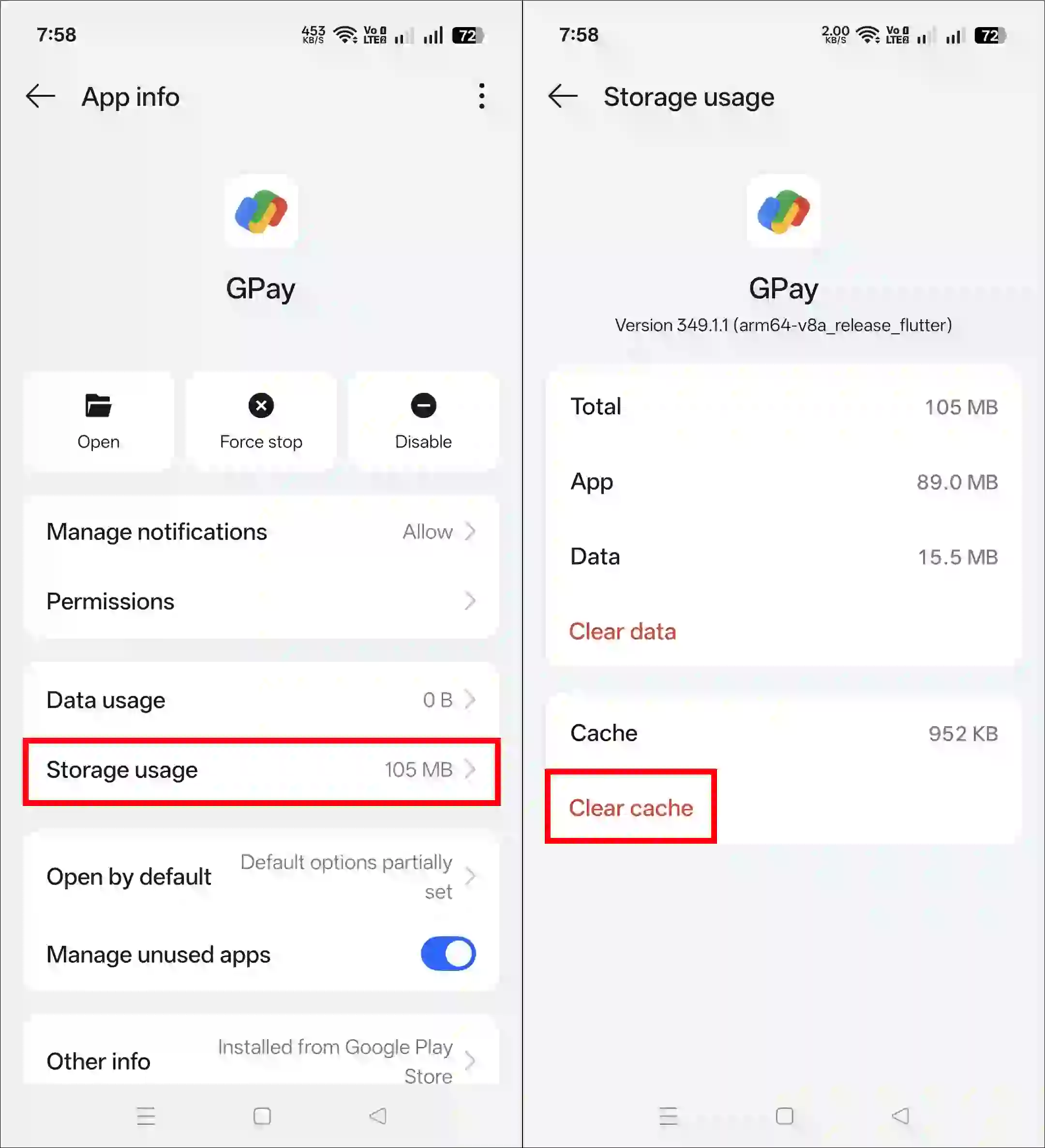
Sometimes, even after granting camera permission, GPay’s QR scanner camera does not work. Another reason for this could be a corrupted cache. However, you can easily clear it on your Android phone and fix the GPay camera problem.
To Clear GPay App Cache on Android:
- Press and Hold GPay App icon.
- Tap on App Info.
- Tap on Storage Usage.
- Tap on Clear Cache.
3. Update Your GPay App
If you are using an outdated GPay app, it is possible that your GPay camera may crash, lag, or keep closing repeatedly. In that case, you will need to update your GPay app to the latest version on the Google Play Store or Apple App Store. You will find the direct link to update it below.
Note: If the problem persists even after following all three methods above, then check your phone’s back camera once. If the rear camera is not working properly, the GPay scanner camera will not work either.
I hope you liked this post and your GPay QR Scanner Camera issue has been fixed. If the problem still persists, please let us know by commenting below. Do share this post with your friends.