How to Disable AMD External Events Utility (Windows 11/10)
If you are a Windows 11 or 10 user and want to disable “AMD External Events Utility” on your computer or laptop, then this post is for you. In this post, I have explained, step-by-step, how you can stop the AMD External Events Utility service by following just a few steps.
In Windows systems, the AMD External Events Utility (associated with the processes atieclxx.exe and atiesrxx.exe) is an official background Windows service that is installed alongside AMD Radeon graphics drivers. Windows users are disabling this because a massive SSD (Solid-State Drive) write bug has emerged.
There is currently a serious bug in AMD’s driver software that causes the utility to continuously and excessively write data to the system drive, even when the computer is completely idle.
How to Disable AMD External Events Utility (Windows 11/10)
According to some threads on the internet, this problem can be fixed by disabling AMD External Events Utility in Windows. However, according to some Reddit posts, disabling it can lead to issues such as screen tearing, inconsistent frame pacing, broken hotkeys, and a loss of smooth gameplay.
However, if you want, you can turn it off by following the steps provided below.
To turn off amd external events utility service:
- Press Windows + R and Type
services.mscand Hit Enter.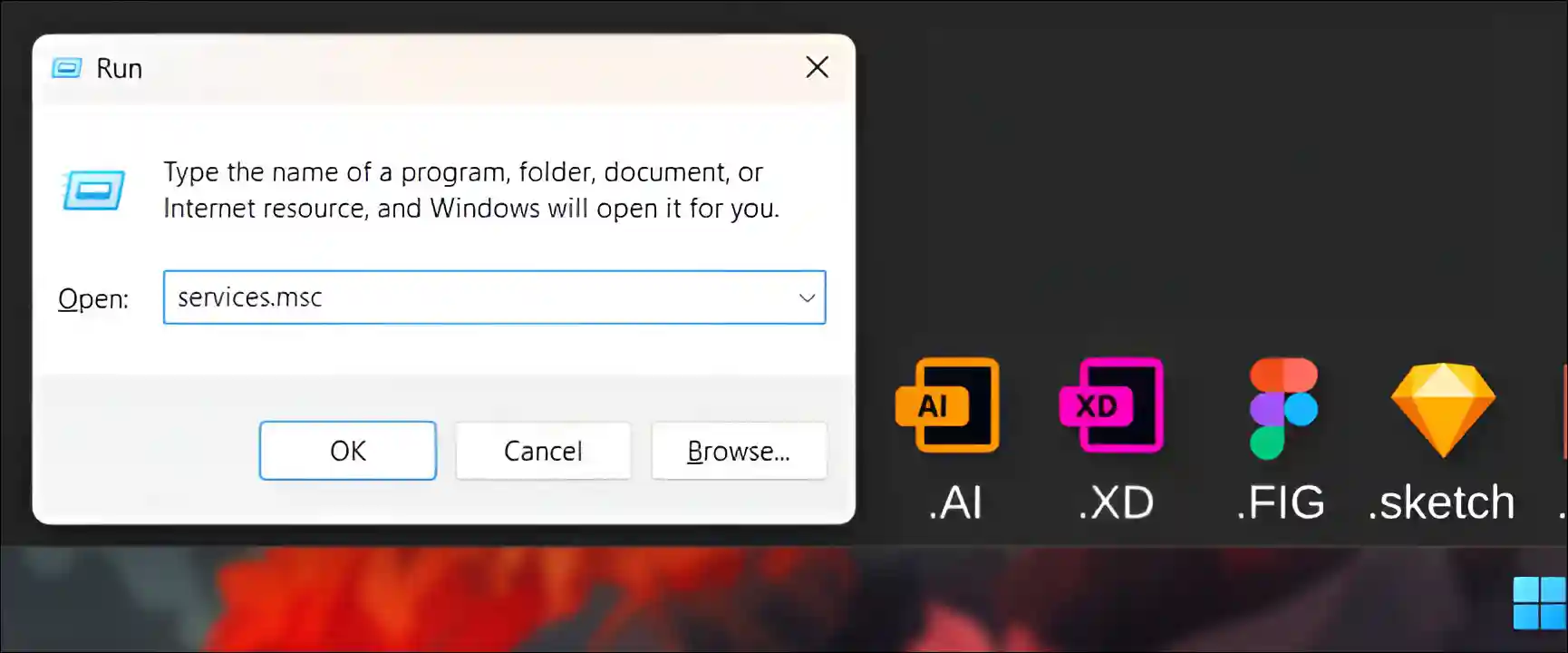
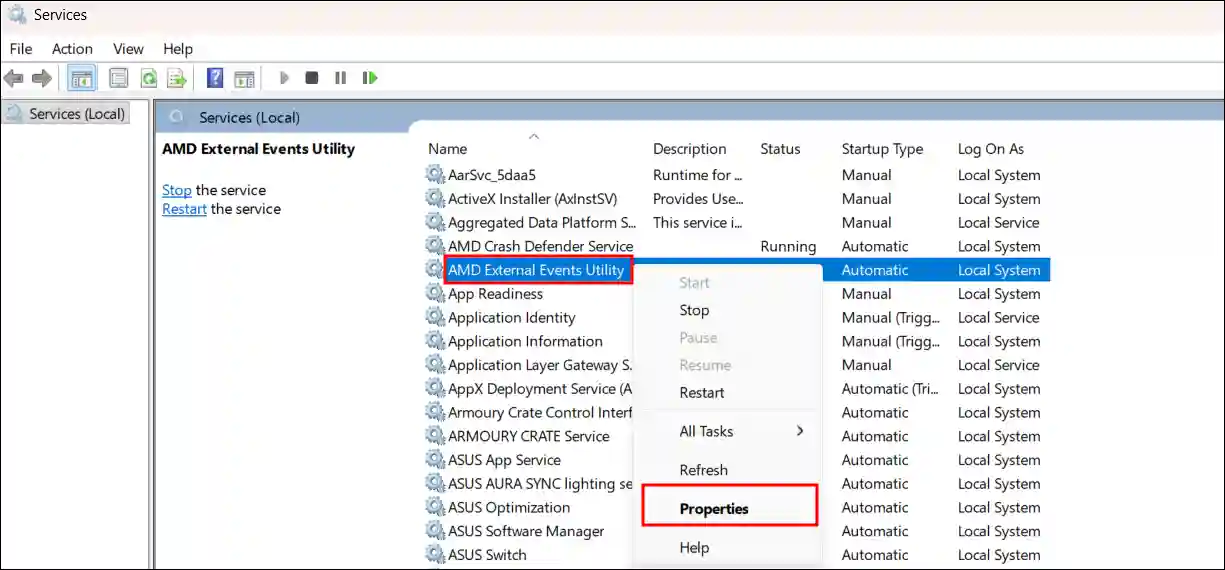
- Find AMD External Events Utility and Right-Click on It and Click Properties.
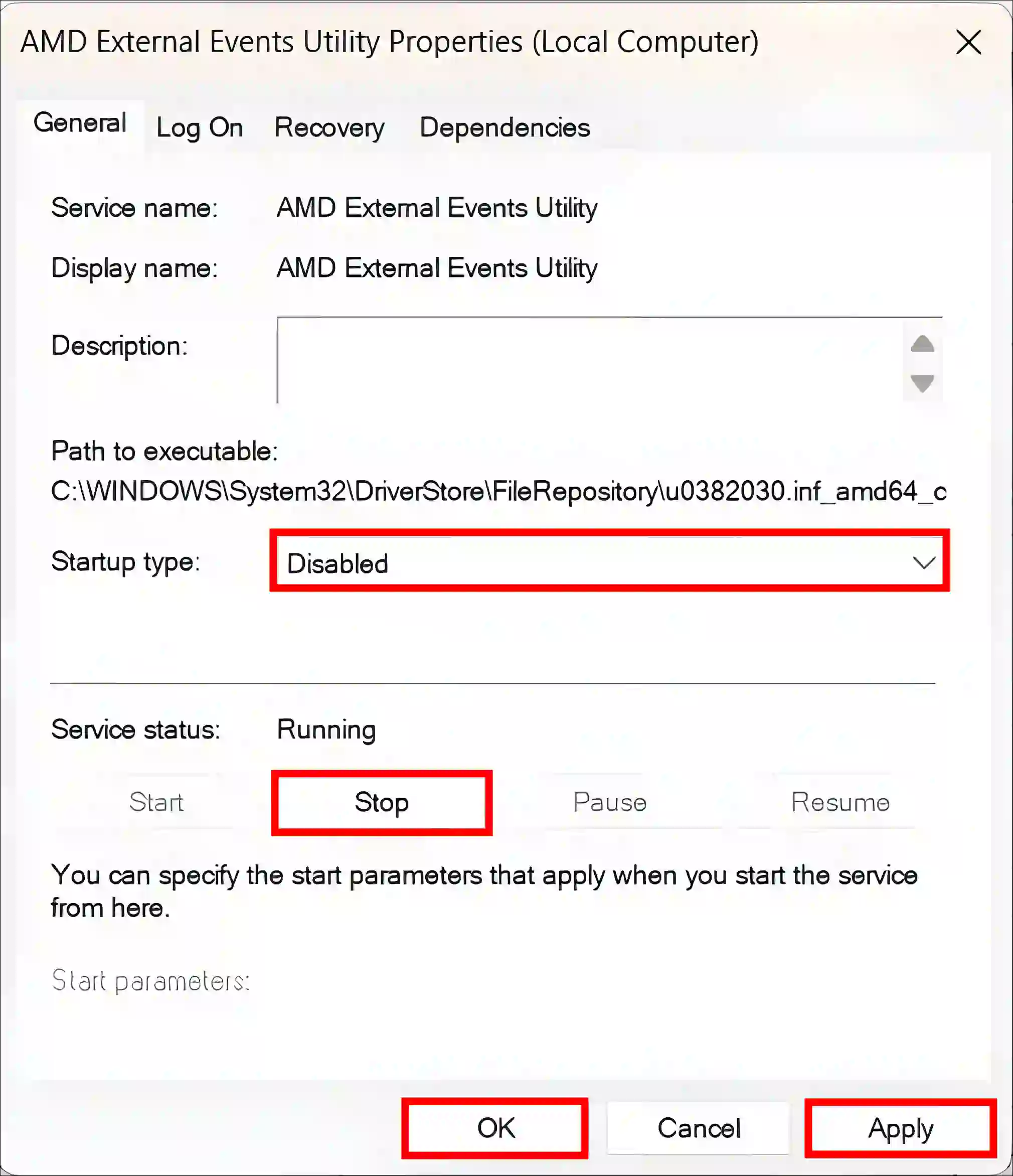
- Click on Stop Button to End the Running Process for the Current Session.
- Change the Startup Type from Automatic to Disabled.
- Click Apply and then OK, and Restart your Computer.
That’s it!
However, if disabling it causes any issues, you can follow the additional guide mentioned below, which will help you resolve the problem without needing to disable the AMD External Events Utility service.
1. Check if you are Affected
- Press Windows + R and Type
resmonand Hit Enter. - Go to Disk Tab.
- See If
atieclxx.exeoratiesrxx.exeare Constantly Writing Data.
2. Update Your Drivers Immediately
AMD has finally fixed this issue in the ‘Adrenalin Edition 26.11.1’ driver update (and later versions). To update your graphics software, visit the AMD driver support page, download the latest version, and install the update. This will resolve the issue of unnecessary write operations occurring on the drive while the system is idle.
3. Advanced Troubleshoot
If the issue is not completely resolved even after updating the graphics software, you will need to use the “Radeon-atieclxx-SSD-Fix” tool, which is available on GitHub. This tool modifies Windows folder permissions to prevent the utility from writing data while keeping the service active—thereby safeguarding both your SSD and FreeSync functionality.
I hope you found this post helpful and that your issue has been resolved. If you encounter any other Windows-related problems, please let us know by leaving a comment below. Also, share this post with your friends.