Disable AI-Generated Watermark in Photos App in Windows 11
If you generate images using Copilot in Windows 11, an “AI-Generated” watermark is automatically added when you save them. However, did you know that Microsoft also allows you to disable this AI-generated watermark?
The Photos app in Windows 11 now has built-in Copilot AI, which can both generate and modify images. If you don’t want to see the AI-generated watermark after Copilot AI modifies an image in the Photos app, this post is for you.

The guide mentioned in this post will teach you how to turn off or disable the AI-generated watermark in the Windows 11 Photos app. To disable it, you will need to make a small adjustment within the “Manage your AI-generated work” settings in the Photos app.
How to Disable AI-Generated Watermark in Photos App in Windows 11
To get rid of AI-generated watermark in Windows 11’s photos app:
- Open an Image in Photos App.
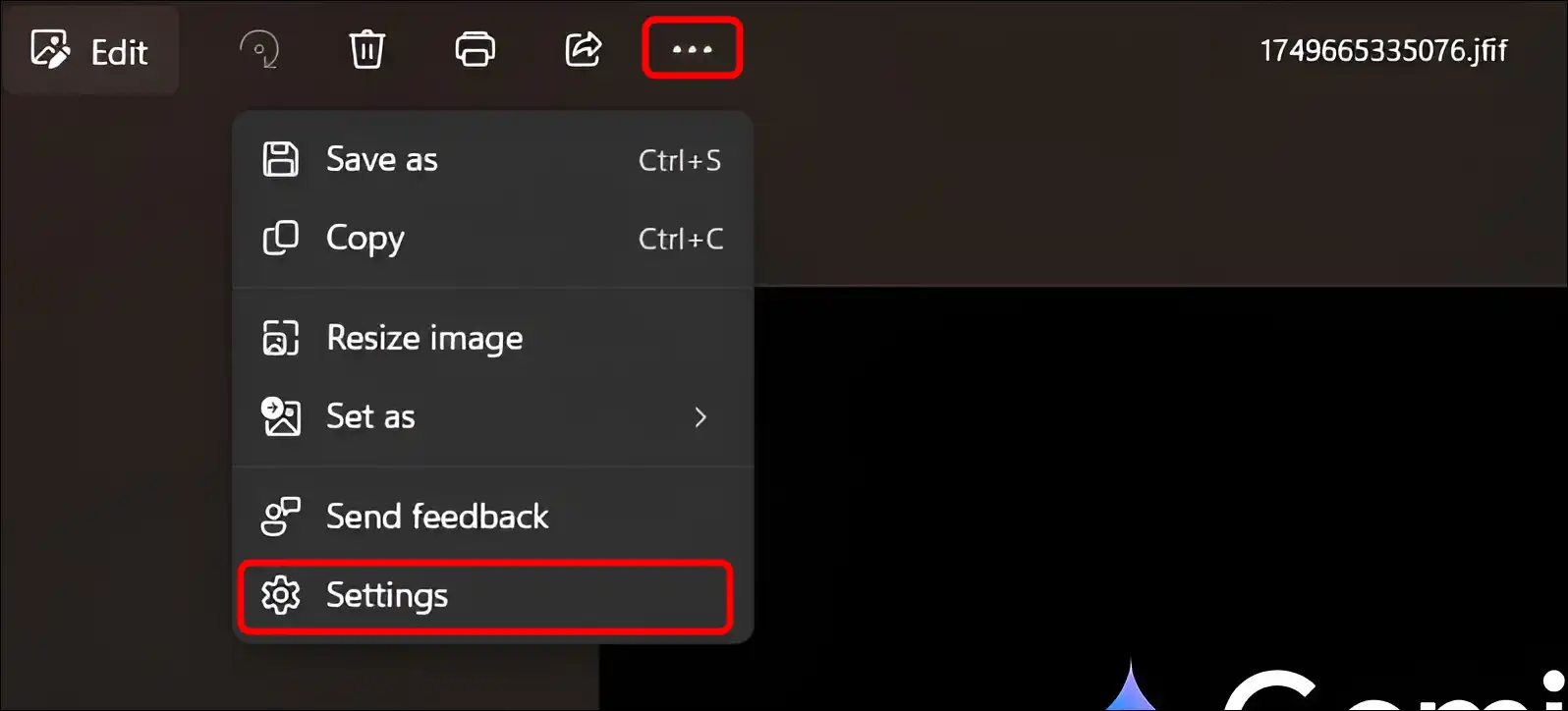
- Click on Three-Dots (•••) Button at Top-Toolbar and Select Settings.
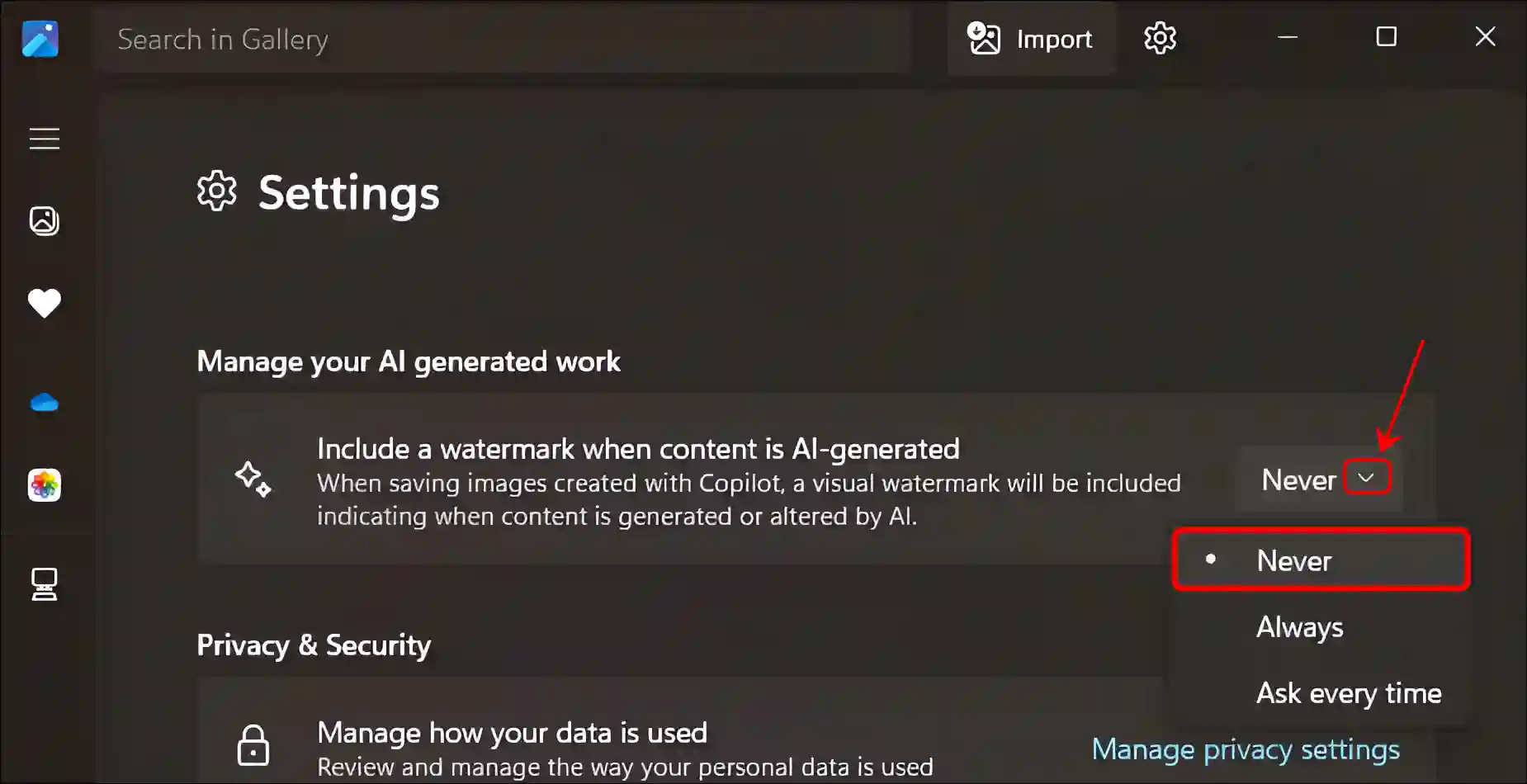
- Scroll Down to the “Manage Your AI Generated Work” Section.
- Click on Dropdown and Here You’ll Three Options (Never (Default), Always, Ask Every Time).
- If Always or Ask Every Time is Selected, Simply Select the “Never” Option.
- That’s All…
Now, whenever you generate or modify images using AI in the Photos app, you will no longer see an AI-generated watermark after saving them. However, you can re-enable the AI-generated watermark at any time by setting this option back to “Always”. It is entirely up to you.
You may also read: