Video Star QR Codes! All Editing Presets and Effect Configurations
Video Star is a very popular video editing app that is available exclusively for iOS (iPhone and iPad). Most users use it to create music videos, lip-sync videos, and other fan edits. You can edit videos to your liking, but it may take a little more time.
To get around all of this, there are QR codes available that make your editing experience much easier. In Video Star Editor, these QR codes function as transferable visual presets. Instead of forcing an editor to manually build complex animations from scratch every time, a QR code stores the exact mathematical parameters, keyframes, color grading, and structural layers of an effect.
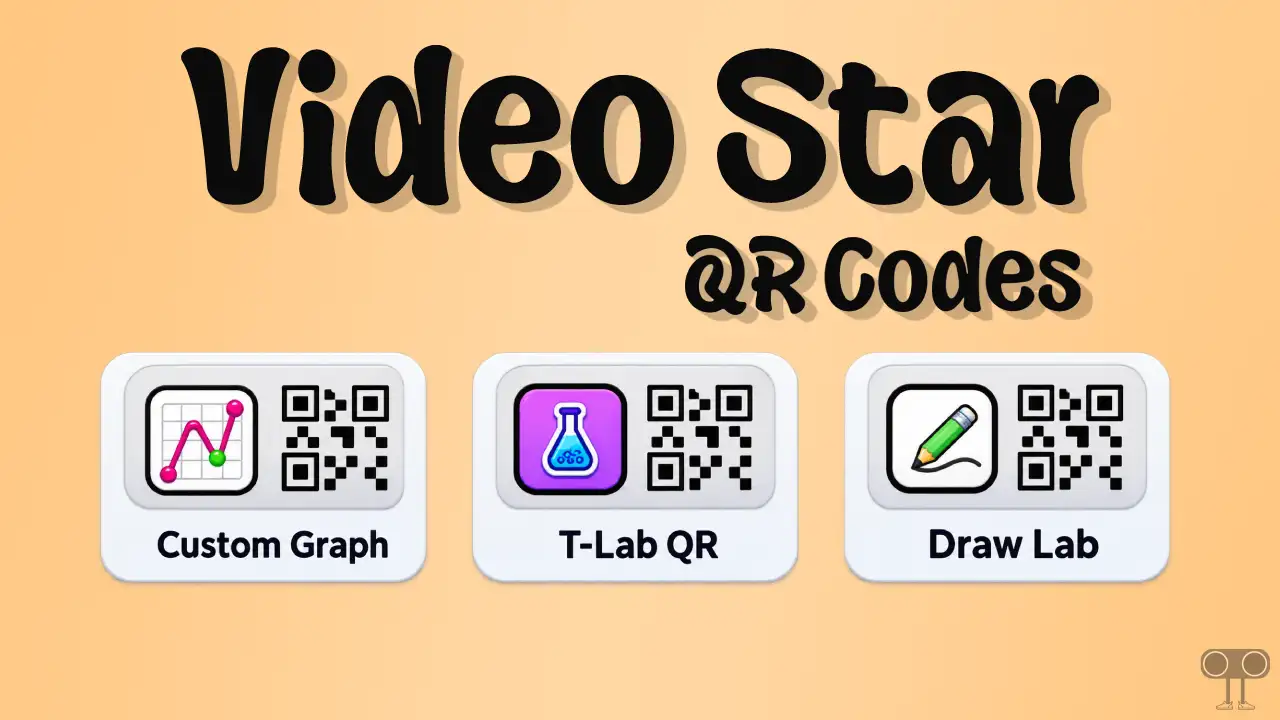
A key feature of Video Star is that editors can export QR codes of their edits, and they can also import QR codes created by others into their own editing projects. I have shared some useful QR codes below, which you can save and import into Video Star to use their effect configurations.
Video Star QR Codes! Try Our Editing Presets and Effect Configurations

Free Single Layer

Multi-Layer

Individual Multi-Layer Keyframes

Custom Graph

T-Lab QR

Draw Lab

Clip Transformer

Custom Coloring

Time Slicer

Sketch Artist

Color Artist

Clone City

VSMB

Art Studio

Cinema Pro

Hair Dye

Pro Color Lab

Effect Setup

Pro Particle Lab

Overlay Setup
A QR code is a barcode-style image containing data formatted specifically for ‘Video Star’ settings; these ‘Video Star’ QR codes can perform the following functions:
- Automate Transitions & Motion.
- Share Layer Arrangements.
- Replicate Color Grading.
- Store Custom Velocity Curves.
How to Import and Use QR Codes in Video Star
- Find and Save the Code in Your Gallery.
- Open Video Star App and Navigate to Editing Window of Choice (Such as Multi-Layer, Transform, Re-Effect, or Custom Colouring).
- Tap on QR Icon at the Top of the Screen.
- Select Import Option.
- Next, Choose a QR Code from Your Gallery.
- Now, Tap YES to Confirm & Apply.