How to Change ChatGPT Voice Accent (Male⇌Female) On Phone and PC
OpenAI’s ChatGPT also supports a live voice chat feature, allowing you to have real-time conversations. This feature is similar to Gemini’s live voice chat and comes with multiple voice styles. You can choose and set your preferred voice accent, whether male or female, to receive responses.
ChatGPT’s live voice chat, or Voice Mode, allows you to interact with advanced AI models using your voice. It provides real-time audio responses and lets you give instructions verbally, offering a hands-free experience.

Similar to Google Gemini, ChatGPT also offers multiple customization options, including a voice-changing mode. This feature, with both male and female voices, further enhances the user’s live voice chat experience. Currently, ChatGPT comes with nine voice options (Ember, Cove, Breeze, Arbor, Juniper, Spruce, Vale, Maple, and Sol), a mix of male and female voices.
1. On ChatGPT App (Android and iPhone)
Most users use ChatGPT on their mobile phones (Android or iPhone) because it’s quite easy to use on a phone. If you also use ChatGPT’s live voice chat mode and want to change the voice style from male to female or female to male, that’s also possible. Before following the steps below, make sure to update your ChatGPT app from the Google Play Store or Apple App Store.
To change OpenAI’s ChatGPT voice accent (male⇌female) on a phone:
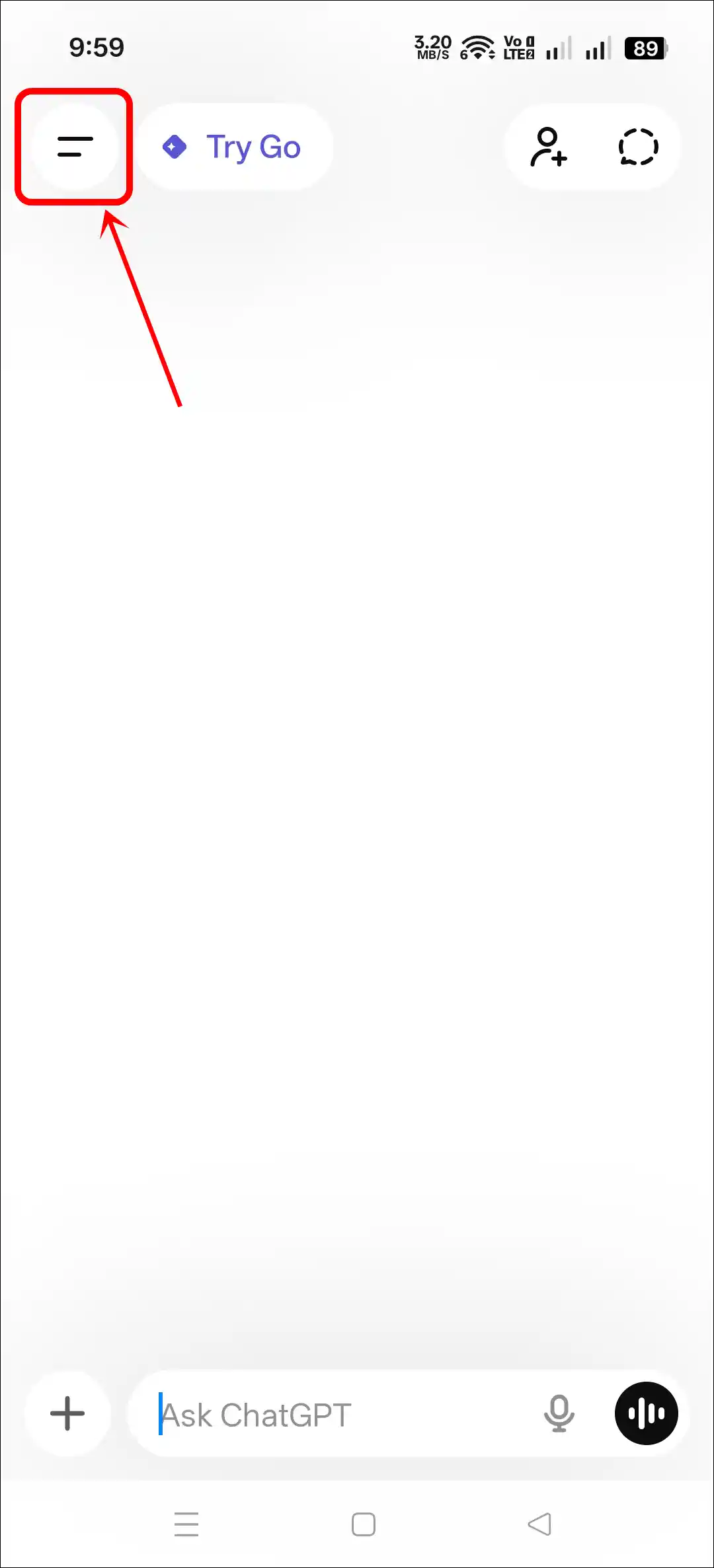
Step 1. Open ChatGPT App and Tap on Two ═ Lines at Top Left Corner.
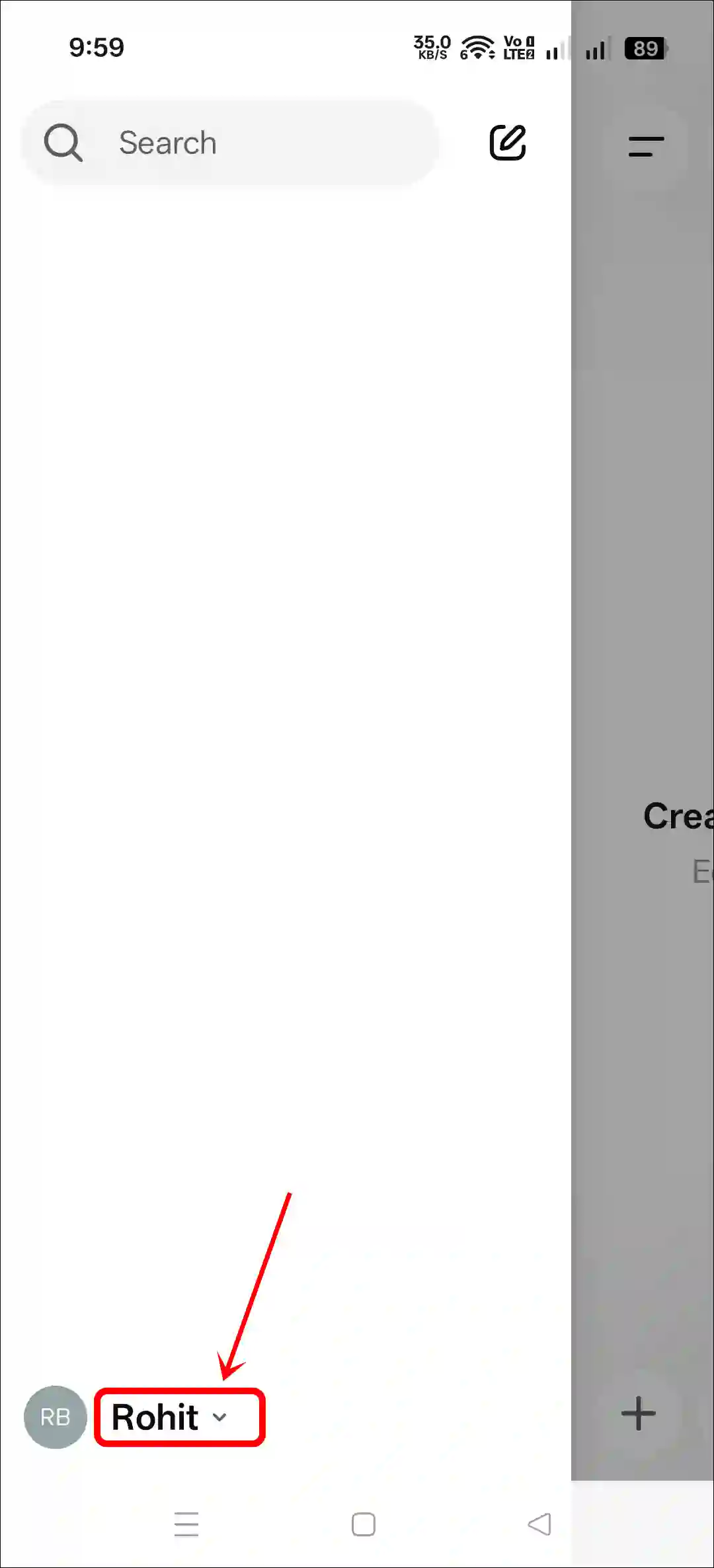
Step 2. Tap on Your Profile Name at Bottom.
Step 3. Scroll Down and Tap on Voice.
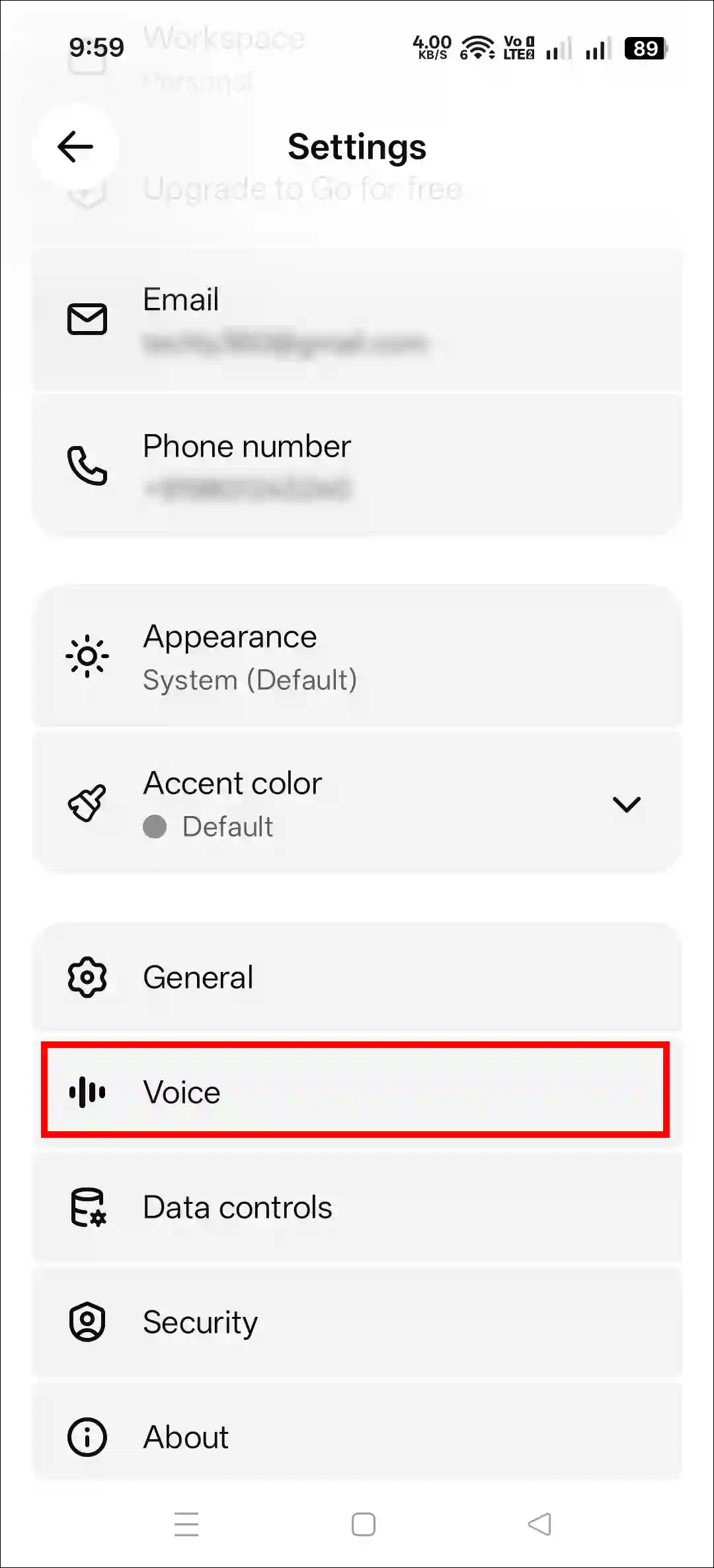
Step 4. Tap on Voice.
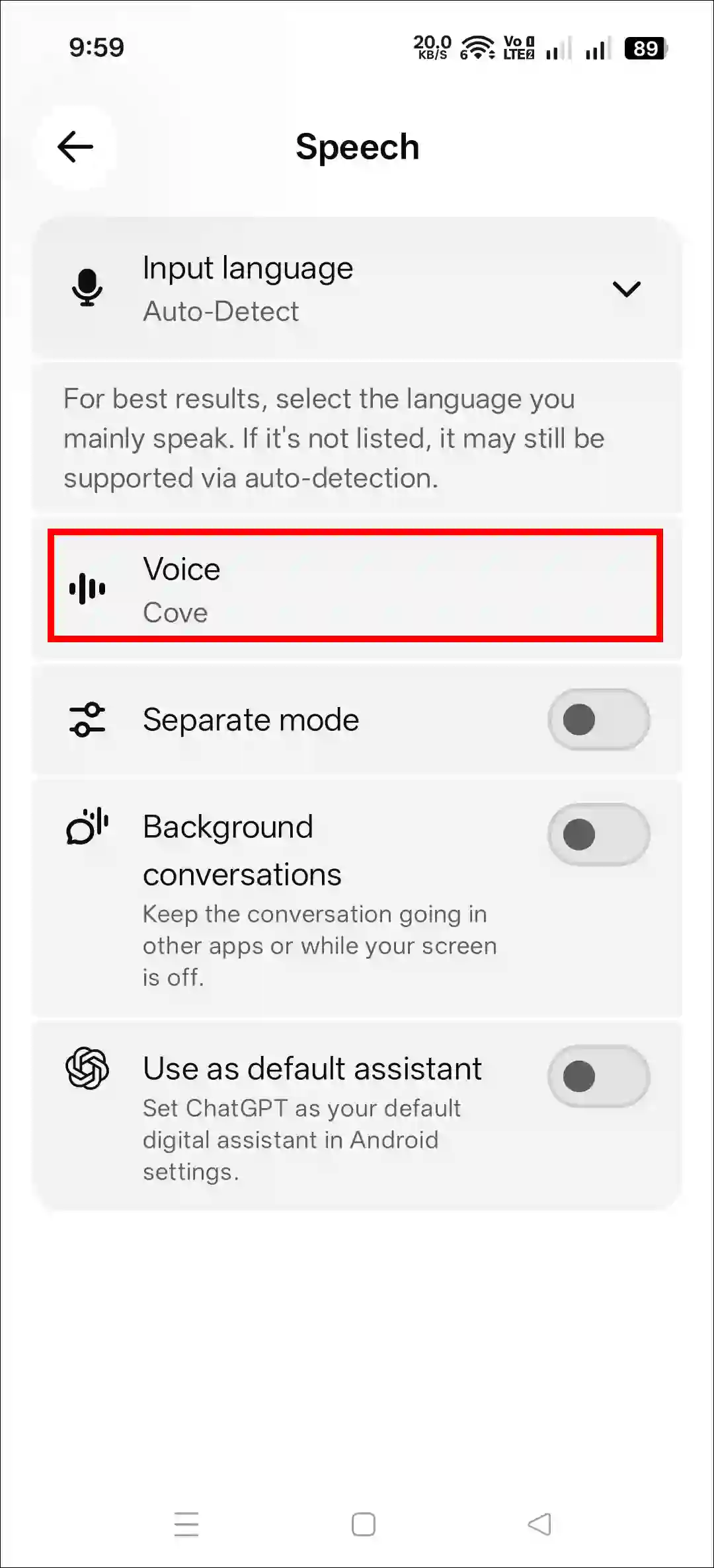
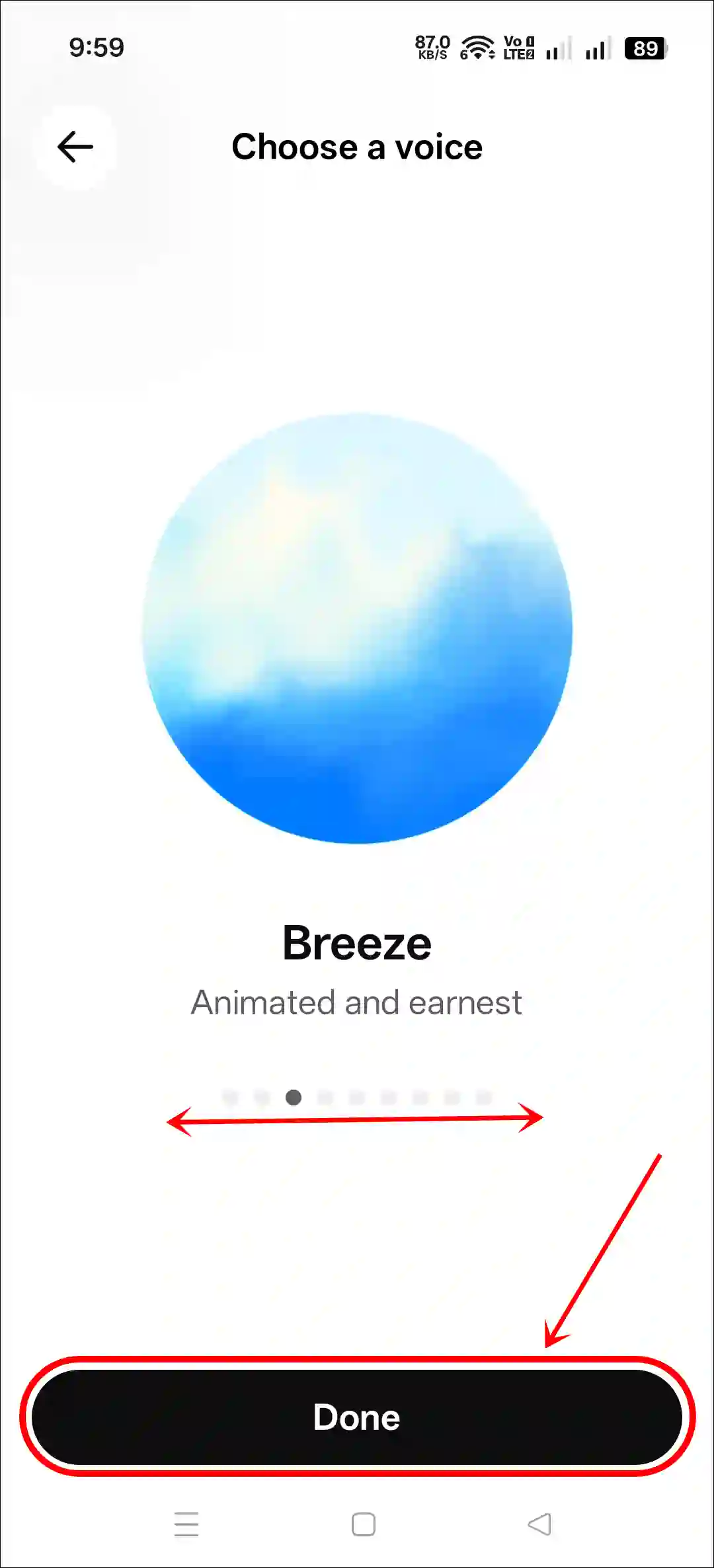
Step 5. Now, Swipe Left/Right to Hear How ChatGPT Sounds and Tap on Done Button.
Related: Disable “Confirm ChatGPT Requests” on iPhone, iPad, Mac
2. On ChatGPT Website (PC/Mac)
For heavy tasks, users often rely on the web version of ChatGPT on a PC, laptop, or Mac. The ChatGPT website also supports Speak Screen voice mode, and users can change its voice accents just like in the ChatGPT app.
To change ChatGPT’s live voice accent on PC or Mac:
Step 1. Open Any Web Browser and Go to ChatGPT.com and Log into Your Account.
Step 2. Click on Your Profile Name at Bottom Left Corner and Select Settings.

Step 3. Select General Section. Now Click on the Dropdown Arrow Next to Voice and Select Your Preferred Voice Accent.
You can also go directly to this page using the "https://chatgpt.com/#settings" URL.
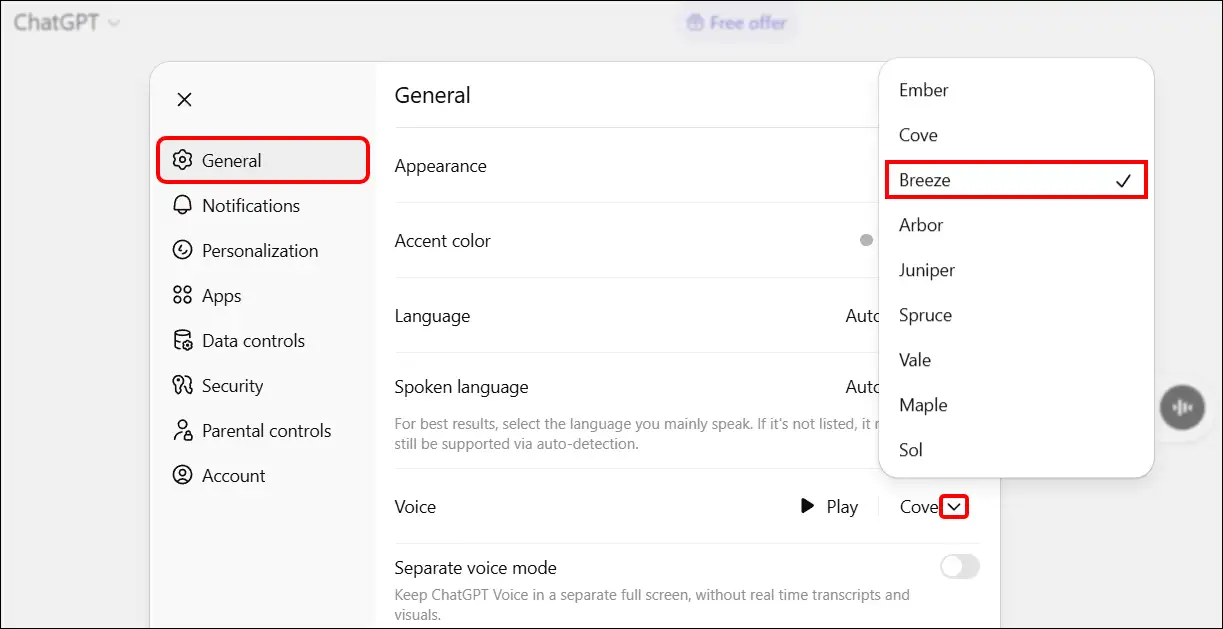
You can select each voice accent (male and female) and play it to hear what that voice style sounds like.
That’s all! You’re done…
Related: 3 Ways to Install ChatGPT App on Windows 11 or 10
FAQs
Q 1. How do I get different voices for my ChatGPT app?
Answer – ChatGPT offers its users nine different, human-like voices for live voice chats. To access these voices, you must go to the “Speech” or “Voice” section in the ChatGPT app settings. There, you can listen to each voice and set your preferred one as the default.
Q 2. Is ChatGPT voice mode available on all devices?
Answer – Yes! ChatGPT’s voice mode is widely available on mobile (Android and iOS) and the web (ChatGPT.com) to all logged-in users. Logged-in users can also customize many aspects of voice chat.
Q 3. Why can’t I change ChatGPT’s voice on my phone?
Answer – If you’re unable to change the ChatGPT voice on your phone, you’re not alone. Some of the main reasons could be an outdated app, a corrupted cache, and bugs. You can fix this by updating the app and clearing the corrupted cache.
I hope you found this article helpful and learned how to change ChatGPT’s voice accent (between male and female) on your phone and computer. If you have any questions related to ChatGPT, please ask in the comments below. Feel free to share this article as well.