How to Enable or Disable “Show Hidden Files” in an Android Phone
The Android phone’s file manager has a feature that can hide folders. It only hides folders with a dot at the beginning of their name, like “.nomedia”. If the “Show hidden files” option in the file manager settings is disabled, you will not see folders starting with a dot.
You may have often noticed that even after downloading photos to WhatsApp, they don’t appear in the gallery. This is because of a “.nomedia” file hidden in WhatsApp’s file location. Since it’s hidden, it can’t be easily found.
When you enable the “Show hidden files” option in a file manager, all hidden folders or files with dots in their names appear to become visible. Nowadays, almost all phones come pre-installed with Google’s own file manager, “Files,” which also includes the “Show hidden files” option. However, if you use any other file manager app, this option is available there as well.
How to Enable “Show Hidden Files” in an Android Phone
If you can’t see the game’s data or the important .nomedia file in the file manager, it’s likely that your “Show Hidden Files” option is disabled. You can easily enable it by following the steps below. I have used Google Files for the following steps.
To view and find hidden files in the file manager on Android:
Step 1. Open Google Files App on Your Android Phone.
Step 2. Tap on Three Horizontal ≡ Lines at Top Left Corner.
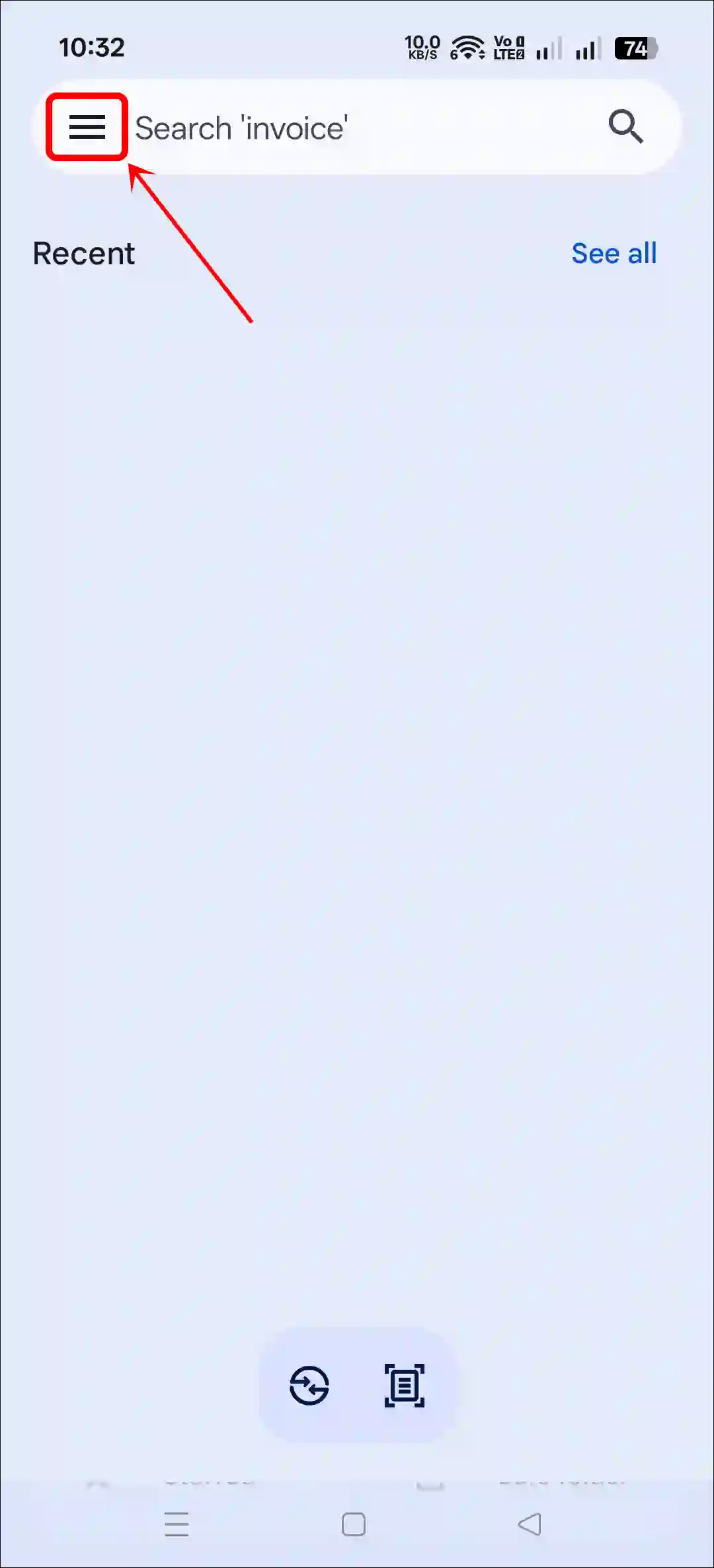
Step 3. Tap on Settings.
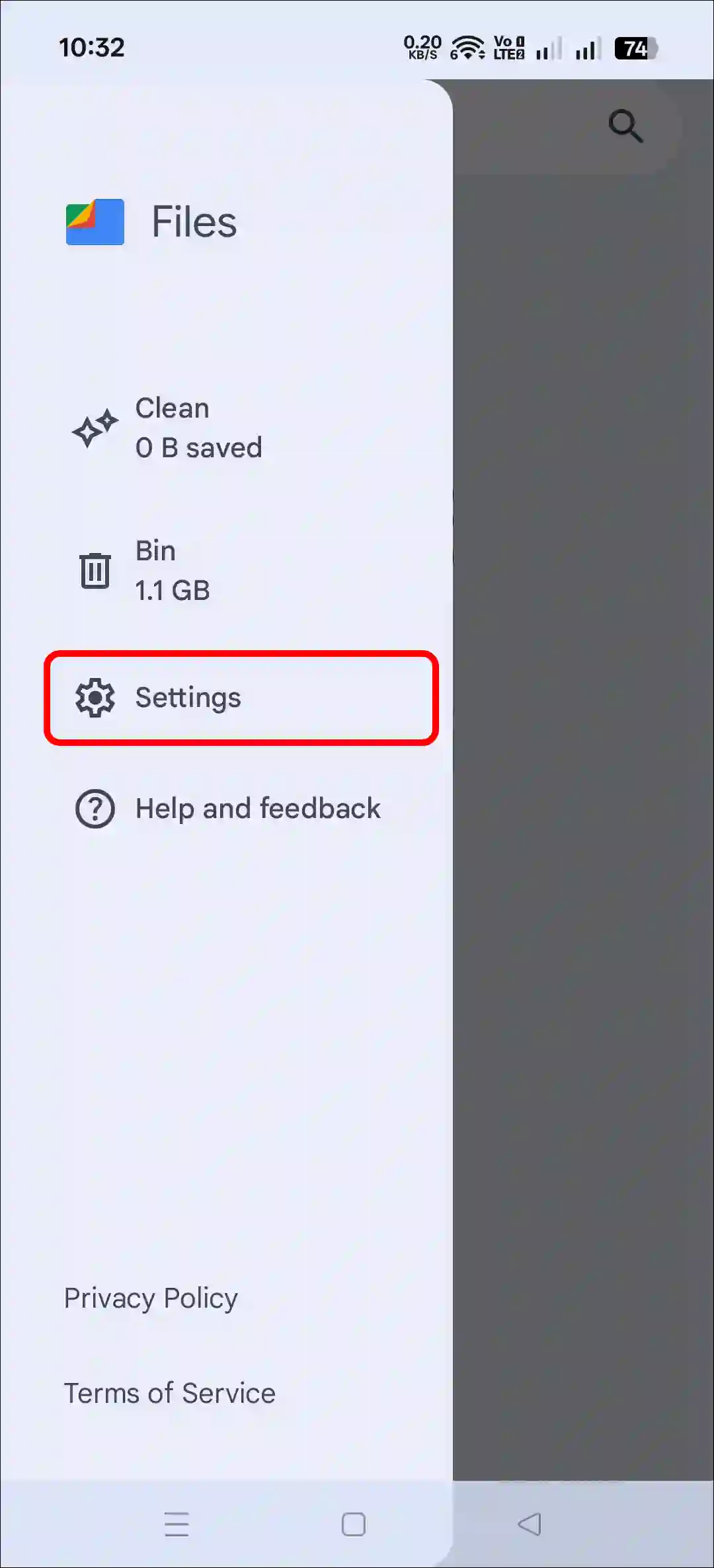
Step 4. Under the Browse Section, Simply Turn On the “Show Hidden Files” Toggle.
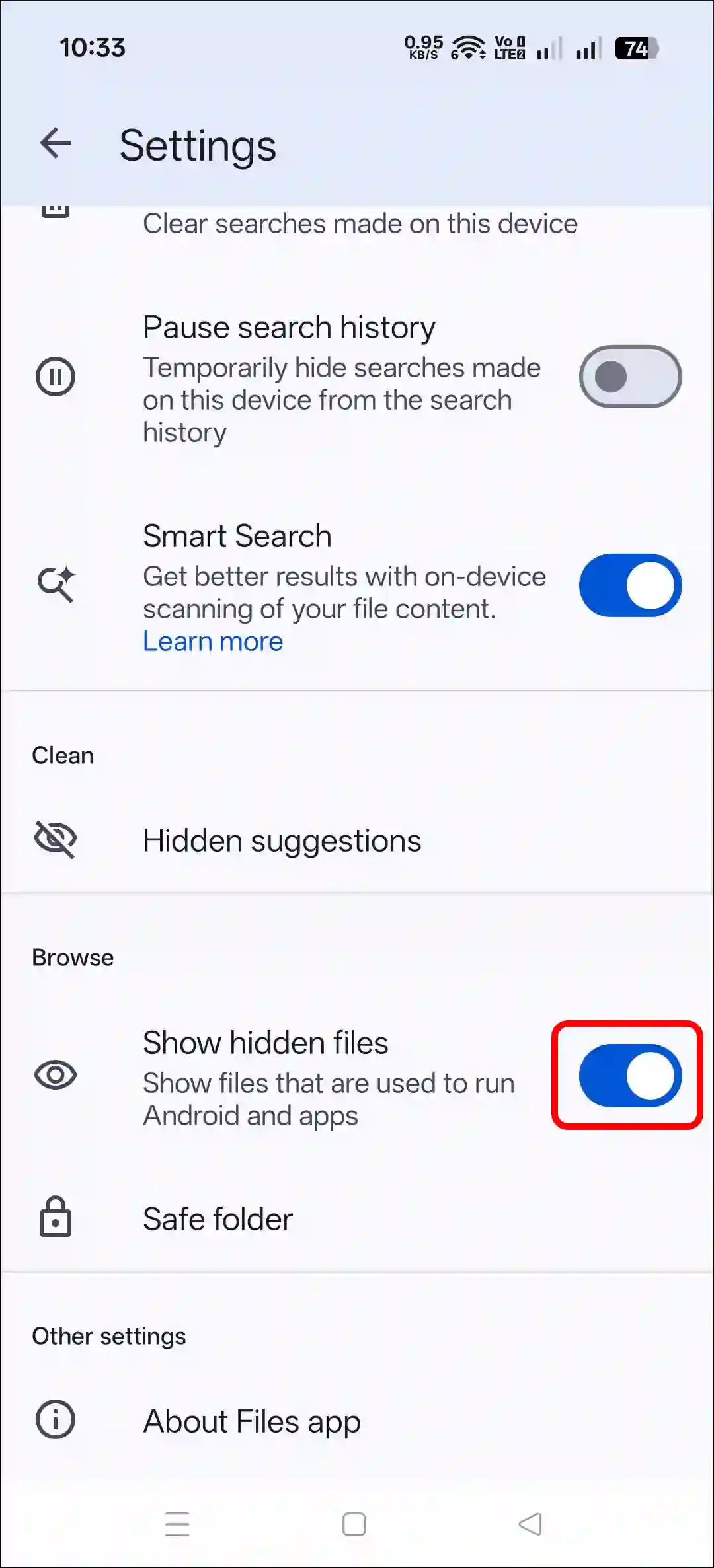
That’s it! Now, as soon as you open your internal storage or external memory storage, you will see all those hidden private folders and files with dots. You can also delete or rename these dotted files if you wish.
Also read: 3 Easy Ways to Extract Zip Files on Android
How to Disable “Show Hidden Files” in an Android Phone
If your file manager is showing all the files with dots but you want to hide them, then this is also very simple. You need to turn off the “Show Hidden Files” option in the file manager. For this, all the steps are listed one by one below.
To hide files and folders in the file manager on Android:
Step 1. Open Google Files App on Your Android Phone.
Step 2. Tap on Three Horizontal ≡ Lines at Top Left Corner.
Step 3. Tap on Settings.
Step 4. Under the Browse Section, Simply Turn Off the “Show Hidden Files” Toggle.
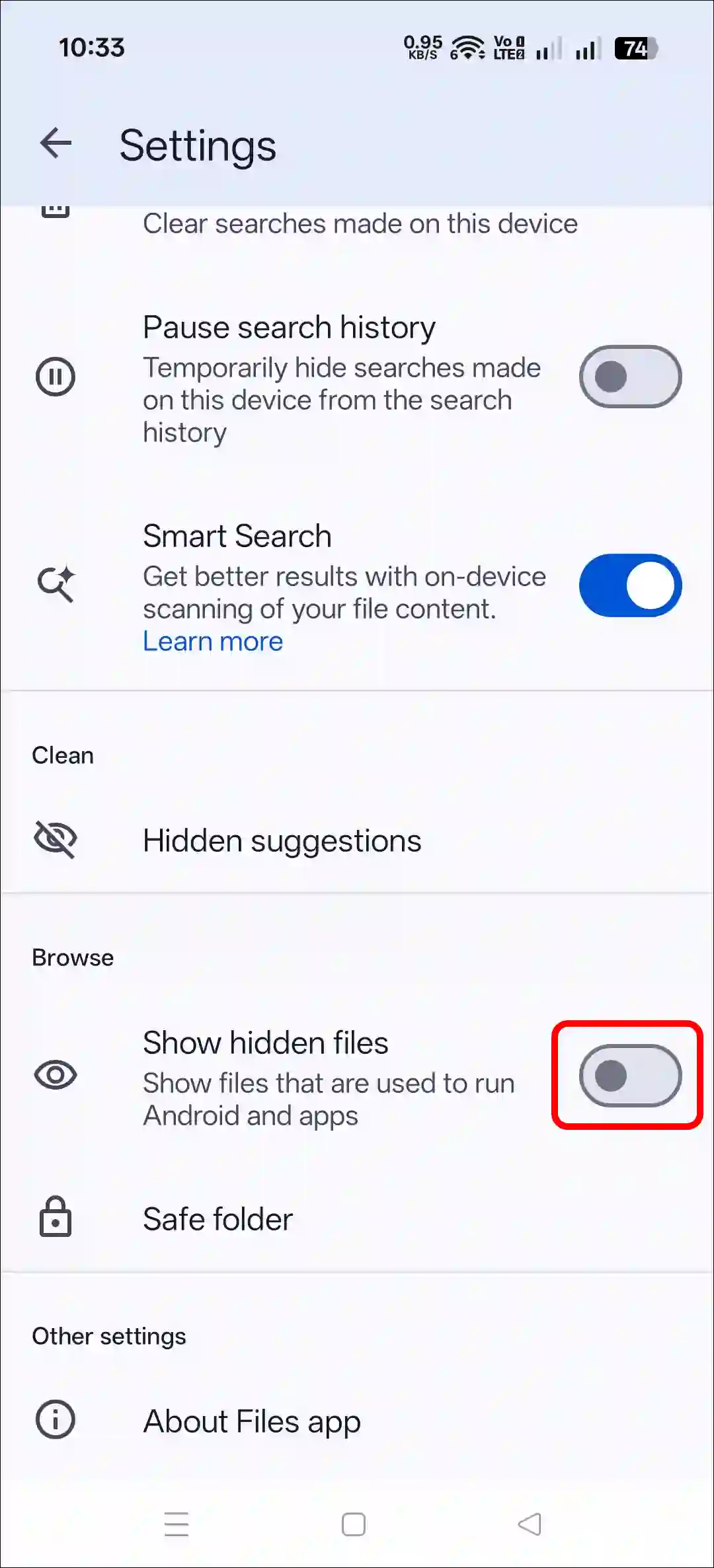
That’s all! Now, all the files or folders that were renamed with dots will disappear from the file manager. However, note that these files or folders are not deleted; they are only hidden. You can show them whenever you want.
Also Read: How to Enable (or Disable) Gemini on Lock Screen on Android
FAQs
Q 1. What are hidden files on an Android phone?
Answer – Hidden files are files or folders with a dot (.) at the start of their name (like .myfile). Systems or applications keep these hidden from the user to prevent accidental deletion or editing of important data.
Q 2. Can I make a specific file or folder hidden on my own?
Answer – Yes! You can. Simply rename any file or folder with a dot (.) in front of it (e.g., .myphotos), and the file will automatically become hidden. You can then view it using the method described above.
I hope this article was helpful to you, and you learned how to enable or disable “show hidden files” in an Android file manager. If you have any other questions about Android, feel free to ask in the comments below. Don’t forget to share this article.