Fix “Gboard Recording, Therefore WhatsApp Temporarily Unable to Record” on Android
Do you want to send a voice recording to someone on WhatsApp, but when you tap the recording icon, a warning message, “Gboard Recording, Therefore WhatsApp Temporarily Unable to Record,” appears on your screen? Don’t worry! You’re not alone. Many users are facing the same problem.
This is not a bug but a technical “traffic jam,” and users are increasingly noticing this issue on new Android phones, especially on Android 11 and later versions.
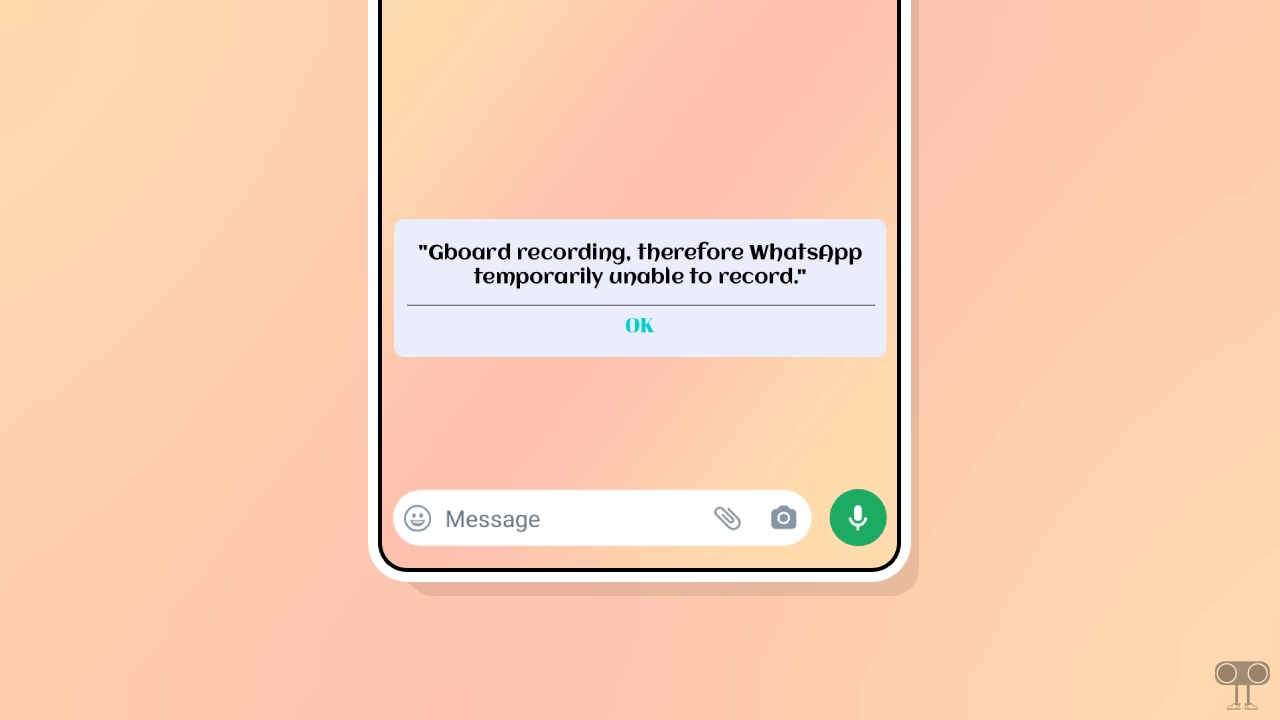
When you try to record a voice message in WhatsApp, and the Gboard app’s “Voice Typing” (microphone icon) is also active at the same time, both apps try to access the microphone simultaneously. Since your phone only allows one app to access the microphone at a time, this error occurs.
Fix “Gboard Recording, Therefore WhatsApp Temporarily Unable to Record” on Android
If you are facing this problem, especially when you want to send an important voice note to someone, then let me tell you that you can easily fix it by following the steps mentioned below. We have tested these methods, and they work every time.
Step 1. Update Your Gboard App
Gboard is a Google keyboard app that comes pre-installed on all Android phones and includes features like built-in voice typing. Sometimes, users disable its auto-update feature, causing it to run on an outdated version and conflict with other apps. You should update it to the latest version from the Google Play Store.
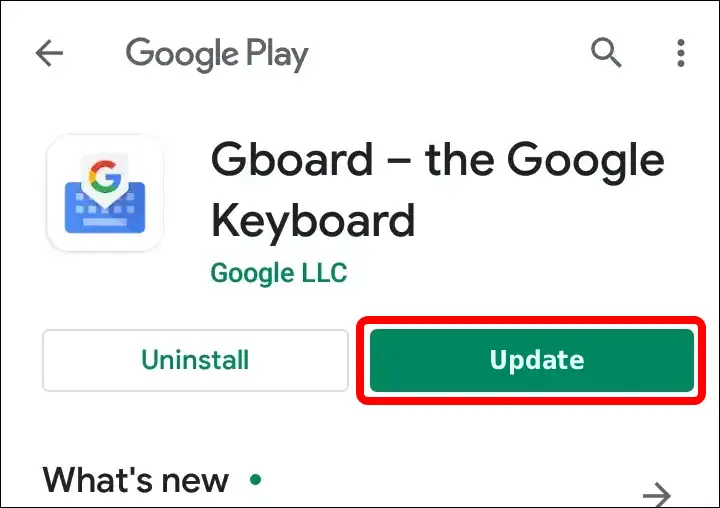
To update the Gboard (Google Keyboard) app on your Android phone:
- Open Google Play Store and Search for “Gboard“.
- Tap on Gboard in the App List.
- Now, Tap on Update Button.
Related: How to Fix ‘No Permission to Enable Voice Typing’ on Android
Step 2. Disable Gboard’s Voice Typing
Sometimes, due to a technical glitch, Gboard’s default voice typing microphone remains active in the background. In such cases, you might see this warning message on your WhatsApp screen. If you don’t use Gboard’s voice typing feature, you can temporarily disable it, which will also revoke Gboard’s microphone permission.
To turn off Gboard’s voice typing:
- Tap on Any Text Area to Open Keyboard.
- Tap on Gear Icon at Top of Your Keyboard’s Alphabets.
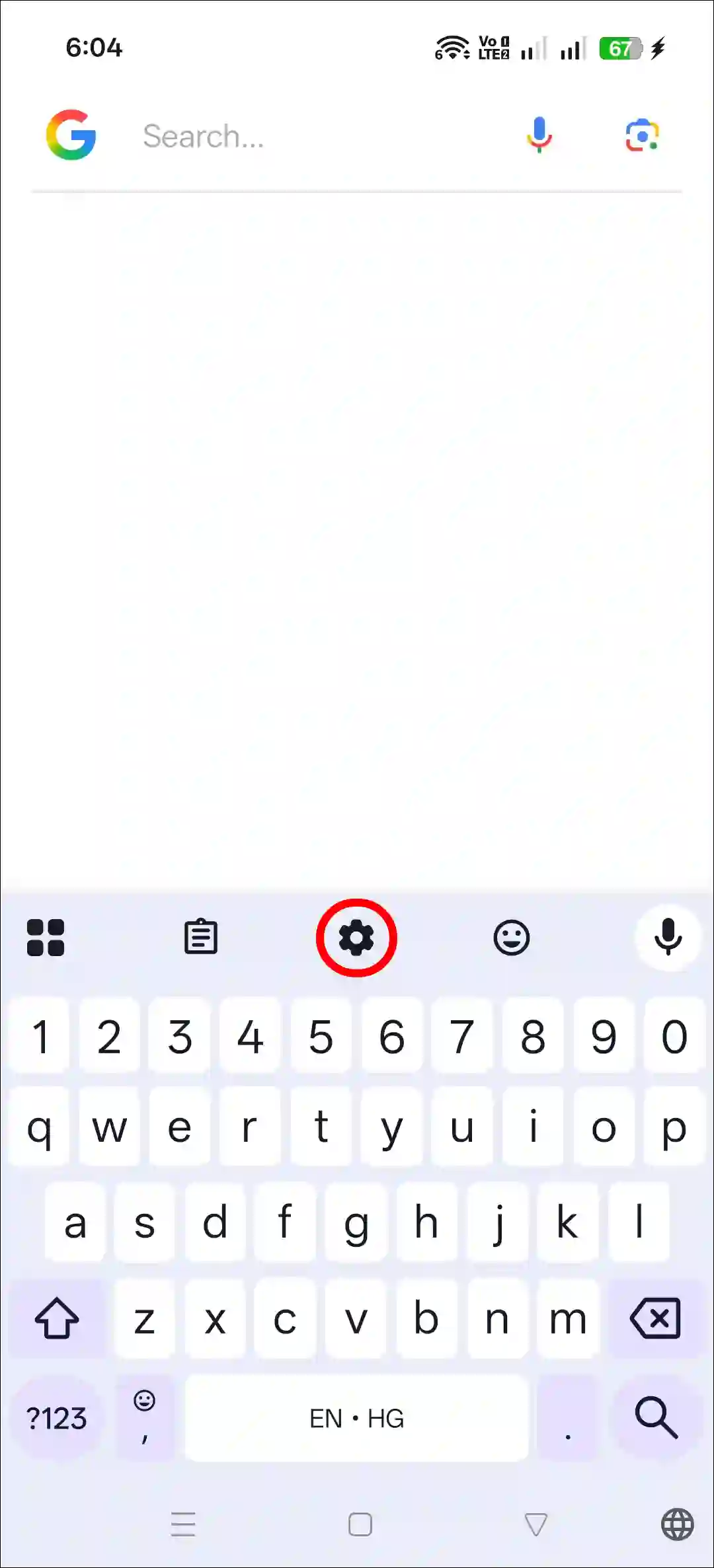
- Tap on Voice Typing.
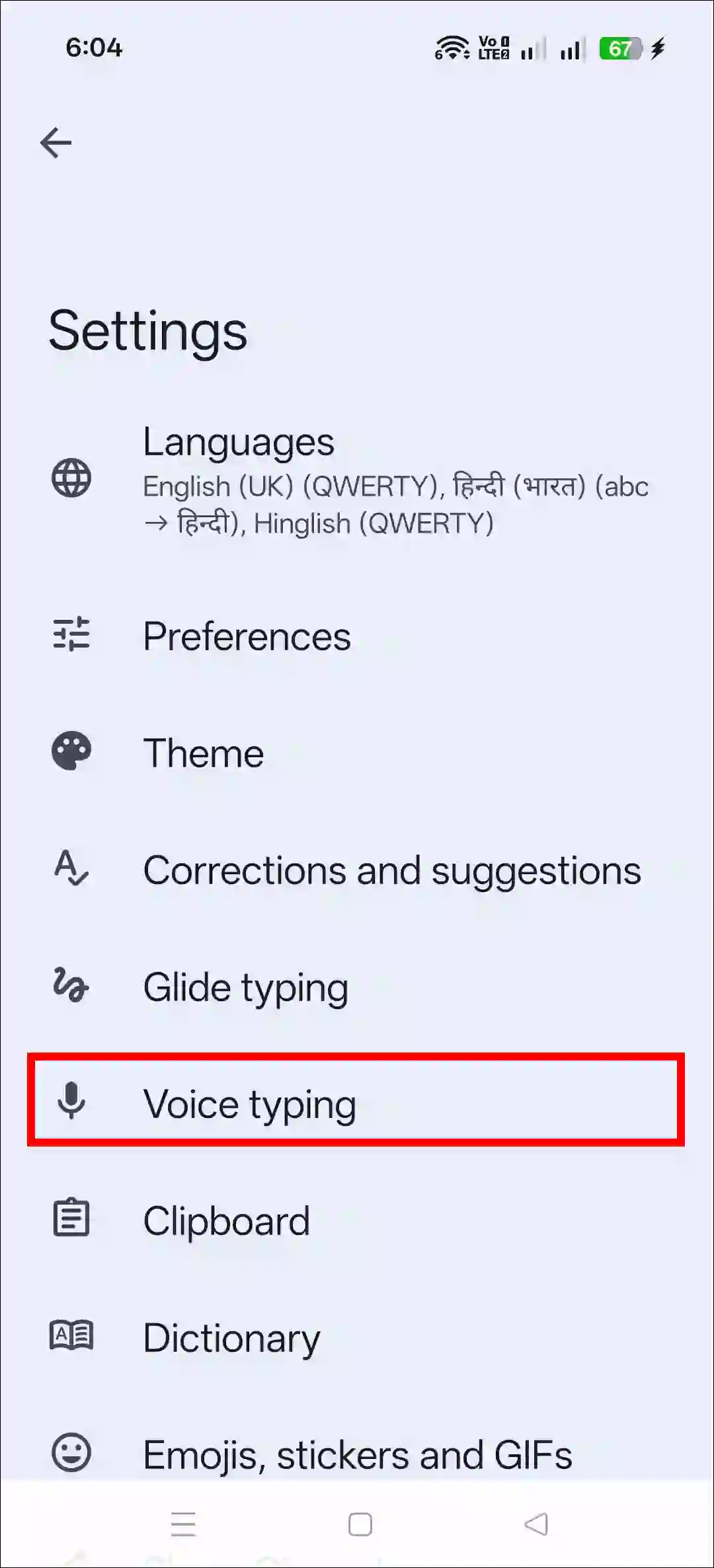
- Simply, Turn Off the “Use Voice Typing” Toggle.

Apart from this, you also need to do one more thing to completely disable Gboard’s microphone permission. For this, go to your phone’s Settings, then Apps > All Apps > Gboard > Permissions > Microphone, and set it to “Don’t Allow.”
Related: How to Enable Clipboard and See Clipboard History on Android
Step 3. Force Stop Your WhatsApp
After following both methods above, you must now force-stop WhatsApp. This action completely shuts down WhatsApp’s background activity on your phone, allowing all functions to start working correctly again.
To force stop WhatsApp on your Android phone:
- Open Settings App on Your Phone.
- Navigate to Apps > All Apps > WhatsApp.
- Tap on Force Stop Option.
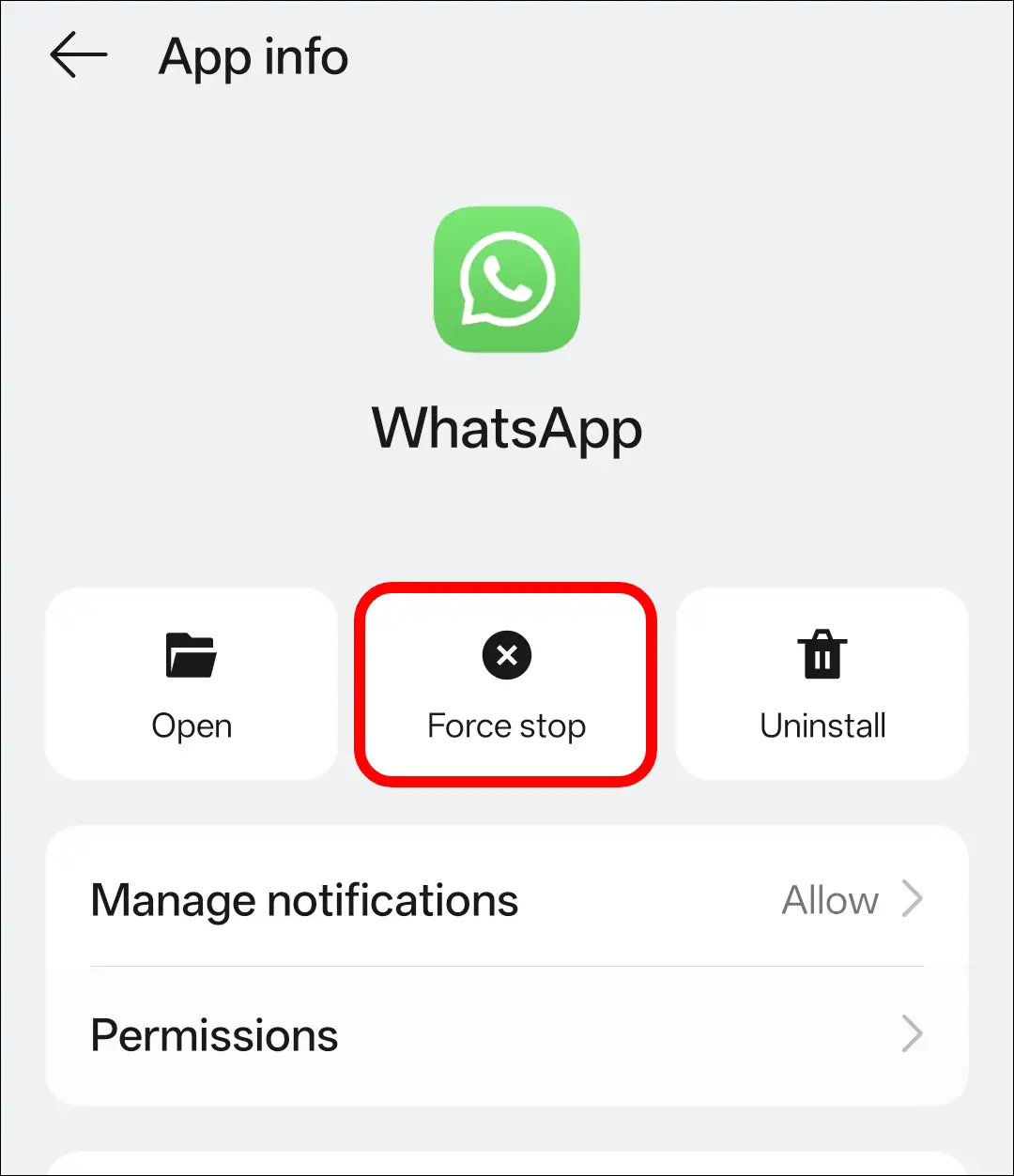
Note: Once you have completed all three methods, restart your phone to ensure all changes are implemented properly.
While the steps and process remain the same for all Android phones, the specific menu options in the Settings may vary slightly. It depends on the Android phone brand you use, such as Samsung, Oppo, Vivo, Realme, POCO, Nothing, IQOO, Motorola, Infinix, and others.
Also read: How to Turn On & Off AI Mode in Google Search
I hope you found this article helpful and learned how to fix “Gboard recording, therefore WhatsApp temporarily unable to record” on Android. If you have any questions related to Android, please ask in the comments below. Feel free to share this article as well.