How to Fix “Internal Storage Required, Please Turn Off USB Storage” Error on WhatsApp?
In this article, I have explained how you can fix the “Internal Storage Required, Please Turn Off USB Storage and Please Try Again” error on WhatsApp. This problem is currently affecting Android users, and several posts related to this issue can be found on Reddit and other forums.
This message means that WhatsApp is unable to access your device’s internal storage. This usually happens when your phone is connected to a computer in file transfer mode, USB debugging is enabled in developer options, or due to corrupted cache or permission issues.

If you’re also experiencing this problem on WhatsApp and want to get rid of it, it’s very easy. Below, I’ve shared four different methods that will help you fix the turn-off USB storage problem on WhatsApp.
How to Fix “Internal Storage Required, Please Turn Off USB Storage” Error on WhatsApp?
1. Turn Off USB Debugging
USB debugging is an Android developer setting that enables a direct connection between an Android device and a computer for transferring data, installing apps without notifications, and reading logs via the Android Debug Bridge (ADB).
Sometimes, enabling this feature can cause problems in WhatsApp. However, you can easily resolve this issue by disabling it.
- Open Settings App on Your Phone.
- Tap on System or Additional Settings.
- Tap on Developer Options.
- Simply, Toggle Off USB Debugging.

Related: Fix “Gboard Recording, Therefore WhatsApp Temporarily Unable to Record” on Android
2. Re-enable Media Visibility
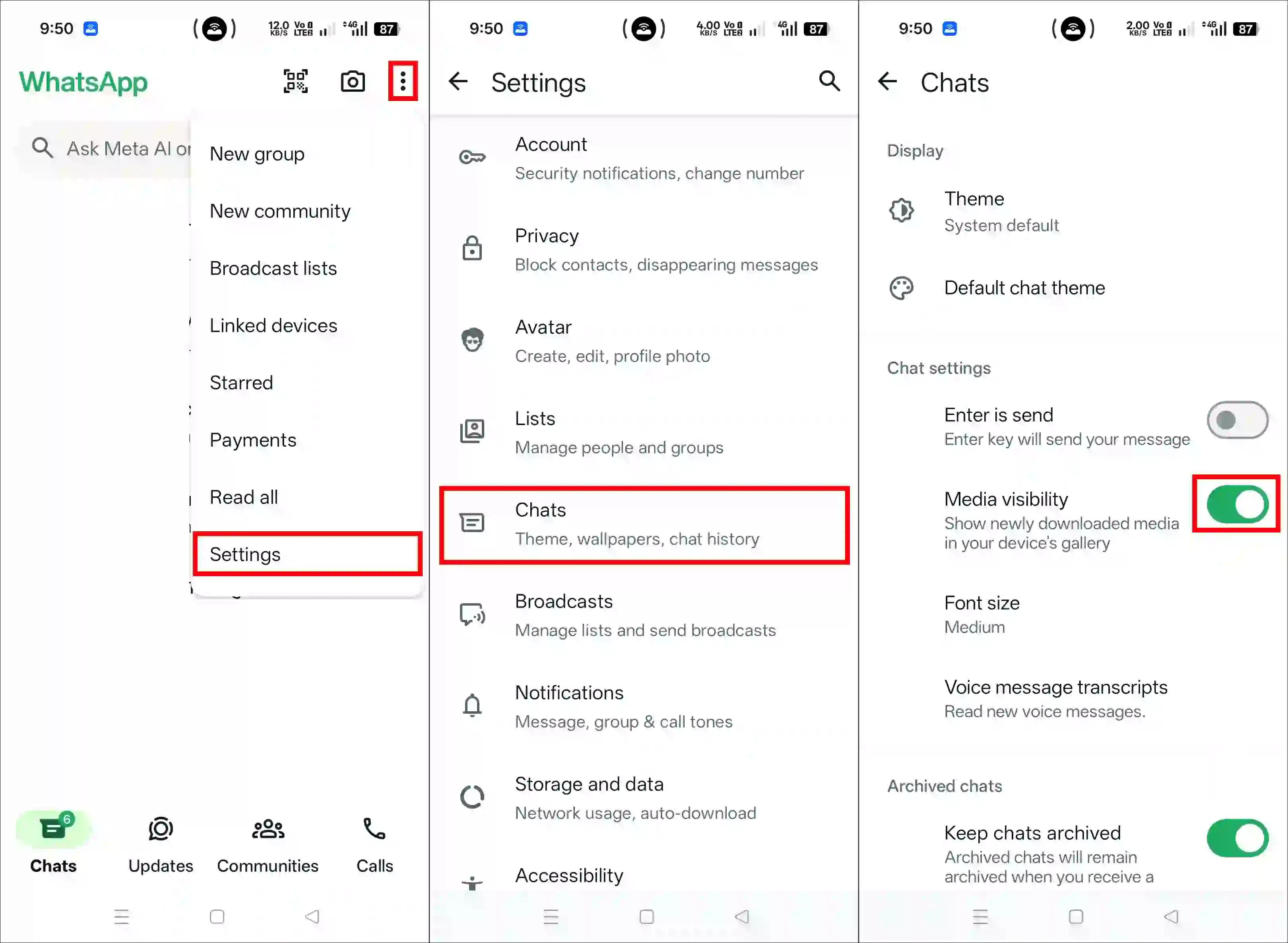
WhatsApp has a built-in Media Visibility option that helps display newly downloaded media in your device’s gallery. This feature is enabled by default, but if you are encountering the “Internal Storage Required” error, you will need to disable it and then re-enable it.
- Open WhatsApp on Your Android Phone.
- Tap on Three ⁝ Dots at the Top Right and Select Settings.
- Tap on Chats.
- Now, Toggle the Media Visibility Off and then Toggle It Back On.
3. Re-Allow Permissions for WhatsApp
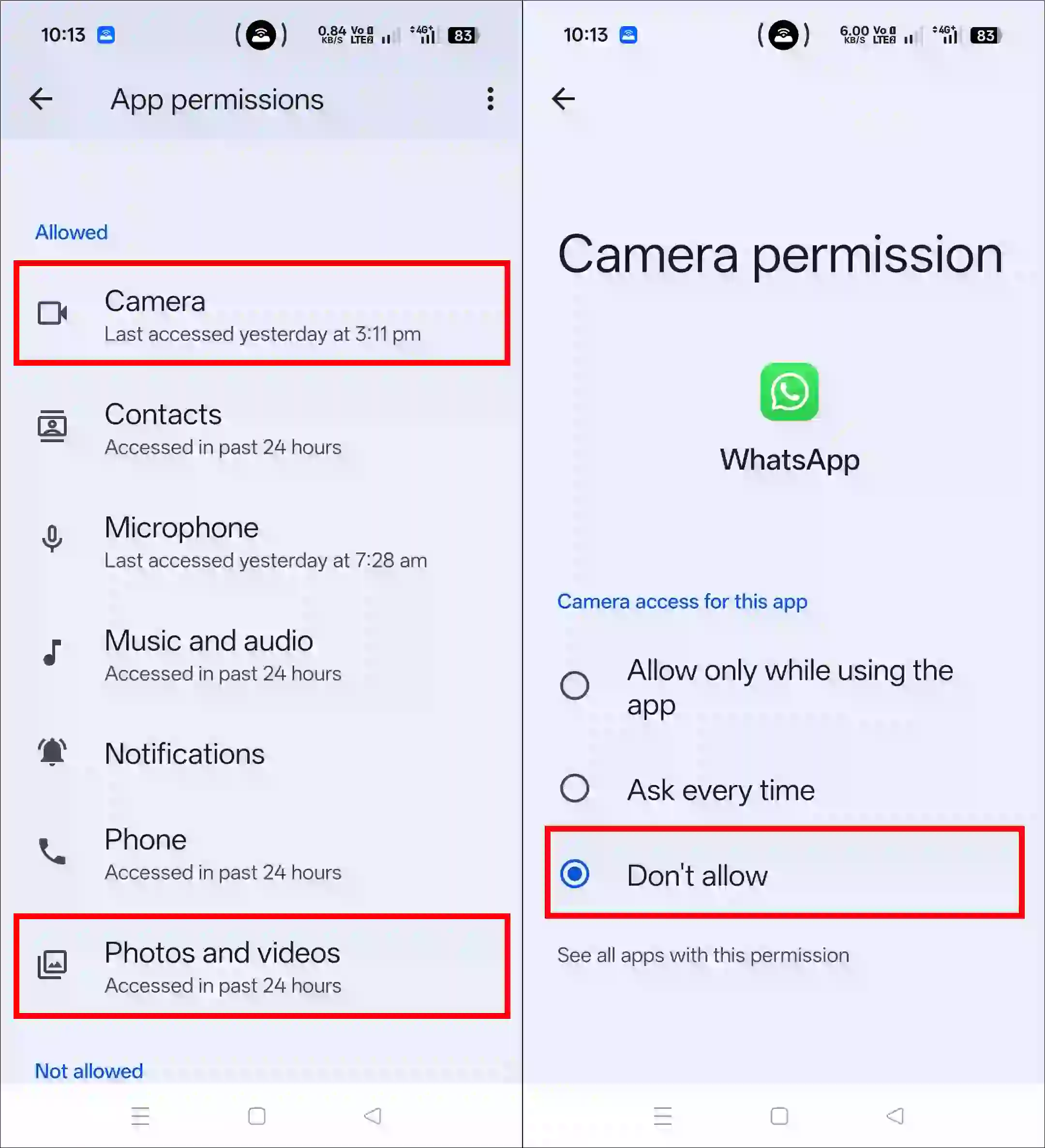
Since this WhatsApp problem is related to storage, we will need to disable all of WhatsApp’s permissions and then re-enable them. This method has helped millions of users overcome this problem. All the steps are given below one by one; just follow them.
- Open Settings App on Your Mobile Phone.
- Navigate to Apps > All Apps > WhatsApp.
- Tap on Permissions.

- Now, Set “Camera” and “Photos and Videos” Permissions to Don’t Allow.
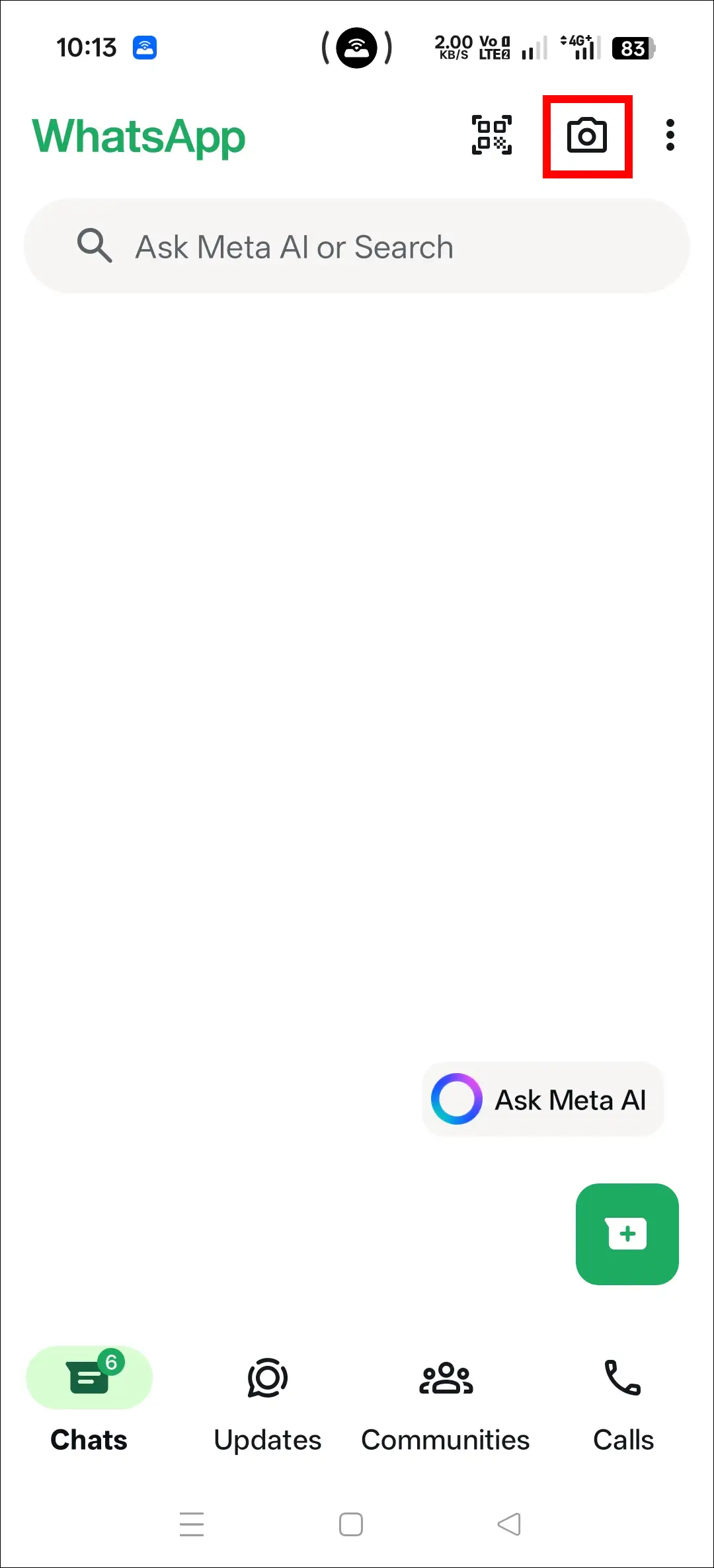
- Next, Open WhatsApp and Tap on Camera Icon at Top Right.
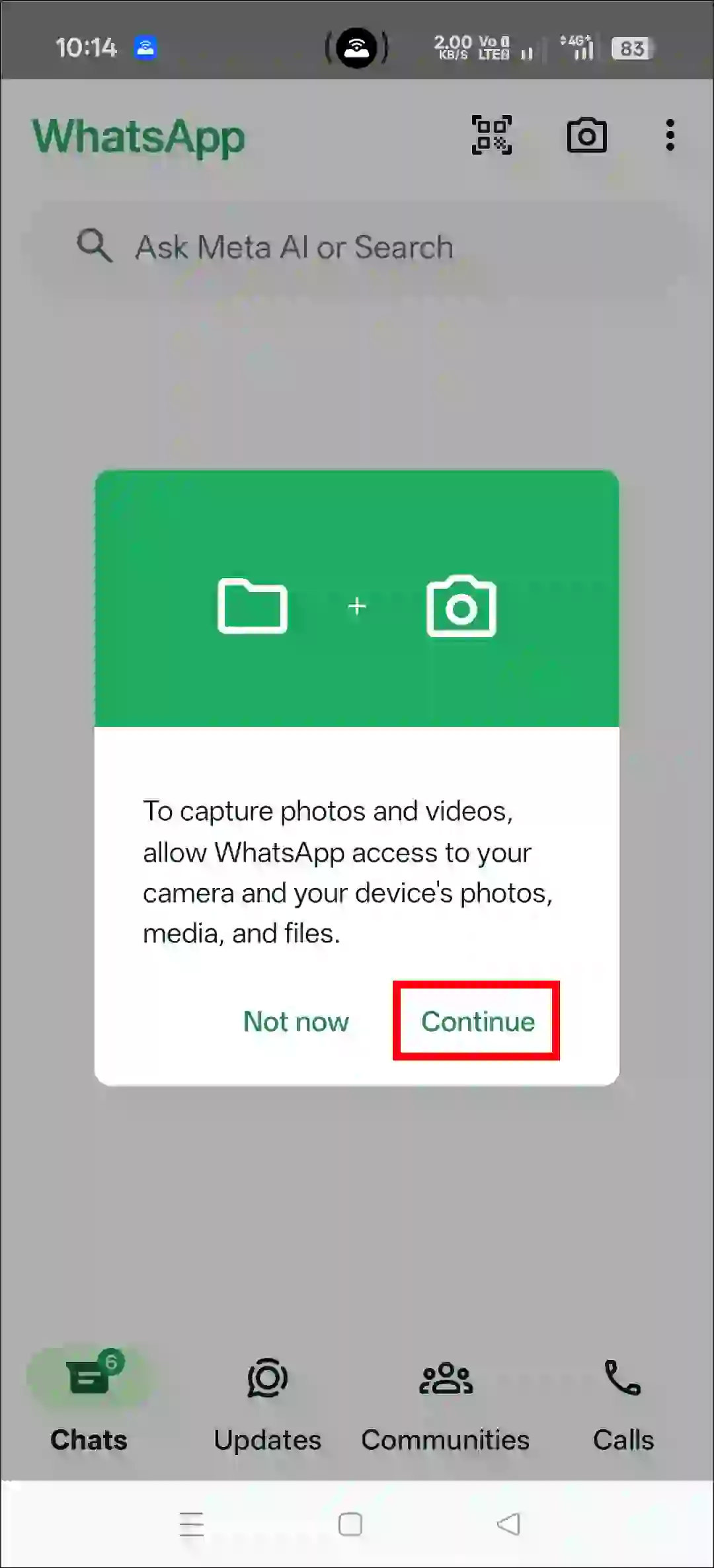
- Tap on Continue.
- Tap on While Using the App.

- Next, Tap on Allow All.

4. Update Your WhatsApp
Once you have followed all three methods mentioned above, you will need to update WhatsApp. An outdated version of WhatsApp can often cause various problems. These problems can be resolved by updating WhatsApp to the latest version.
Also read: How to Send PDF File in WhatsApp from Phone and PC
I hope you found this article helpful and learned How to solve “turn off USB storage in WhatsApp” in Android. If you have any questions related to WhatsApp, please ask in the comments below. Feel free to share this article as well.