Fix “The Google assistant isn’t available for this account” After Factory Reset on Android
Did you factory reset your Android phone, and while setting it up again, do you see the error message “The Google Assistant isn’t available for this account” on the screen? If so, don’t worry; you are not alone. Almost all Android users who are setting up their phones again are facing this issue.
Users are quite frustrated with this issue and are reporting it on Reddit, Twitter, and Google Forums. However, the good news is that I have found a method that allows you to easily bypass this issue and set up your phone again without any interruptions.
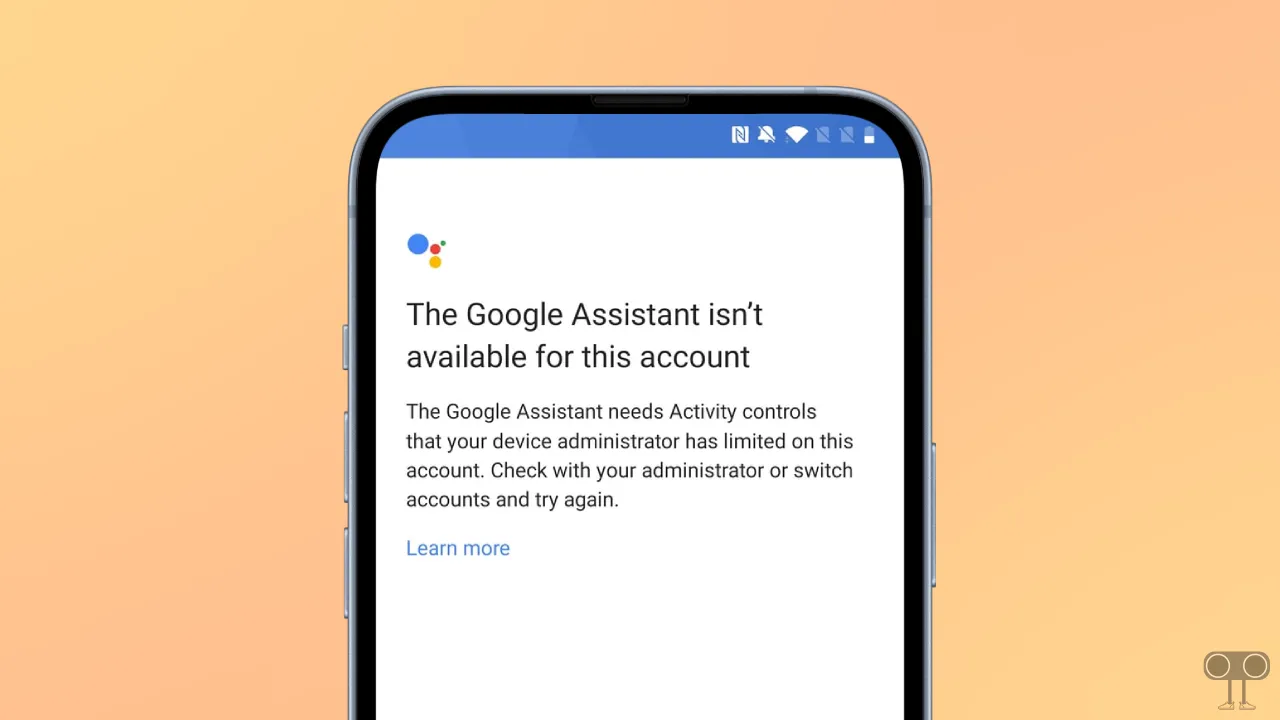
Fix “The Google assistant isn’t available for this account” After Factory Reset on Android
Step 1. Remove SIM Cards and Turn Off Wi-Fi
When you are setting up the phone from scratch, you are required to log in using your Gmail account and password. This issue specifically arises during the login process. No matter how many Gmail accounts you try to log into, this problem will persist.
But did you know that you can also bypass this login process? Yes! To do this, remove the SIM card (or both SIM cards, if you have two) from your phone, go back to the screen, and turn off Wi-Fi. Now, follow the steps given below.
Step 2. Complete the Rest of the Process
- Once the SIM Card is Removed and Wi-Fi is Turned Off, Tap on the Back Button on the Screen.
- Tap on “Next”.
- Wait for a While and Tap on “Cancel” Button.
- Tap on “More” Twice and Then “Accept”.
- Next, Set the Screen Lock. If Not, Simply Skip.
- Follow All Instructions on the Screen.
- Now, the Setup is Complete.
That’s it! You’re done. Now, simply re-insert your SIM card into the phone.
Note: If the issue persists even after turning off Wi-Fi and removing the SIM card, please follow the steps provided below and then set up the phone.
- Vo to https://myaccount.google.com/device-activity.
- Find Your Mobile Phone.
- Click on It and Choose “sign out”.
Now, follow the steps given below to set up your phone, and you will be able to complete this process without any interruptions.
Also read: Turn On “Precise Location” on an Android Phone
I hope you found this article helpful and you have successfully set up your phone without any interruptions. If you have any other questions about Android, feel free to ask in the comments below. Don’t forget to share this article.