Turn On “Precise Location” on an Android Phone (3 Ways)
In this article, I have mentioned three different methods that will teach you how to enable “Precise Location” on an Android phone. You have likely heard about “Location,” but did you know that Android phones also feature a “Precise Location” setting? Let’s find out more about it.
What is Precise Location on Android and How Does It Work?
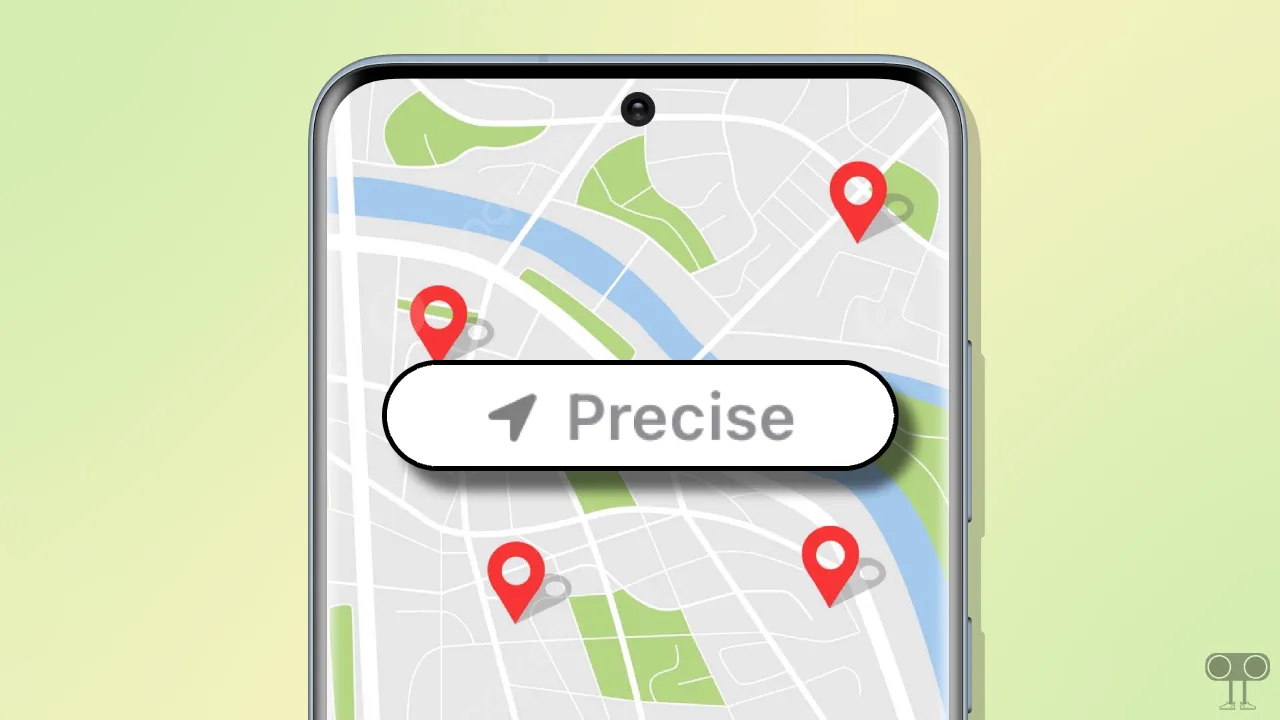
“Precise Location” in Android is an advanced location feature that can pinpoint your current location with high accuracy within a radius of approximately 1–2 meters.
Technically, it provides the most accurate location information. This feature works using a combination of several hardware sensors and technologies present in your phone.
It typically uses GPS, in which the phone receives signals from satellites to pinpoint your exact location on Earth. But many times, when the GPS signal is weak (like indoors), your phone uses nearby Wi-Fi networks and mobile towers to further pinpoint your location.
How to Turn On “Precise Location” on Your Android Phone
On Android phones, there is a “Precise Location” option for almost all apps. However, it is primarily used for apps related to precise navigation and accurate weather information. You can activate this using the three methods provided below.
1. From Phone Settings
- Open Settings on Your Phone.
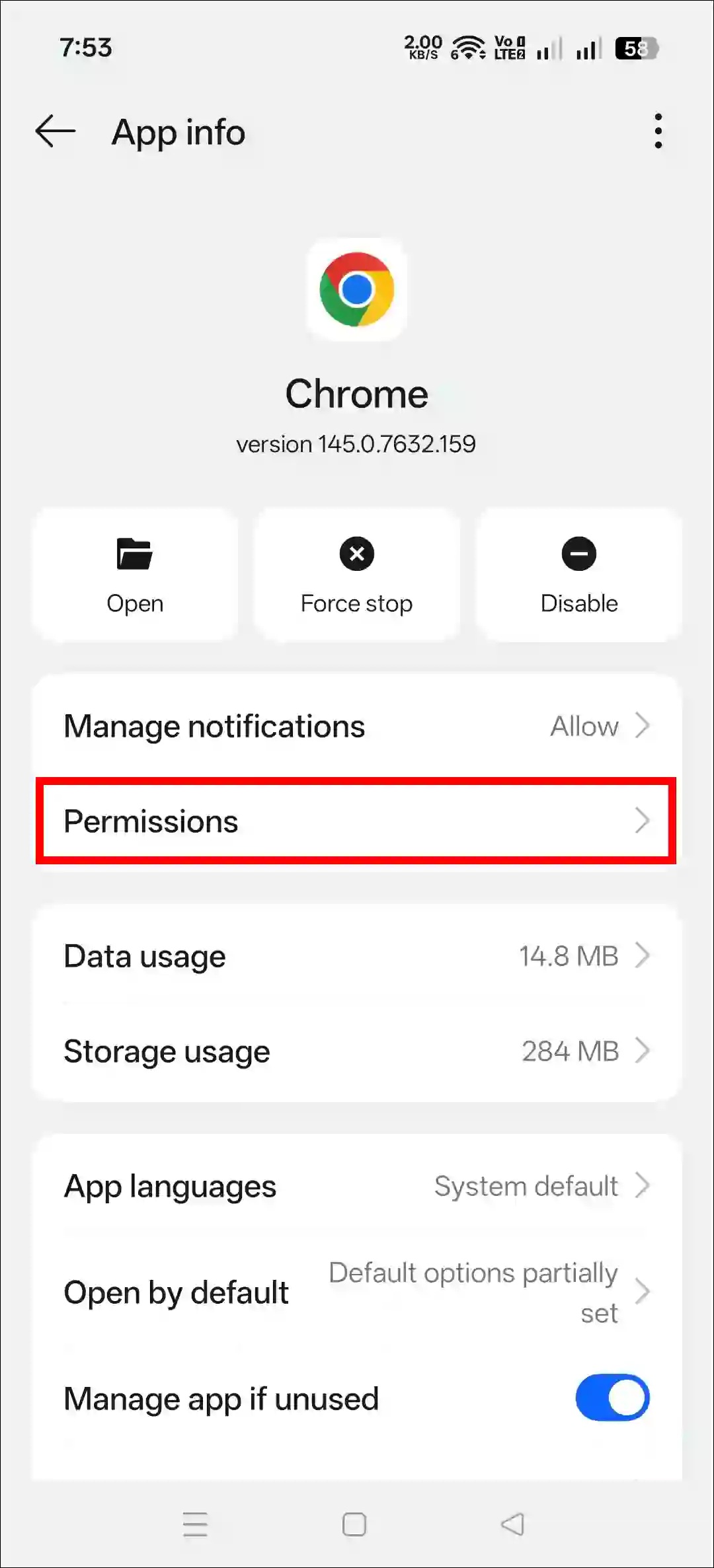
- Tap on Apps > All Apps > Chrome.
You can choose any apps of your choice.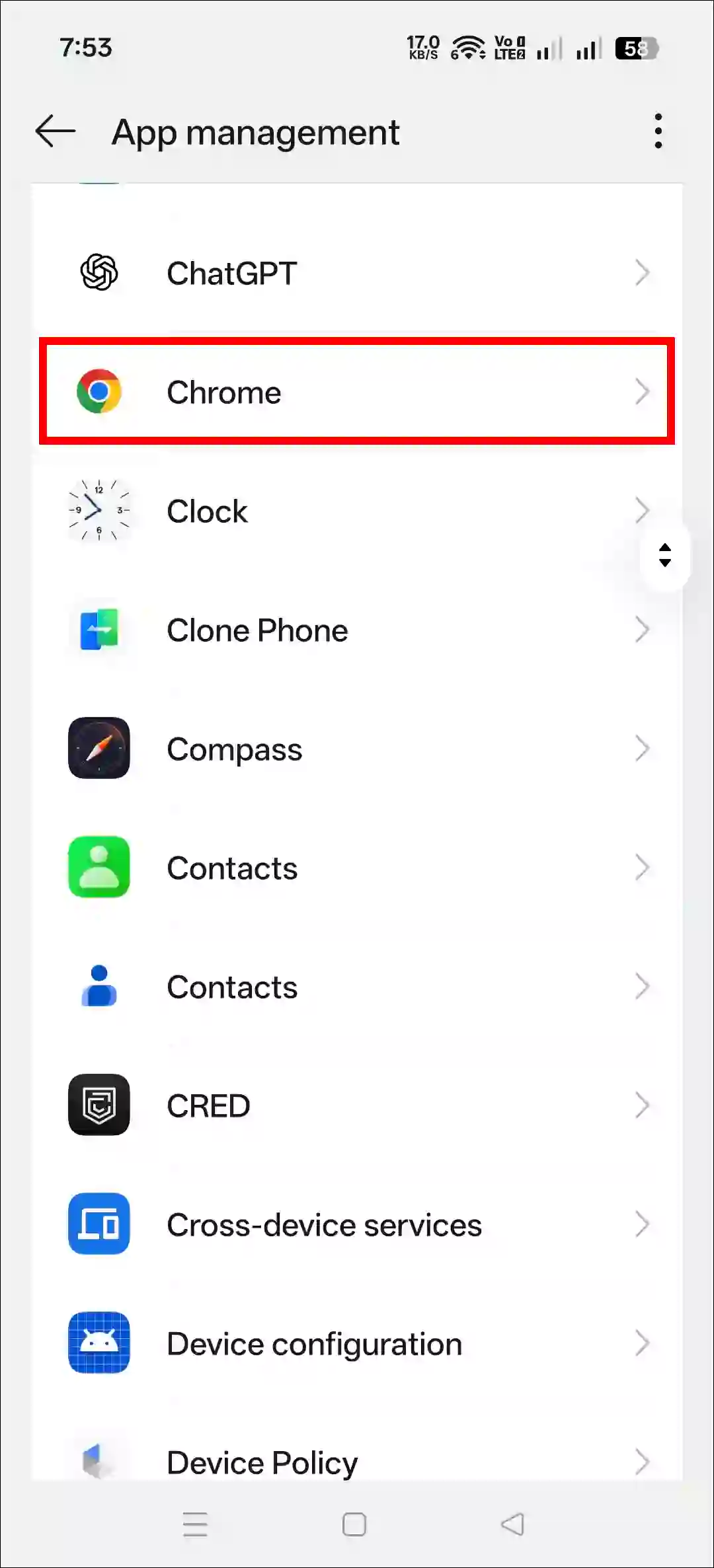
- Tap on Permissions.
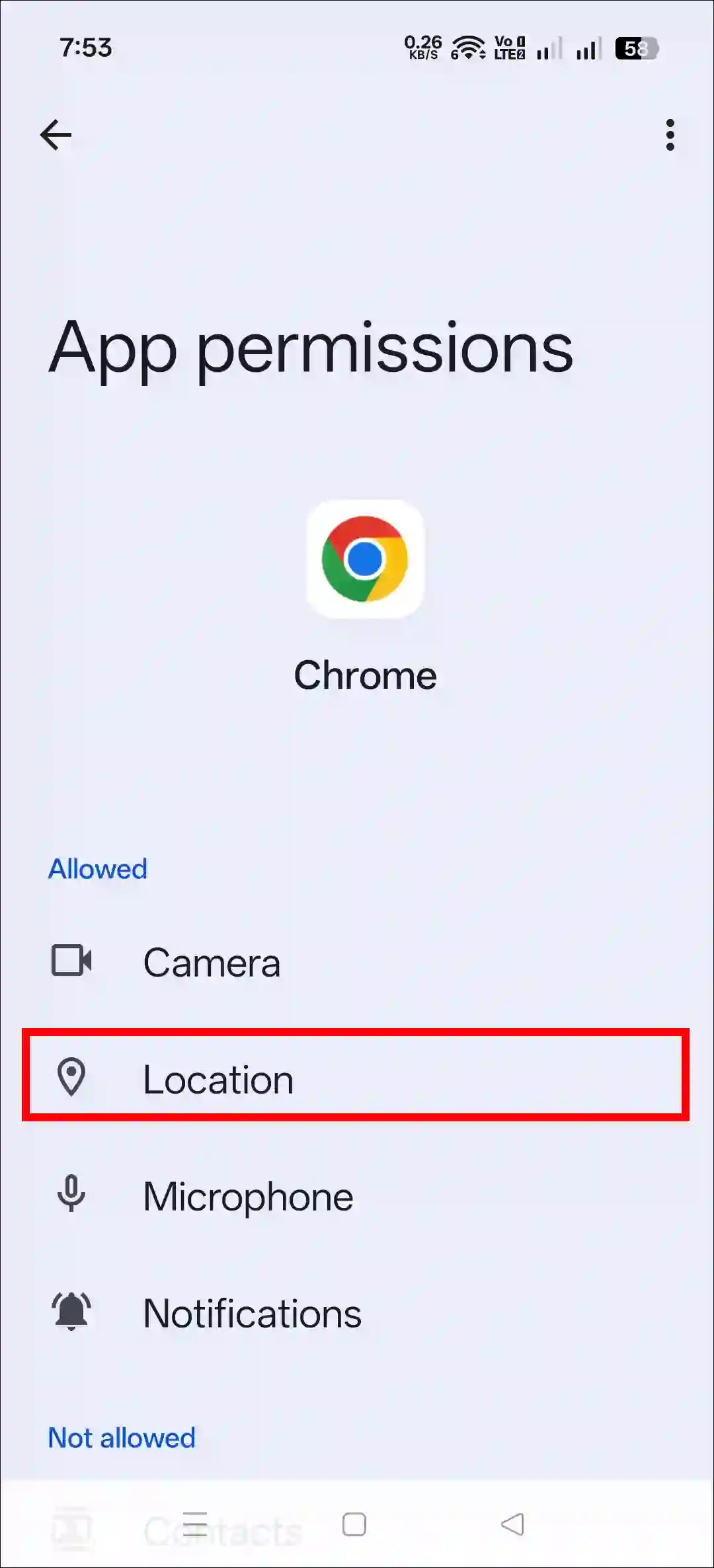
- Tap on Location.
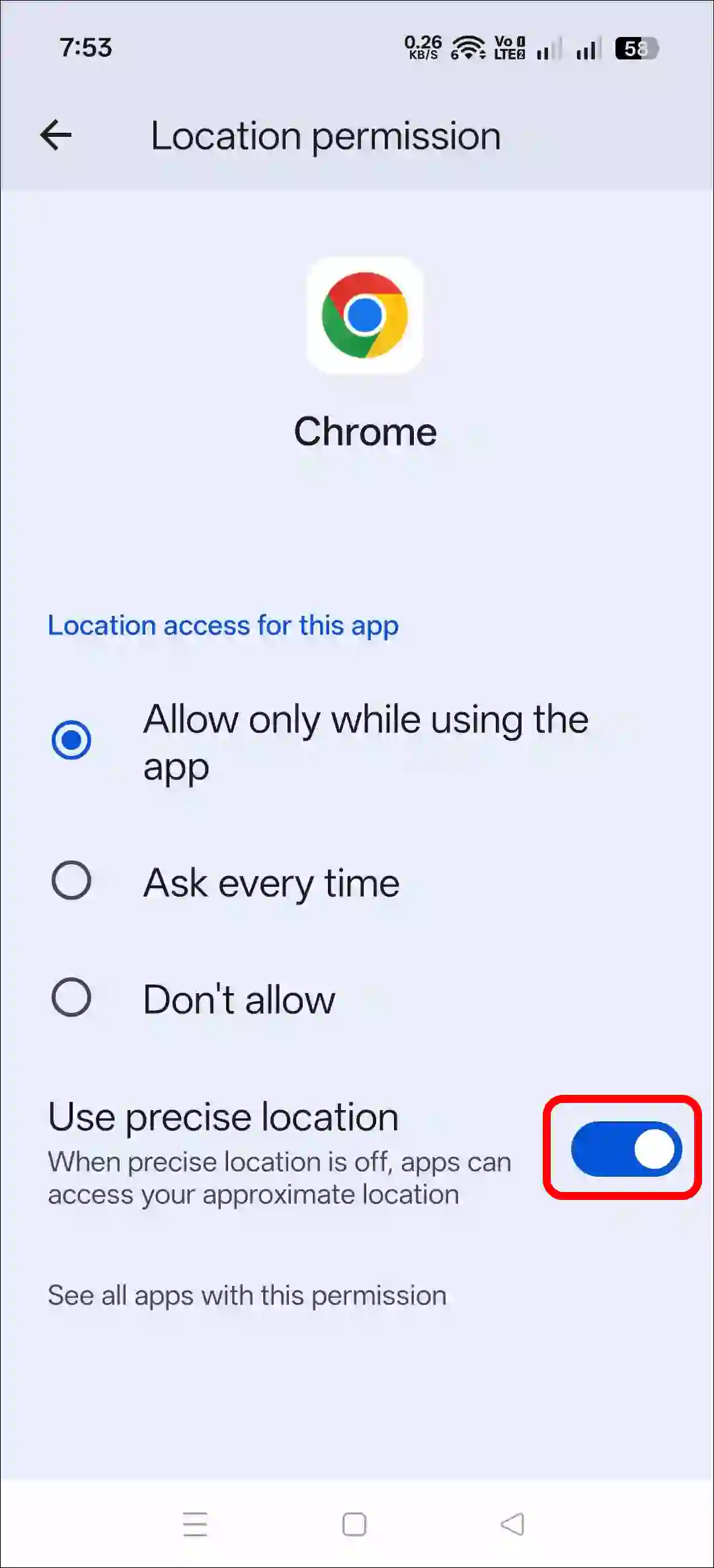
- Now, Turn On the “Use Precise Location” Toggle.
Also Read: Stop Google Maps from Playing Videos Automatically on Your Android Phone
2. From App Info (Shortcut)
- Tap and Hold the Chrome Logo on the Homescreen.
You can choose any apps of your choice. - Tap on App Info.
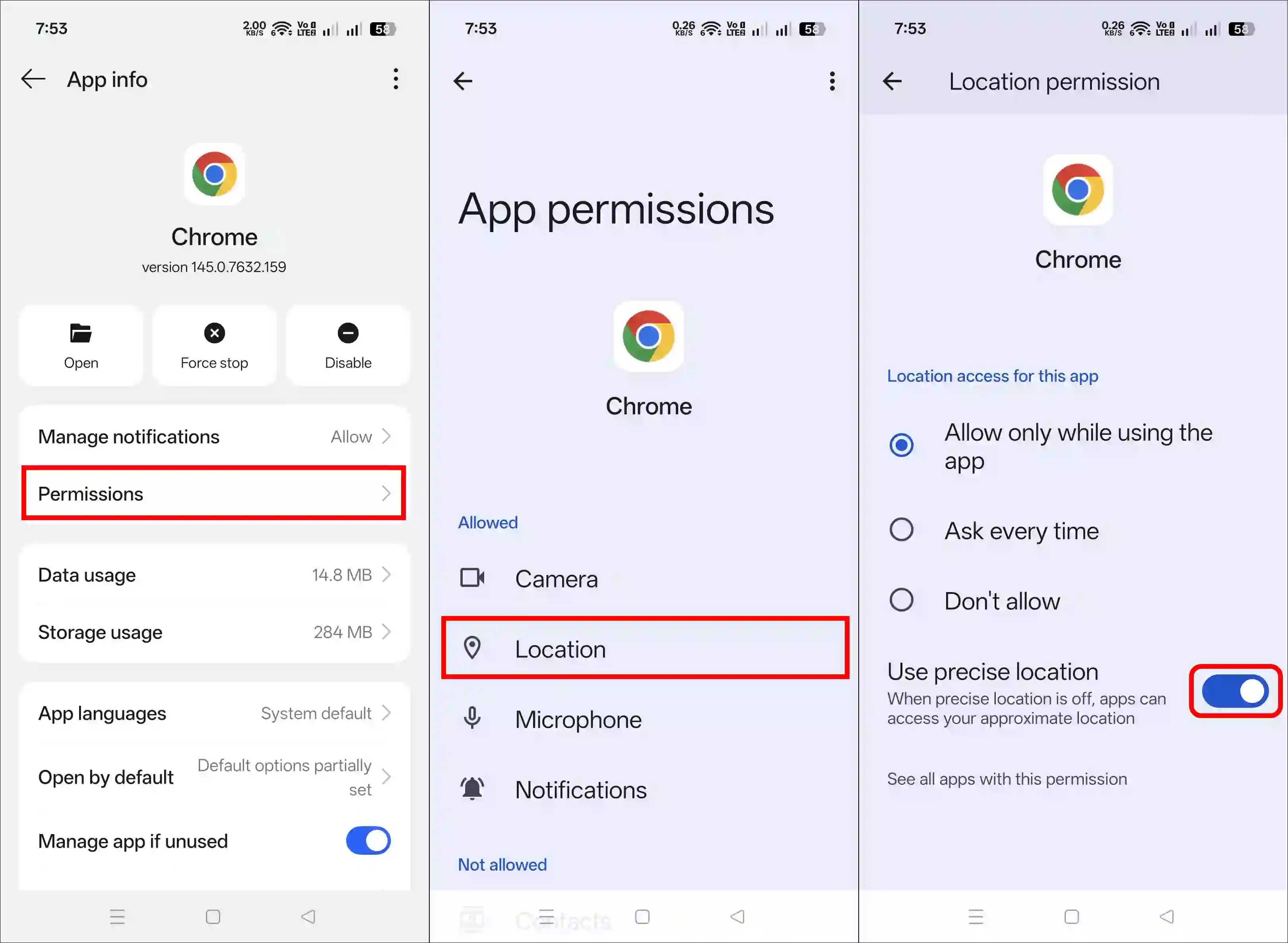
- Tap on Permissions.
- Tap on Location.
- Now, Turn On the “Use Precise Location” Toggle.
3. From Quick Panel
- Swipe Down from Your Top of the Screen to Access Quick Panel.
- Tap and Hold the Location Icon.
- Turn On the “Use Location” Toggle.
- Tap on Location Accuracy.
- Simply, Enable the “Improve Location Accuracy” Toggle.
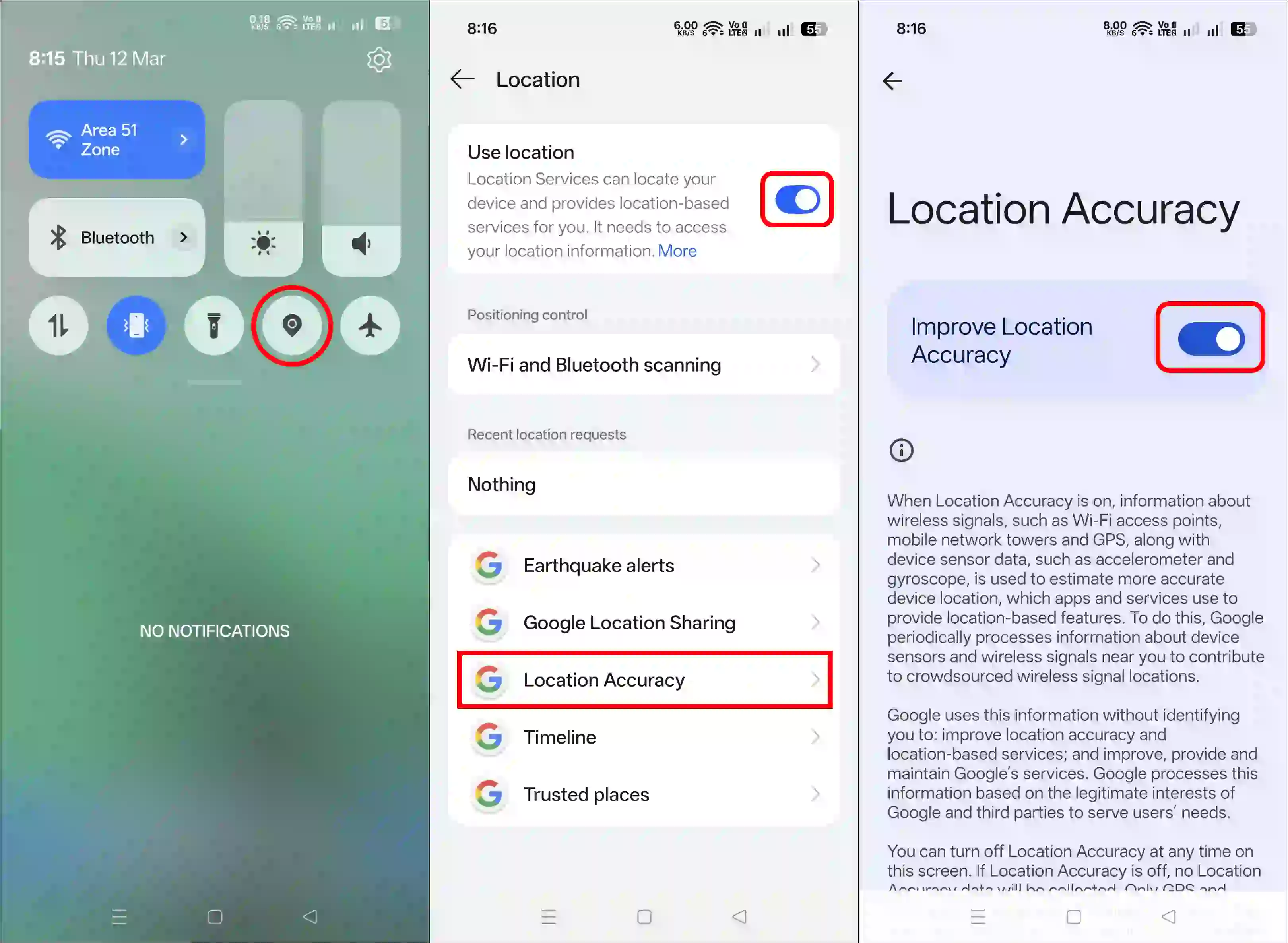
That’s all! You’re done…
Also read: How to Find North on Google Maps
FAQs
Q 1. Can I enable Precise Location for specific apps?
Answer: Yes! You can set precise location permissions for specific apps. To do this, go to Settings > Apps, then select the app, and under “Permissions,” set the “Location” permission to “Precise”.
Q 2. Is enabling Precise Location safe for my privacy?
Answer: Turning on Precise Location isn’t completely privacy-protective, but that’s up to you. Precise Location is only activated for apps or services you’ve granted permission to. You can turn it off or control permissions if you prefer.
Q 3. What should I do if Precise Location is not working properly?
Answer – If Precise Location isn’t working properly, restart your device, turn location services off and then back on, update your location and GPS settings, and disable Battery Saver/Airplane Mode. If necessary, you can also reset your device’s network settings.
I hope you found this article helpful and learned how to turn on “Precise Location” on an Android phone. If you have any questions related to Android, please ask in the comments below. Feel free to share this article as well.