How to Disable ‘Black & White’ Power Saving Mode in Google Maps
Finally, Google has introduced Power Saving Mode in Google Maps. Users had been requesting this feature for quite some time, and that demand has now been fulfilled. This feature will further enhance your navigation experience, especially when your phone battery is low. Let’s learn how to disable it in the Google Maps app.
What Power Saving Mode Does in Google Maps?

When your phone battery is low, Google Maps boosts battery life by activating Power Saving Mode. This mode removes non-essential information and switches the interface to black and white. In this mode, you will see navigation icons and the map surface only in black and white.
A simple press of a power button can activate this mode in Google Maps. During the rollout of this feature, we found that it not only makes Google Maps navigation more minimalist but also removes the name of the street you are turning onto.
This feature has currently rolled out for the Google Pixel 10 series and will soon appear on other Android phones such as Samsung, Oppo, Vivo, iQOO, and others. To access it, please keep your Google Maps app updated to the latest version from the Play Store.
How to Disable “Black & White” Power Saving Mode in Google Maps App
If your device repeatedly enters power-saving mode by mistake during Google Maps navigation, don’t worry! You can permanently disable this power-saving mode in the Google Maps navigation settings. The process is very simple, and we have listed all the steps below one by one.
To disable power-saving mode in Google Maps in Android:
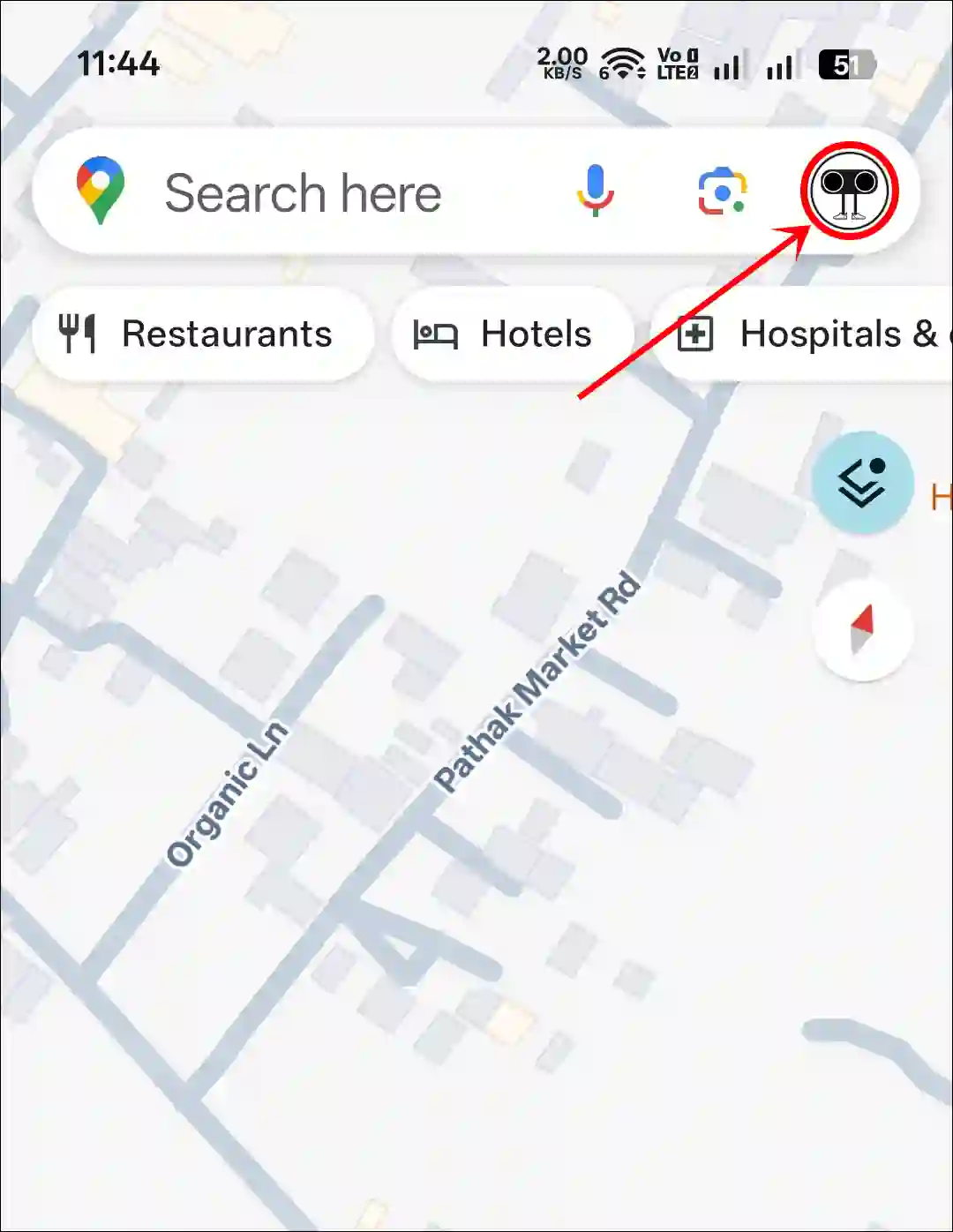
Step 1. Open Google Maps App and Tap on Profile Picture at Top Right Corner.
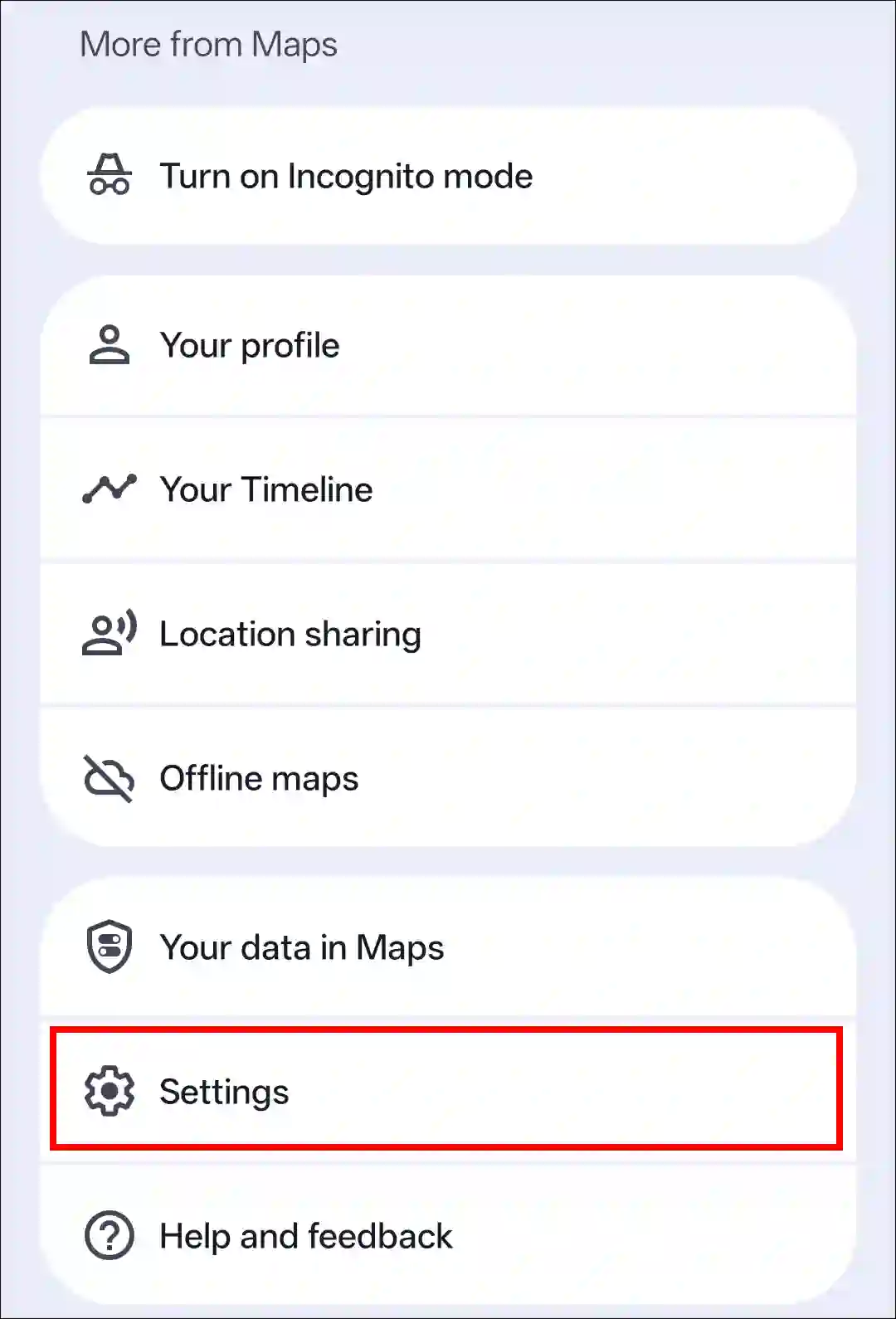
Step 2. Tap on Settings.
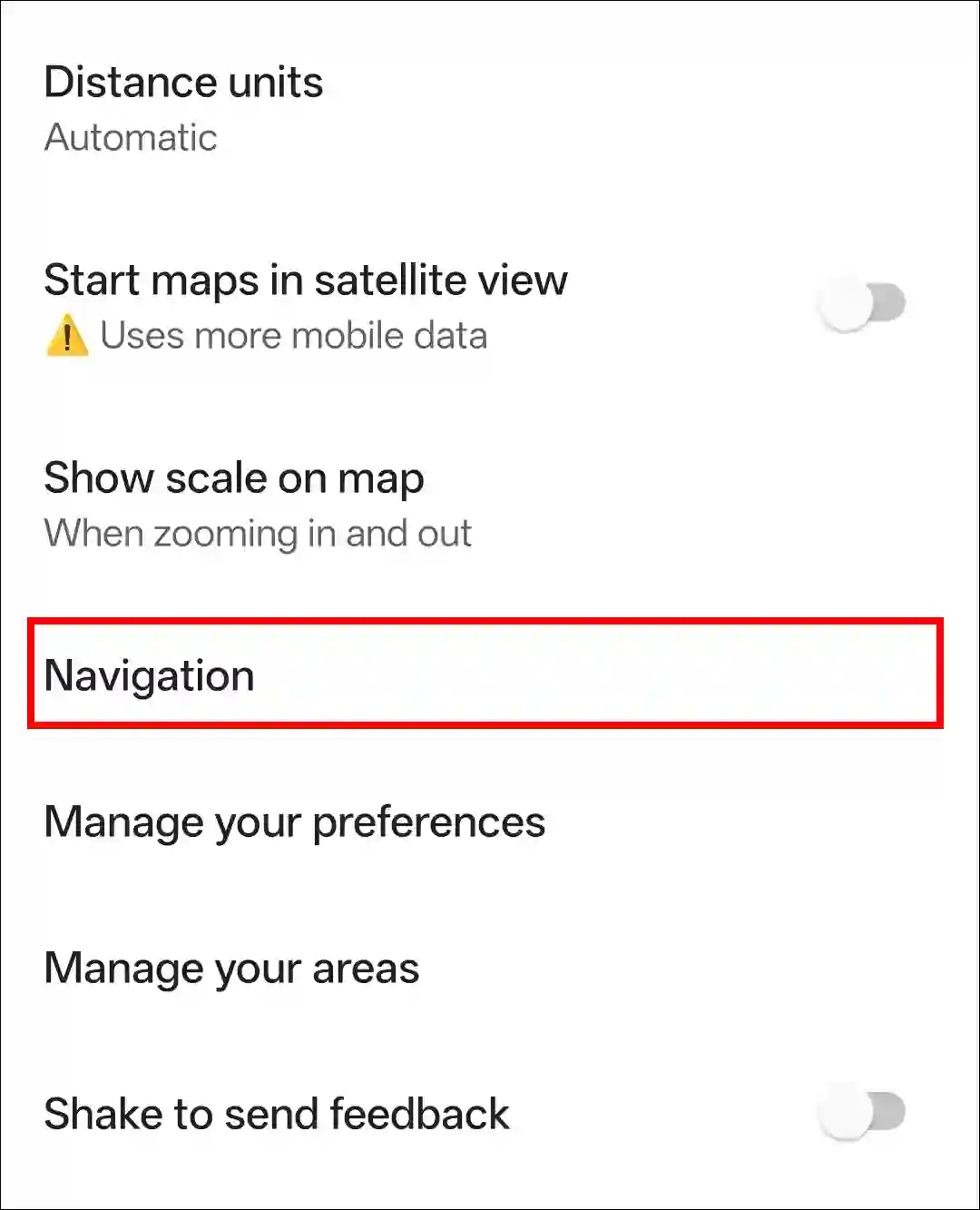
Step 3. Scroll Down and Tap on Navigation.
Step 4. Scroll Down to Driving Options Section and Turn off the “Power Saving Mode” Toggle.

That’s it! Now, if you press the power button while navigating in Maps, your Maps will not switch to power-saving mode. This allows you to navigate smoothly without missing essential information.
However, please remember that power-saving mode can still help boost your battery life during critical times.
You may also like:
- How to Find North on Google Maps on Phone and Desktop
- How to Stop Google Maps from Starting Maps in Satellite View
I hope this article was helpful to you, and you learned how to disable the ‘black & white’ power-saving mode in Google Maps. If you have any other questions about Google Maps, feel free to ask in the comments below. Don’t forget to share this article.