Remove Bing from Firefox on Windows 11/10 using These 4 Ways
Many Windows users prefer the Firefox browser over Chrome and Edge. If you’re one of them, congratulations! However, sometimes users use Firefox but not the Bing search engine. Bing is present in various places within this browser, such as the default search engine and homepage.
Like Google, Bing is also a popular search engine, although users generally prefer Google over Bing or other search engines for browsing. If your Firefox browser has accidentally switched from Google Search to Bing Search, then this post is for you. Here, I have shared four different methods that will show you how to remove Bing from your Firefox browser.
4 Easy Ways to Remove Bing from Firefox in Windows 11/10
1. Changing the Default Search Engine
If Bing is set as the default search engine in your Firefox browser on your computer or laptop, and you want to change it to Google or another search engine, it’s possible. To do this, simply follow the steps mentioned below one by one.
To change the default search engine from Bing to Google in Firefox:
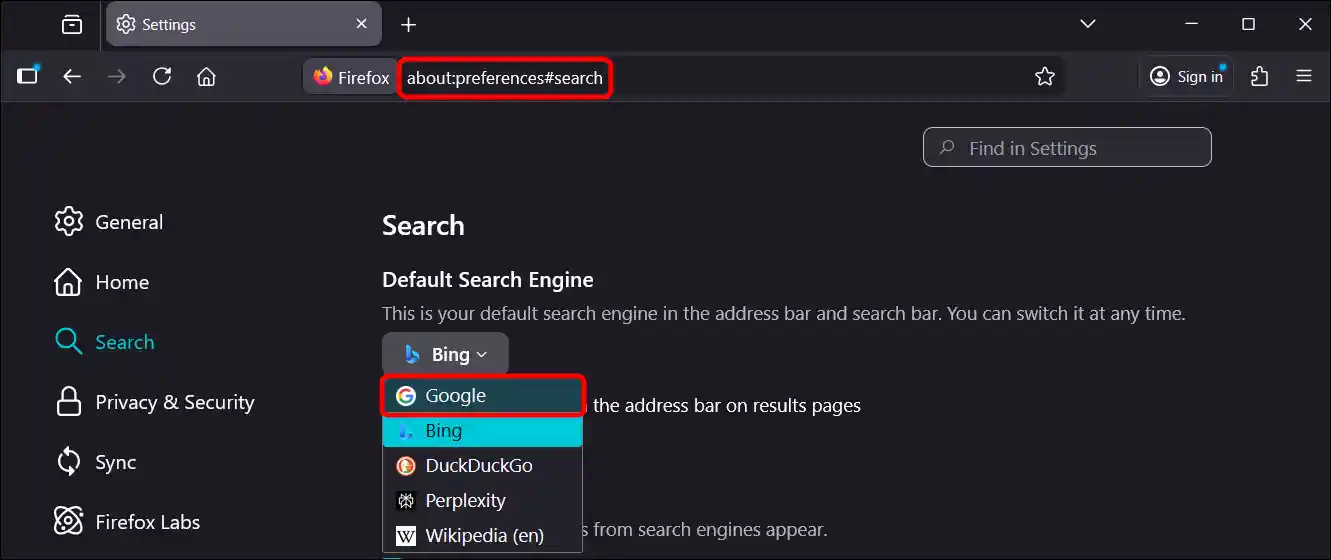
Step 1. Open Firefox and Type about:preferences#search in the Address Bar and Hit Enter.
Step 2. Click on Bing Search Engine and Select Google or Any Other Search Engine.
Also read: Enable or Disable Bing “Trending Searches” in Microsoft Edge
2. Removing the Bing Homepage
If your Firefox browser has a custom Bing homepage but you now want to remove it and set the default Firefox homepage, this is also a simple process. Doing so will restore your browser’s previous homepage settings.
To remove Bing from the Mozilla Firefox homepage:
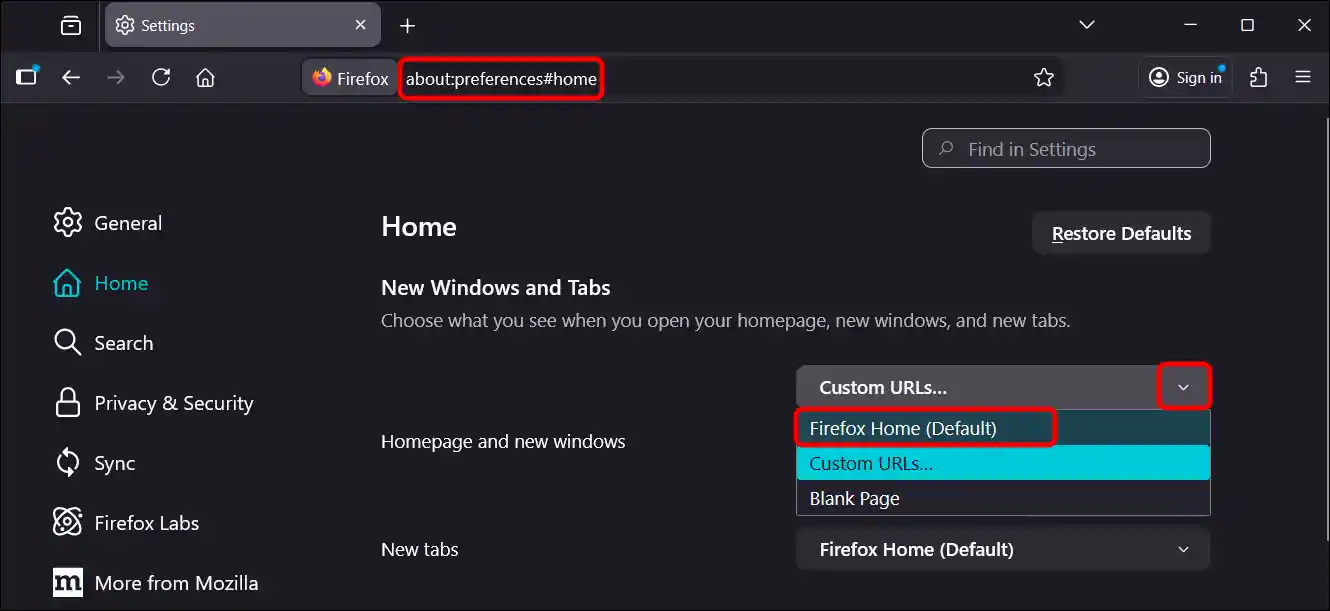
Step 1. Open Firefox and Type about:preferences#home in the Address Bar and Hit Enter.
Step 2. Click on Custom URLs… Dropdown and Select Firefox Home (Default).
3. Removing Bing Add-on
A separate add-on is also available for the Bing search engine, which can be installed as an extension to use Bing in Firefox. If you have installed the Bing add-on, you can disable or remove it to make Firefox Bing-free.
To remove the Bing add-on from Firefox:
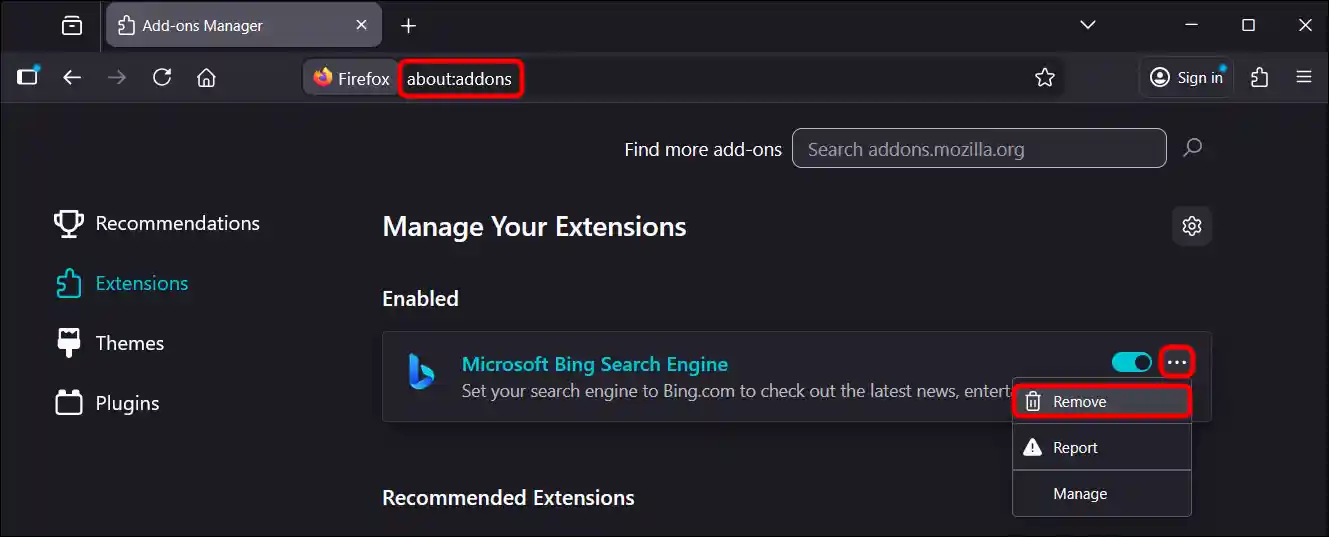
Step 1. Open Firefox and Type about:addons in the Address Bar and Hit Enter.
Step 2. Click on … Next to Microsoft Bing Search Engine Add-on and Click Remove Button.
Also read: How to Disable QUIC Protocol in Chrome, Edge and Firefox
4. Resetting Firefox
If none of the above three methods work correctly, you can reset the Firefox browser to restore its default settings. Resetting Firefox is very easy, and all the steps are explained below.
To reset your Firefox browser:
Step 1. Open Firefox and Type about:support in the Address Bar and Hit Enter.
Step 2. Click on Refresh Firefox… Button.
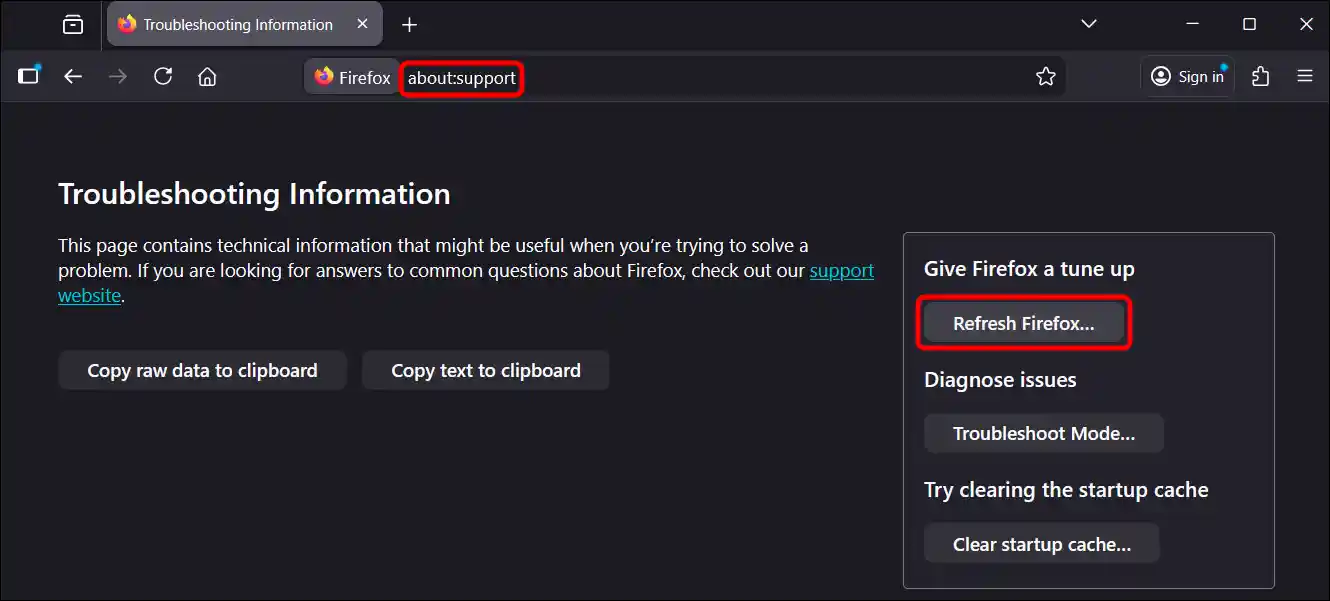
The web browser will close to refresh; click “End” when prompted, and Firefox will reopen.
That’s all! You’re done…
Also read: How to Stop Firefox, Chrome, Edge from Changing HTTP to HTTPS
FAQs
Q 1. Why is Bing coming up when I open Firefox?
Answer – If Bing appears when you open Firefox on your PC or laptop, it could be due to a browser hijacker, unwanted extensions (such as Bing Bar), or a misconfigured setting that has changed your default homepage or search engine.
Q 2. I removed Bing, but it keeps coming back in Firefox. What should I do?
Answer – If Bing keeps reappearing in Firefox even after you’ve removed it, the cause is likely a hidden extension or malware. First of all, check your Firefox search settings and add-ons, remove any suspicious add-ons, and set your default search engine. Then, run a malware scan on your PC (using a program like Malwarebytes or Avast).
I hope you found this guide helpful and learned how to remove Bing from Firefox in Windows 11/10. If you have any other questions about Firefox, feel free to ask in the comments below. Don’t forget to share this article.