Gemini Facing “Something Went Wrong 1076 Error” in Every Conversation
Gemini users are suddenly facing a “something went wrong 1076” error message during conversations. Because of this error, users aren’t getting any responses. The problem is showing up both on the mobile app and the desktop version.
Users have raised this issue on Reddit, Google Help Forum, Twitter, and other platforms. In this article, I explain the causes of this problem and provide detailed fixes.
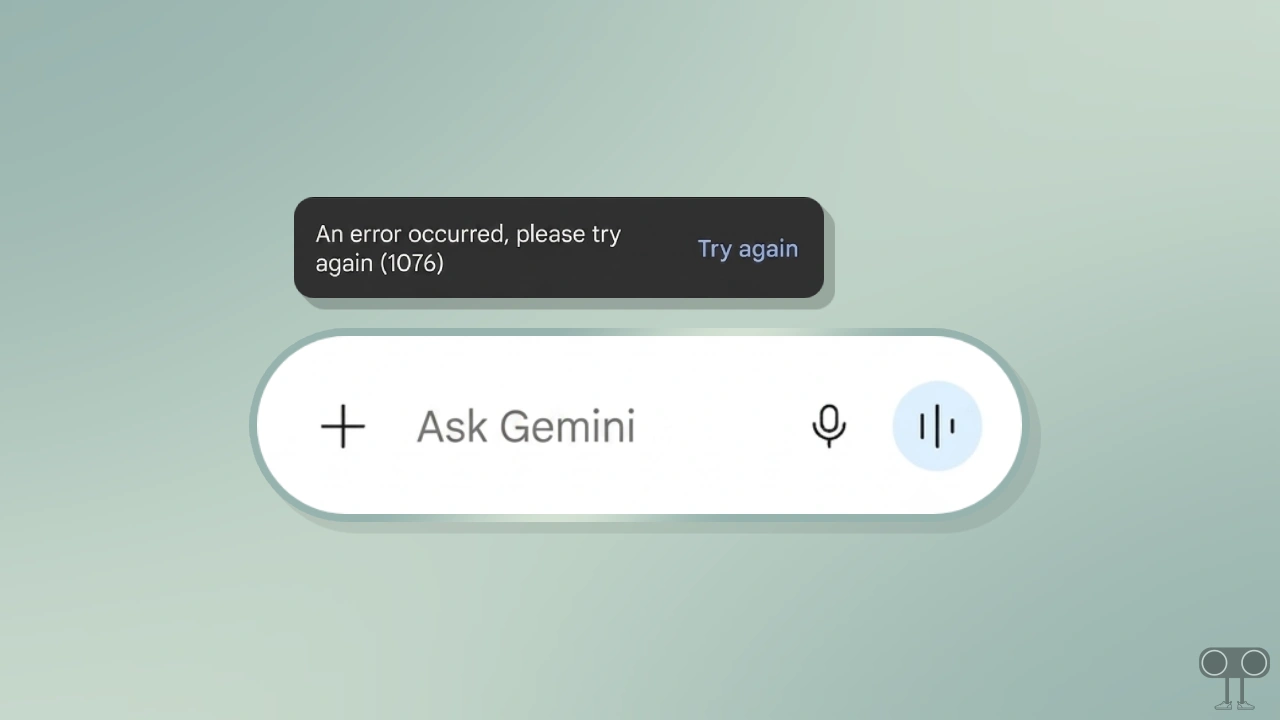
What Does Gemini Error 1076 Mean?
Gemini error code 1076 is a temporary issue that can typically arise due to a malfunction in Google’s servers or because your current chat thread has become too long. This message appears on the screen as “something went wrong (1076)”.
The error message clearly says Gemini is having an unexpected issue right now and can’t complete your request. People usually notice this problem right after they submit a prompt or start a new conversation.
Something went wrong. Please try again. (1076)
Retry
Fix If Google Gemini is Showing Error 1076: Something Went Wrong. Please Try Again.
Before following the troubleshooting methods listed below, check the Google Gemini server status. Since this issue comes from the server side, see if Gemini is currently down.
Also, check your internet connection. If your internet isn’t working, your request won’t reach the server, and the server won’t respond.
On Android Phone
1. Clear Gemini App Cache
- Tap & Hold Gemini App Icon and Tap on App Info.
- Tap on Storage and Data.
- Tap on Clear Cache.
2. Update Gemini App
- Open Google Play Store on Your Phone.
- Search for “Gemini” and Tap on It.
- Tap on “Update” Button.
On Desktop
1. Clear Browser Cache & Cookies
- Open Your Browser.
- Press Ctrl + Shift + Delete (Windows) or ⌘ + Shift + Delete (Mac).
- Select Time Range to All Time and Check Cached Images and Files + Cookies and Other Site Data.
- Click on Clear Data.
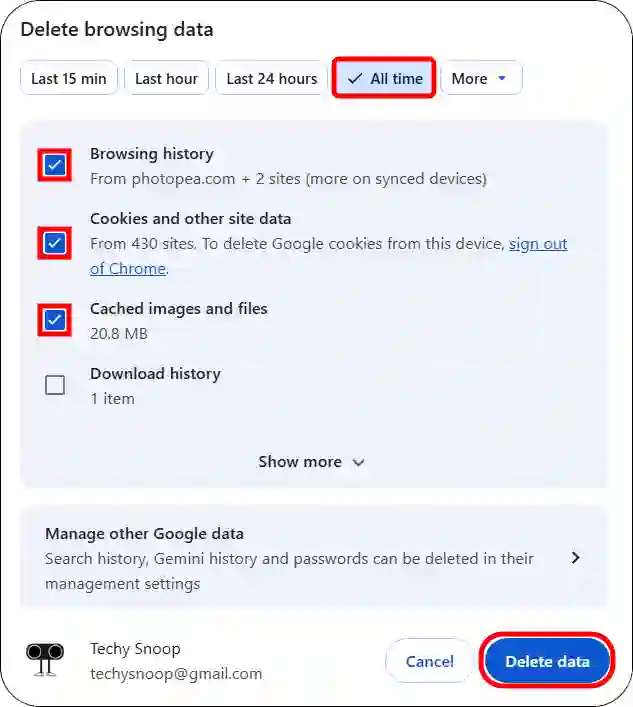
- Now, Reopen Your Browser and Go to gemini.google.com and Log into Your Account.
2. Try in Incognito / Private Mode
- Open Your Browser.
- Press Ctrl + Shift + N (Windows) or ⌘ + Shift + N (Mac).
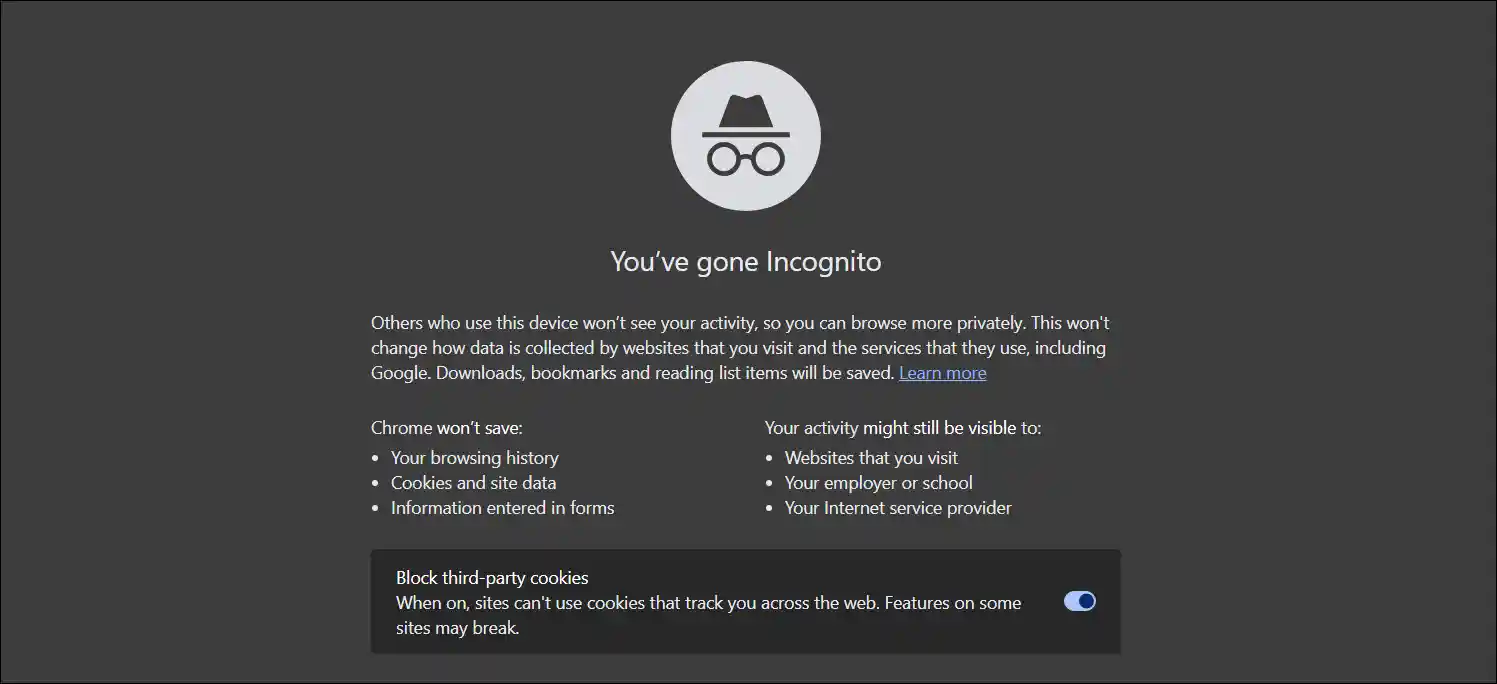
- Next, Go to gemini.google.com and Log into Your Account.
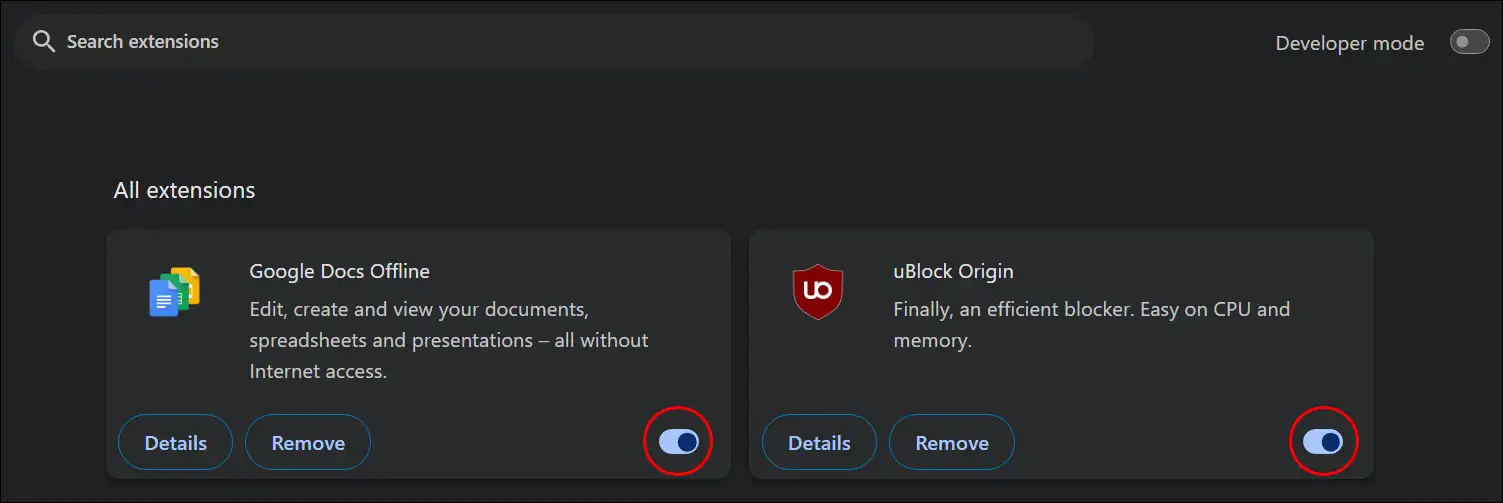
3. Disable VPN, Extensions & Ad-Blockers
- Open Your Browser and Go to Extensions Dashboard by Following URLs.
Chrome:chrome://extensions
Edge:edge://extensions
Firefox:about:addons
Opera:opera://extensions - Now, Simply Turn Off the “Extension” Toggle.
4. Clear DNS Cache
- Press Windows + S and Search “CMD” and Then Run as Administrator.
- Type
ipconfig /flushdnsand Hit Enter.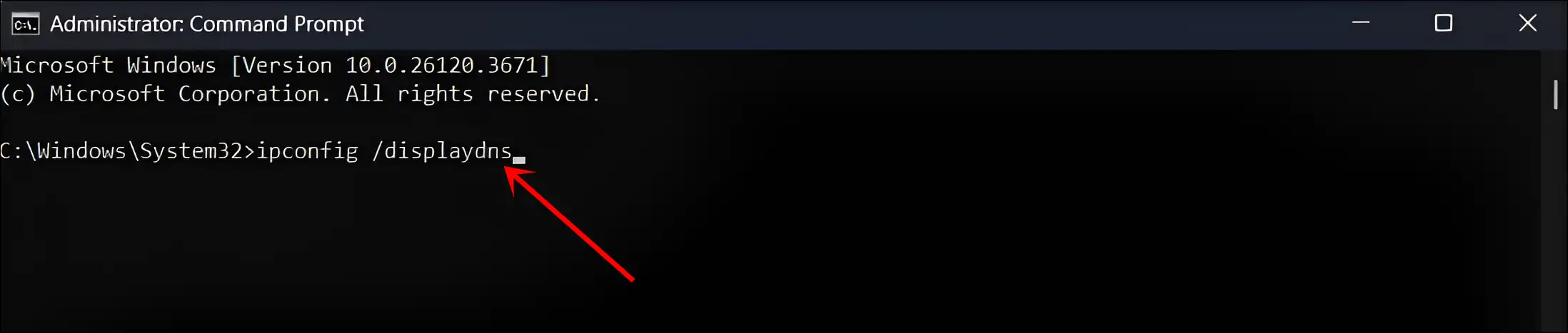
- A Successful Message will Display: “Windows IP configuration successfully flushed the DNS Resolver Cache”.
Additional Note: If the above methods don’t work, just wait for a while. Sometimes these issues fix themselves within 15–30 minutes.


![Fix "Warning [00000] Device Environment is Not Correct" Problem on Paytm App](https://techysnoop.com/wp-content/uploads/2026/02/paytm-warning-00000-device-environment-is-not-correct-768x432.webp)