Turn Off Automatic Translation on Chrome in Phone & PC
If you use the Chrome browser on your Android, iPhone, or desktop (Windows), you may have noticed that certain websites automatically translate into another language, or a translation box pops up on the screen. Let’s find out how you can disable this translate popup in Chrome on mobile and PC.
Chrome’s built-in automatic translation feature is quite helpful, especially when you visit a foreign website (such as one in French, Spanish, or German); the feature automatically detects that the page’s language differs from your preferred language.
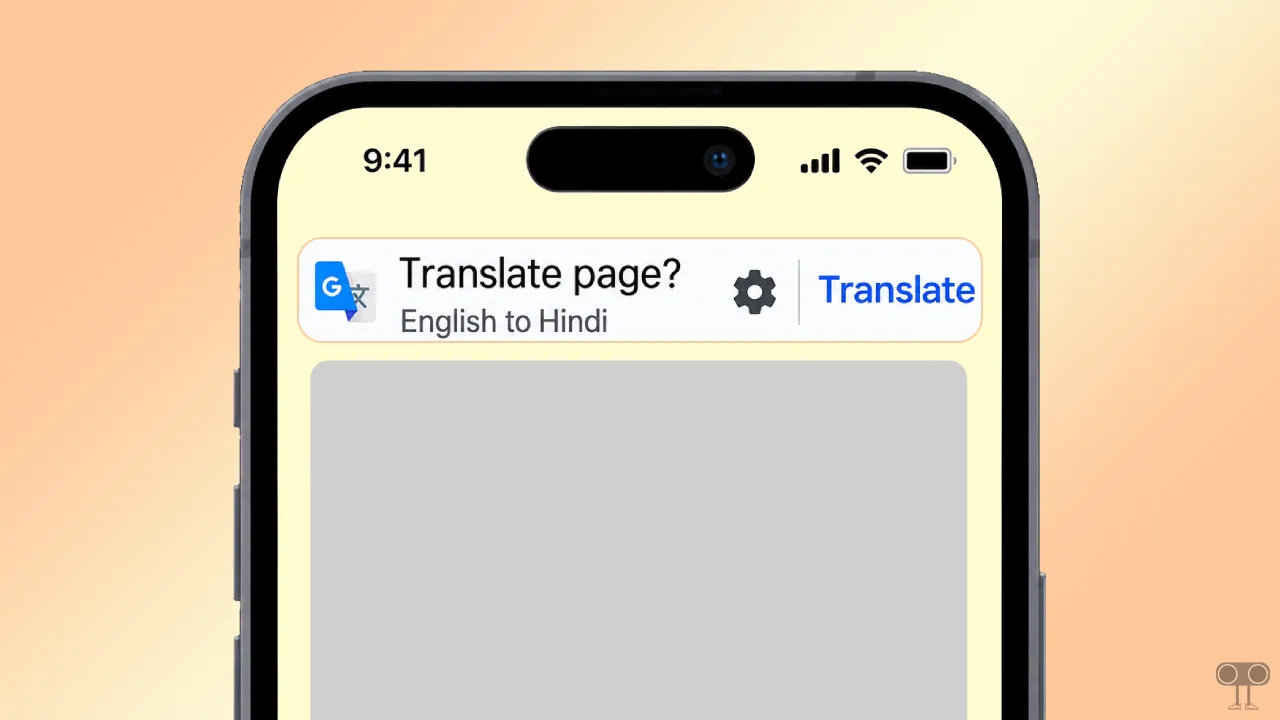
Then a small popup appears near the address bar or at the top of the page that says, “This page is in [language]. Translate?” As soon as you click the “Translate” button, the foreign website is translated into your preferred language.
However, sometimes it mistakenly displays a translation pop-up even for websites that are already in your preferred language. However, the good thing is that you can remove this auto-translate popup in the Google Chrome browser. Below, I have shared two different methods for the mobile and computer versions. Please read and follow them carefully.
How to Disable Translation Popup on Chrome in Phone & PC
We have tested the steps given below, so they will easily resolve your problem.
1. Stop Translate Pop-up in Chrome (Mobile)
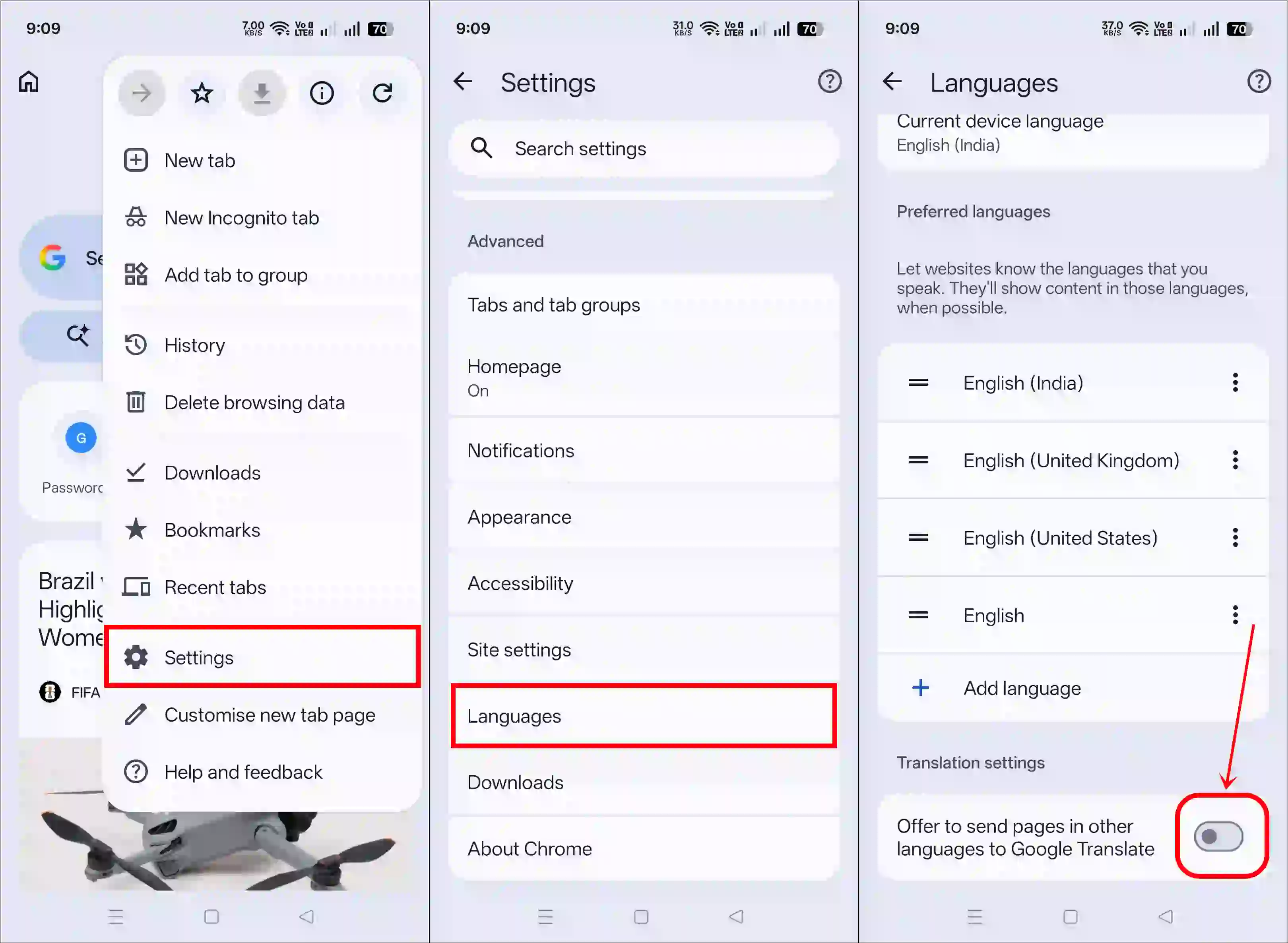
- Open Chrome on Your Android Phone and Tap on Three (⁝) Dots at Top Right.
- Tap on Settings.
- Scroll Down to the Advanced Section and Tap on Languages.
- Now, Turn Off the “Offer to send pages in other languages to Google Translate” Toggle.
Also read: 3 Ways to Stop Chrome from Sending Notifications on Android
2. Stop Translate Pop-up in Chrome (Desktop)
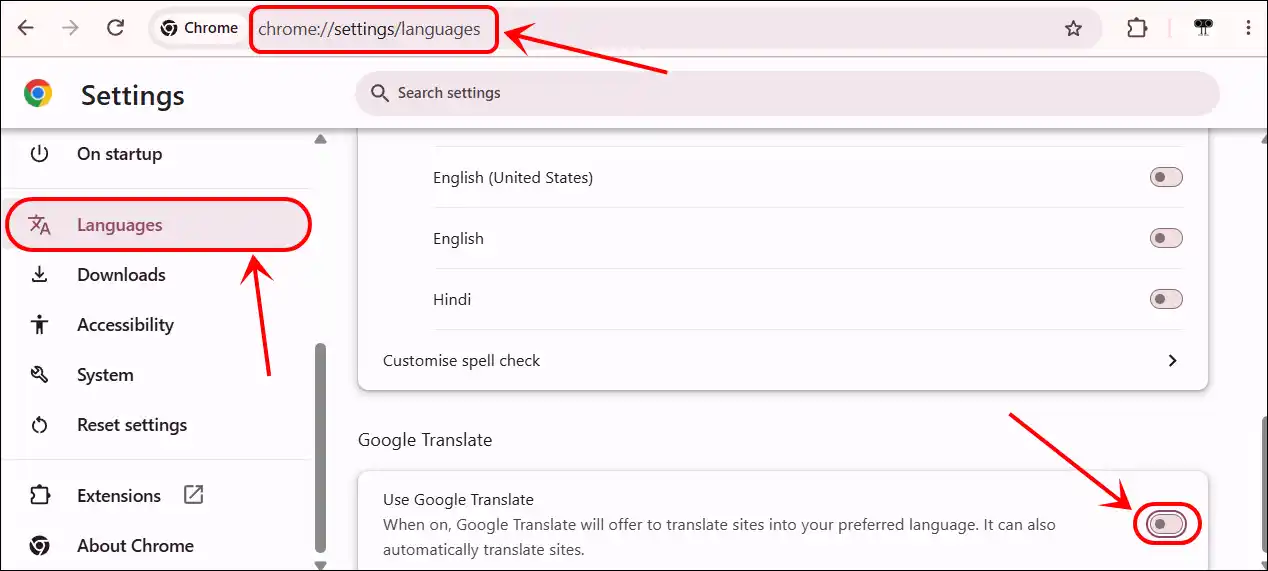
Step 1. Open Chrome Browser on Your Computer.
Step 2. Type chrome://settings/languages in the Address Bar and Hit Enter.
Step 3. Scroll Down to Google Translate Section and Turn Off the “Use Google Translate” Toggle.
That’s it! Now, the Chrome browser will neither translate websites into your preferred language nor show you the translation popup. However, you can re-enable automatic translation at any time by following these same steps.
Also read: Force Your Google Chrome to Update Installed Extensions
FAQs
Q 1. Why does Chrome keep showing the translate popup on every website?
Answer – Chrome shows you a popup on every website whose language is different from your default language. This is a built-in feature that offers you translation.
Q 2. Can I stop the translate popup permanently in Chrome?
Answer – Yes! Chrome allows you to do this. To do so, go to Chrome settings, then ‘Languages’, and turn off the “Use Google Translate” option.
Q 3. I turned off the translate popup, but it still appears. What should I do?
Answer – It is possible that your settings were reset after a Chrome update or that an extension is interfering. Please check your settings again and ensure Chrome is updated. Then, disable the extensions and check if the issue persists.