Enable Internet Traffic Monitor on Taskbar in Windows 11
Microsoft does not provide a built-in internet speed meter in its Windows 11 OS; you have to use third-party software for this. The TrafficMonitor application is currently very popular as an internet speed meter. You can customize it according to your preferences.
Although it is not available on the Microsoft Store, you can easily download it from GitHub. As soon as you run the file after downloading it, the traffic monitor will appear on the screen as a pop-up. You can also open the options menu and place it wherever you like. The best part is that it is completely free.
Download and Install TrafficMonitor
As I mentioned, you won’t find TrafficMonitor on the Microsoft Store; this means you will have to download it from a third-party website on the internet. It is available on GitHub, and the steps to install it are mentioned below.
- Go to TrafficMonitor GitHub Releases Page and Download the Latest Release ZIP File.
- Now, Open the File Explorer and Extract the Downloaded ZIP Folder to a Permanent Location.
- Open the Extracted Folder, Right-Click on Trafficmonitor.exe, and Select Run as Administrator.
- Now, A Floating Network Speed Window will Appear on Your Desktop.
Enable Internet Traffic Monitor on Taskbar in Windows 11
When you run TrafficMonitor, it floats on the desktop screen by default, but you can easily set it to the taskbar permanently. For this, you simply need to enable one option, and the necessary steps are mentioned below.
To display your internet speed on the taskbar in Windows:
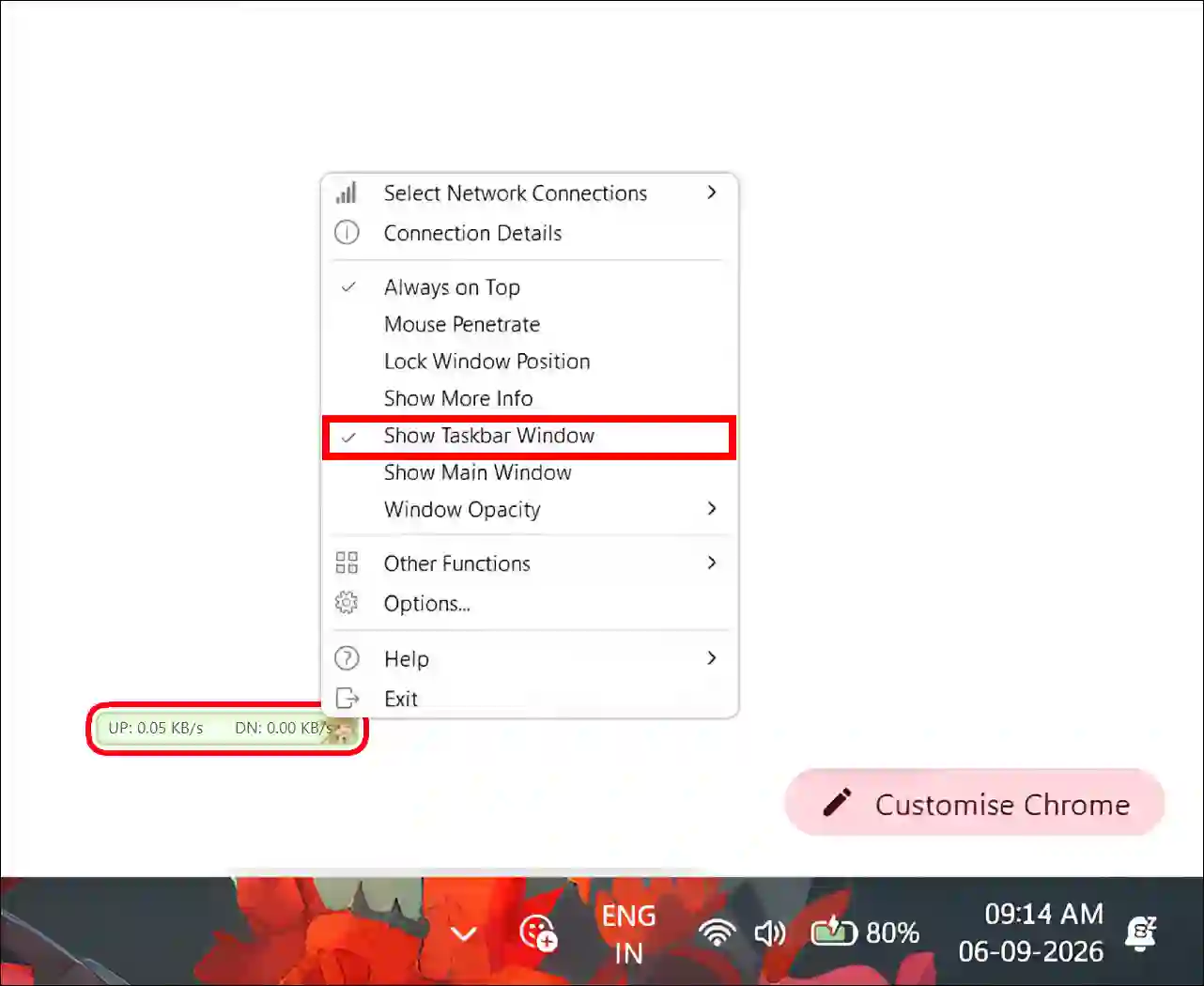
- Right-Click on Floating Network Speed Window.
- Now, Select Show Taskbar Window.
or,
- Click on Show Hidden Icons Arrow at Taskbar.
- Right-Click on TrafficMonitor Icon.
- Now, Select Show Taskbar Window.
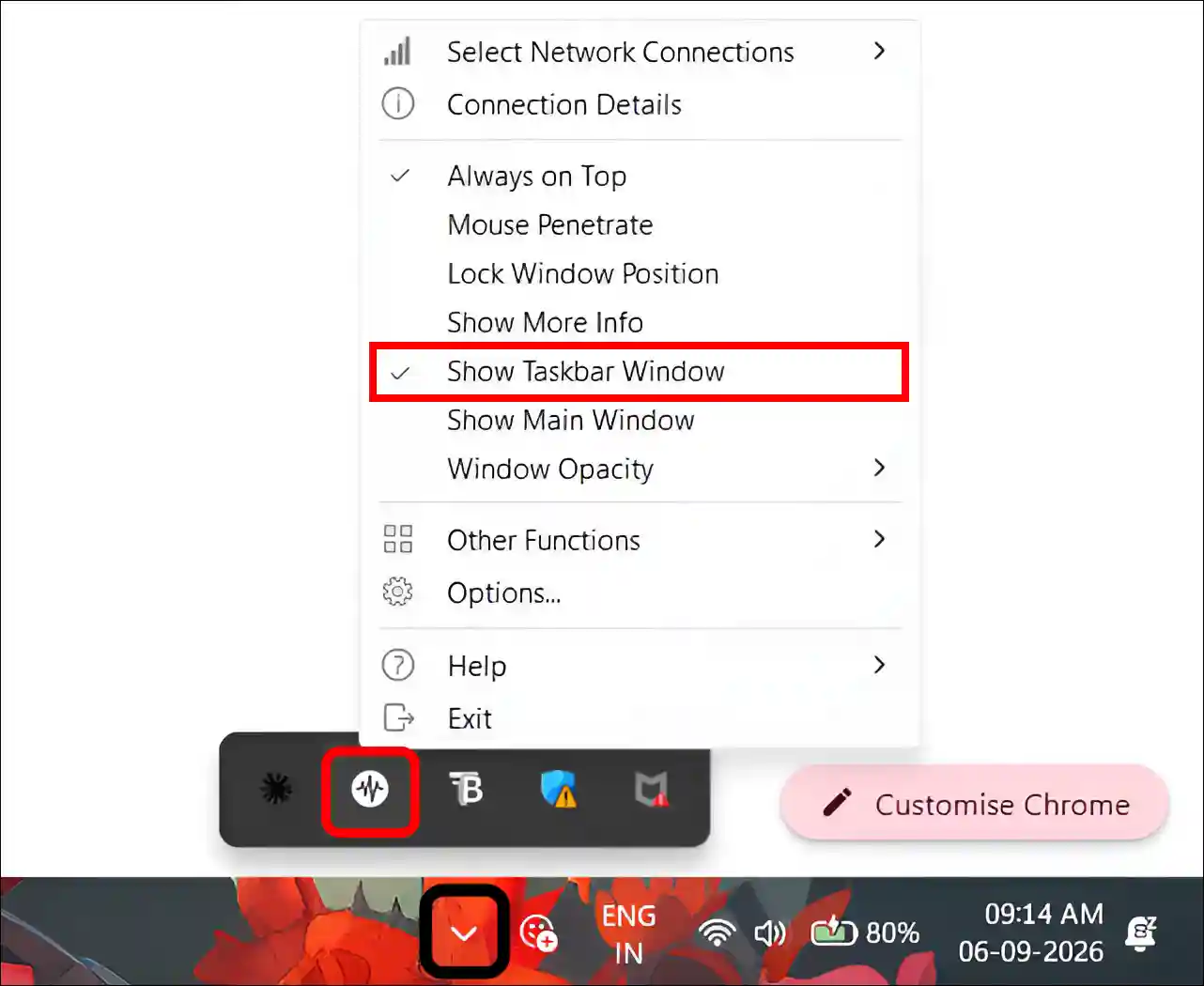
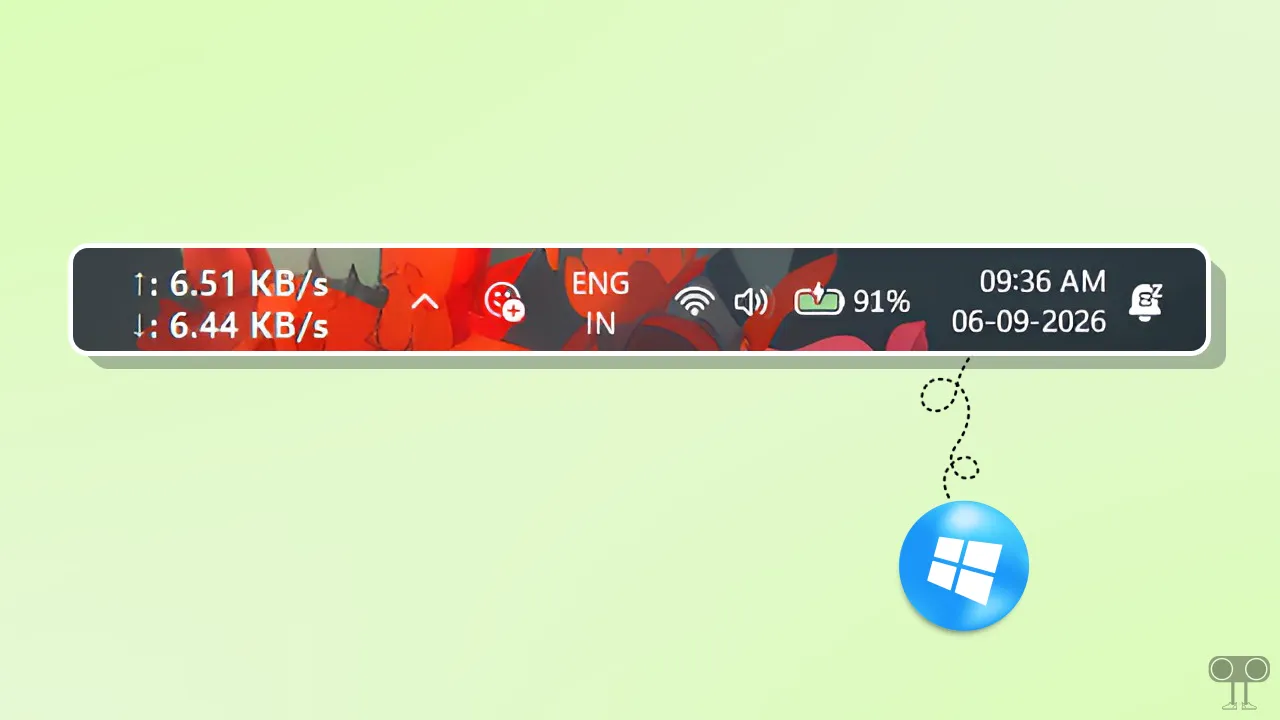
That’s it! This will now embed the internet speed monitor directly into your taskbar. If you wish, you can open the options menu to customize the font, speed mode, and various other settings.
I hope you found this article helpful. If you have any further questions, feel free to leave a comment below, and please share this post with others.