Force Your Google Chrome to Update Installed Extensions
In this article, I have shared how you can update all installed extensions at once in the Google Chrome browser on Mac, Windows, and Linux by enabling Developer mode. With this method, you can update extensions not just in Chrome but also in Microsoft Edge and Opera GX.
Google Chrome usually updates itself and its extensions automatically in the background, but automatic extension updates can sometimes take a while, anywhere from one to four days. If you don’t want to miss out on the latest updates for extensions, then this force update method is for you.
For example, you’re using a specific extension, and you find out that the developer has released an update for it. But even after that, you don’t see any change or new feature in the current extension. In this case, you can bypass auto-updates by performing a force update and try out the extension’s new features.
Force Your Google Chrome to Update Installed Extensions
Go to
Open Google Chrome Browser and Type chrome://extensions/ in the Address Bar and Hit Enter.chrome://extensions/on Chrome Browser.Turn On the “Developer Mode” Toggle.
Now, You’re at the Extensions Page. At the Upper Right Side Simply Turn On the Developer Mode Option.Click on the “Update” Button.
At the Upper Right Side You’ll Notice a Update Button. Simply, Click on It. You’ll See a Updating Pop-up Banner at Bottom Left Side. Once the Everything is Done, You’ll See a “Extensions Updated” Message.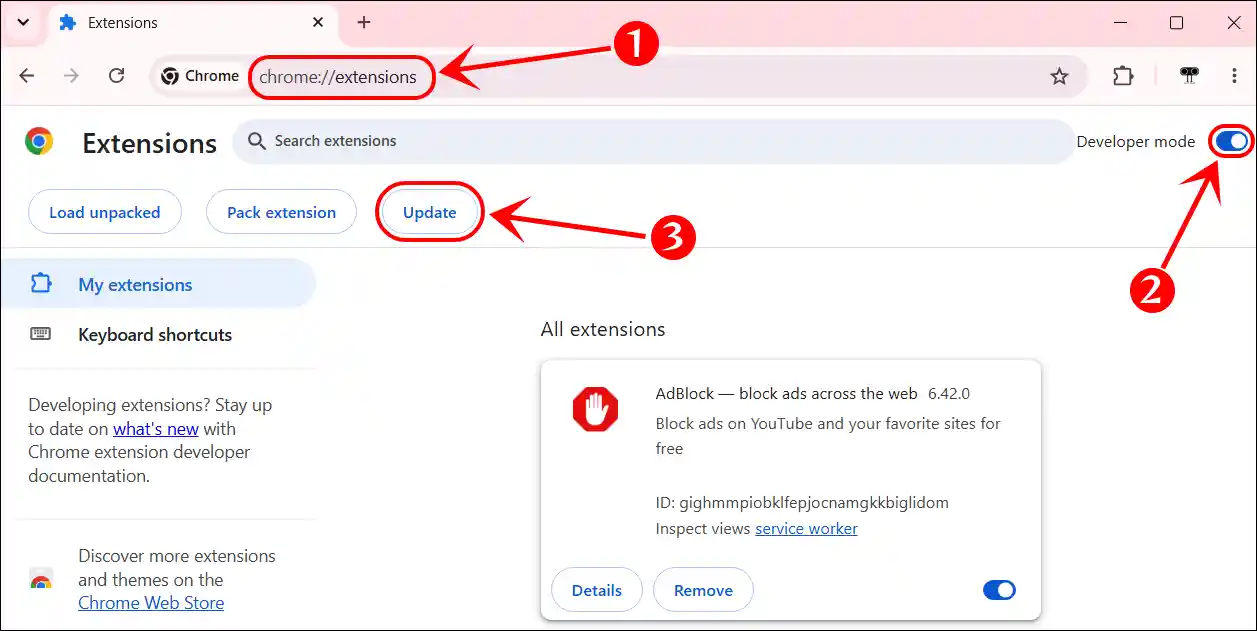
That’s it! However, you can also force-update extensions in Opera, Opera GX, and Microsoft Edge browsers in the same way. All three of these browsers are Chromium-based, meaning their settings are similar to the Chrome browser.
Force Your Edge Browser to Update Installed Extensions
Go to
Open Microsoft Edge Browser and Type edge://extensions in the Address Bar and Hit Enter.edge://extensionson Edge Browser.Turn On the “Developer Mode” Toggle.
Now, You’re at the Extensions Page. At the Bottom Left Corner, Simply Turn On the Developer Mode Option.Click on the “Update” Button.
At the Upper Right Side You’ll Notice a Update Button. Simply, Click on It. You’ll See a Updating Pop-up Banner at Top Right Side. Once the Everything is Done, You’ll See a “Extensions Updated” Message.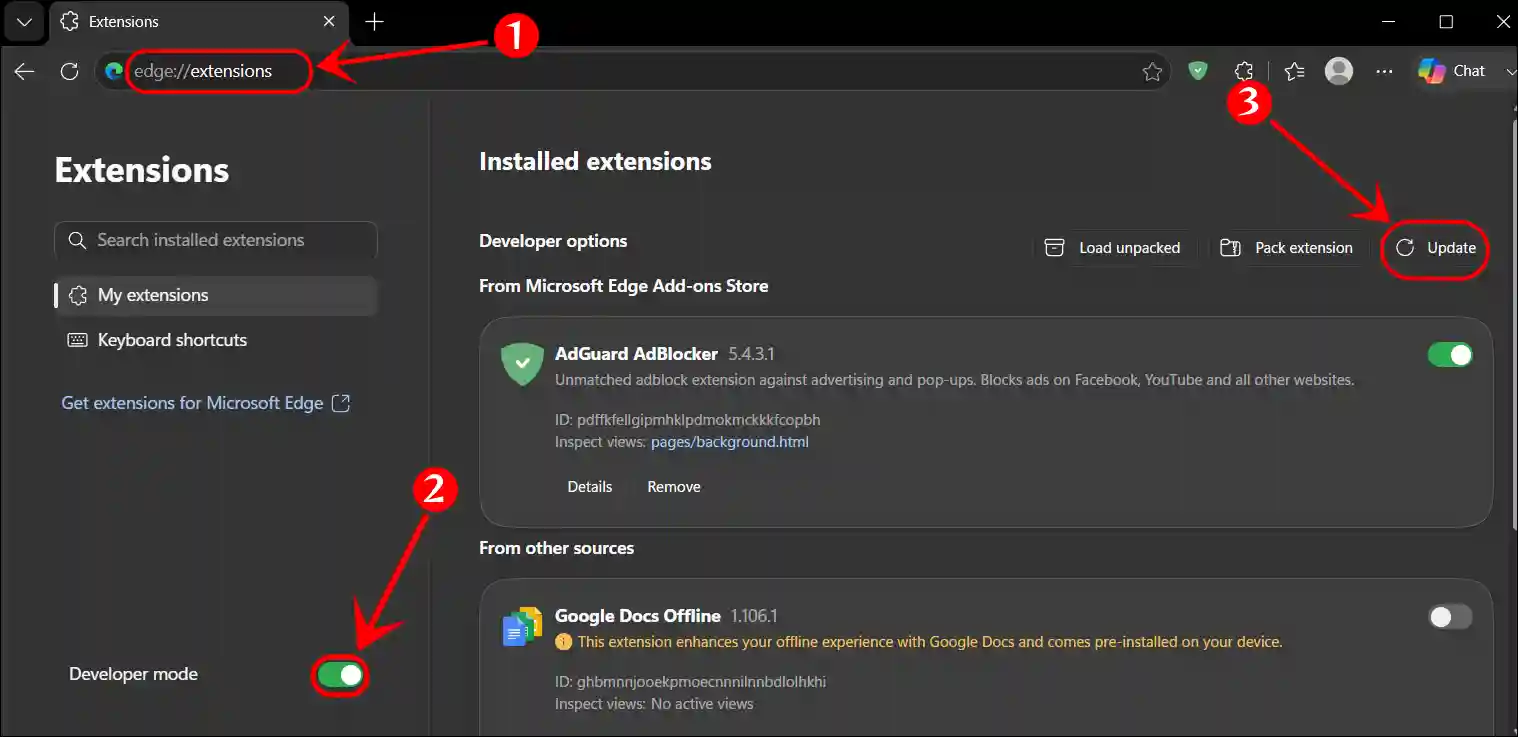
Force Your Opera/Opera GX Browser to Update Installed Extensions
Go to
Open Opera/Opera GX Browser and Type opera://extensions in the Address Bar and Hit Enter.opera://extensionson Opera Browser.Turn On the “Developer Mode” Toggle.
Now, You’re at the Extensions Page. At the Upper Right Side, Simply Turn On the Developer Mode Option.Click on the “Update” Button.
At the Upper Right Side You’ll Notice a Update Button. Simply, Click on It. You’ll See a Updating Pop-up Banner at Bottom Left Side. Once the Everything is Done, You’ll See a “Extensions Updated” Message.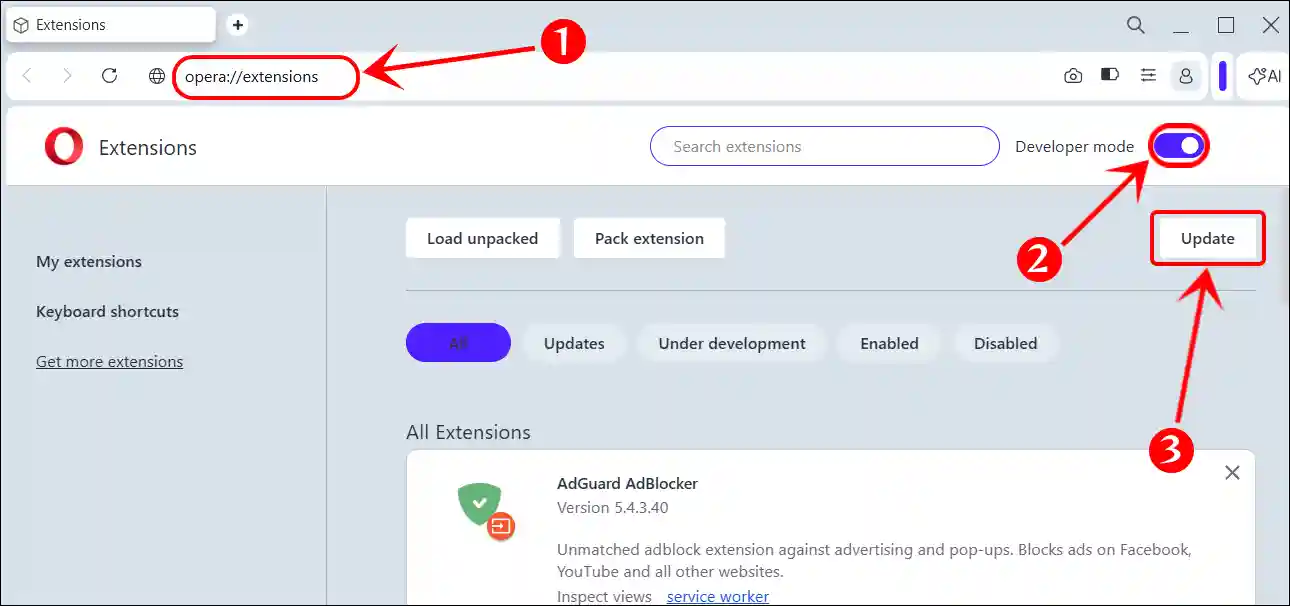
That’s all! You’re done…
I hope you have found this article very helpful. And you learned how to force browsers to update installed extensions. If you have any problems related to the browser, please let us know by commenting. Please share this article with your friends.