Disable Continue Running Background Extensions and Apps When Edge is Closed
If you use the pre-installed Microsoft Edge browser on Windows 10 or Windows 11, you might not realize that some extensions and apps keep running in the background even after you close Edge. Yes, this is a browser-specific process that’s enabled by default.
Even if you close the Edge browser, it still runs extensions and apps in the background, which eats up your system resources. But the good news is Microsoft lets you turn off this background process.
The idea to disable it came to me when I checked Task Manager and noticed high CPU and RAM usage, even though I had closed all programmes on the system. I then turned on each programme one by one and analysed them. That’s when I noticed it was happening because a specific option was enabled in the Edge browser.
There are some benefits to enabling this feature. For example, background web apps like WhatsApp and Telegram can keep sending you notifications. The browser also reloads faster, and extensions like ad blockers and VPNs can continue working without interruption.
Disable Continue Running Background Extensions and Apps When Edge is Closed
Here’s how you can stop your Edge browser from running extensions and apps in the background. Follow these steps one by one. This method works on both Windows 10 and Windows 11, and we’ve tested it ourselves.
To stop Edge browser from running extensions and apps in the background:
Step 1. Launch Edge Browser or Your System (PC or Laptop).
Step 2. Click ••• > Settings > System and Performance > Background Mode.
Note: You can go to
edge://settings/system/manageSystem#BackgroundMode&1to directly access this setting.
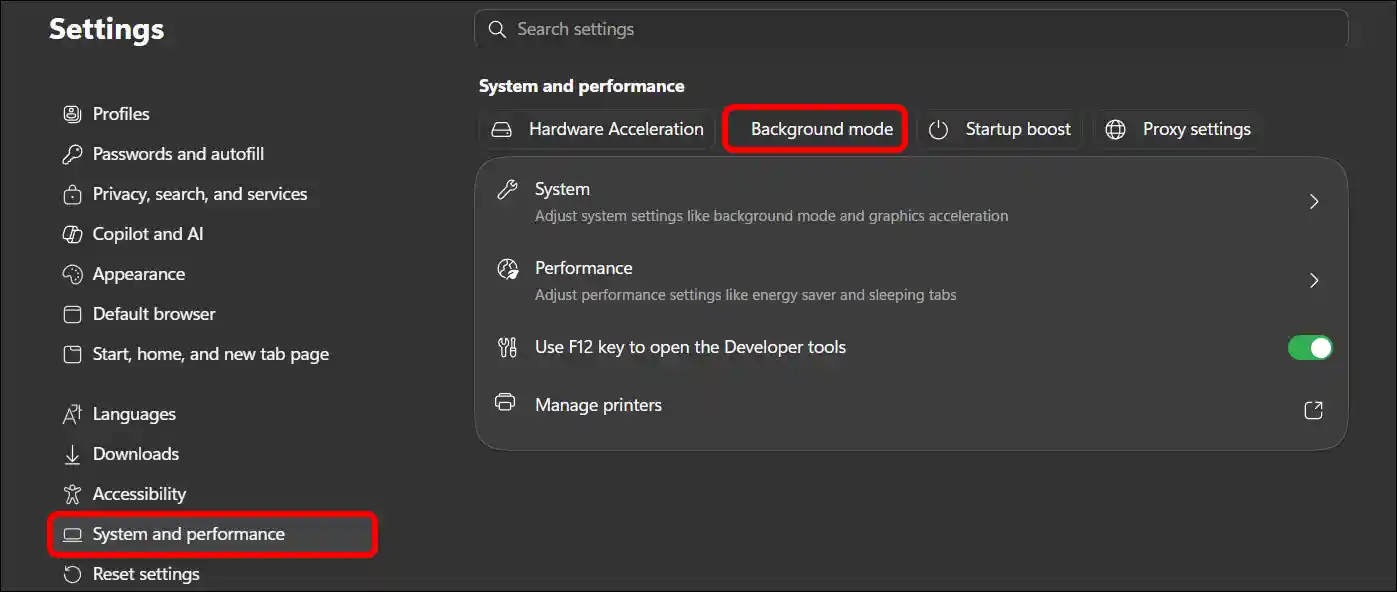
Step 3. Simply, Turn Off the “Continue running background extensions and apps when Edge is closed” Toggle.
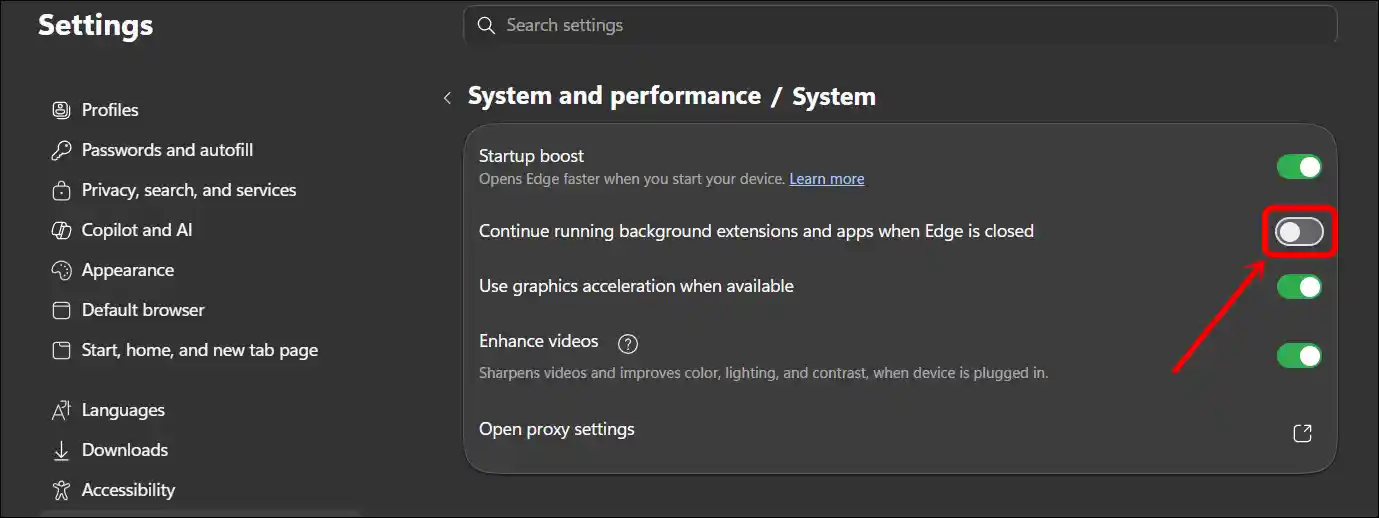
Step 4. Now, Restart Your Edge Browser.
That’s it! You’re done.
Also read: Stop Edge from Showing All Tabs on Alt+Tab in Windows
I hope you have found this article very helpful. And you learned how to Continue running background extensions and apps when Edge is closed. If you have any problems related to Edge, please let us know by commenting. Please share this article with your friends.