Here’s How I Removed Gemini from My Windows 11 System Tray
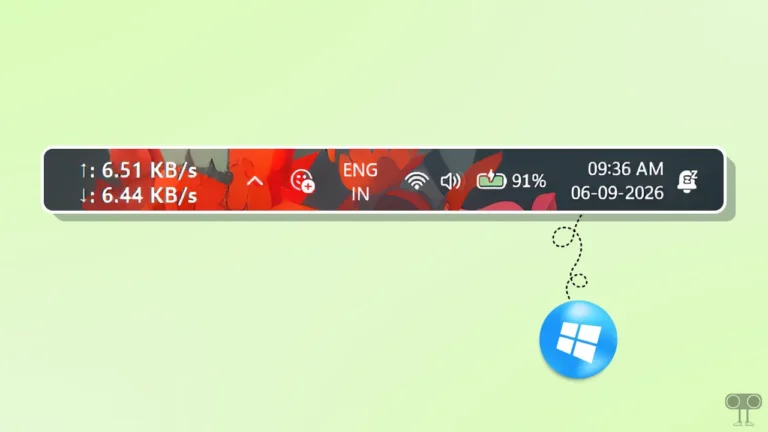
Google has expanded its Gemini AI further across the system, bringing it right to the Windows system tray and taskbar. You can now quickly access Gemini right from your Windows taskbar. It is integrated into the system tray via the Google Chrome browser and can be accessed using the Alt + G keyboard shortcut.
After the latest Google Chrome update, this feature is enabled by default in the browser, and the Gemini icon shows up in the system tray on the taskbar. When this feature is enabled, Gemini runs in the background on your Windows system, letting you activate the AI assistant instantly without fully opening the browser.
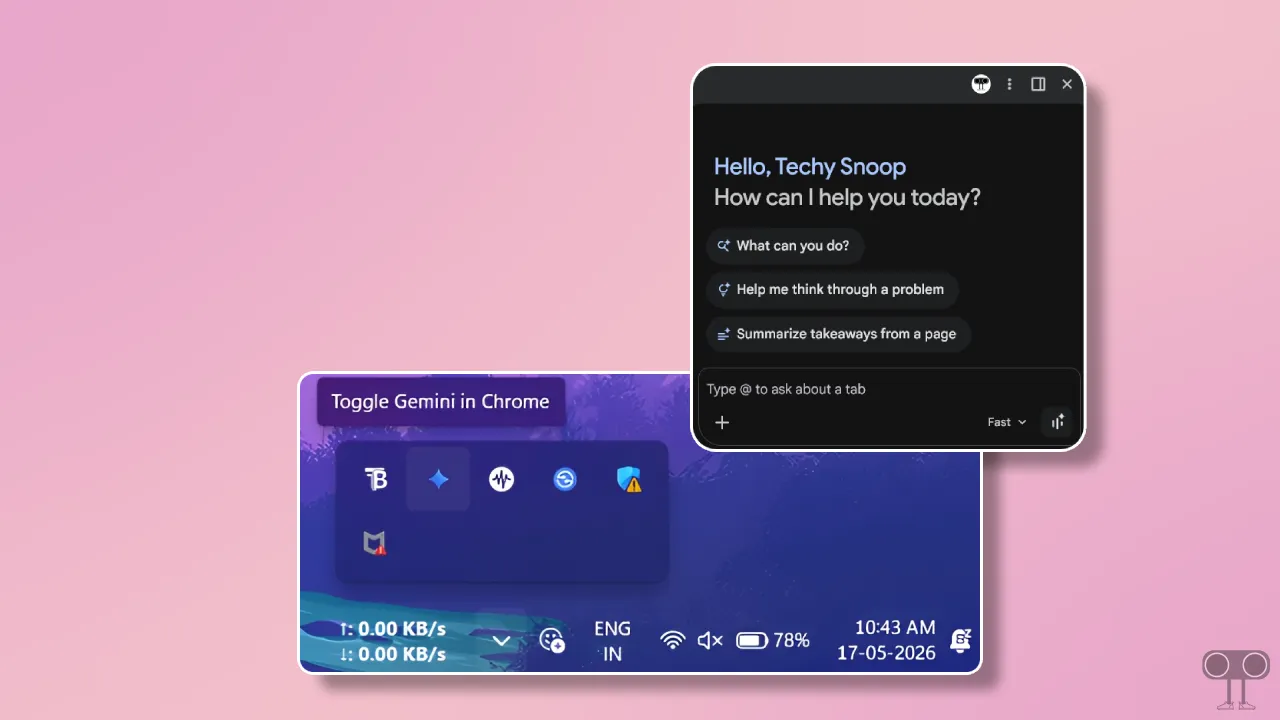
Although it runs in the background, it will still consume your system’s resources. So if you want to remove it permanently from your system tray, that’s possible. Google Chrome has a setting that lets you manage Gemini AI on your system.
How to Disable Gemini AI in Windows 11 System Tray or Taskbar
If you’ve spotted Gemini AI in your taskbar or system tray, don’t worry; you’re not alone. Follow the steps below to quickly turn off the Gemini assistant from the system tray and stop it from running in the background.
To hide the Gemini assistant from the system tray in Windows 11:
Step 1. Launch Google Chrome Browser on Your Computer or Laptop.
Step 2. Type chrome://settings/ in the Address Bar and Hit Enter.

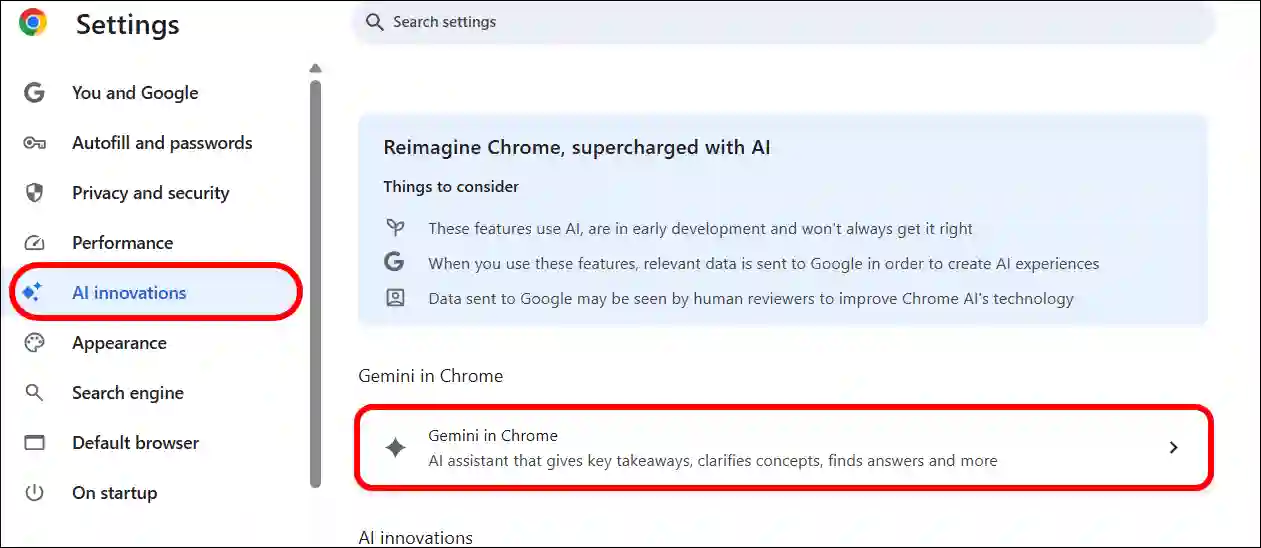
Step 3. Click on AI Innovations > Gemini in Chrome.
Step 4. Now, Turn Off the “Show Gemini in System Tray and Turn On Keyboard Shortcut” Toggle.
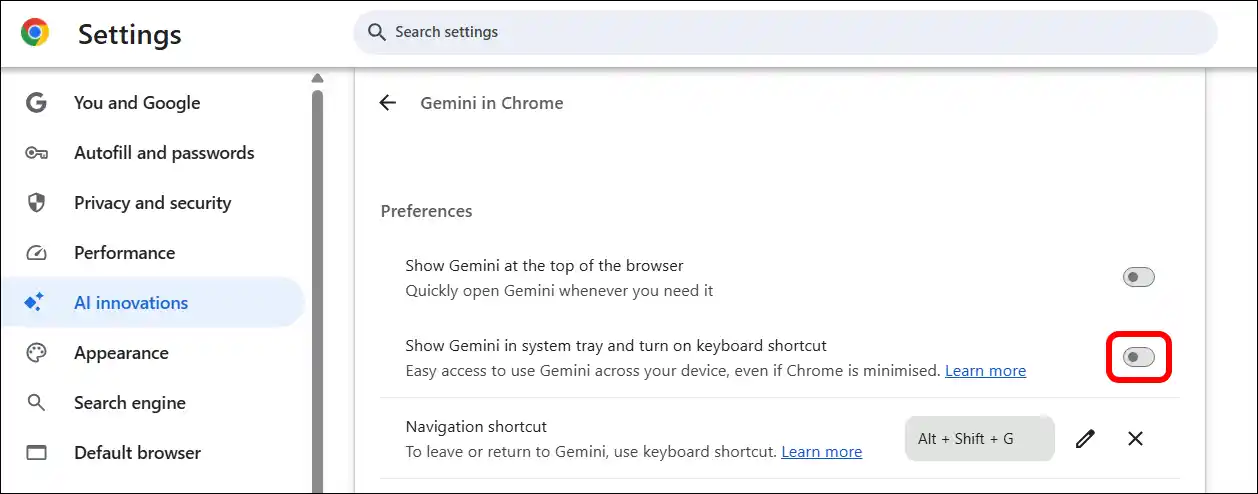
That’s it! As soon as you do this, Gemini’s Quick AI assistant will disappear from your system tray.
Also read: Chrome Says “Site Wants to Look for and Connect to Any Device on Your Local Network”
Open Gemini with a Keyboard Shortcut
You can access Google Chrome’s Gemini AI from the system tray using the Alt + G keyboard shortcut. But did you know you can customize this keyboard shortcut and set other shortcut keys the way you like? Yes, you can! I’ve listed all the steps below.
Step 1. Open Chrome Browser and Go to chrome://settings/ai/gemini.
Step 2. Click Edit Pen Icon Next to Keyboard Shortcut.
Note: Make sure “Show Gemini in system tray and turn on keyboard shortcut” toggle is enabled.
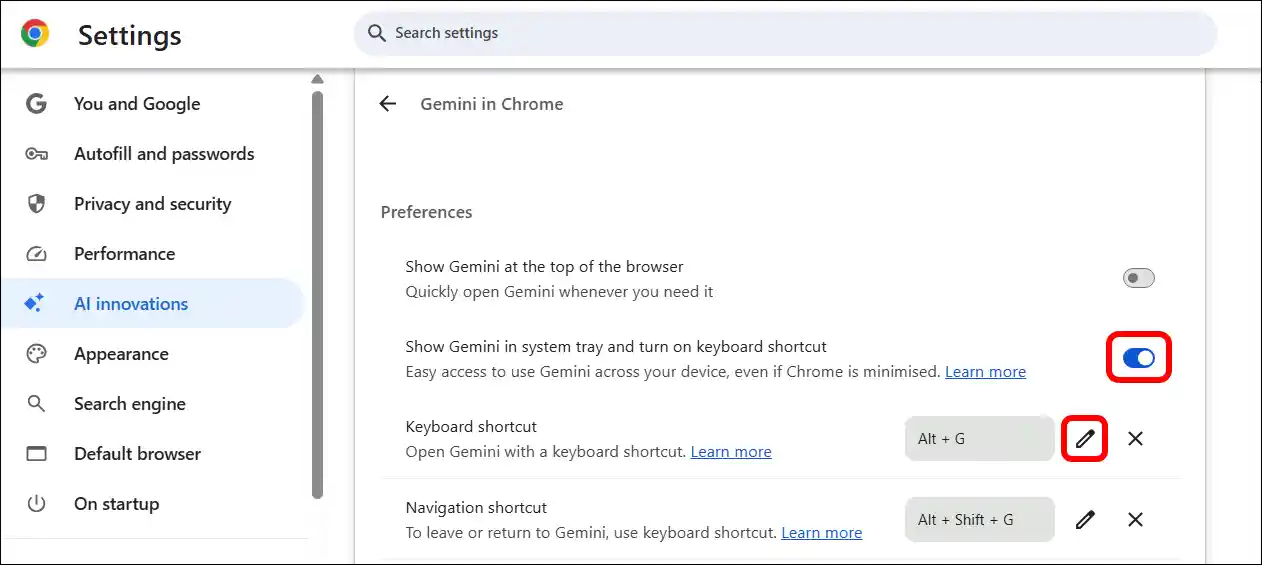
Step 3. Press CTRL or ALT and Then Type Any Letter.
That’s it! The letter you assigned in combination with CTRL or ALT has now become your Gemini shortcut. As soon as you press this new shortcut, the Gemini AI assistant will open in a small popup window on your screen.
Also read: How to Activate Google Gravity
I hope you have found this article very helpful. And you learned how to turn off Gemini AI in the Windows 11 system tray. If you have any problems related to Chrome, please let us know by commenting. Please share this article with your friends.