Aniwatch Says “This domain has recently been registered with Namecheap.”
According to anime fans, Aniwatch is currently not working; whenever they attempt to play a video, an error message reading “This domain has recently been registered with Namecheap.” appears on the screen. Regarding this, numerous posts have also been made by users on Reddit and Twitter.
However, I found a solution to this problem through a Reddit post. That post contained a GitHub link revealing that the Aniwatch site previously used megacloud.blog as its video host since it has now shifted to megacloud.tv, users are encountering the “Namecheap error message” issue during streaming.
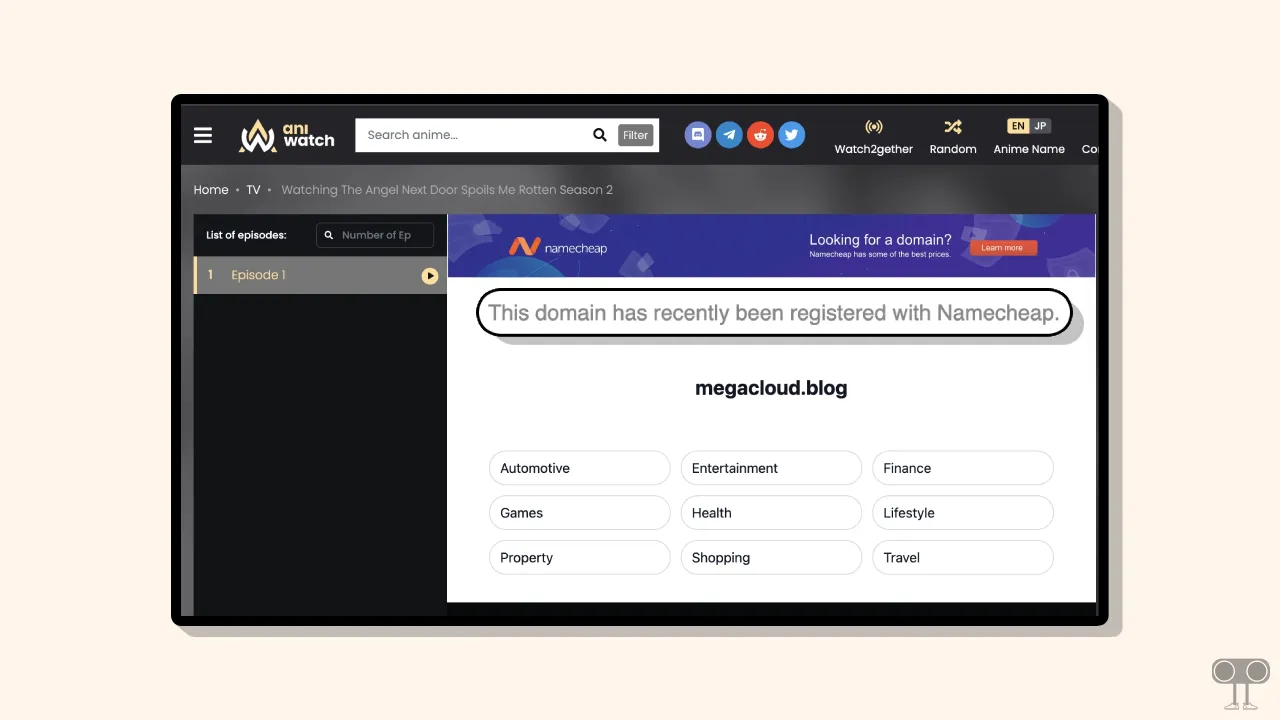
According to a Reddit post, you can easily fix this issue with the help of a new browser extension. The steps for various browsers are listed below. Simply install the extension compatible with your browser and stream anime without any issues.
Step 1. Download and Extract MegaCloudFix Extension
This new MegaCloudFix extension can easily bypass this issue. However, you will need to download this extension from GitHub and extract it on your computer.
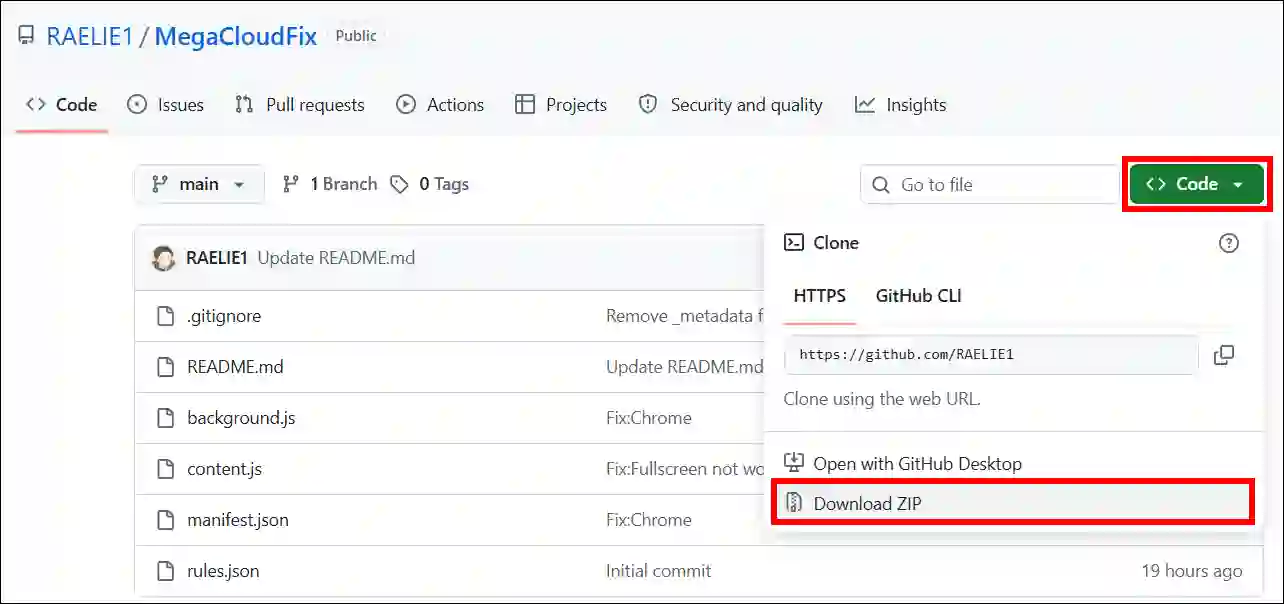
Step 1. Go to Github’s MegaCloudFix Page and Click on Code and then Download Zip.
Step 2. Open File Explorer and Navigate to Downloaded File.
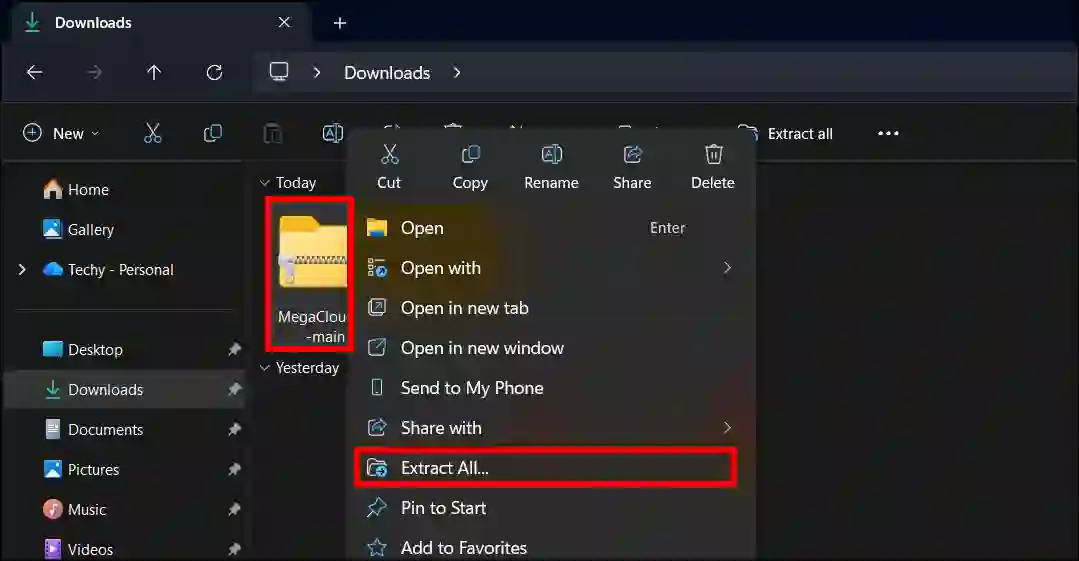
Step 3. Right-Click on Extension Zip and then Extract All.
Note: Select Your Path and Then Extract.
Once the extension ZIP file has been extracted in your file explorer, you will need to install it in your browser. To do this, follow the steps provided below.
Step 2. Install MegaCloudFix Extension in Your Browsers
1. On Google Chrome
- Go to
chrome://extensions/. - Enable the Developer Mode Toggle at the Top Right.
- Click on “Load unpacked”.
- Select the
megacloudfixdirectory from the File.
2. On Firefox
- Go to
about:debugging#/runtime/this-firefox. - Click on “Load Temporary Add-on”.
- Select the
megacloudfixFile Directory.
3. On Microsoft Edge
- Go to
edge://extensions. - Enable the Developer Mode Toggle at the Bottom Left.
- Click on “Load unpacked”.
- Select the
megacloudfixdirectory from the File.
4. On Opera/GX
- Go to
opera://extensions. - Enable the Developer Mode Toggle at the Top Right.
- Click on “Load unpacked”.
- Select the
megacloudfixdirectory from the File.
Disclaimer: This post is for informational purposes only, and all information contained herein is already available on the internet (Reddit) and has been shared by us here.