Enable or Disable Automatically Play Spotify when Starting Focus Session in Windows 11
Do you want to automate Spotify in Windows 11 during a focus session? Yes! Now it is possible, thanks to the new Focus Session feature. In this article, I have shared a step-by-step guide on how you can enable or disable Spotify from automatically playing when starting a Focus Session on a Windows 11 computer or laptop.
What is Focus Session in Windows 11?
Focus Sessions in Windows 11 is a useful built-in tool located within the Clock app. This feature is specifically designed to minimize distractions. This feature minimizes distractions by silencing notifications, hiding taskbar app flashes, and enabling “Do Not Disturb” mode.
For Spotify to function during a Focus Session, it is mandatory to link your Spotify account to the Clock app. As soon as you link your Spotify account to the Clock app, music from Spotify will automatically begin playing when you start a focus session.
Enable Automatically Play Spotify when Starting Focus Session in Windows 11
If you want Spotify music to start automatically when you turn on a focus session in the Clock app, all the steps to do so are listed below, one by one.
Step 1. Press Windows + S and Search “Clock” and then Open It.
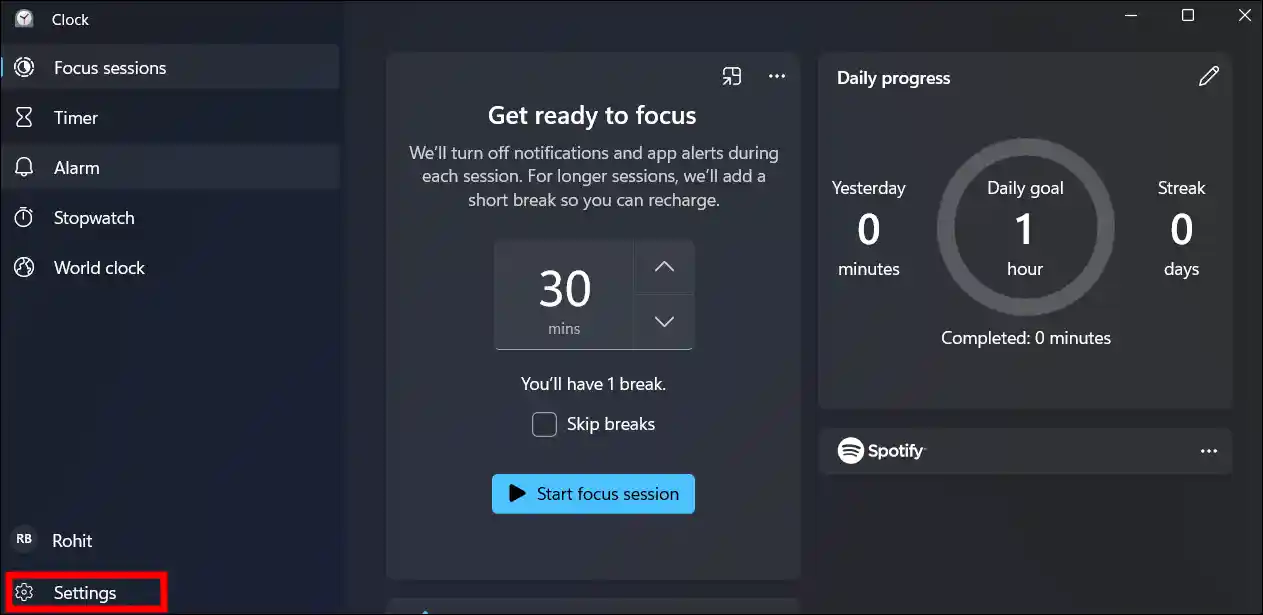
Step 2. Click on ⚙️ Settings at Bottom Left Corner.
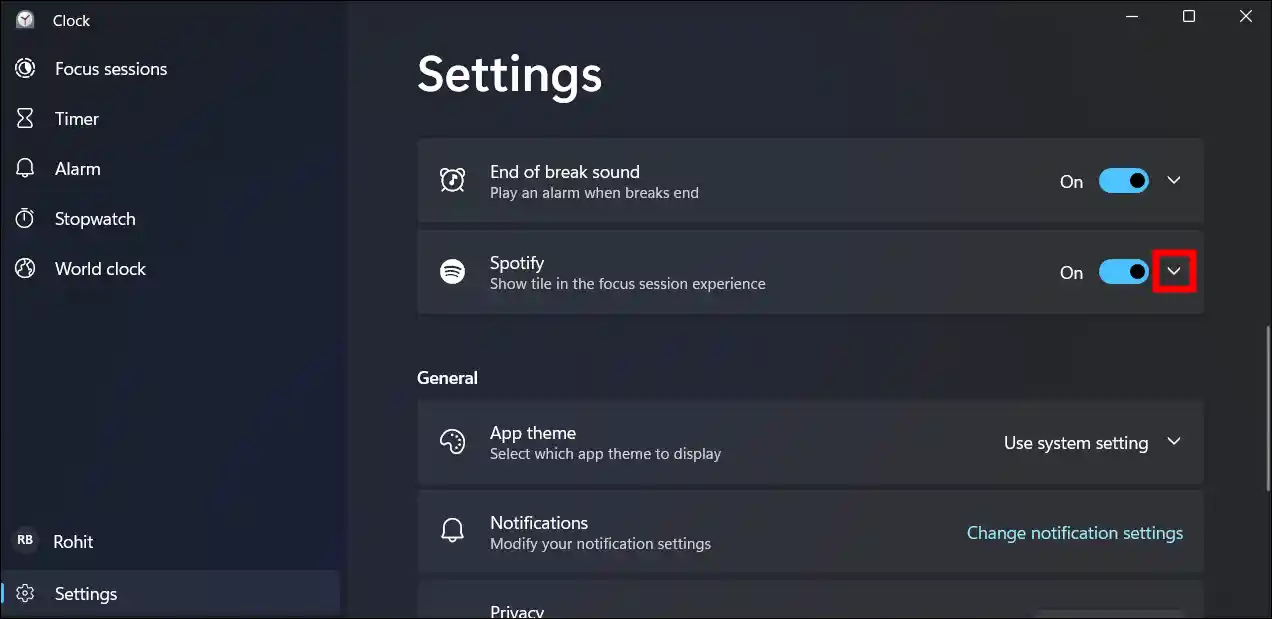
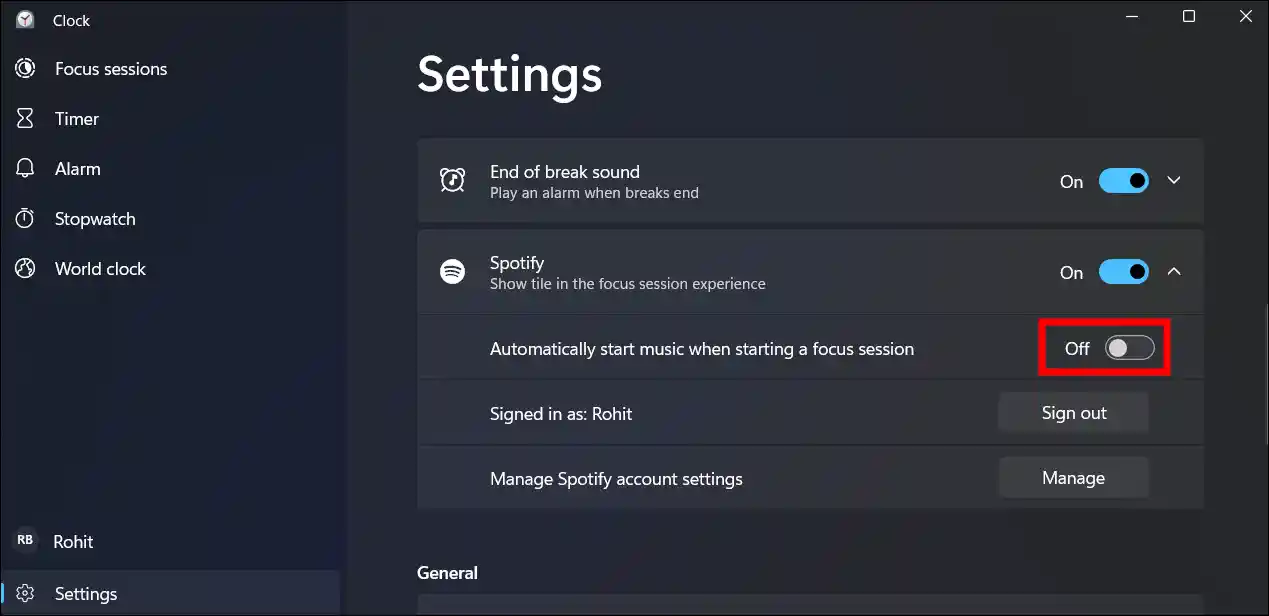
Step 3. Expand Spotify By Clicking on Dropdown Arrow.
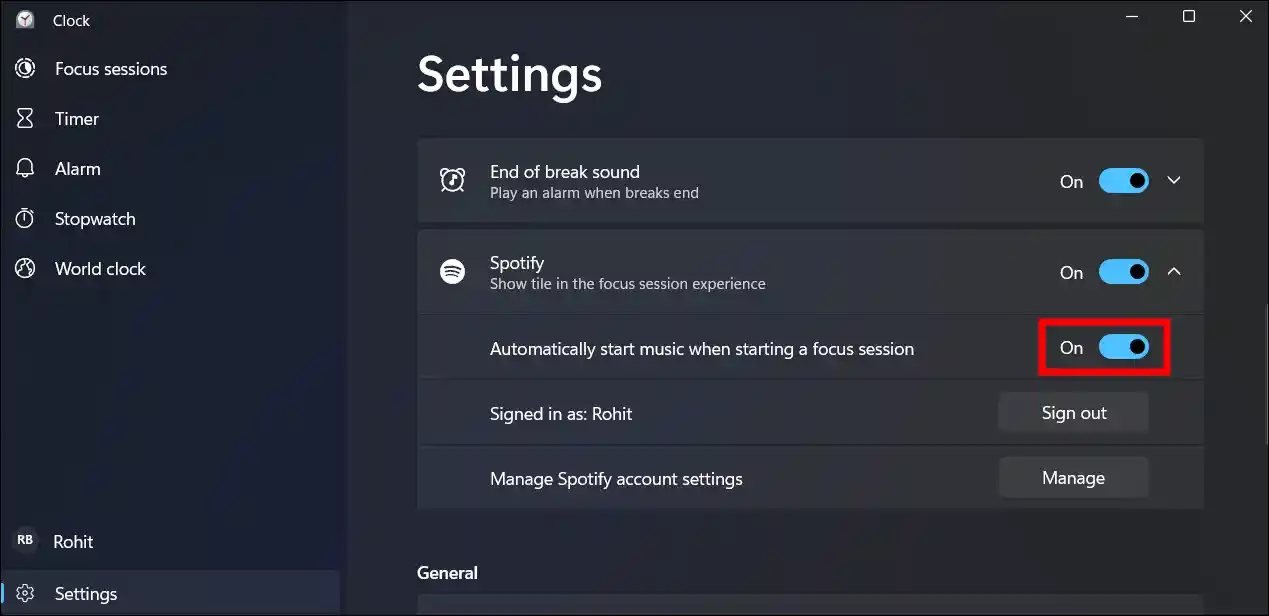
Step 4. Simply. Turn On the “Automatically Start Music When Starting a Focus Session” Toggle.
Disable Automatically Play Spotify when Starting Focus Session in Windows 11
You might have configured Spotify in a Focus session earlier, but now you want to prevent Spotify music from starting automatically when you begin a Focus session in the Clock app. The steps below explain how to do this.
Step 1. Press Windows + S and Search “Clock” and then Open It.
Step 2. Click on ⚙️ Settings at Bottom Left Corner.
Step 3. Expand Spotify By Clicking on Dropdown Arrow.
Step 4. Simply. Turn Off the “Automatically Start Music When Starting a Focus Session” Toggle.
That’s all! You’re done…
You may also like: