Turn On Privacy Display Only for Certain Apps on Samsung Galaxy S26 Ultra
Samsung recently launched the Galaxy S26 series, and the highlight of this launch was the “Privacy Display” feature of the S26 Ultra. Rather than just being a software feature, it’s built directly into the OLED panel and controls how light is emitted from the screen, reducing visibility from side angles while keeping the display clear and bright for someone looking straight on.
However, you can enable or disable this Privacy Display feature yourself in the Samsung Galaxy S26 Ultra. The good thing is that Samsung allows you to enable or disable this Privacy Display feature for a specific app.
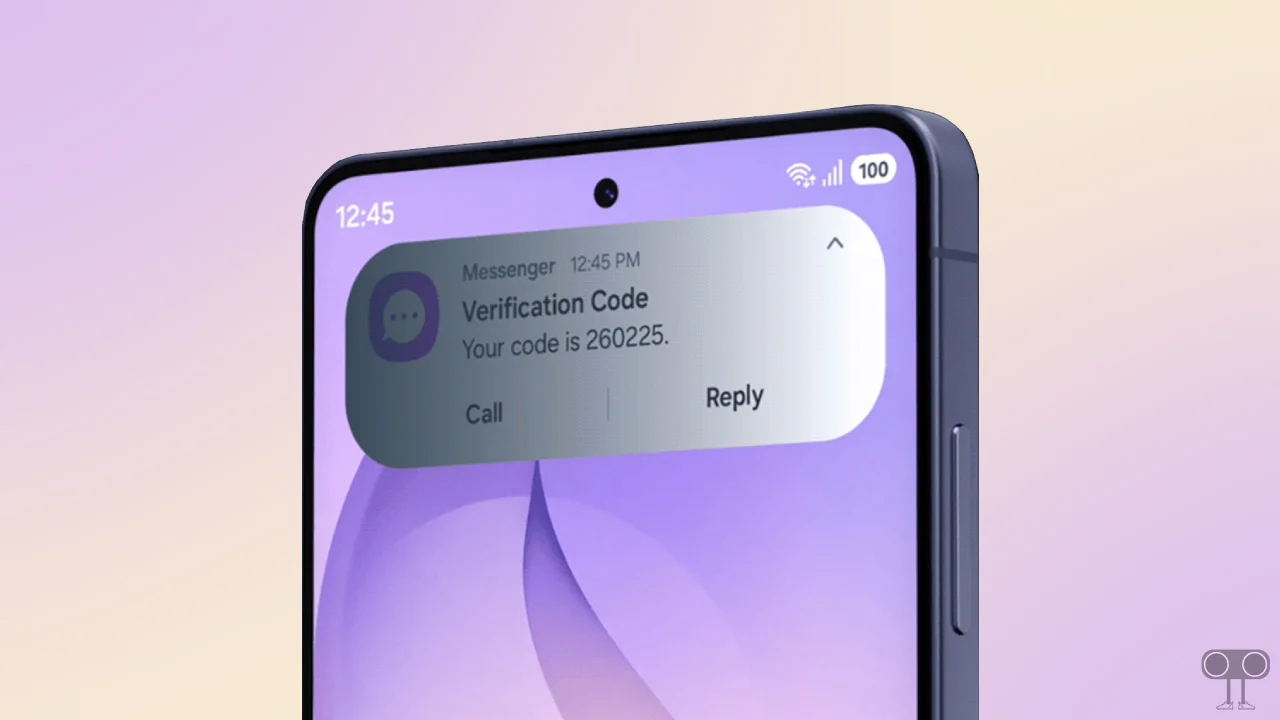
For example, if you turn on Privacy Display mode only for WhatsApp, Facebook, and Instagram on your phone, people around you won’t be able to see your screen whenever you use these apps. However, anyone in front of the screen can still easily view the content on your phone.
How to Enable Privacy Display for Specific Apps on Samsung Galaxy S26 Ultra
Unfortunately, the Galaxy S26 and Galaxy S26 Plus don’t have this Privacy Display feature. However, there are some third-party privacy screen glass protectors available that significantly reduce the visibility of your screen on both sides.
But for Galaxy S26 Ultra users, this built-in Privacy Display feature makes your job much easier. Let’s learn how you can activate this feature for specific apps.
To turn on privacy display only for certain apps on the Galaxy S26 Ultra:
- Open Settings App on Your Galaxy S26 Ultra.
- Tap on Display > Privacy Display.
- Enable the Privacy Display Toggle for “Turn on Privacy Display”.
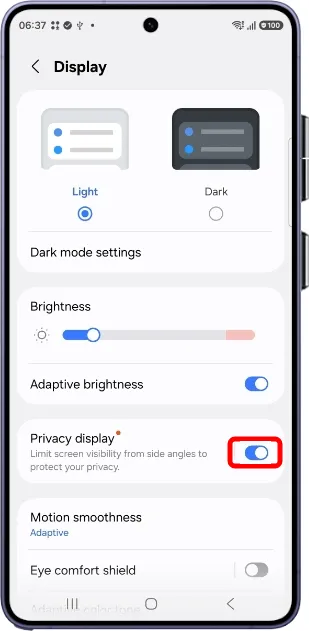
- Next, Tap on “Conditions for Turning On” Option.
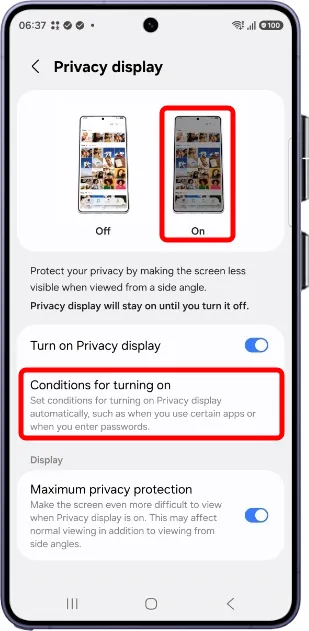
- Tap on Apps.
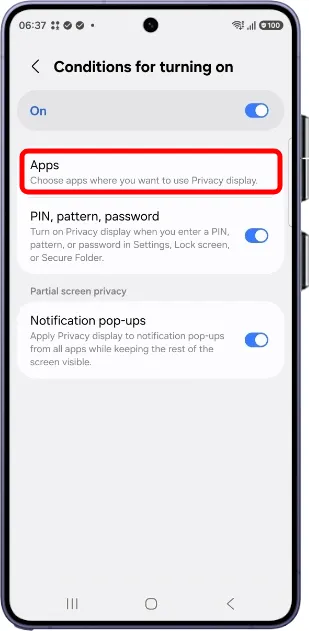
- Now, Enable the Toggles for the Apps You Want.
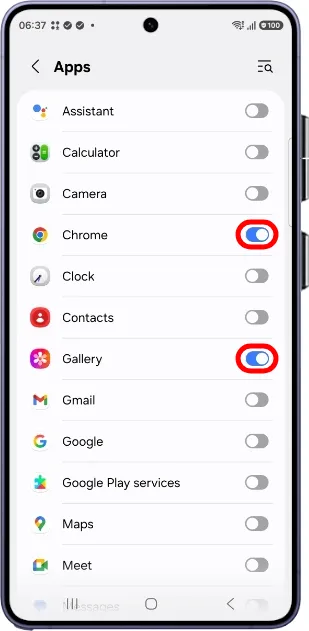
That’s it! Your phone’s Privacy Display feature is now activated for specific apps. However, if you need to enable it quickly, you can do so from the Quick Panel.
This feature is especially helpful for users when they are in a public place or traveling via public transport. With this, you can explore personal things secretly without others around you seeing anything.
You may also like:
- Disable Accidental Touch Protection on Samsung
- Stop Samsung TV from Announcing Everything
- How to Enable Airplay on Samsung TV
FAQs
Q 1. What is Privacy Display on Galaxy S26 Ultra?
Answer – The Privacy Display on the Galaxy S26 Ultra is a new technology that blurs content from those looking away from the screen so that only those looking directly at it can see it clearly. It uses special pixel structures built into the OLED panel.
Q 2. Can I switch Privacy Display on and off whenever I want?
Answer – Yes! You can manually enable or disable it from the Quick Settings or by double-pressing the power button.
Q 3. Does Privacy Display affect the screen brightness or clarity?
Answer – No! The screen is normally bright and clear when Privacy Mode is off. With Privacy Mode on, there’s only a dark blur when viewed from the sides.
I hope you found this article helpful and learned how to turn on privacy display only for certain apps on the Samsung Galaxy S26 Ultra. If you have any questions related to Samsung, please ask in the comments below. Feel free to share this article as well.