Facebook Messenger Says “Unable to Load Camera Roll”
If you want to send photos to someone in the Facebook Messenger app, but instead of opening the gallery, the “Unable to Load Camera Roll” message appears on the screen, then don’t worry; you are not alone. Suddenly this problem is troubling many Messenger app users.
This issue often occurs when the Messenger app is unable to access media from your device. However, the reason behind this could be a temporary bug or glitch. I have shared some troubleshooting methods below in this article. By following these steps, you can easily fix this problem.
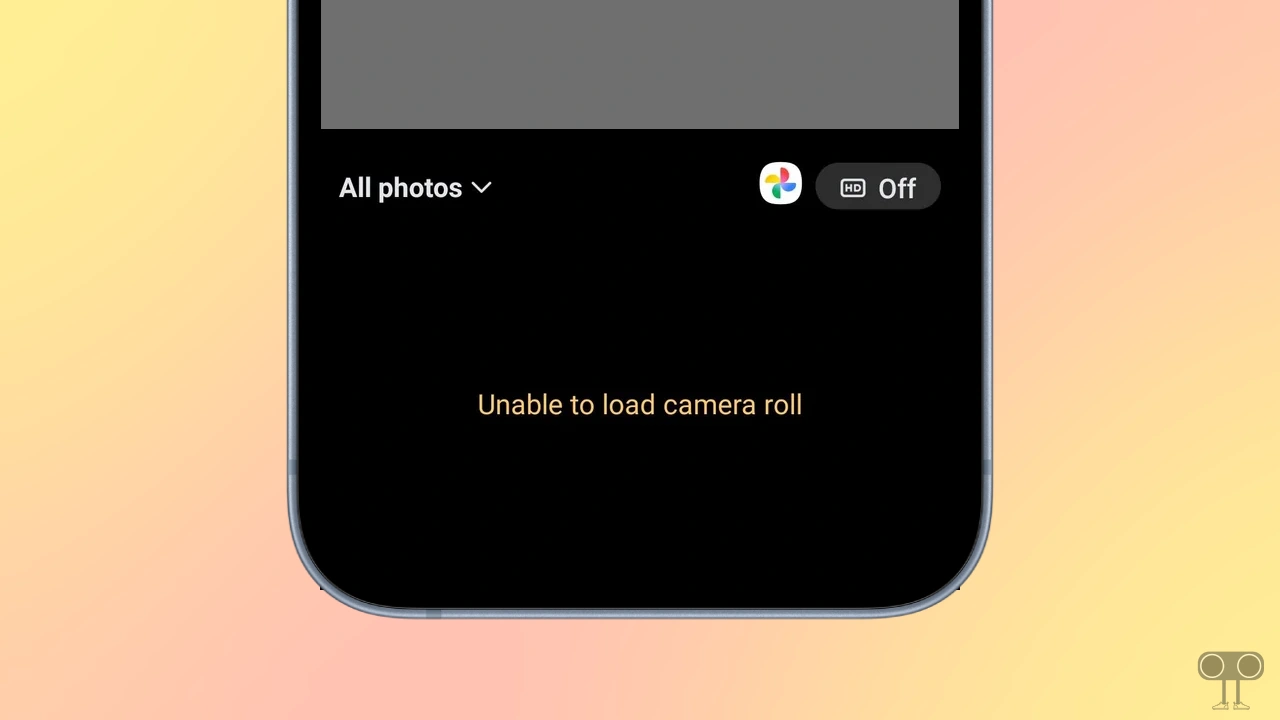
How to Fix “Unable to Load Camera Roll” Problem on Facebook Messenger App
1. Re-allow Necessary Permissions
- Open Settings on Your Phone.
- Go to Apps > All Apps/Manage Apps > Messenger.
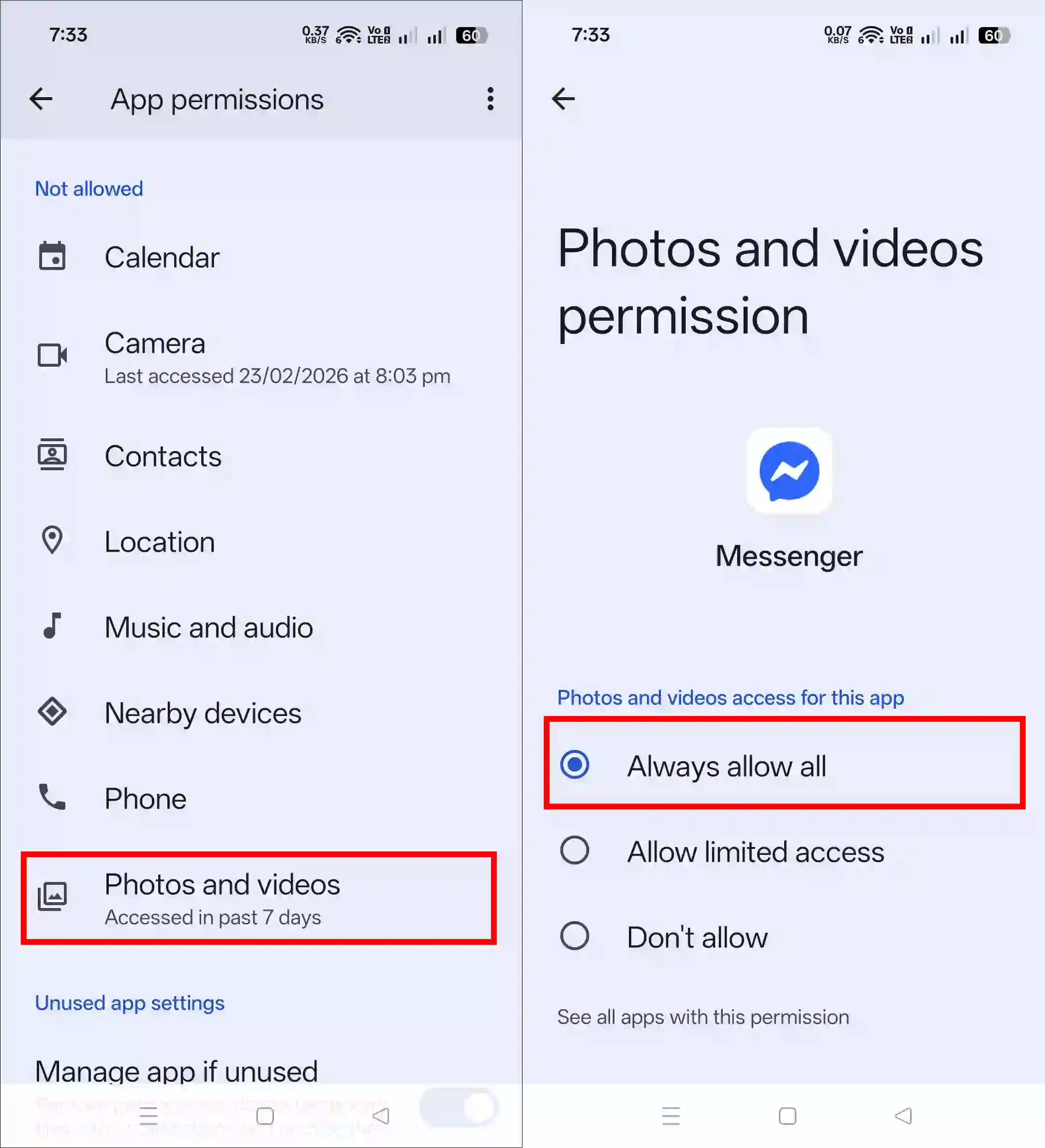
- Tap on Permissions.
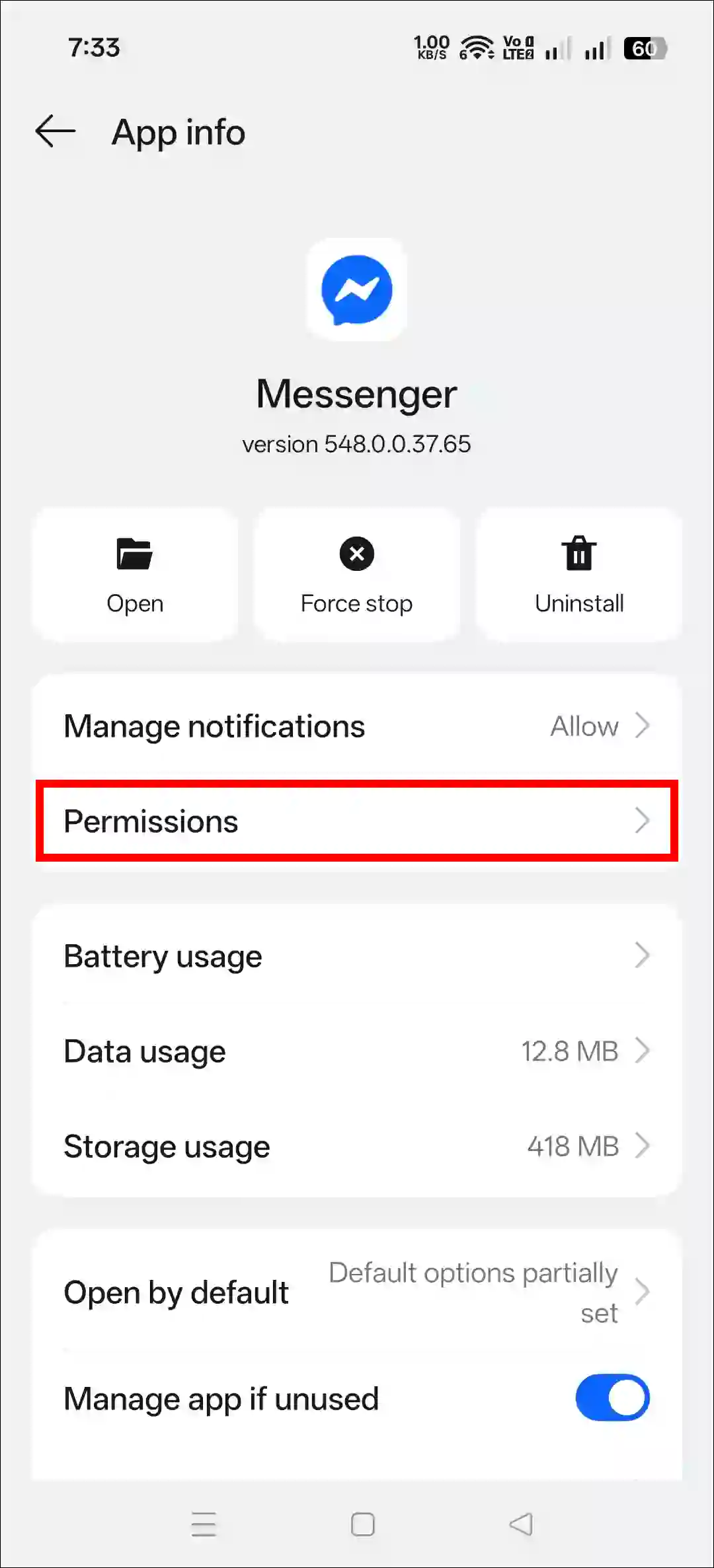
- Tap on “Camera” Permission and Select Allow Only While Using the App.
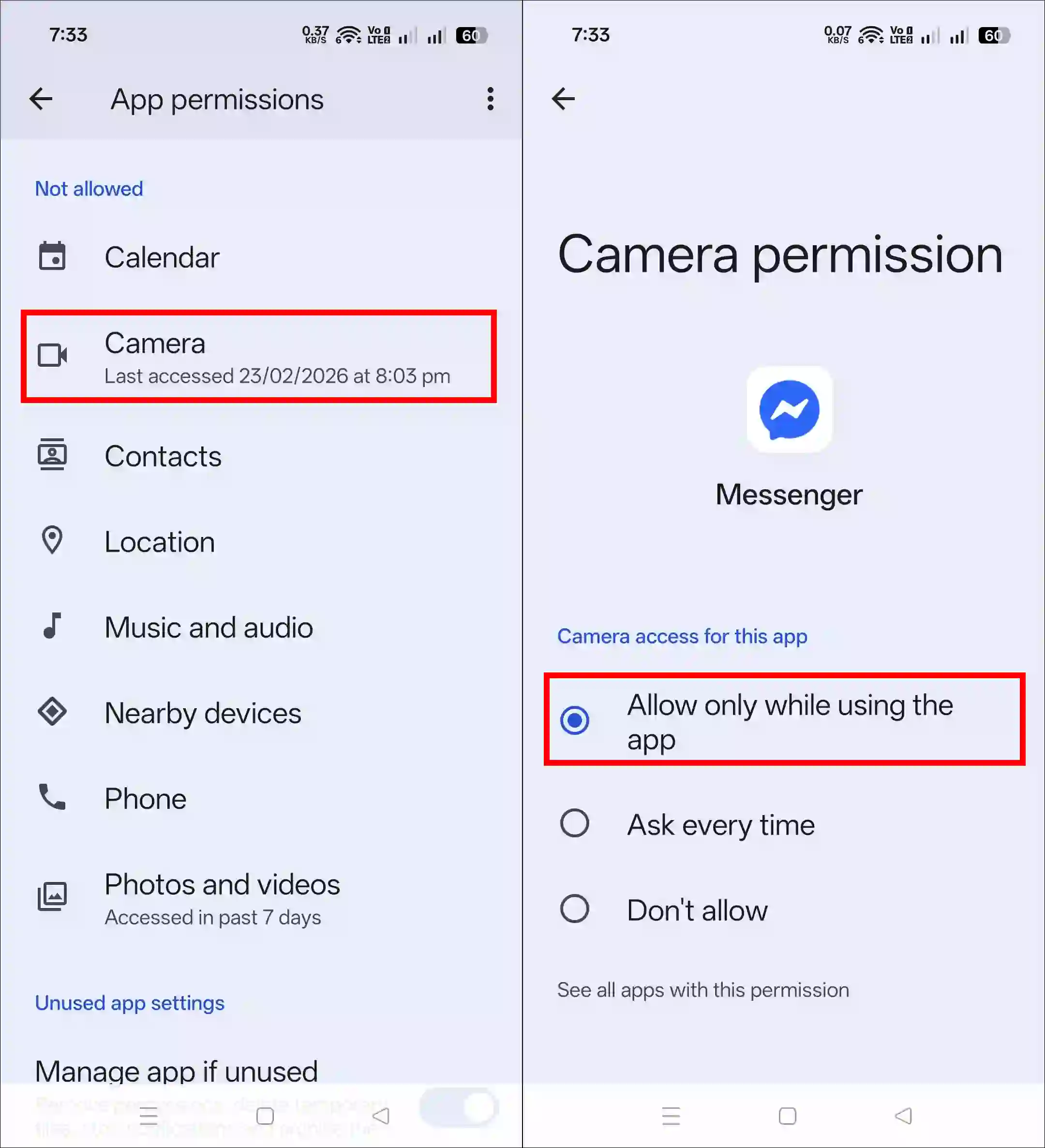
- Go Back and Tap on “Photos and Videos” Permission and Select Always Allow All.
Also read: How to Stop Messenger from Asking to Use Data
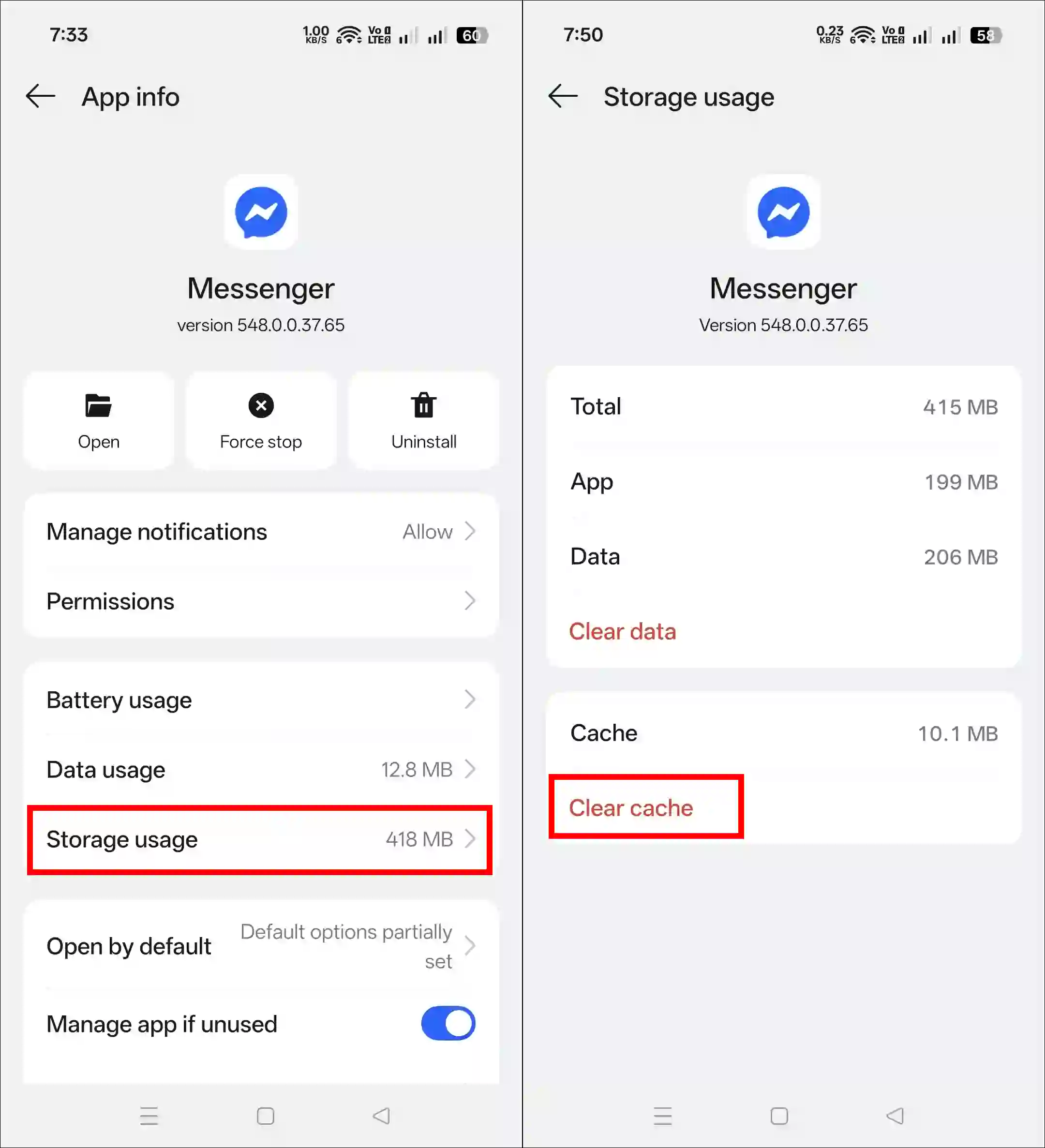
2. Clear App Cache
- Open Settings on Your Phone.
- Go to Apps > All Apps/Manage Apps > Messenger.
- Tap on Storage Usage.
- Tap on Clear Cache.
3. Restart Your Device
Often, technical glitches can occur due to improper coordination between the device and the app. In this situation, restarting the phone is the best way to resolve the issue. To do this, press and hold the phone’s power button, then tap the “Reboot” or “Restart” option on the screen.
4. Update Your Messenger App
Most people don’t update their Messenger app, and some bugs or glitches in the outdated app can cause such problems. Whether you’re an Android or iPhone user, go to the Google Play Store or Apple App Store and update your Messenger app to the latest version immediately.
5. Reinstall the Messenger App
If the problem persists after following the four methods above, you may need to reinstall the Messenger app. This process deletes all old Messenger files from your phone and installs new files, thus fixing the problem at its root.
Additional Note: Alternatively, you can report this issue in the Messenger app. Open the Messenger app, click the three ≡ lines, and then go to Settings. Then, click Report Technical Problem and send your issue along with a screenshot.
FAQs
Q 1. Camera Roll is not loading in Facebook Messenger; what could be the reason?
Answer – This could be due to an outdated version of Facebook Messenger, or your phone’s storage may be full, causing the app to have trouble accessing the camera roll.
Q 2. I uninstalled Facebook Messenger and then reinstalled it, but the camera roll still won’t load. What should I do now?
Answer – You can try clearing the cache of Facebook Messenger; this may solve the problem, and if it doesn’t, then you can try contacting Facebook’s support team.