How to Fix “Access Temporarily Blocked” on GCash App
For some time now, users have been experiencing the “Accessibility Service Detected“ issue on the GCash app, but now they’re facing a new issue: “Access Temporarily Blocked.” If you’re one of those users, don’t worry, you’re not alone.
This “Access Temporarily Blocked” error message in the GCash app indicates that GCash’s security features have noticed some suspicious changes on your device, which has blocked your access to the app. However, this is a common issue that can be fixed by following the methods below.
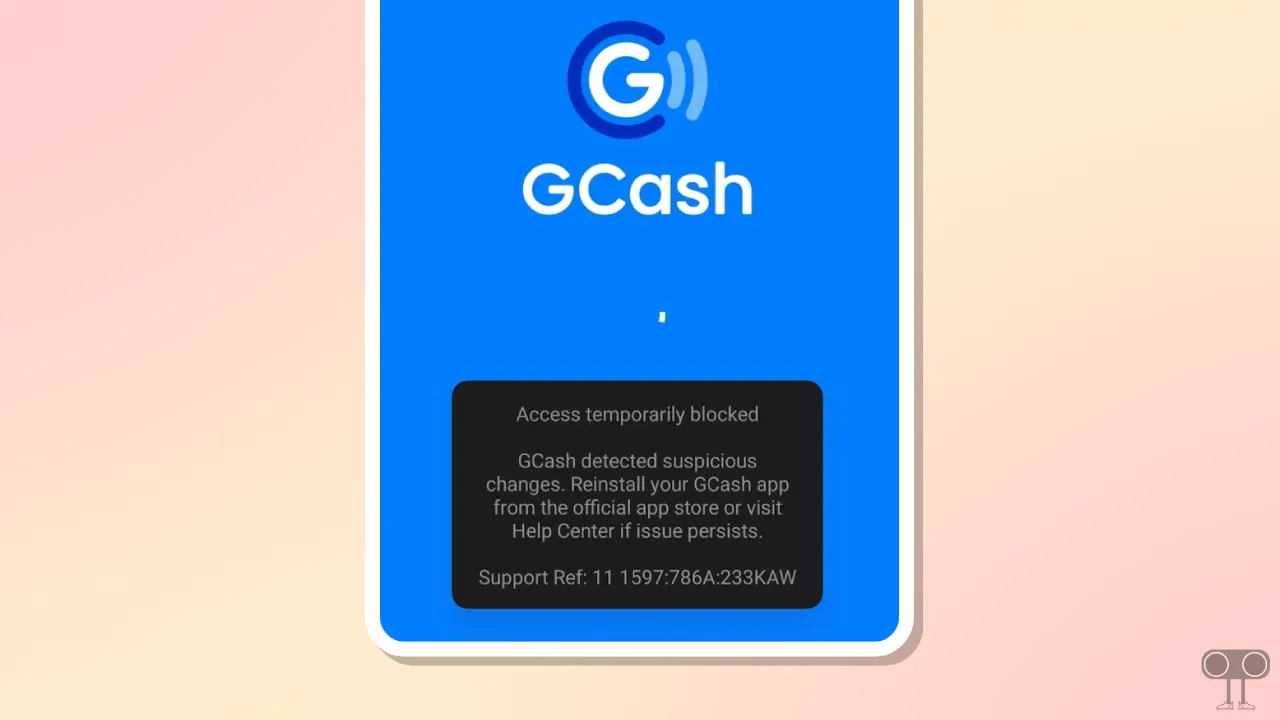
This error appears on GCash something like this:
Access temporarily blocked
GCash detected suspicious changes. Reinstall your GCash app from the official app store or visit Help Center if issue persists.
Support Ref: 11 1597:786A:233KAW
How to Fix “Access Temporarily Blocked. GCash detected suspicious changes.” Problem
1. Disable Accessibility
No matter which Android phone you use, all have an Accessibility option that lets users manage accessibility for apps. Follow the steps below to turn off Accessibility.
- Open Settings on Your Phone.
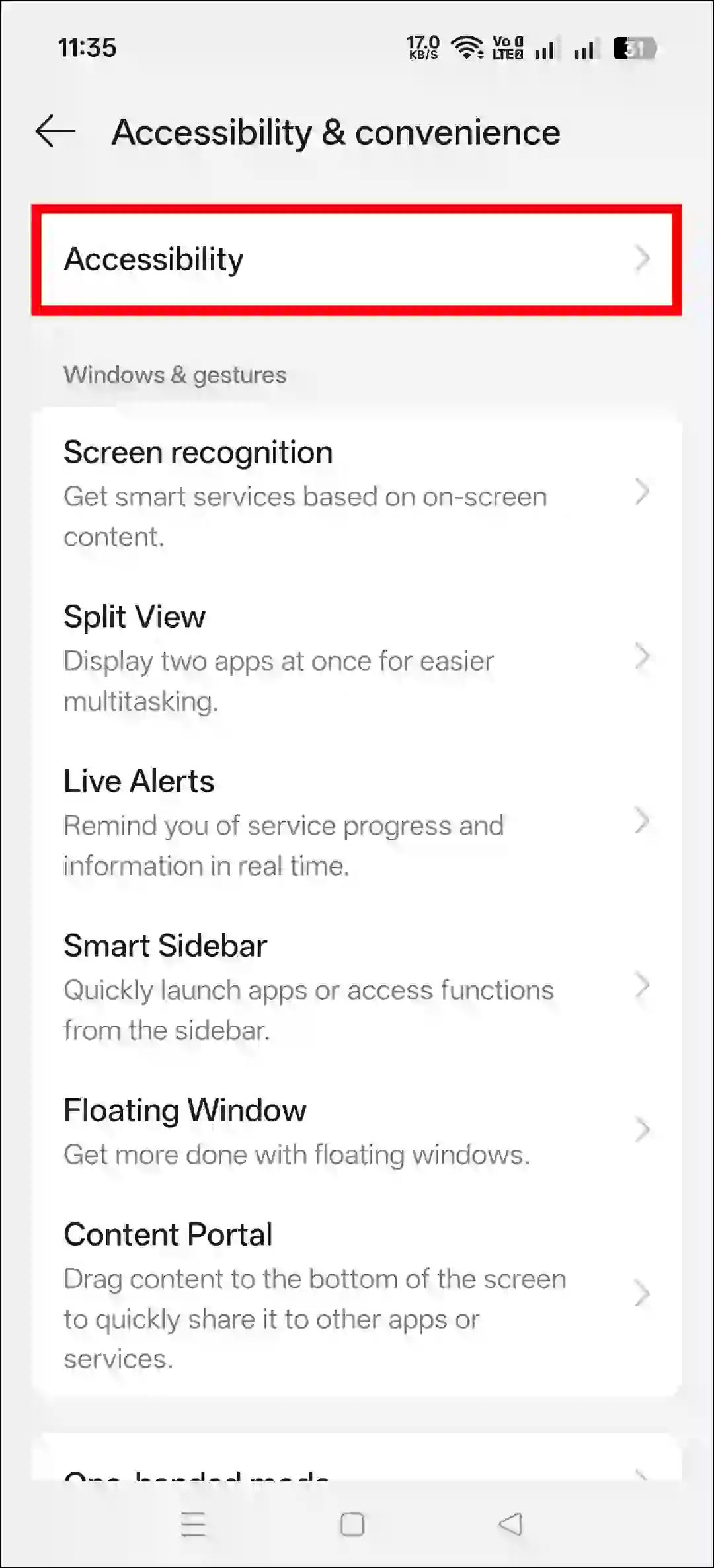
- Go to Accessibility & Convenience.
- Tap on Accessibility.
- Tap on Downloaded Apps.
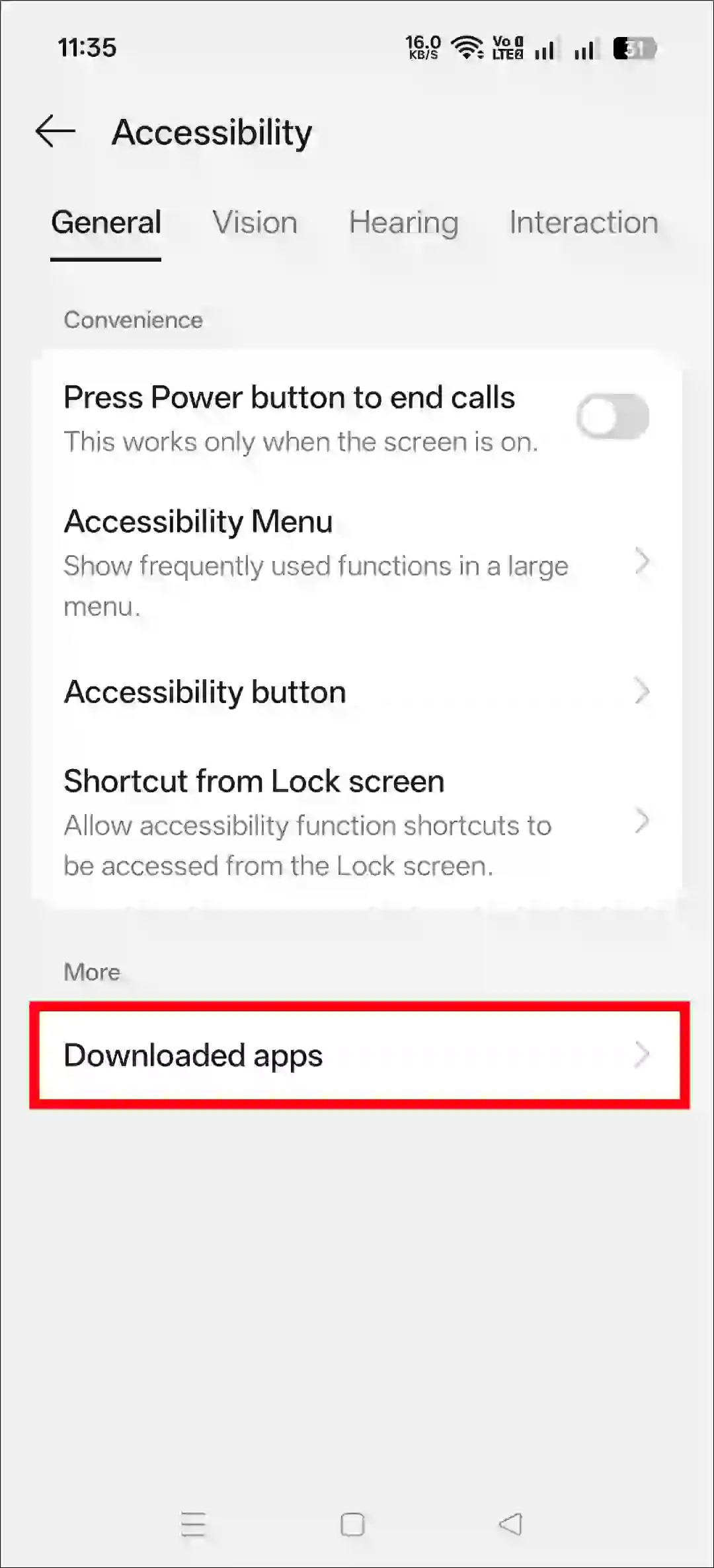
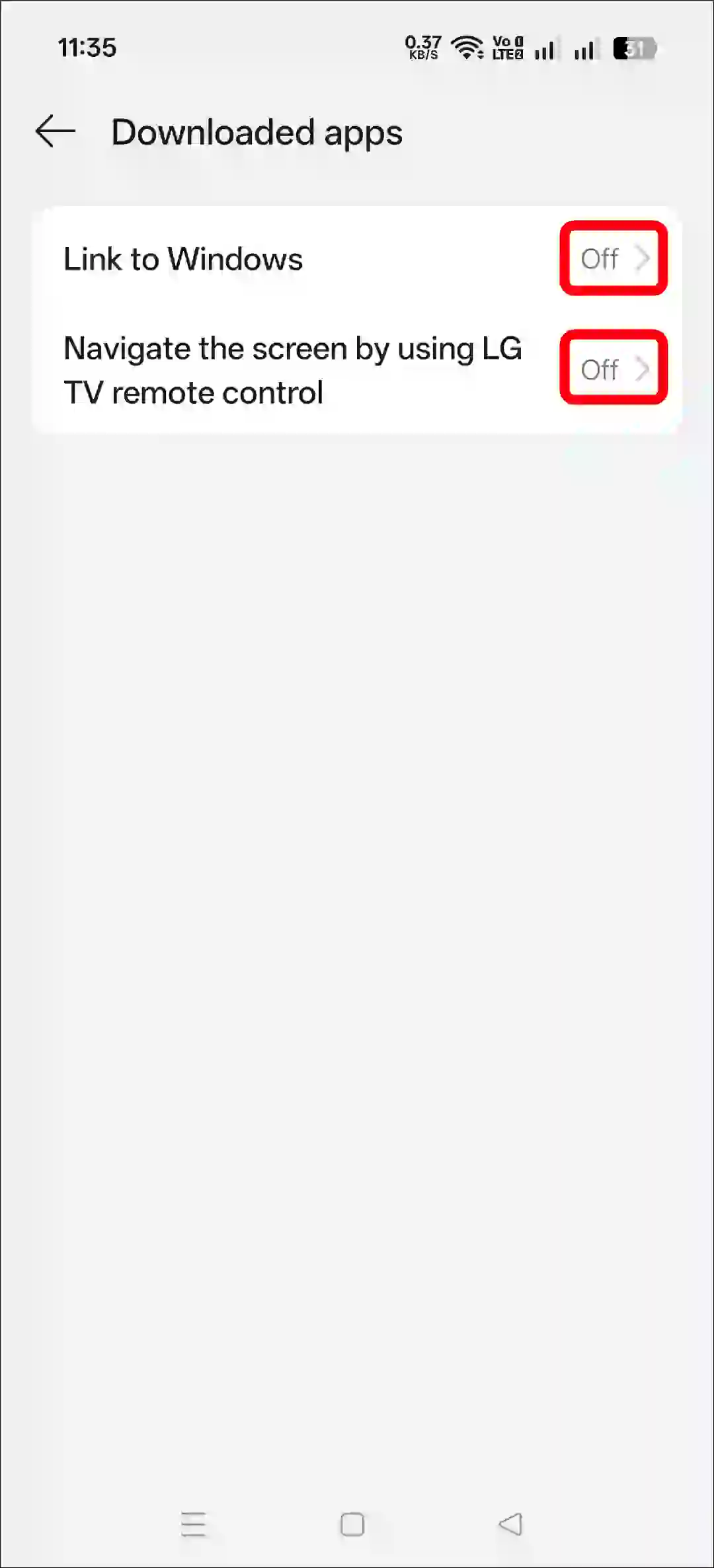
- Now, Turn Off the Accessibility for All Apps.
2. Disable Developer Options
- Open Settings App on Your Phone.
- Tap on System or Additional Settings.
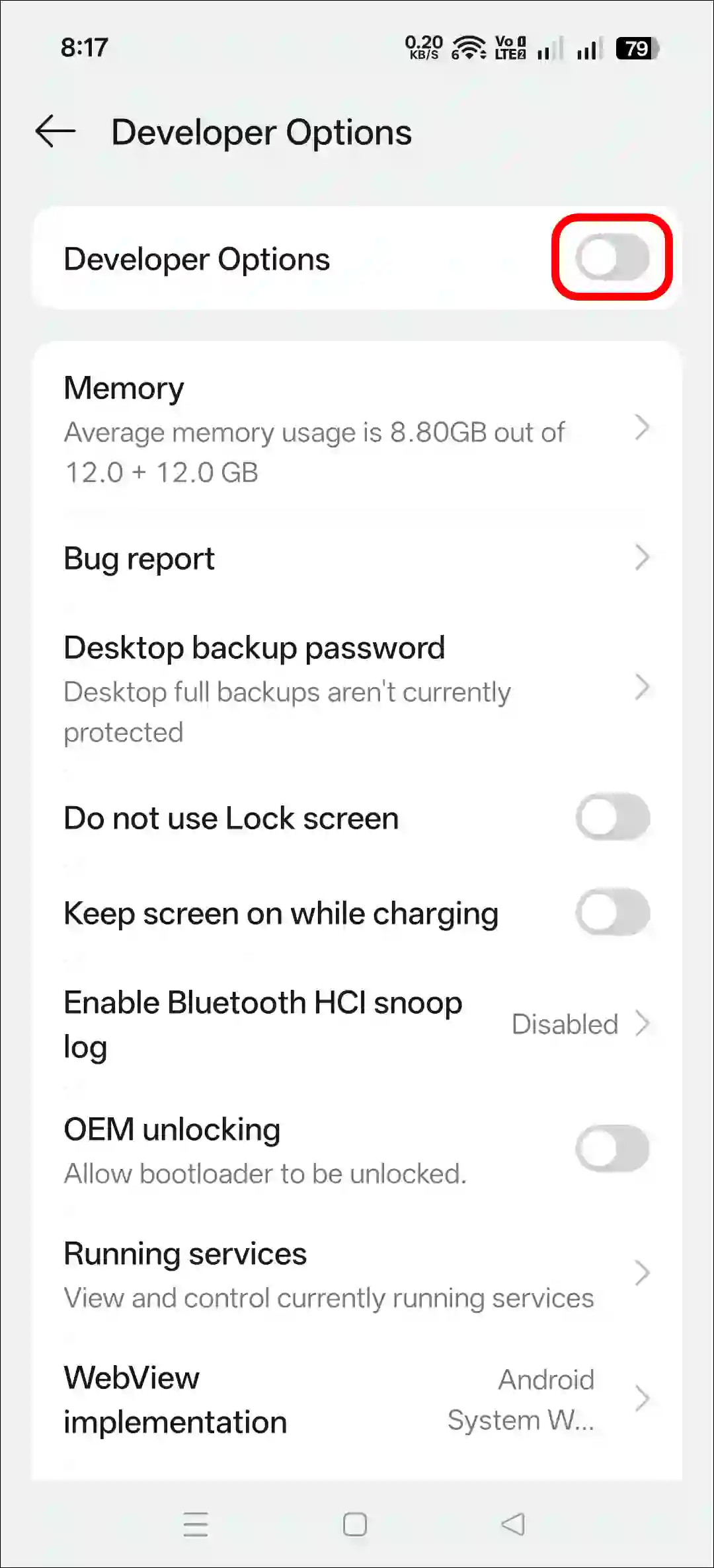
- Tap on Developer Options.
- Simply, Toggle Off Developer Options.
- Now, Restart Your Device.
3. Restart Your Phone
Sometimes, a temporary glitch between the device and the app can cause GCash to display this error message. However, such temporary glitches can be fixed with a simple restart of your device.
4. Clear GCash App Cache
- Open Settings App on Your Mobile Phone.
- Navigate to Apps > All Apps > GCash.
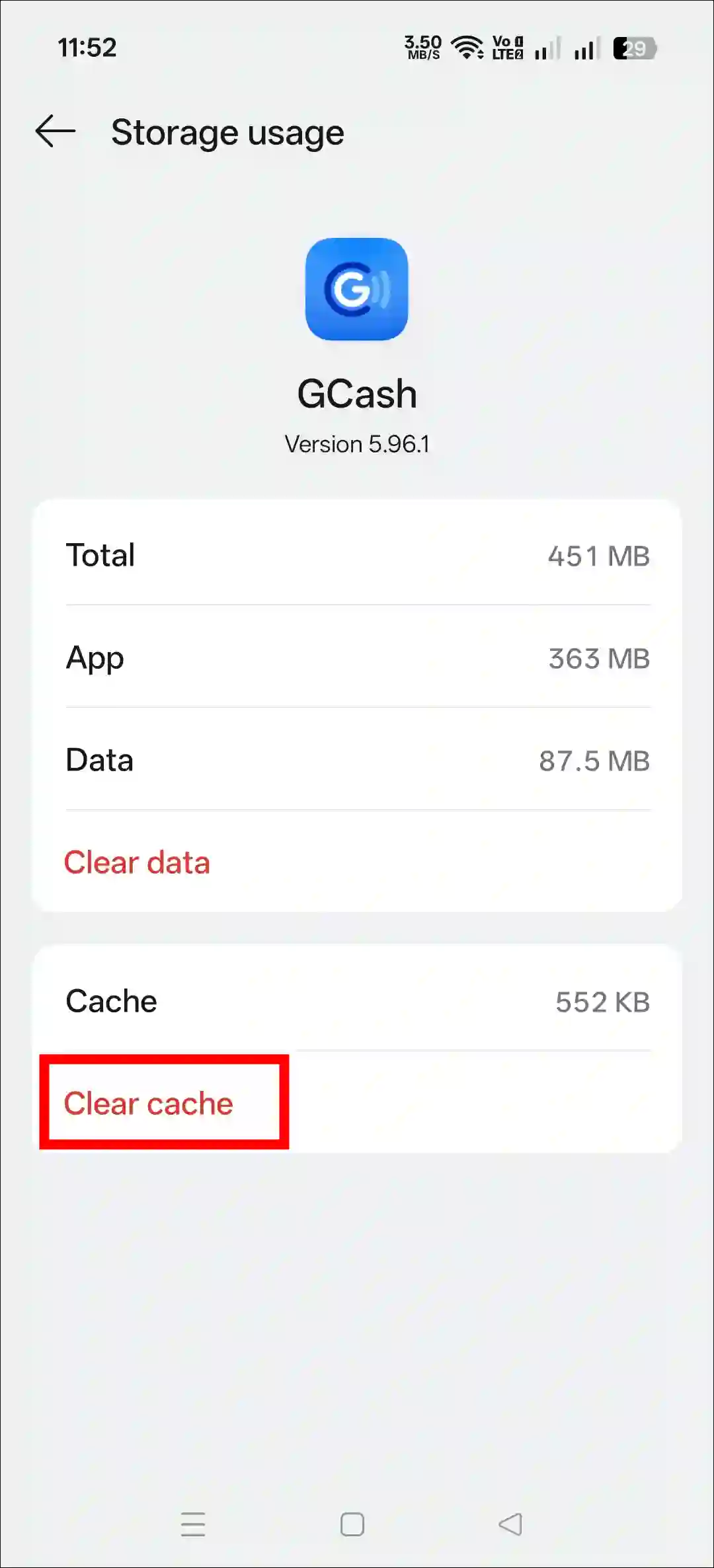
- Tap on Storage Usage.
- Tap on Clear Cache.
5. Update GCash App from Play Store
If you updated the GCash app from your device’s theme store instead of the Google Play Store, you might encounter this issue. If this happens, either uninstall the GCash app and reinstall it from the Play Store, or simply update it from the Play Store and use it.
6. Remove Suspicious Applications
We often use third-party developer tools, modding tools, and automation or hooking tools to unlock hidden features on our phones. But did you know that the GCash app is not security compatible with these third-party apps? If you have any of these apps installed, you need to uninstall them from your phone immediately.
I hope you found this article helpful and learned how to fix “Access Temporarily Blocked” in GCash. If you have any questions related to GCash, please ask in the comments below. Feel free to share this article as well.