
Copilot Says “We are experiencing an issue, Please try submitting a new message.” Error
Users are suddenly encountering a “We are experiencing an issue, Please try submitting a new message.” error message on Copilot, which is also preventing them from chatting. This error is currently appearing only for those users who are accessing Copilot through a browser. If you are also troubled by this problem, I have explained the methods to fix it below.
Common Reasons for This Issue
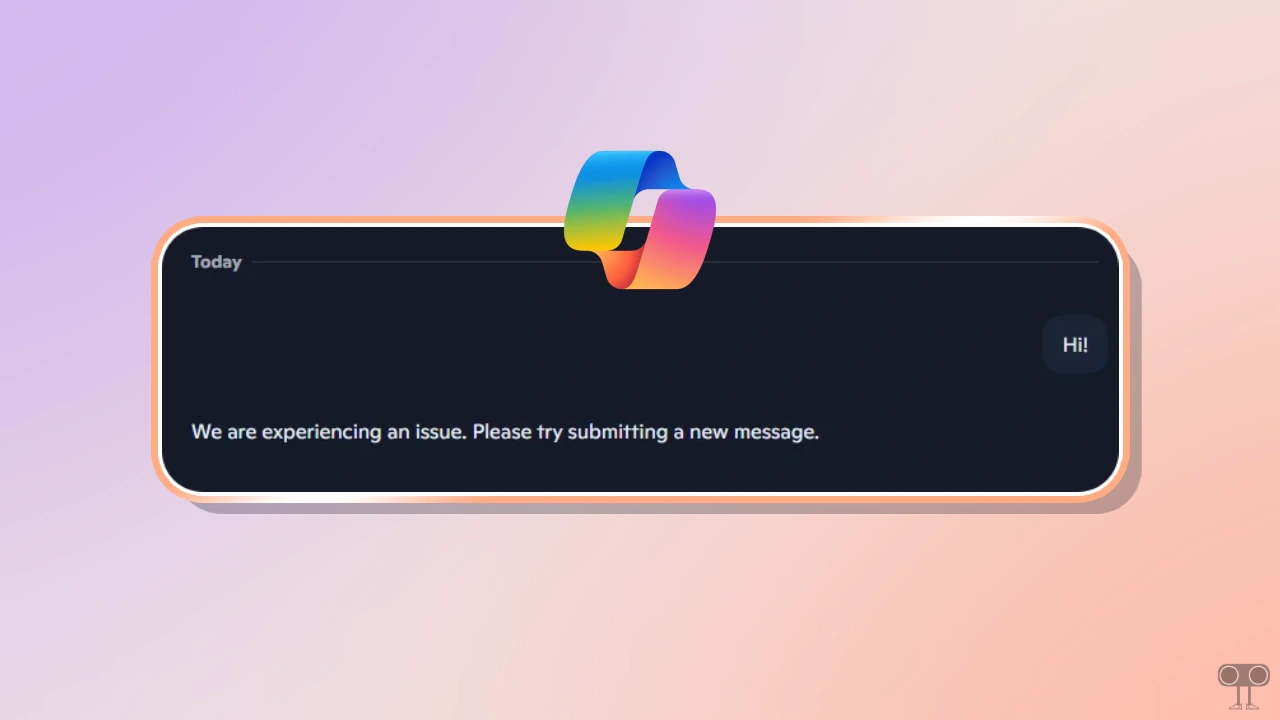
This is a temporary disruption that occurs due to a temporary interruption or session error between your device and the server. If you’ve had a very long conversation without stopping, this error might occur. Alternatively, it could be due to an account-specific issue, service outages/high demand, or a network or browser problem.
Fix Copilot’s “We are experiencing an issue, Please try submitting a new message.” Problem
1. Re-Login Your Account
If you are also experiencing this problem, first log out of your Copilot account in your browser, and then log back in. This method can often easily fix temporary account-related glitches. Alternatively, you can try logging in with a different account.
2. Reset Your System Network
Now you need to reconnect to your network. To do this, disconnect your connected Wi-Fi and then reconnect it. Alternatively, you can restart your Wi-Fi router. If this method doesn’t work, you will need to perform a network reset on your Windows computer or laptop.
All the steps for this are given below, one by one.
To reset your network on Windows 11:
- Press Windows + I Simultaneously to Quickly Access Settings.
- Navigate to Network & Internet > Advanced Network Settings > Network Reset.
- Now, Click on Reset Now Button.
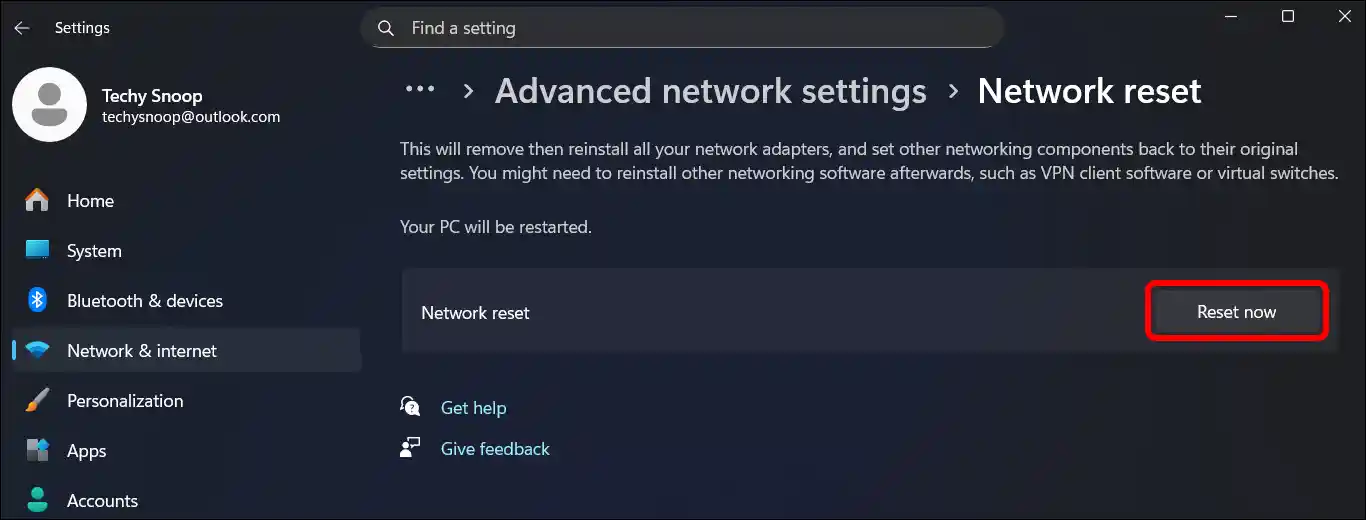
Note: Your PC will be restared.
3. Try Copilot in Incognito
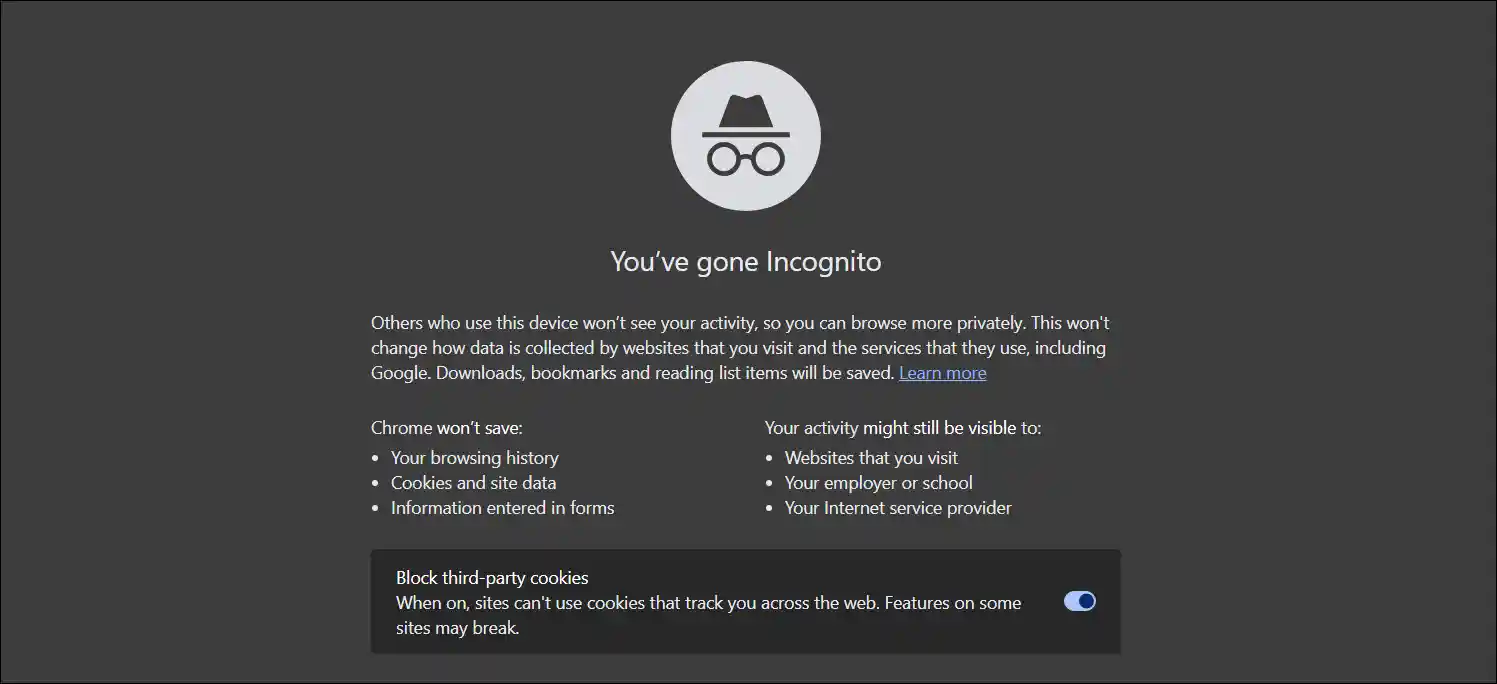
If Copilot does not work properly in the default tab due to a technical glitch, using an incognito window is a good solution. If Copilot works correctly in the browser’s incognito mode without any errors, this means the corrupted cache and cookies data in the browser are preventing Copilot from functioning.
You can delete the cache and cookies simply by pressing the Ctrl + Shift + Delete keys together on your keyboard.
4. Use Another Browser
It is often observed that specific browsers sometimes fail to handle certain websites properly. In such cases, using a different browser is an excellent option. For example, if you are using the Opera browser, you should try Chrome, Edge, Firefox, Brave, or Safari.
5. Try Copilot App Instead
Even after following all the methods mentioned above, if the error persists, you should try using the built-in Copilot app in Windows 11; it might work for you. However, if the Copilot app is not available on your PC, you can easily install it from the Microsoft Store.

Thanks.