How to Lock WhatsApp Web (Desktop) with Password on PC and Mac
WhatsApp chats are highly personal, and it’s best to keep them as secret as possible. Although the WhatsApp mobile app has a built-in app lock feature that allows you to protect WhatsApp with a password, PIN, or fingerprint, what about the desktop version?
There is no need to worry anymore! This built-in option is now available on WhatsApp Web and the desktop app as well, and setting it up is easy. Whether you use WhatsApp Web (web.whatsapp.com) or the WhatsApp desktop application, both versions support the app lock feature.
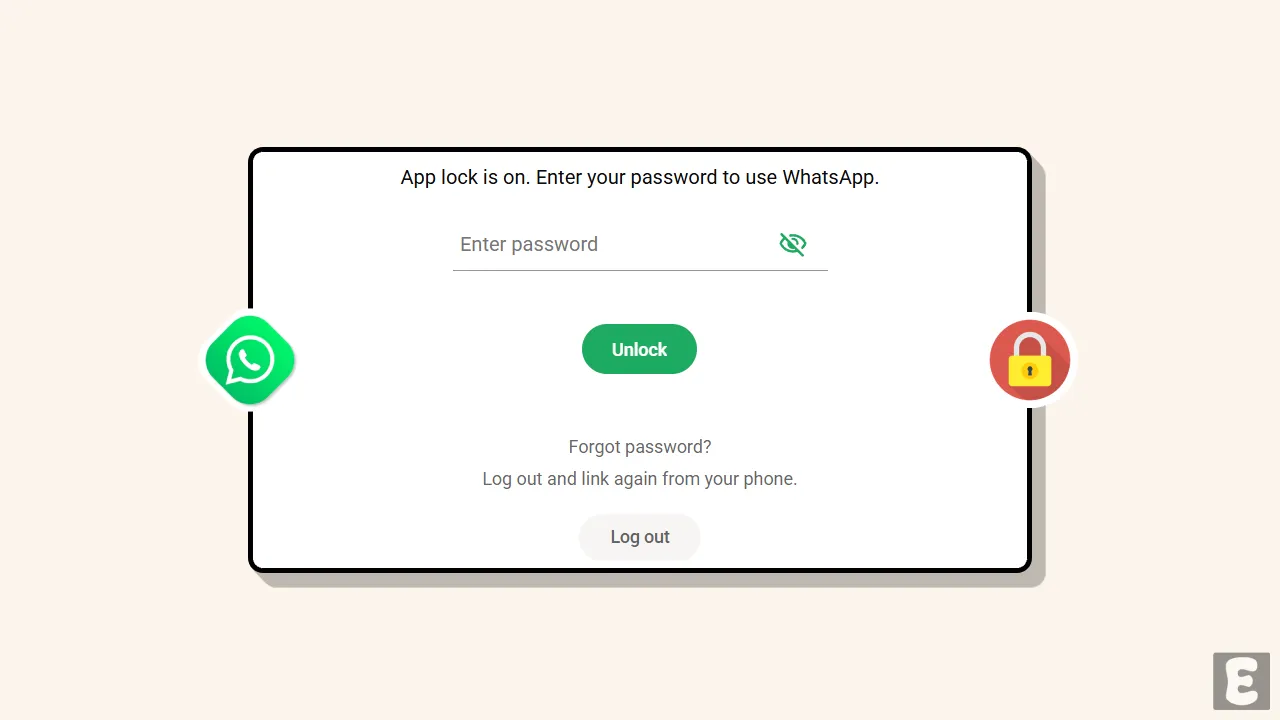
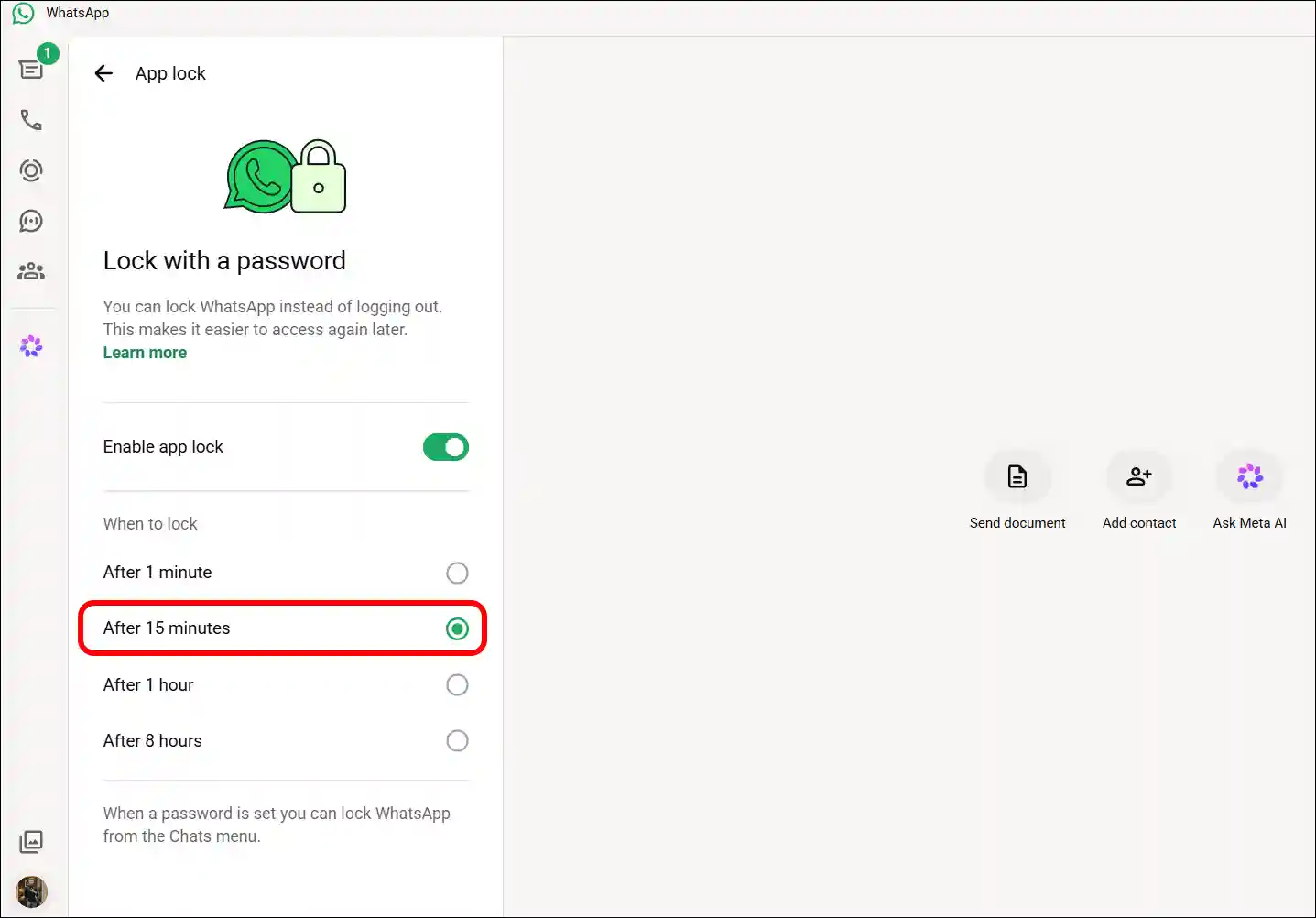
In this article, I have shared a step-by-step guide on how to lock WhatsApp Web with a password on a Windows computer or Mac. Once you set a password, WhatsApp will automatically lock after these four time intervals.
- After 1 Minute
- After 15 Minutes
- After 1 Hour
- After 8 Hours
You can select any of these time frames when setting the password, and WhatsApp will automatically lock after that time frame. However, you can also manually lock WhatsApp from the chat menu whenever you wish. Let’s find out below how you can do this.
How to Lock WhatsApp Web (Desktop) with Password on PC and Mac
As I mentioned earlier, this feature is available on both WhatsApp Web and the WhatsApp desktop app, so the method for setting a password is the same for both. All the steps for this are mentioned below, with pictures.
- Open WhatsApp Web (
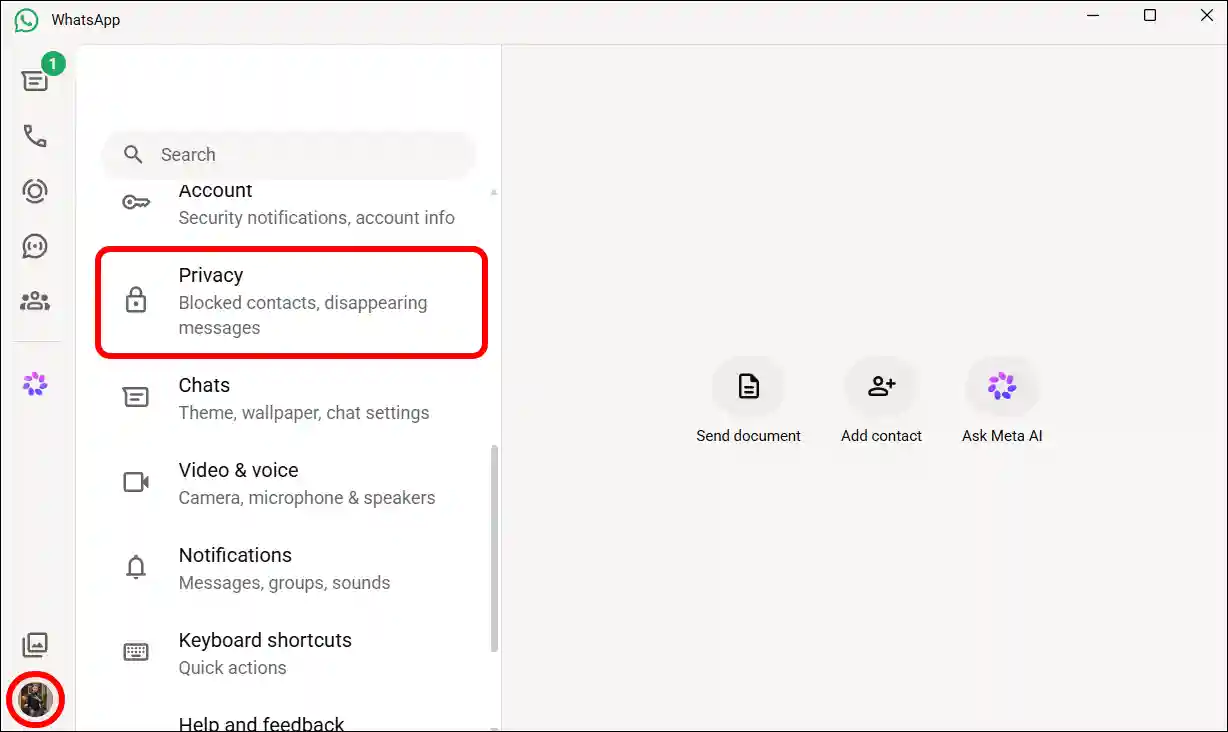
Web.WhatsApp.com) or WhatsApp Desktop App on Your PC or Mac.Log in If You’re Not Already. - Click on Profile Picture at Bottom Left Corner and Then Privacy.
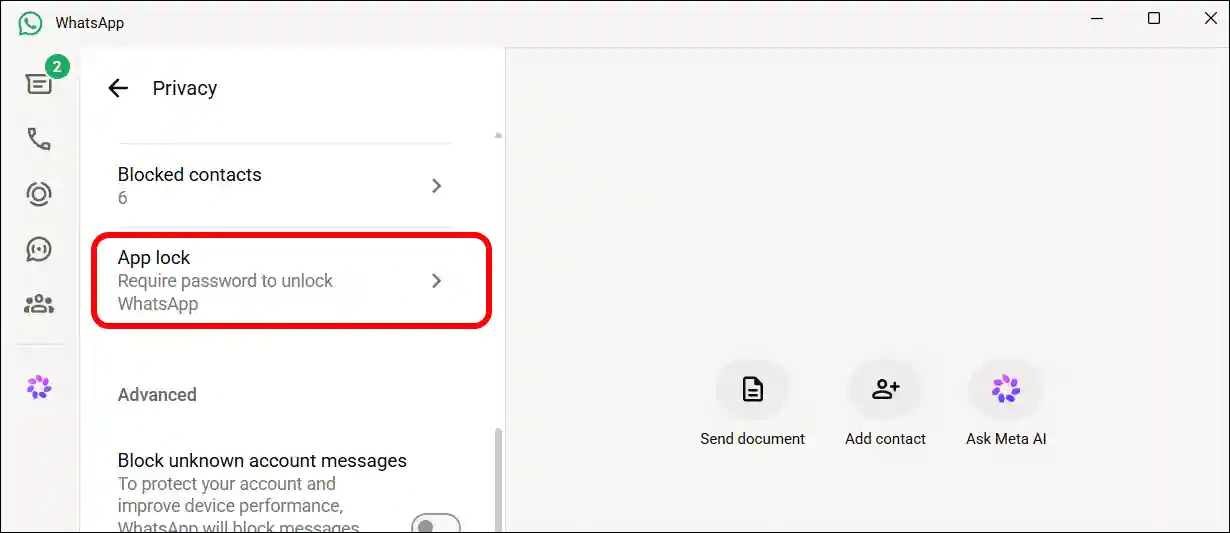
- Click on App Lock.
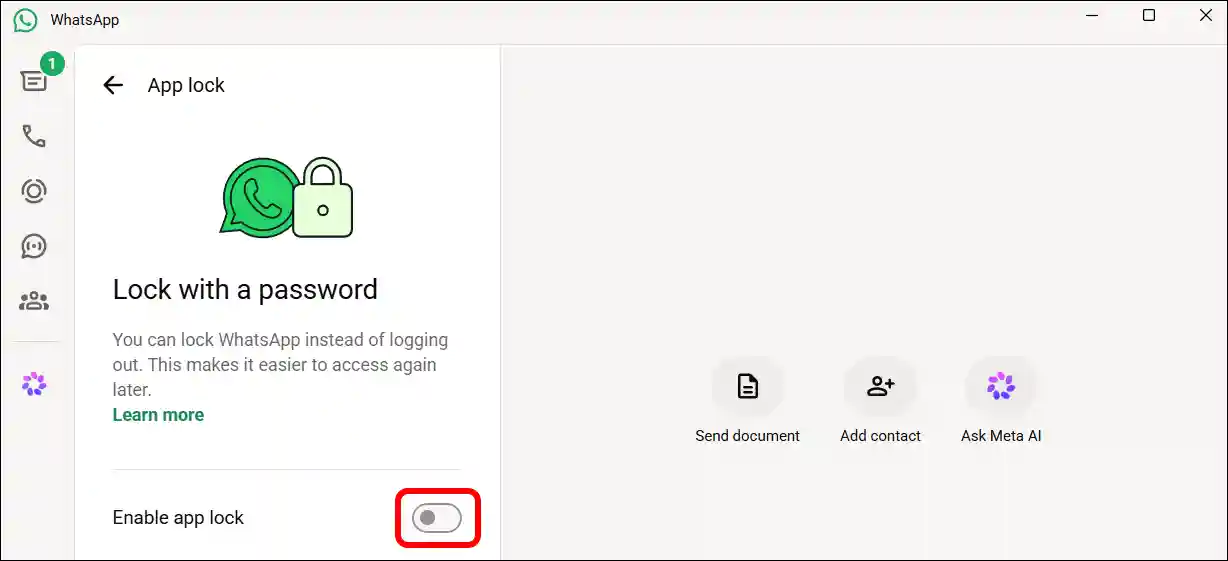
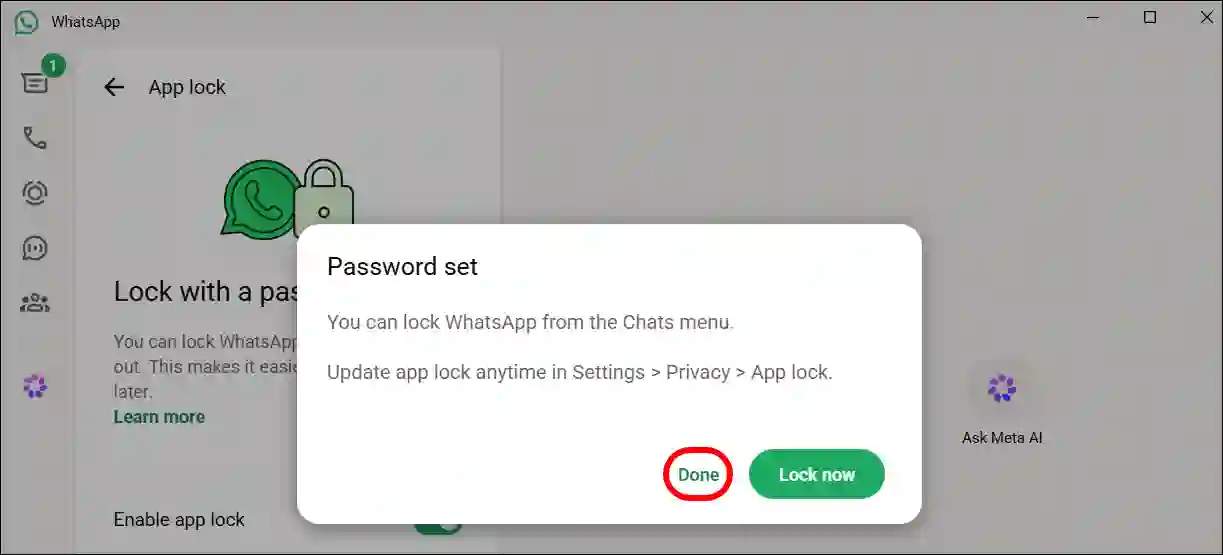
- Simply, Turn On the “Enable App Lock” Toggle.
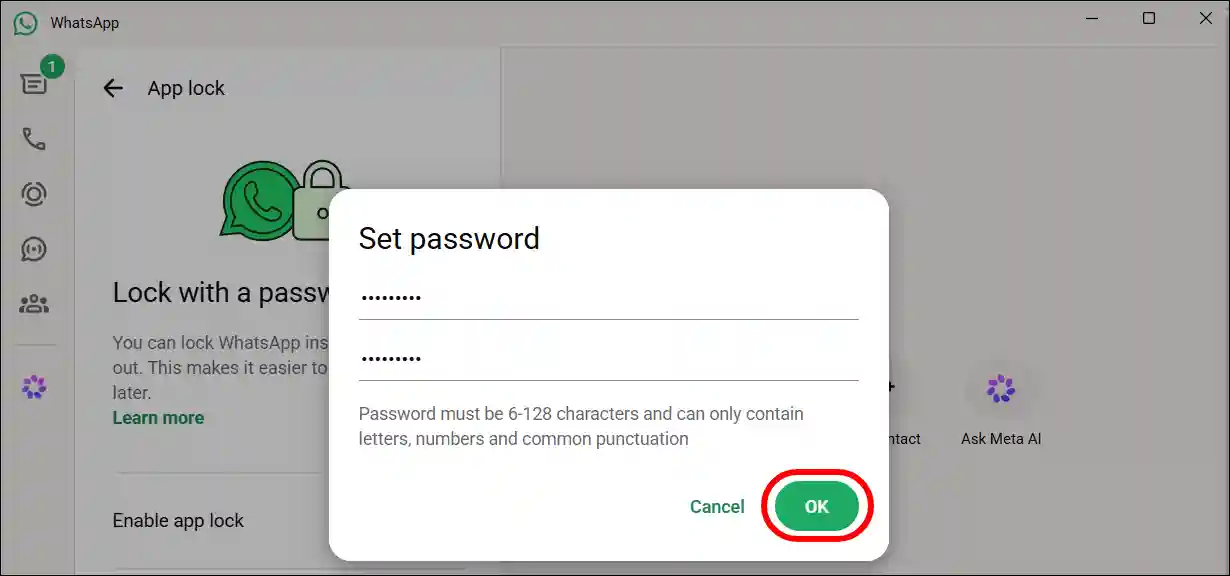
- Now, Set the Password and Click OK.
- Click on Done Button to Close The Popup.
- By Default, WhatsApp Web Will Lock Automatically After 15 Minutes. But You can Select One Minute, One hour, or Eight Hours.
Also read: Stop WhatsApp from Lowering Volume on Windows PC and Android
Lock WhatsApp Web Manually
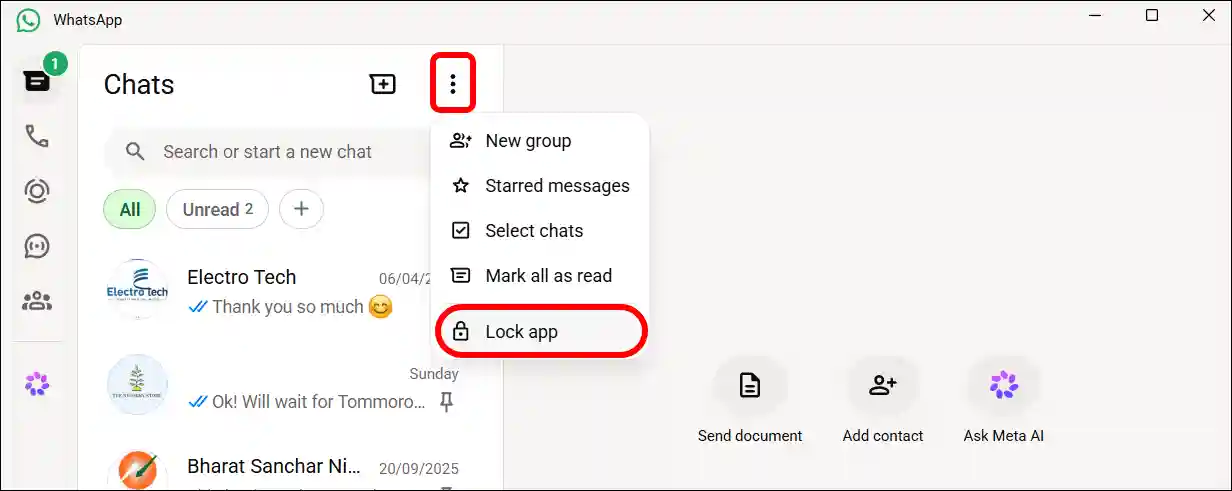
If you have set up auto-lock on WhatsApp but want to lock it manually right away, that is also possible. Go to the chat section in WhatsApp Web, click on the three dots (⁝), and then click on ‘Lock App’. As soon as you click on the Lock app, your WhatsApp will lock immediately, and you will need to enter the password again to unlock it.
That’s It! You’re done….
What If You Forgot Your WhatsApp Web Password?
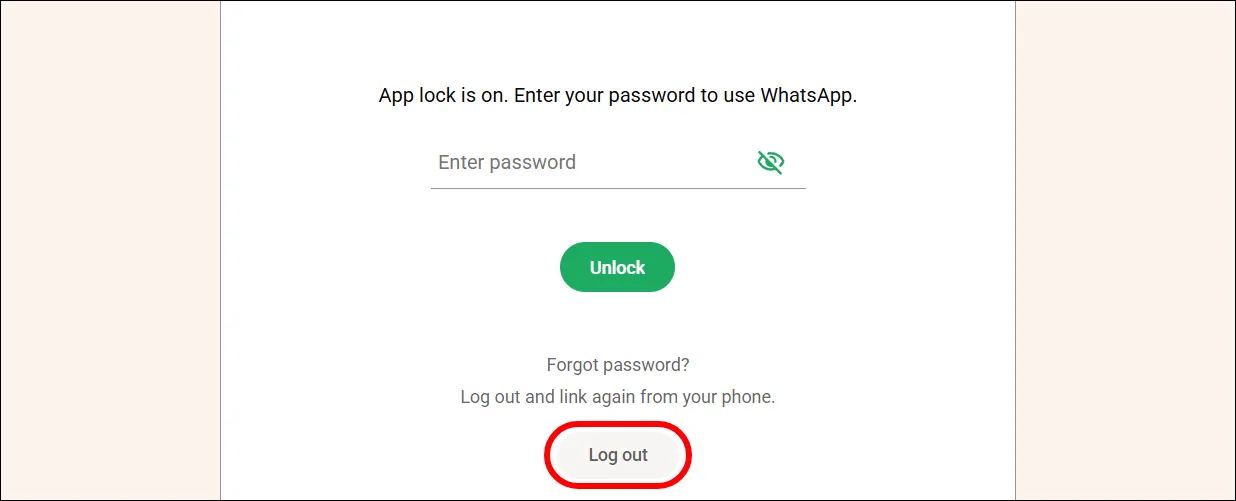
It often happens that we forget our password, but let me share a shortcut that allows you to reconfigure the password for WhatsApp Web. You simply need to log out of WhatsApp from your computer; then, you can log in using the QR code and set a new password.
Also read: How to Fix “Your Contacts aren’t Synced” Problem on WhatsApp
FAQs
Q 1. Can WhatsApp be locked with a password?
Answer – Yes! You can now lock WhatsApp on your PC or Mac with a password. This feature allows you to lock the entire app or specific chats.
Q 2. How do I lock WhatsApp Desktop on my Windows computer?
Answer – Go to WhatsApp Web > Settings > Privacy > Enable App Lock > Set password > Choose Auto-Lock Time.