How to Stop Firefox from Showing Sponsored Websites in Shortcuts row on Start Page
Many Windows and Mac users prefer the Mozilla Firefox browser over Chrome and Safari for internet browsing. By default, Firefox shows the websites you have saved or recently visited on its start page.
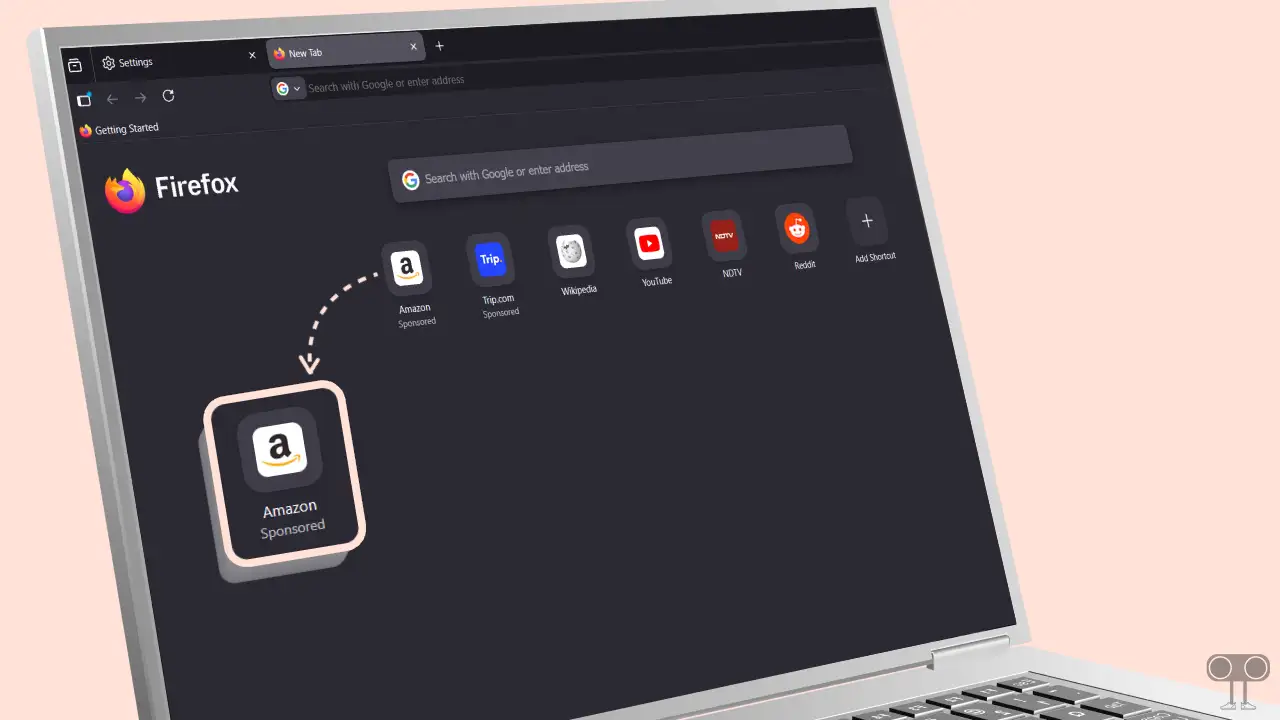
Firefox lets you customize the start page for quick access, and you can add your favorite websites to it. But when I customized my shortcut row, I noticed some websites like ‘Amazon’ and ‘Trip.com’ appearing with a “Sponsored’ label”.
If you are also annoyed by these sponsored website shortcuts, don’t worry! Firefox allows you to disable them. In this article, I have explained how you can stop Firefox from automatically adding shortcuts on Firefox’s start page. All the steps are explained one by one below with pictures.
How to Block Sponsored Website Shortcuts on Firefox Start Page
To Remove Sponsored Shortcuts From New Tab Page In Firefox:
- Open Firefox Browser on Your PC or Mac.
- Click on Three Lines (≡) at Top Right and Then Click Settings.
- Select Home or Home and Startup in the Left Sidebar.
Alternativaly, You can go to about:preferences#home. - Scroll Down to the Firefox Home Content Section and Uncheck the ‘Sponsored Shortcuts’ Box.
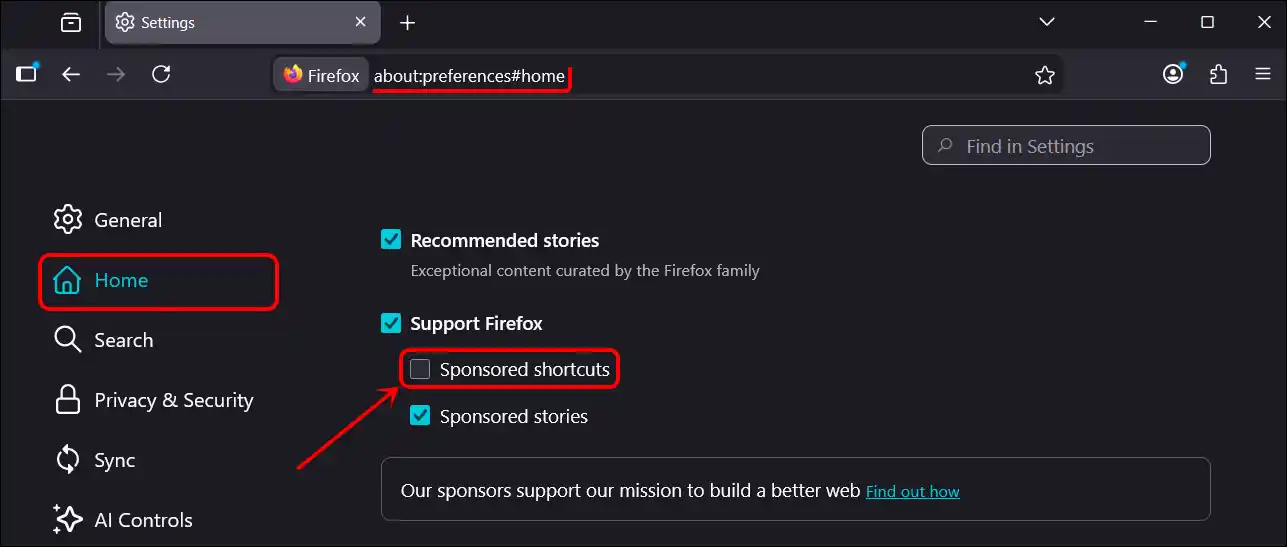
Note: If you simply uncheck the ‘Support Firefox’ box, both ‘Sponsored Shortcuts’ and ‘Sponsored Stories’ will be disabled automatically.
That’s it! Now, sponsored website shortcuts will stop appearing on your Firefox start page. However, you can repeat these steps anytime to re-enable them whenever you wish. Thank the makers of Firefox for allowing you to turn off these annoying, unwanted sponsored shortcuts.
Also read: Get Rid of Firefox’s New Emoji Picker by Disabling It
I hope you found this article helpful and learned how to stop Firefox from showing sponsored websites in the Shortcuts row on the start page. If you have any other questions about Firefox, feel free to ask in the comments below. Don’t forget to share this article.