WhatsApp Saying “Please Wait a Moment, App Maintenance in Progress”? Here’s How to Fix
Does a pop-up message saying, “Please wait a moment, app maintenance in progress.” appear on the screen when you open WhatsApp on an Android phone? And does it sometimes get stuck on that screen? If yes, then you are not alone. In this article, I have explained this problem and shared methods to fix it.
Why Does WhatsApp Say “Please Wait a Moment, App Maintenance in Progress”?
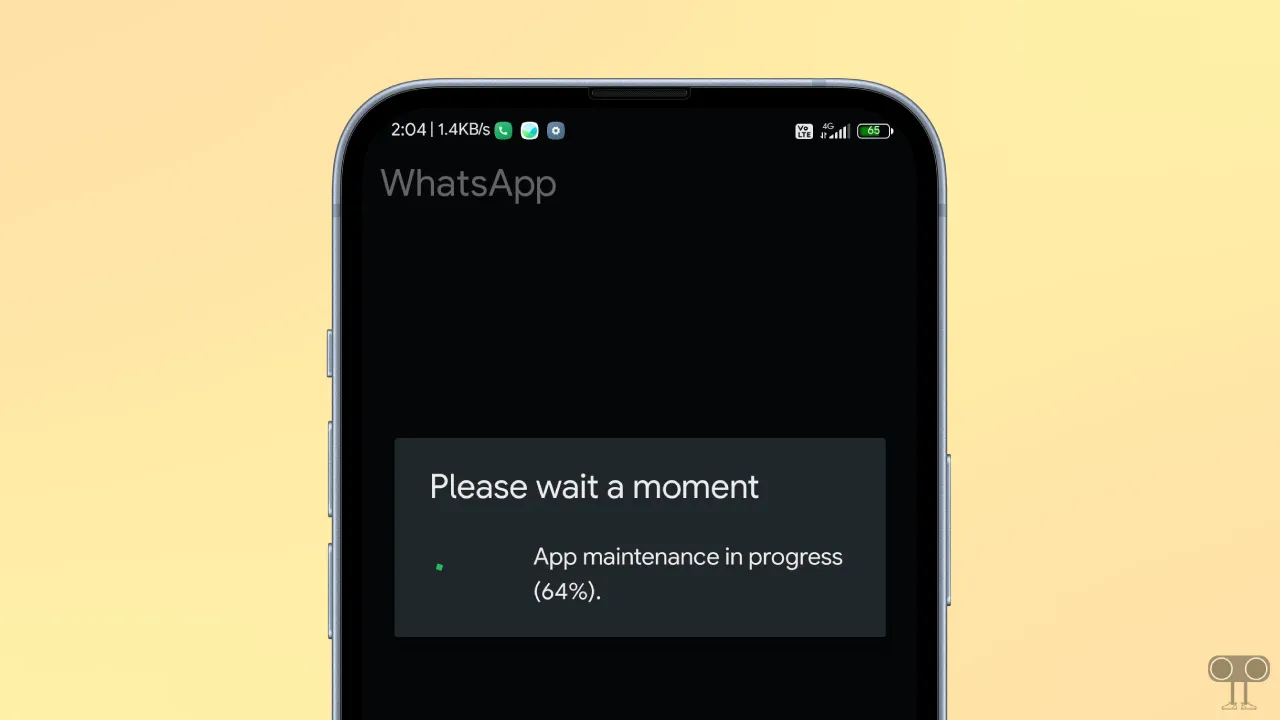
The ‘App maintenance in progress’ message on WhatsApp means that your WhatsApp is undergoing a routine background optimization process. WhatsApp automatically performs routine background tasks such as optimizing data, syncing local chat backups, or applying quick internal patches.
During this time, WhatsApp displays this pop-up message on the screen, and a progress circle completes from 0% to 100%. This process usually completes within a few minutes, but sometimes it gets stuck at either 20% or 64%.
If you are also facing this issue, you can easily resolve it by following the methods mentioned below.
How to Fix “Please wait a moment, App maintenance in progress.” in WhatsApp
1. Force Stop WhatsApp
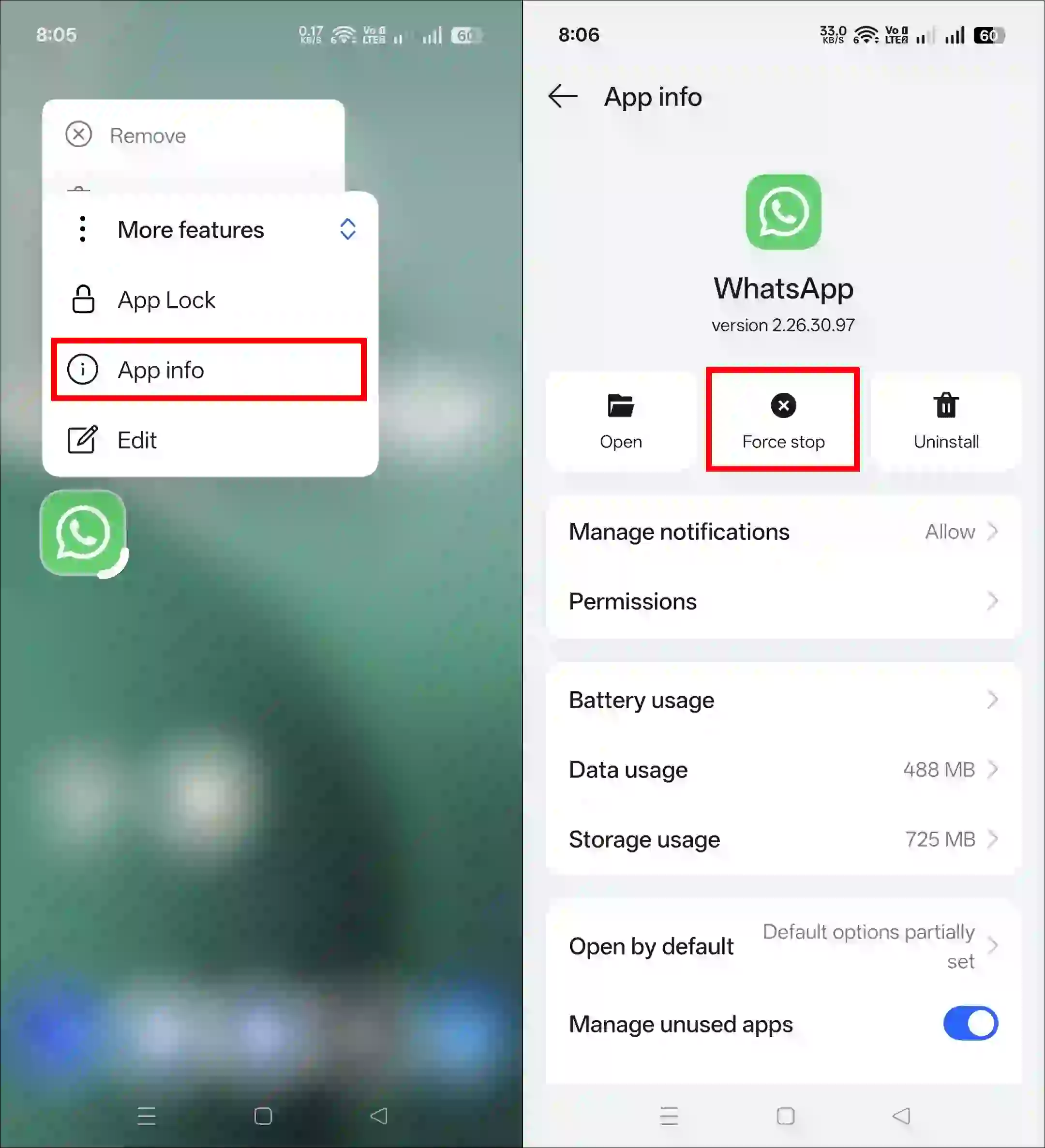
If WhatsApp is stuck on this pop-up message, you need to force stop it. This process will easily terminate the tasks running in the background, which will remove the pop-up message. To do this, follow the steps given below.
- Press and Hold WhatsApp Icon and Tap on App Info.
- Tap on Force Stop.
2. Clear WhatsApp Cache
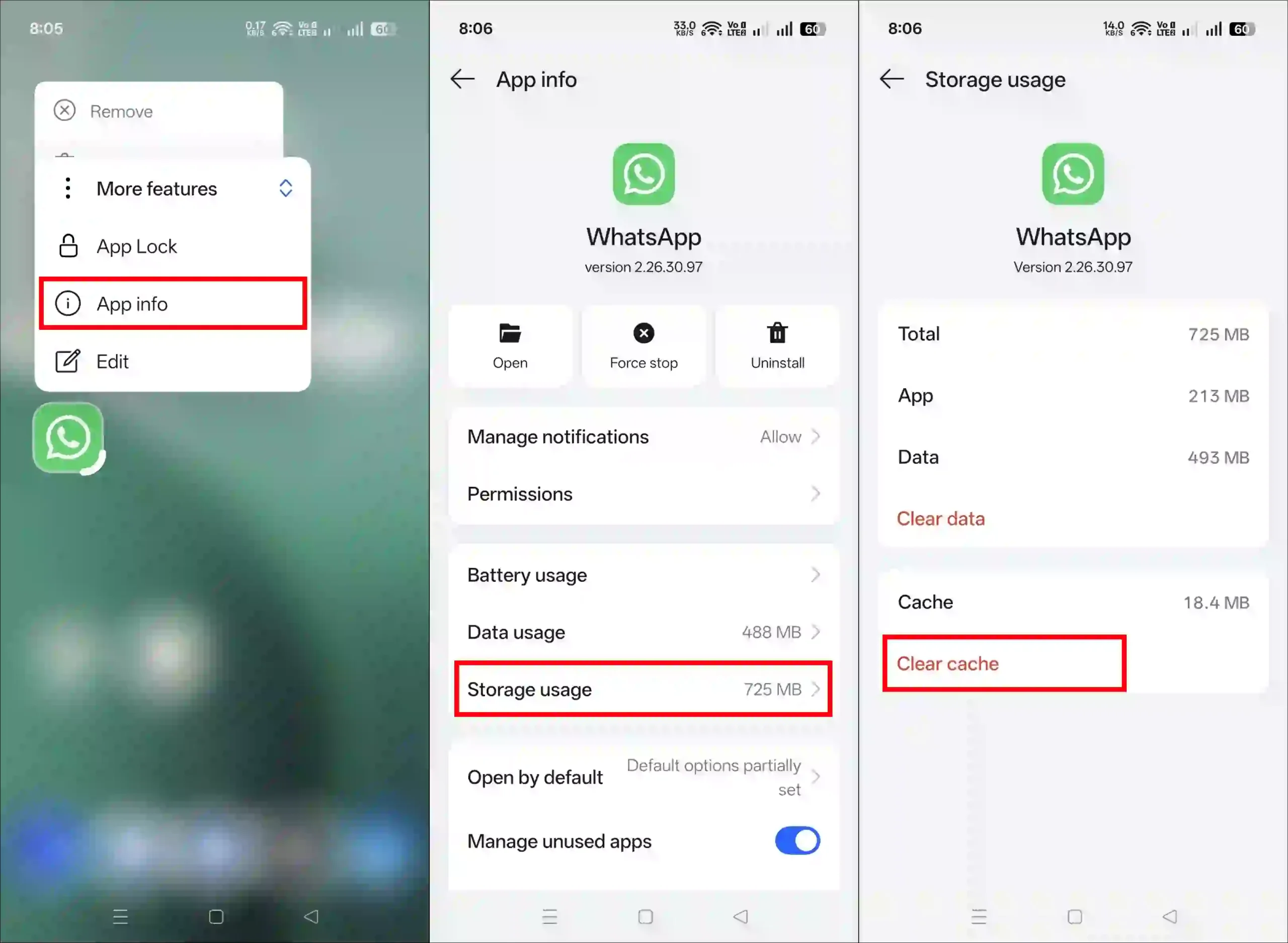
In the second method, we will clear WhatsApp’s corrupted cache. The cache often helps apps load faster, but when it becomes corrupted, it can cause the app to get stuck during processes. On Android phones, the cache of any app can be easily cleared. All the steps are given below, one by one.
- Press and Hold WhatsApp Icon and Tap on App Info.
- Tap on Storage Usage.
- Tap on Clear Cache.
Also read: Fix “Gboard Recording, Therefore WhatsApp Temporarily Unable to Record” on Android
3. Restart Your Phone
Sometimes, due to a lack of synchronization between the phone and the app, the app may freeze or become unresponsive. However, you can easily resolve this by simply restarting your phone. Just press and hold the power button, then tap on the Restart or Reboot option. Your device will then restart.
4. Update Your WhatsApp
As WhatsApp usually takes a few moments for its routine background optimization process, if it gets stuck during this process, it means that WhatsApp is outdated or has some bugs or glitches.
You can update WhatsApp to the latest version from the Google Play Store (for Android) and the Apple App Store (for iPhone/iPad).
5. Reinstall Your WhatsApp
If none of the above methods are working, you now need to reinstall WhatsApp. This process helps restore any missing or corrupt WhatsApp files with fresh ones. Uninstall WhatsApp, then reinstall it from the Play Store or App Store. Now log in with your phone number.
Also read: How to Enable Reshare on WhatsApp Status
I hope you found this article helpful and have fixed this issue on WhatsApp. If the problem still persists, please let us know by commenting below. Do share this article.