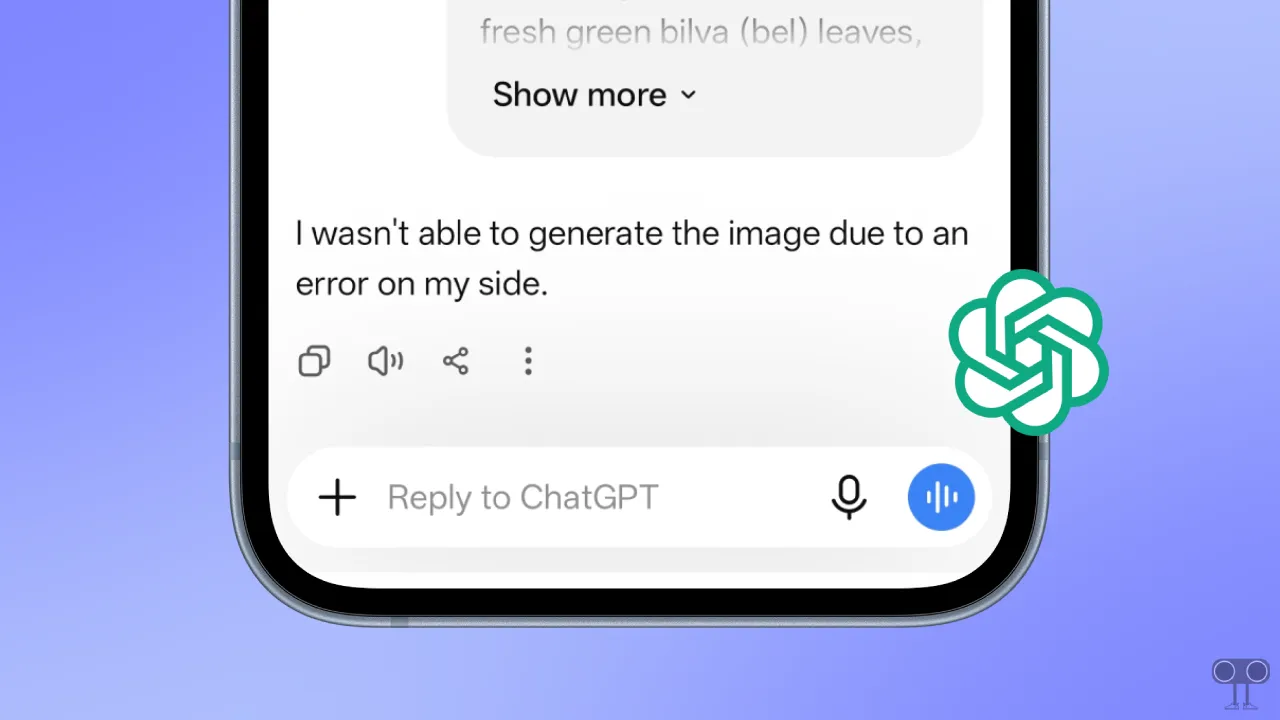
ChatGPT Says “I Wasn’t Able to Generate the Image Due to an Error on My Side” While Generating Image
A short while ago, when I was trying to generate an image using ChatGPT on my mobile, instead of creating the image, it displayed an error message: “I wasn’t able to generate the image due to an error on my side”. I thought I was the only one facing this image generation problem.
But when I did some research, I discovered that I wasn’t alone. This issue is occurring not only in the mobile version of the ChatGPT app but also in the desktop version. That means whether you’re generating images on Windows or Mac, you could face this error too.
This is a temporary issue, and I have resolved it by following a few troubleshooting steps. I have listed the methods I used below, one by one. You can also follow these steps to fix this ChatGPT image generation problem.
How to Fix “I Wasn’t Able to Generate the Image Due to an Error on My Side” Problem on ChatGPT
1. Verify Your Internet Connection
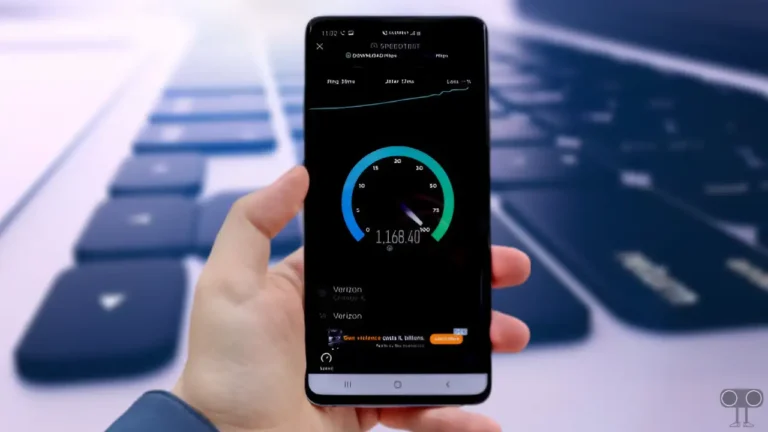
The image generation process requires a strong internet connection. If your device is connected to a slow network or the internet is not working, the process will fail and an error message will appear. Please check your internet speed or switch to a different connection (e.g., from Wi-Fi to mobile data, or vice versa).
2. Check ChatGPT Server Status
ChatGPT runs its features via servers. If the ChatGPT server experiences any downtime while generating an image, you might see such an error message on your screen. You can check ChatGPT’s live server status at this link.
3. Clear ChatGPT Cache
This issue can often be caused by the app cache, and you can easily resolve ChatGPT image generator problems by clearing this corrupted cache. The steps for clearing the cache differ for Android, iOS, and Windows and are all listed below.
On Android:
- Press & Hold ChatGPT App Icon and Tap on App Info.
- Tap on Storage & Data.
- Tap on Clear Cache.
On iPhone (iOS):
- Open Settings on Your iPhone.
- Go to General > iPhone Storage > ChatGPT.
- Tap on Offload App.
- Tap Reinstall App.
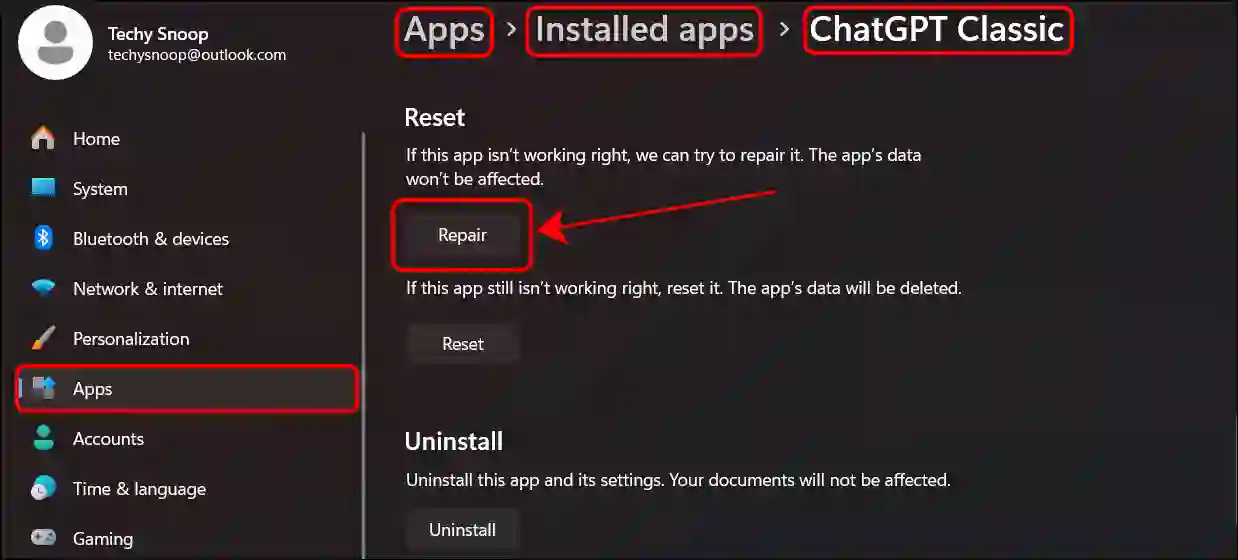
On Windows:
- Press Windows + I to Quickly Access Settings.
- Click Apps > Installed Apps.
- Search ChatGPT > ••• > Advanced Options.
- Scroll Down and Click on Repair.
4. Update Your ChatGPT
Sometimes this issue can also occur due to an outdated app. Bugs or glitches in an outdated app are the cause of such problems. You can update the ChatGPT app to the latest version from the Google Play Store or the Apple App Store.
5. Log Out and Log Back In
If you have completed all the methods mentioned above, but the issue still persists, unauthenticated login data may be causing it. All you need to do is log out of your account from the ChatGPT app, restart your device, and then log back in. Once you do that, the problem will resolve, and you will be able to generate images without any interruption.
That’s it!

Mari insta pr voice ai nhi arahi ha